Install
This is the repository archive. It installs, but the folder name will carry the branch suffix and updates will not flow.
Install straight from GitHub with WP-CLI:
wp plugin install https://github.com/xaviermsd/menunest-smart-menu-manager/archive/refs/heads/main.zip
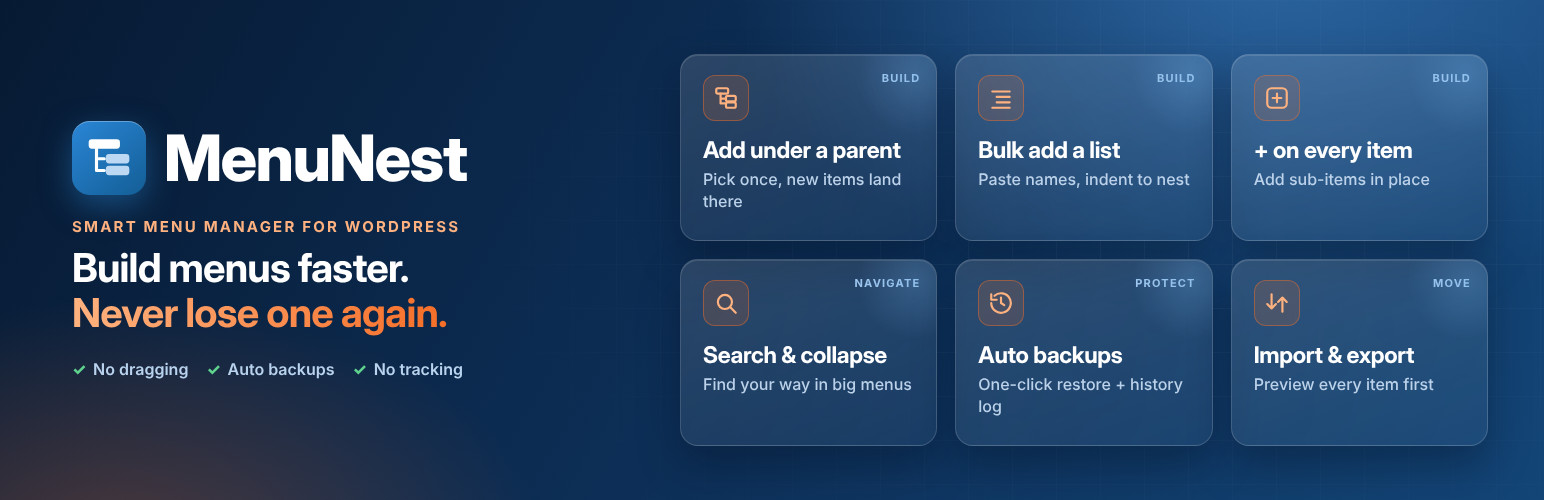
 MenuNest: Smart Menu Manager





Build WordPress menus without the drag-and-drop hassle, and keep them safe.
Add items under any parent, paste whole lists, search big menus, and back up, restore,
import and export menus with a full preview. No external services, no tracking.
Contents
- What it does
- Screenshots
- Installation
- How to use it
- Settings
- FAQ
- Requirements
- Development
- Testing and quality gates
- Project layout
- Contributing · License
What it does
MenuNest adds tools to Appearance > Menus and a new Appearance > MenuNest screen.
| Feature | What you get | |
|---|---|---|
| Build | Add under a parent | Pick a parent once. Every "Add to Menu" button puts new items straight under it. |
| Build | Bulk add a list | Paste one item per line, indent to nest, Name \| https://link for links. Names that match a category are linked to it. |
| Build | + on every item | Add a sub-item right where you want it, then keep typing to add the next one. |
| Build | Category trees | Add a category together with all its subcategories, already nested. |
| Navigate | Search and collapse | Search the whole menu, jump between matches, collapse or expand any branch. |
| Protect | Automatic backups | A backup every time a menu is saved (skipped when nothing changed), plus one-click backups. |
| Protect | One-click restore | Restore into the same menu or as a new menu. The current version is backed up first, so a restore can be undone. |
| Move | Export and import | JSON export with extra item settings from themes and plugins. Import with a full preview, smart matching and manual mapping. Imports always create a new menu. |
| Track | History log | Every import, export, backup, restore and duplicate, with who did it and when. Download as JSON or text. |
Screenshots
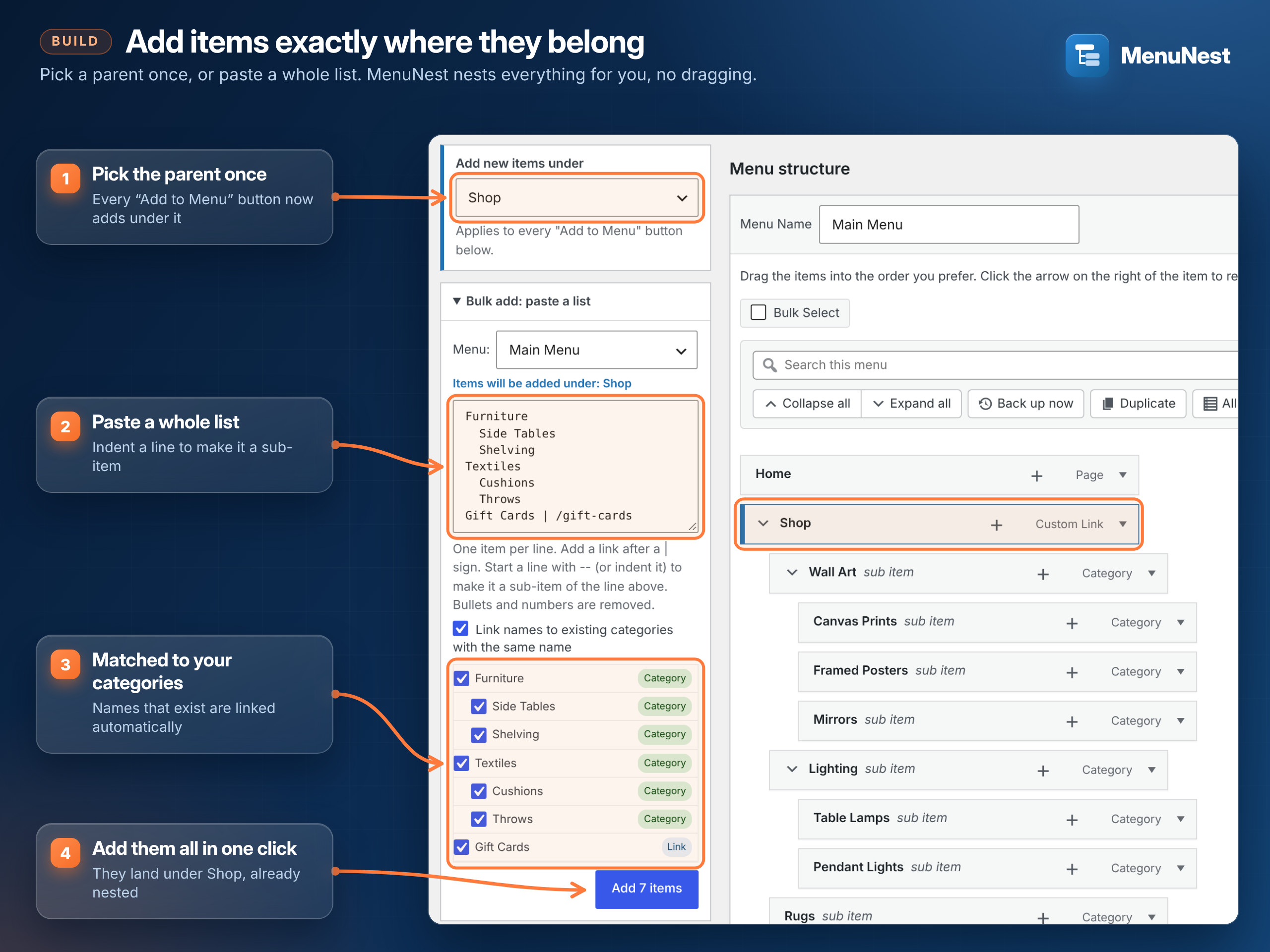 1. Add items exactly where they belong. Pick a parent once, or paste a whole list. |
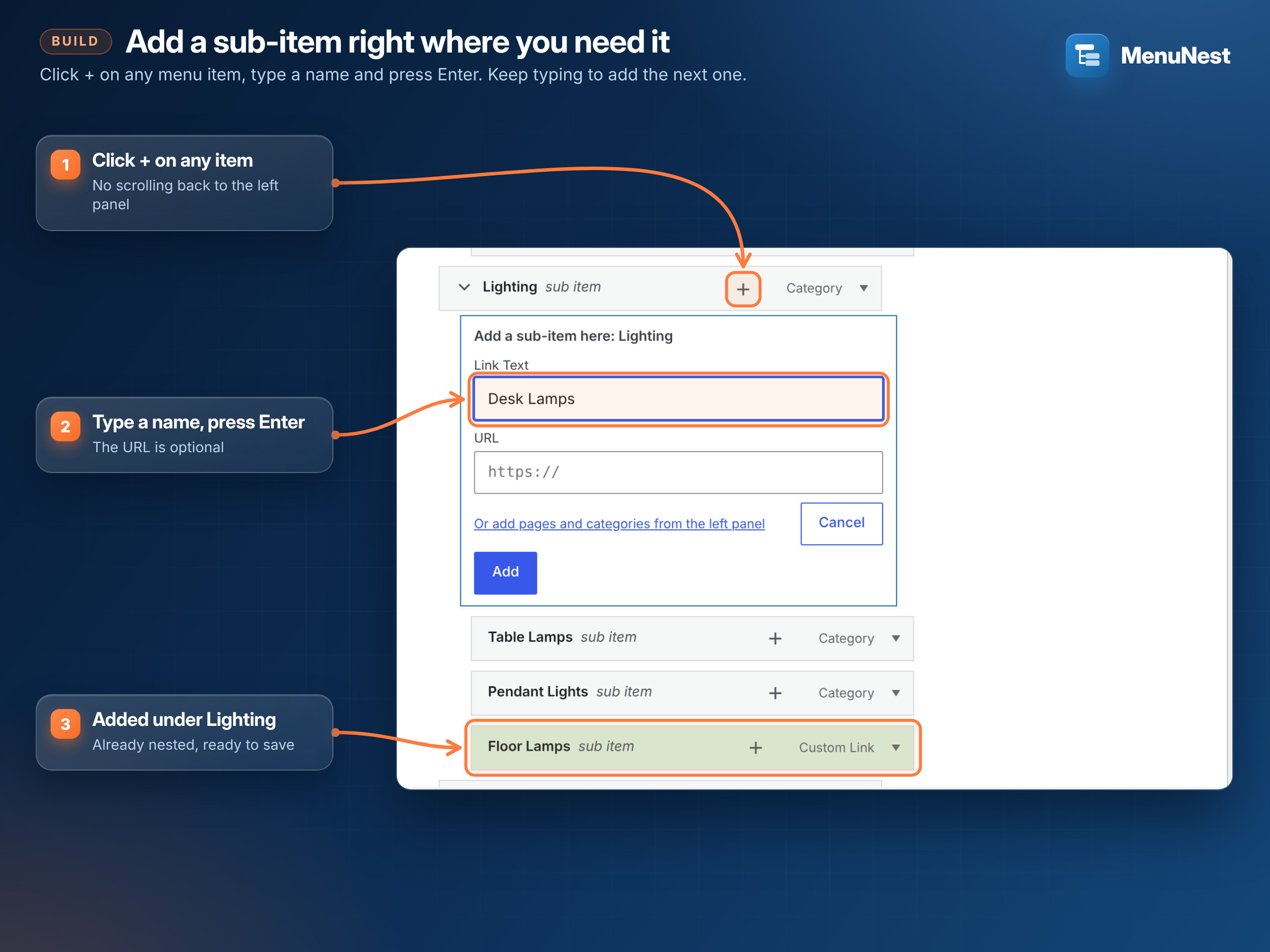 2. Add a sub-item right where you need it. Click + on any item, type, press Enter. |
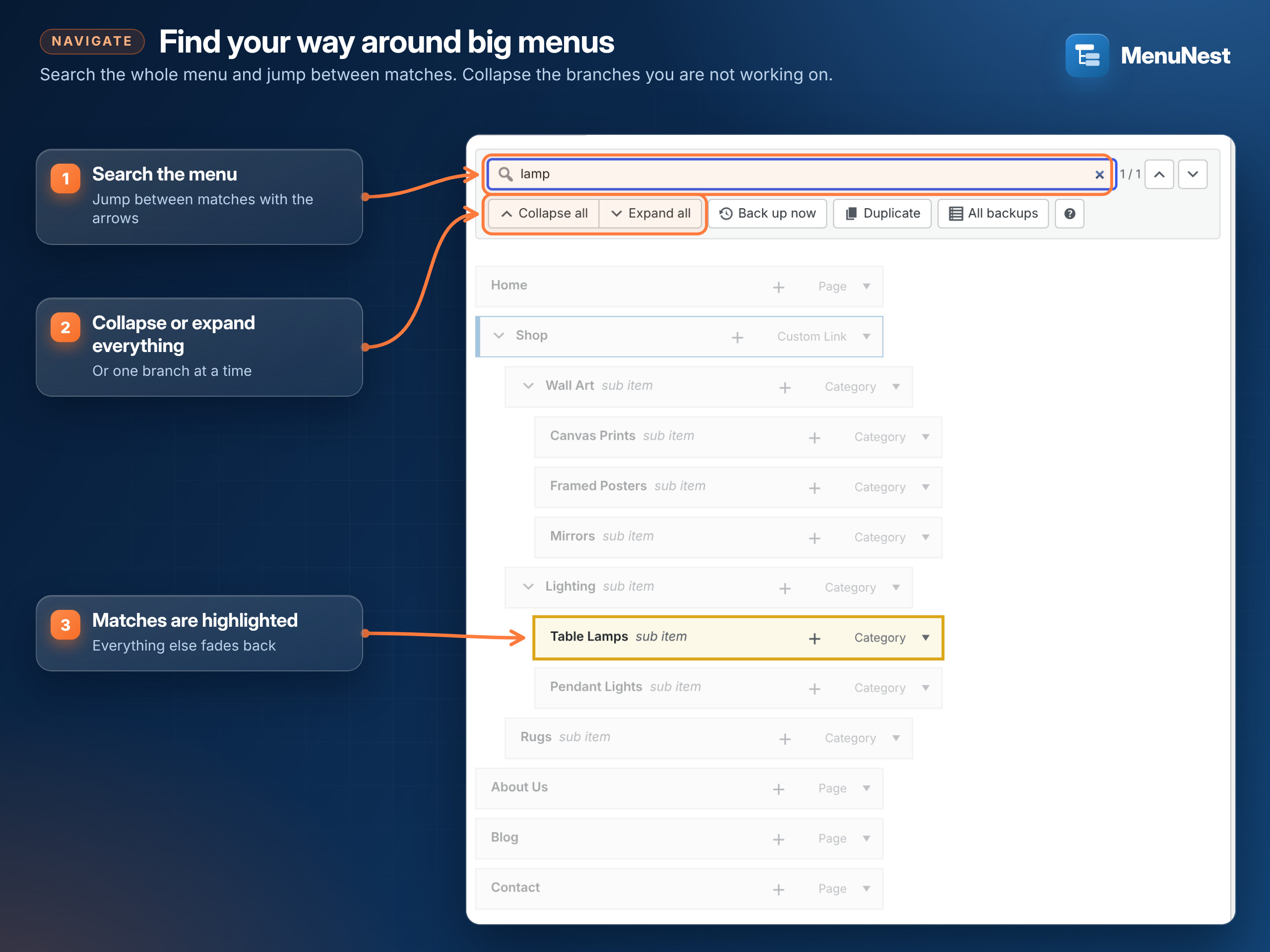 3. Find your way around big menus. Search, jump between matches, collapse branches. |
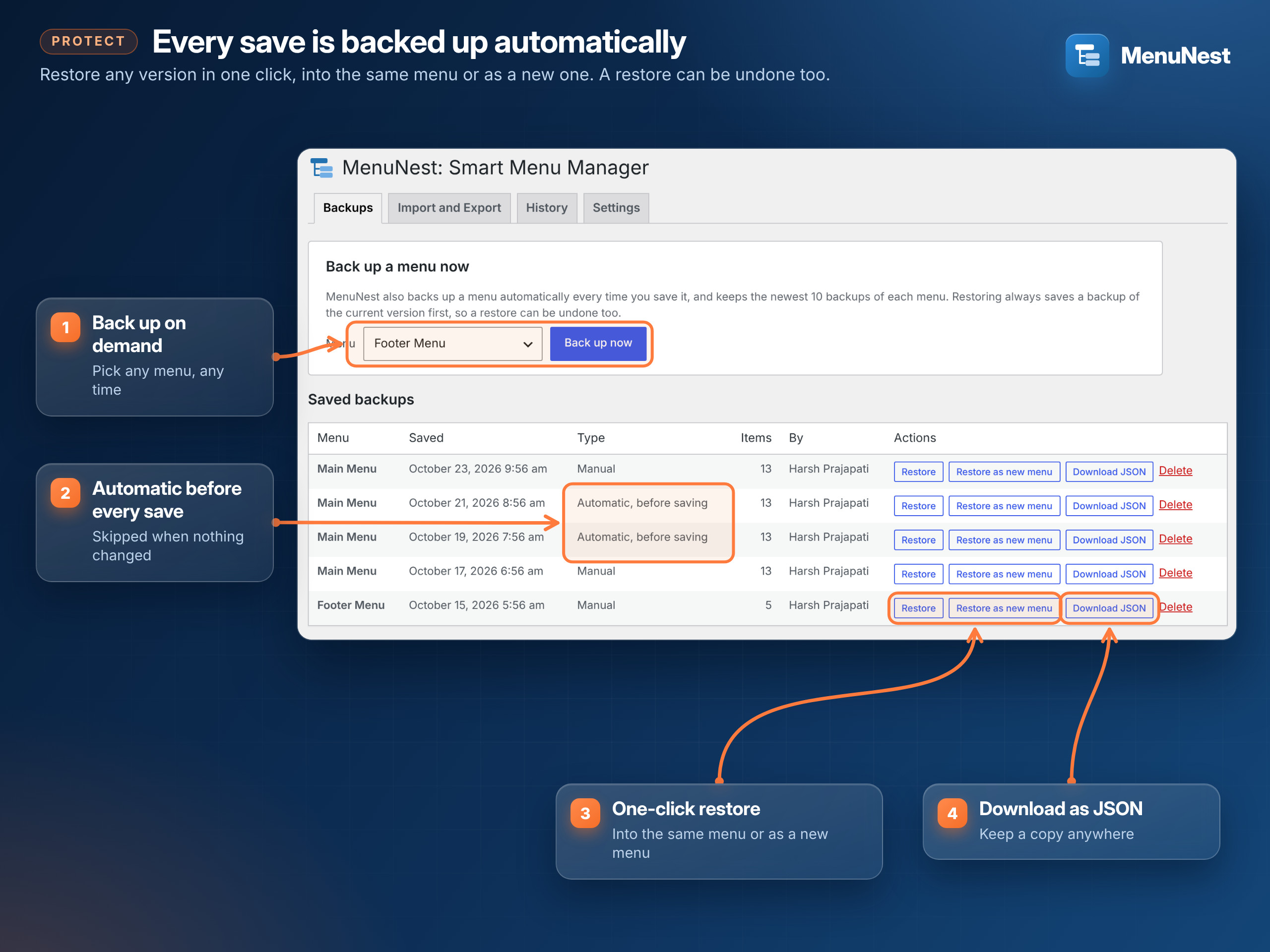 4. Every save is backed up automatically. Restore in one click, or download as JSON. |
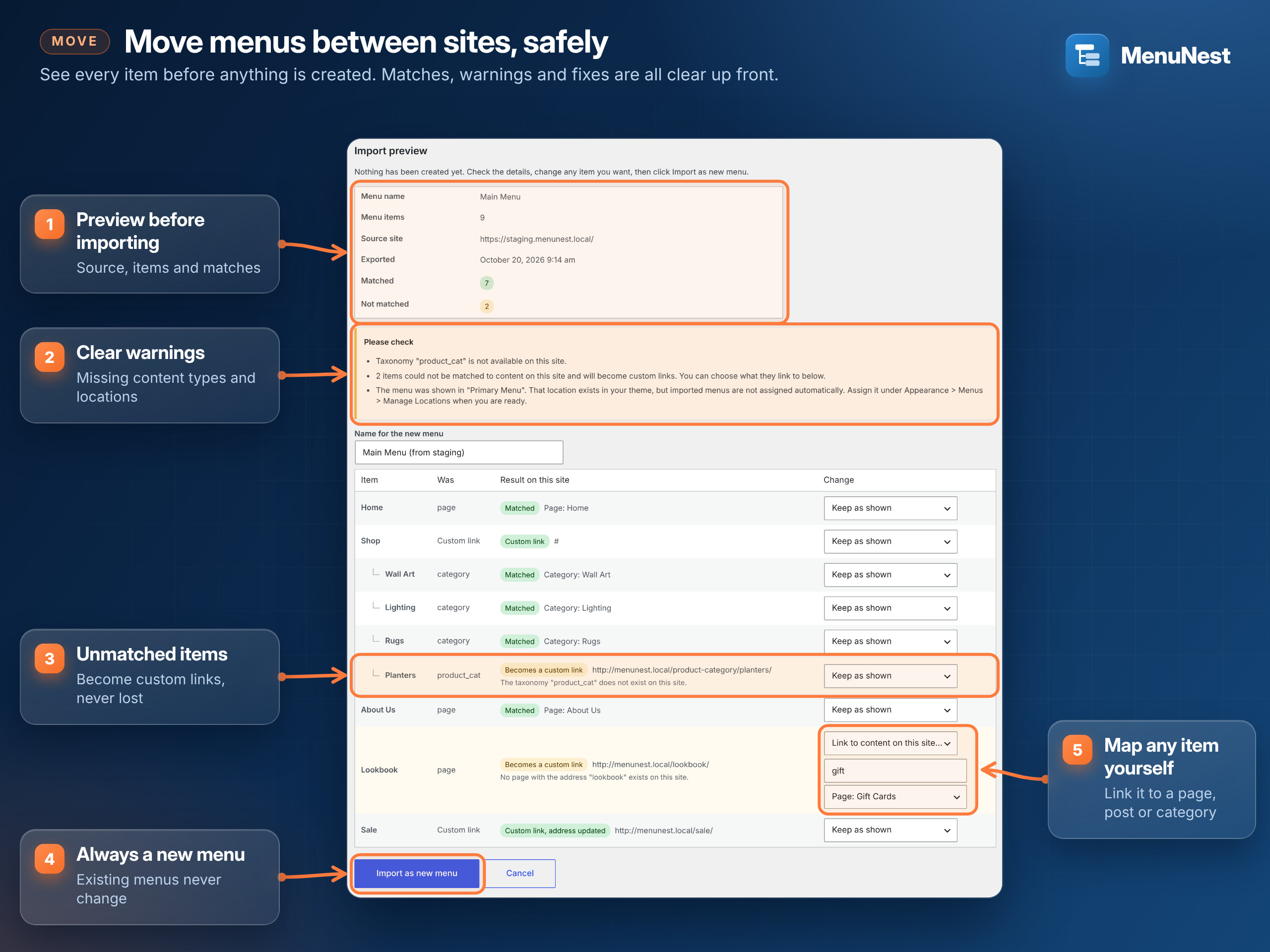 5. Move menus between sites, safely. See every item before anything is created. |
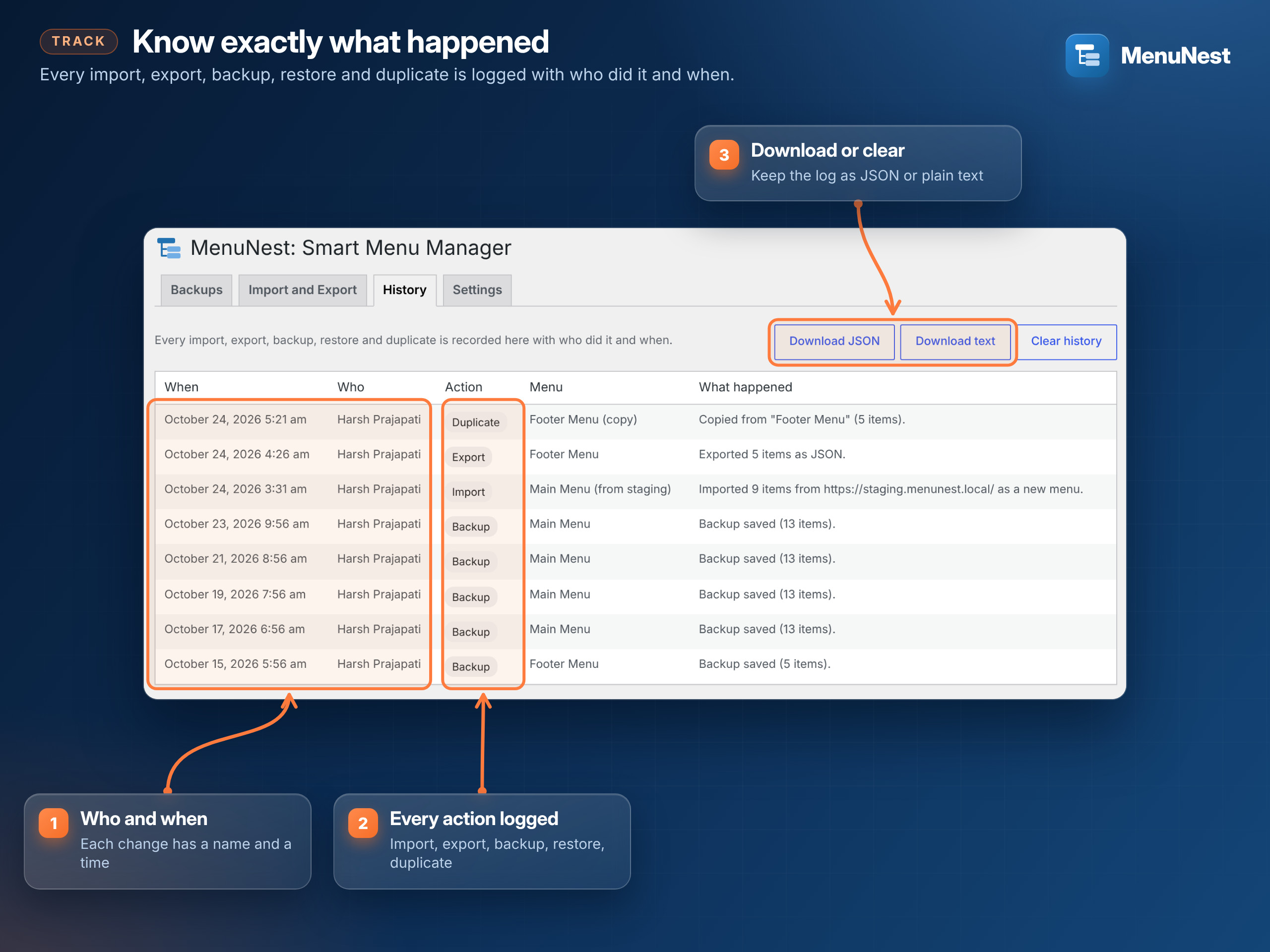 6. Know exactly what happened. Every change, with who and when. |
Installation
MenuNest has been submitted to the WordPress.org Plugin Directory and is awaiting review. Until it is listed there, install it from GitHub:
- Download
menunest-smart-menu-manager.zipfrom the latest release. - In WordPress, go to Plugins > Add New > Upload Plugin, choose the zip and click Install Now.
- Click Activate.
Once it is approved, you will also be able to install it from Plugins > Add New by searching for "MenuNest".
How to use it
1. Start with a backup
Open Appearance > Menus. The first time, MenuNest asks you to take a backup before you use it. Click Back up this menu now, tick the box and click Continue. Nothing on your site changes until you click Save Menu, exactly as before.
2. Add items under a parent
- In Add new items under (top of the left column), pick the parent, for example Shop.
- Use any Add to Menu button as usual: pages, posts, custom links, categories, product categories.
- The new items appear under Shop, already nested. Click Save Menu.
Choose Top level (no parent) to go back to the normal behaviour.
3. Bulk add from a pasted list
Open Bulk add: paste a list, choose the menu, and paste your list:
Furniture
  Side Tables
  Shelving
Textiles
  Cushions
  Throws
Gift Cards | /gift-cards- One item per line. Bullets (
-,*) and numbers (1.,2)) are removed. - Put a link after a
|sign. Lines without a link get#. - Indent a line with spaces or a tab, or start it with
--, to make it a sub-item of the line above. - With Link names to existing categories ticked, names that match a category are linked to it.
Check the preview, untick anything you don't need, click Add N items, then Save Menu.
4. Add a sub-item in place
Click + on any menu item. Type the link text (the URL is optional) and press Enter. The item is added under that parent and the field clears, so you can add the next one straight away.
5. Search and collapse big menus
- Type in Search this menu. Matches are highlighted; use the arrows to jump between them.
- Use Collapse all / Expand all, or the arrow on any item to fold one branch.
- Back up now, Duplicate and All backups are in the same toolbar.
6. Back up and restore
Go to Appearance > MenuNest > Backups.
- Back up now saves the menu you pick. Automatic backups are taken every time a menu is saved.
- Restore puts a backup back into the same menu. Restore as new menu creates a copy instead.
- The current version is always backed up before a restore, so you can undo it.
- Download JSON saves a backup file to your computer.
7. Move a menu to another site
On the old site, go to Appearance > MenuNest > Import and Export, choose the menu and click Download export file. Tick Include extra item settings to keep icons and mega menu options from your theme and plugins.
On the new site:
- Open Import and Export, choose the JSON file (or paste its contents) and click Preview import.
- Check the summary: source site, number of items, matched and not matched.
- Read the warnings, for example a content type that doesn't exist on this site.
- For any item, choose Keep as shown, Use a custom link or Link to content on this site... and search for a page, post or category.
- Name the new menu and click Import as new menu. Big menus import in batches with a progress bar.
Imports never change existing menus. Assign the new menu under Appearance > Menus > Manage Locations when you're ready.
8. Check the history
Appearance > MenuNest > History lists every import, export, backup, restore and duplicate, with the date, the user and what happened. Download it as JSON or text, or clear it.
Settings
Appearance > MenuNest > Settings
| Setting | Default | What it does |
|---|---|---|
| Backups to keep (per menu) | 10 | 1 to 100. The oldest backups are removed first. |
| Automatic backups | On | Back up a menu every time it is saved. |
| History: entries to keep | 500 | 50 to 5,000. |
| Remove data (when the plugin is deleted) | Off | When on, backups, history and settings are deleted with the plugin. Menus are never touched. |
FAQ
Does it work with block themes and the Site Editor? MenuNest improves the classic menu screen, Appearance > Menus, used by classic themes and by many page builders and WooCommerce themes. Block themes edit navigation in the Site Editor instead.
Will it change my site by itself? No. Editor changes go live only when you click Save Menu. Imports create a new menu that isn't shown anywhere until you assign it to a location.
Where are backups stored? In your own WordPress database, as private entries that are never shown on your site. Nothing is sent anywhere.
Can I import menus exported by other plugins? Not in this version. MenuNest imports files exported by MenuNest (up to 5 MB).
Requirements
- WordPress 6.7 or newer
- PHP 7.4 or newer
- A theme that uses the classic menu screen (Appearance > Menus)
Development
composer install          # PHPUnit, PHPStan, coding standards
composer lint             # WordPress Coding Standards + PHP 7.4+ compatibility
composer analyse          # PHPStan level 8
composer test             # PHPUnit with the official WordPress test suite
composer check            # all three
bash bin/build-zip.sh     # release zip in build/, without development files
Running the tests
The tests use the official WordPress test suite, so they need a WordPress install and a database that the tests are allowed to wipe. Never use a real site.
# 1. Download WordPress for the tests.
mkdir -p /tmp/wordpress && curl -sSL https://wordpress.org/latest.tar.gz | tar -xz --strip-components=1 -C /tmp/wordpress

# 2. Create an empty database, for example "wordpress_test".

# 3. Run the tests.
WP_CORE_DIR=/tmp/wordpress WP_DB_NAME=wordpress_test WP_DB_USER=root WP_DB_PASS=secret composer test
All settings are in tests/wp-tests-config.php and can be set with environment variables
(WP_CORE_DIR, WP_DB_NAME, WP_DB_USER, WP_DB_PASS, WP_DB_HOST).
Testing and quality gates
Every push and pull request runs on GitHub Actions:
| Check | What it covers |
|---|---|
| PHPUnit | 137 tests, 734 assertions: backups and restore, import validation, matching and safe setting keys, batched import, history, settings, uninstall, permissions and security tokens |
| Test matrix | PHP 7.4, 8.1, 8.3, 8.4 on WordPress 6.7 and the latest release |
| PHPStan | Level 8, with WordPress-aware rules, on every PHP file |
| WordPress Coding Standards | WordPress ruleset, zero errors and warnings |
| PHP compatibility | PHP 7.4 and newer |
| Plugin Check | The official WordPress.org check, on the release build: no errors or warnings |
All PHP files use declare( strict_types=1 ) and native type declarations.
Project layout
menunest-smart-menu-manager.php   Plugin header and loader
uninstall.php                     Removes data only when the user asked for it
includes/                         One class per job (backups, import, export, history, ...)
assets/                           Scripts and styles for the two admin screens
languages/                        Translation template
tests/                            PHPUnit tests
.wordpress-org/                   Banner, icon and screenshots for the WordPress.org listing
docs/                             Animated logo and other files for this README
Contributing
See CONTRIBUTING.md. Security issues: see SECURITY.md.
License
GPL-2.0-or-later. See LICENSE.