Install
Upload it under Plugins → Add New Plugin → Upload Plugin, then activate.
Install straight from GitHub with WP-CLI:
wp plugin install https://github.com/woocommerce/woocommerce-subscriptions-importer-exporter/releases/download/2.2.0/woocommerce-subscriptions-importer-exporter.zipWooCommerce Subscriptions Importer and Exporter
Import subscriptions to WooCommerce via CSV, or export your subscriptions from WooCommerce to a CSV.
Support
The WooCommerce Subscriptions Importer and Exporter is released freely and openly to help WooCommerce developers migrate subscriber data to WooCommerce Subscriptions. Even with this plugin, migrations involve a lot of manual work to format subscription data correctly and test imports. Neither Prospress nor WooCommerce provide services to complete a migration with this tool.
For help with a migration, please contact an official Woo partner. For smaller-scale migrations, learn more and consider using Codeable's Migration packages here.
Prospress do not provide support for migration issues. This means Prospress can not help with CSV formatting, fixing broken renewals or other issues with subscriptions imported incorrectly. Similarly, issues with subscriptions created with this plugin are not supported via the WooCommerce support system.
If you think you have found a bug in the extension, problem with the documentation or limitation in the data that can be imported, please open a new issue to report it.
Subscriptions Importer
With the WooCommerce Subscriptions CSV Importer, you can import subscriptions from a CSV file into your WooCommerce store. This is particularly useful when migrating stores from a different eCommerce platform.
The subscriptions will be setup with the WooCommerce Subscriptions extension to process future recurring payments.
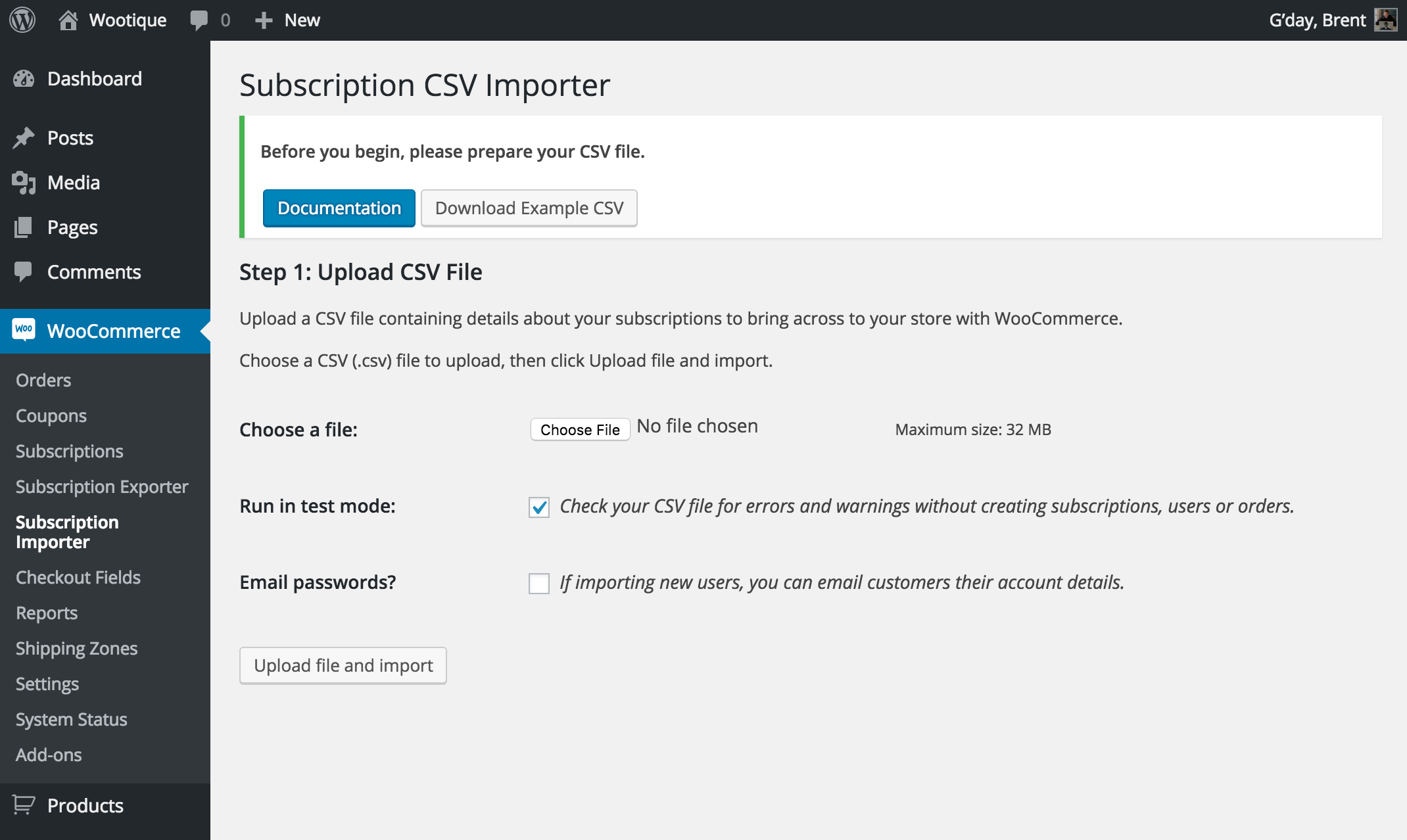
Before you Begin
Importing your subscriptions to WooCommerce is a complicated process.
To maximize your changes of success with an import, please read through this documentation in its entirety.
There is no substitution for this step. Fully understanding the details of the import process will save you time by avoiding mistakes that may become serious issues in the future.
Importer Usage Guide
To import your subscriptions to WooCommerce via CSV, you need to:
- Create a CSV file with all your subscription data formatted for import (this is by far the most complicated step). The CSV Formatting Guide details the options and requirements for your CSV's content.
- Go to WooCommerce > Subscription Importer
- Upload your CSV file
- Select Import Options:
- Check Run in test mode to validate your CSV file without creating corrupted data
- Check Email Passwords to email customers that are newly created their account details
- Check Add memberships to grant subscribers any membership/s plan corresponding to subscription products
- Click Upload and file and import
- Review each column of data in your file to make sure the Importer has mapped it to the correct column header.
- Click Test CSV
- If there are errors, fix up the CSV file and return to step 1.
- If there are no errors, click Run Import
- Review the Import Completion Table and Import Logs for uncover any issues with the import
While these steps may sound simple, the devil is in the details, especially in creating your CSV. The rest of this guide will provide you with the details. Please be sure to read this in its entirety.
Import Options
When uploading your CSV file, the Importer also provides you with a few options to customise the behaviour during the import process.
Import options:
- Run in Test Mode
- Email Passwords
- Add Memberships
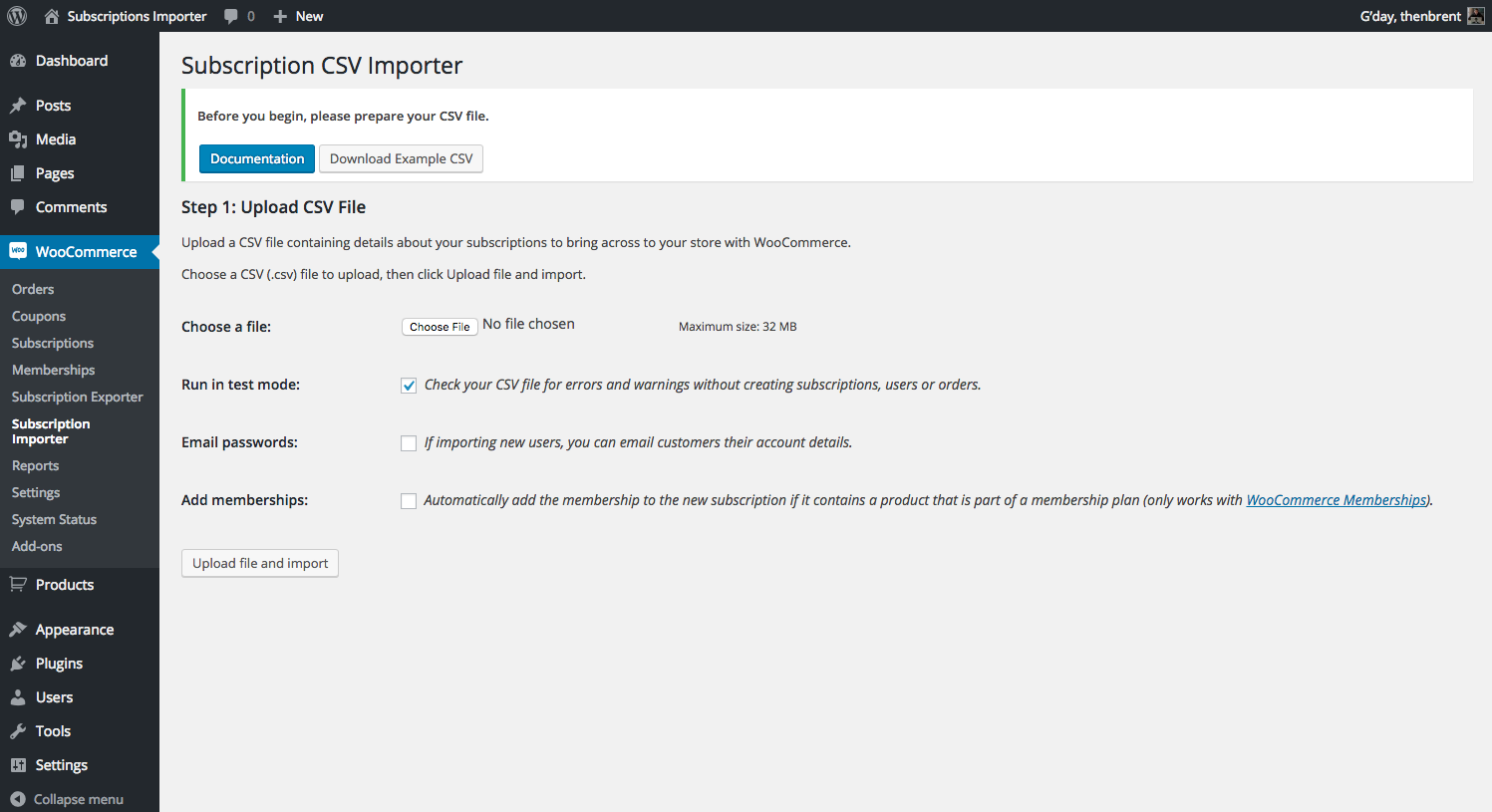
Run in Test Mode
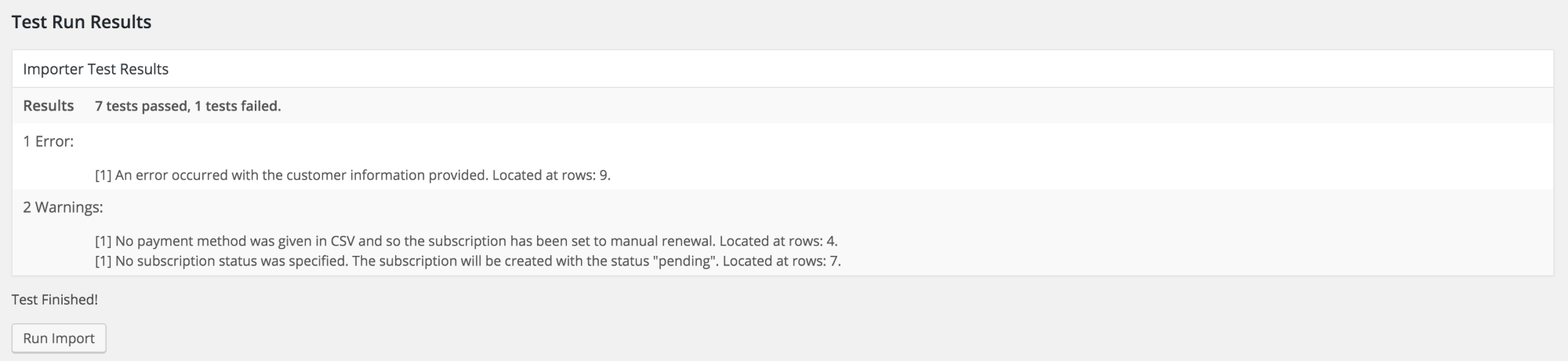
Running the import in test mode will analyse each row of your CSV and notify you of any warnings or errors with that data.
It will not import any subscription data in your store's database, like users or subscriptions.
After running test mode, the Importer will provide you with an Importer Test Results table. This displays the issues with your CSV. If there are issues, you can safely abort the import process to fix up the CSV. If there are no issues, you can continue the Import.
We strongly recommend you continue to run the importer in test mode until you have correct all warnings and errors. Unfortunately it's not possible to catch all errors that will occur when actually importing your subscriptions. The good news though is that even during an actual import, exceptions and other errors that can only be discovered at the time of import will be logged and the corresponding subscription will not be created.
Email Passwords
When a CSV files includes a username or email address, and the Importer can not find an existing user with either of those details, it will create a new WordPress user.
You can also specify a password to use on the user's account in the CSV, otherwise, the account is created with the secure password generated by WordPress.
When the Email Passwords option is enabled, if the Importer creates a new user account, it will also email that user a registration email with their login details and a temporary password.
If left unticked, the new users created will need to go through the "forgot your password" process which will let them reset their details via email.
Please note: the minimum requirement for creating a new user is an email address. If no username is given, the importer will to create a username from the email. Say you you need to create a new user and have only given the email address, janedoe@example.com, the importer will try a new user with username janedoe. If this username is already taken, we then try the username janedoe1, janedoe2 and so on; until it finds a free username (i.e janedoe102).
Add Memberships
If you have WooCommerce Memberships active on your site, you will also be presented with the option to Add Memberships.
When this option is enabled, subscriptions imported with product line items linked to a membership plan will also grant the subscriber's user account with corresponding membership access.
Column Mapping
During step 2 of the import process, each column header found in the CSV will be listed as a row in the table on the Map Fields to Column Names page.
You can use the dropdown menu to find and match each piece of data to a value known by the importer. You must not have the same fields mapped more than once unless it's found under the custom group.
The full list of fields, with an explanation of each, are available in the CSV Columns section of this guide.
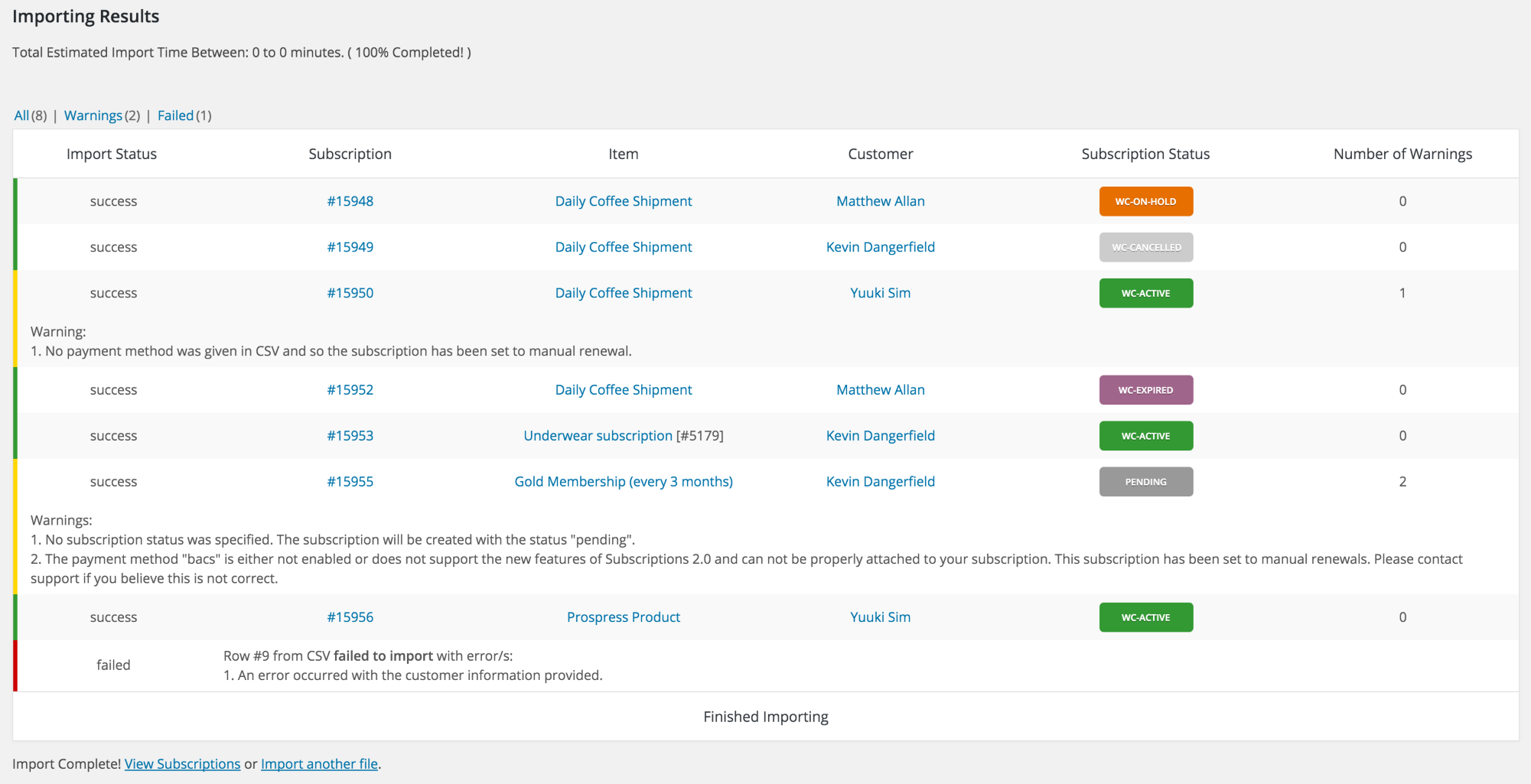
Import Completion Table
After an import has been completed, you will be provided with a table displaying the result of each row's import.
This table will display the success of failure of the import for each row, as well as any warnings or errors that occurred when importing that row.
Review this table carefully after running your import to identify any potential issues with each subscription.
Import Error Logs
In addition to the output displayed in the Import Completion Table, the Subscriptions CSV Importer will also log issues into a special log file.
These log entries can be reviewed to see what when wrong during the import and therefore, what needs to be fixed up after the import (if anything).
These logs may contain issues not identified during test mode which relate to plugin conflicts, database issues or other errors that only occur during the live import. Becuase of this, we strongly encourage you to review the log files even if your CSV had no issues during test mode.
Exception Logger
The importer will catch all PHP exceptions thrown during the import and log them along with with the line in the CSV that was being processed when the exception occurred.
To view the exception logs:
- Go to the WooCommerce > System Status administraction screen
- Click the Logs tab
- Click the select box for log files
- Click file prefixed with: wcs-importer-
- Click View
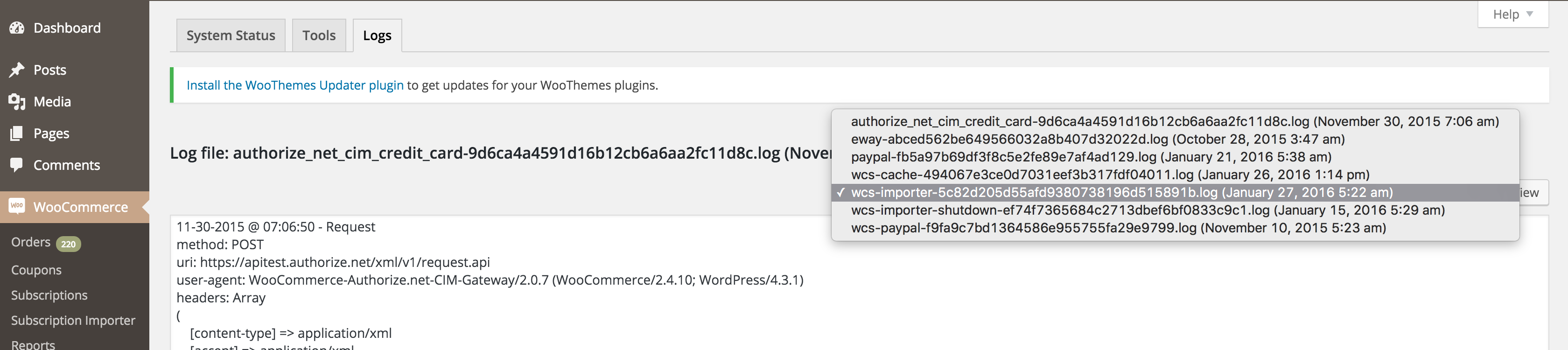
Example Exception Log Entry
01-15-2016 @ 05:30:26 - Row #2 failed: Array (
    [0] => Could not create subscription: Invalid Subscription billing period given.
)
Fatal Error Logger
When a fatal error occurs during the import process, the importer will log the row of data from the CSV that caused the issue and a stack trace of where the error occurred.
To view the shutdown logs:
- Go to the WooCommerce > System Status administraction screen
- Click the Logs tab
- Click the select box for log files
- Click file prefixed with: wcs-importer-shutdown-
- Click View
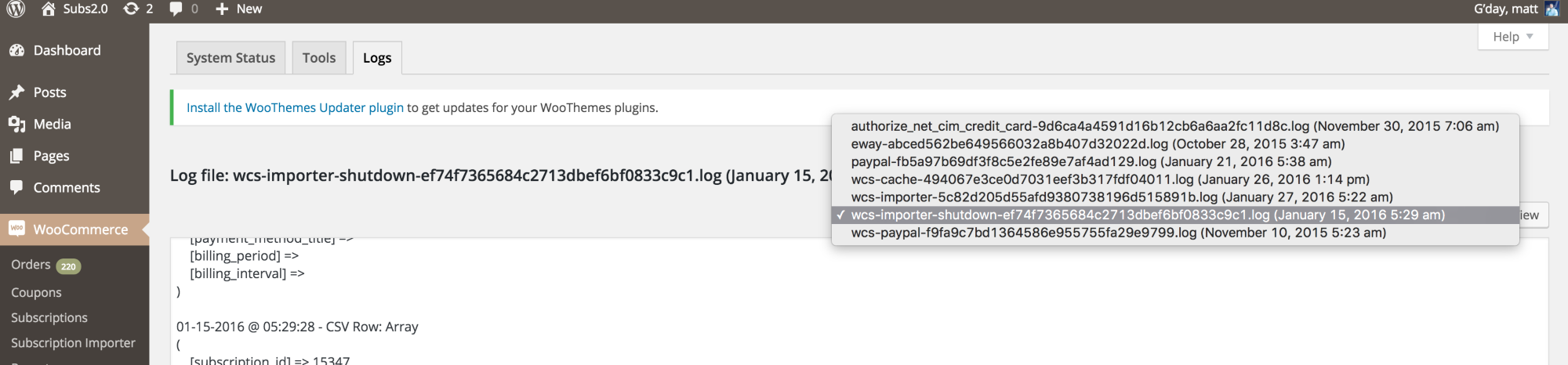
Example Fatal Error Log Entry
01-12-2016 @ 05:52:16 - CSV Row: Array
(
    [product_id] => 5078
    [status] => cancelled
    [customer_id] => 1
    [start_date] =>
    [next_payment_date] =>
    [end_date] =>
    [shipping_method] => free_shipping
    [coupon_items] => code:recurring_discount|amount:10.00
)

01-12-2016 @ 05:52:16 - PHP Fatal error Call to undefined method WCS_Importer::add_coupons() in /Users/Matt/Dropbox/Sites/subs2.0/wp-content/plugins/woocommerce-subscriptions-importer-exporter/includes/class-wcs-import-parser.php on line 425.
Import HTTP Error Handling
While the Import Error Logs handle PHP errors that can be caught and logged, the Importer will also attempt to handle HTTP errors from Ajax.
To this, it will:
- catch a HTTP error code returned by the request and
- display the HTTP error in the Importing Results table
- output the full
xmlhttprequestobject to the console
- wait for 20 seconds
- resume the import by attempting the next set of rows
Importantly, the set of rows with a failure will not be reattempted as there is no way to know which subscriptions were imported successfully. The subscriptions in the rows with HTTP errors need to be manually checked.
To aid in checking these rows, the Importer will provide:
- the rows affected during the import when the HTTP error code is detected
- a list of all rows affected during the entire import once the import process completes
 Screenshot of CSV Import affected by various HTTP errors
CSV Formatting Guide
By far the most difficult aspect of migrating your subscriptions using the CSV Importer is formatting a valid CSV with all required data.
A subscription is created from a variety of different pieces of data, from customer details like billing and shipping address, to product details, like quantity, taxes and totals, shipping details, like shipping method, tax and cost, as well as billing schedule details, like recurring billing period, next payment date and end date. To import your subscriptions, you must create a CSV with all of this data in a valid form.
This section provides you with an overview of all the fields your CSV can contain (and in some cases, must contain).
CSV Requirements
Please follow these general rules when formatting your CSV file:
- The first row must include column headers - this is so the plugin knows where to map the fields.
- Each subscription needs to have its own row.
- Not all columns need to be filled in for each row, unless the field is labelled required in the CSV Columns section.
- Most fields are not required. However, to avoid creating subscriptions with unintended default data applied, specify as many fields as possible in your CSV.
- Two-letter country and state/county abbreviations should be used for all country, state or county data.
- Date values should always be in UTC/GMT timezone.
- Date fields can be in any string format handled by PHP's
strtotime()function. However,strtotime()is a strange beast that on occasion creates unexpected date strings. It also doesn't always handle timezones as expected. Becuase of this, we encourage you to always use MySQL format for dates, e.g.YYYY-MM-DD HH:MM:SSor in PHP's date formatting termsy-m-d H:i:s). For example,1970-01-01 00:00:01. - All dollar amounts can be either an integer or decima/float value. For example,
5.65,3and127.2are all valid. - Arrays are formated as
key:value|key:value|key:value.
CSV Columns
| Column Name | Format | Description | Default |
|---|---|---|---|
customer_id |
int |
Can be left blank to creating a new user or if username and/or email of an existing user is present. | - |
customer_email |
string |
The email of the user to assign this subscription to. If no customer_id or customer_username is specified, a new user will be created with this email. |
- |
customer_username |
string |
The username of the user to assign this subscription to, if any. | - |
customer_password |
string |
A password to set on the user's account, if creating a new user. | If left blank and creating a new user, a password will be automatically generated. |
billing_first_name |
string |
The first name to use on the billing address for the subscription and renewal orders. | The value stored on the user's account (in user meta) will be used, if the user exists and this is set, otherwise, it will be set as an empty string (i.e. ''). |
billing_last_name |
string |
The last name to use on the billing address for the subscription and renewal orders. | The value stored on the user's account (in user meta) will be used, if the user exists and this is set, otherwise, it will be set as an empty string (i.e. ''). |
billing_address_1 |
string |
The street address to use on the billing address for the subscription and renewal orders. | The value stored on the user's account (in user meta) will be used, if the user exists and this is set, otherwise, it will be set as an empty string (i.e. ''). |
billing_address_2 |
string |
The street address to use on the billing address for the subscription and renewal orders. | The value stored on the user's account (in user meta) will be used, if the user exists and this is set, otherwise, it will be set as an empty string (i.e. ''). |
billing_city |
string |
The city to use on the billing address for the subscription and renewal orders. | The value stored on the user's account (in user meta) will be used, if the user exists and this is set, otherwise, it will be set as an empty string (i.e. ''). |
billing_state |
string |
The state or county to use on the billing address for the subscription and renewal orders. | The value stored on the user's account (in user meta) will be used, if the user exists and this is set, otherwise, it will be set as an empty string (i.e. ''). |
billing_postcode |
string |
The postal or zip code to use on the billing address for the subscription and renewal orders. | The value stored on the user's account (in user meta) will be used, if the user exists and this is set, otherwise, it will be set as an empty string (i.e. ''). |
billing_country |
string |
The 2 letter country code to use on the billing address for the subscription and renewal orders. | The value stored on the user's account (in user meta) will be used, if the user exists and this is set, otherwise, it will be set as an empty string (i.e. ''). |
billing_email |
string |
The email address to use on the billing address for the subscription and renewal orders. | The value stored on the user's account (in user meta) will be used, if the user exists and this is set. If that is not set, the 'customer_email' value of the CSV will be used, if set. Finally, if 'customer_email' is not set in the CSV, the 'user_email' set on the user's account will be used. |
billing_phone |
string |
The phone number to use on the billing address for the subscription and renewal orders. | The value stored on the user's account (in user meta) will be used, if the user exists and this is set, otherwise, it will be set as an empty string (i.e. ''). |
billing_company |
string |
The name of the company to use on the billing address for the subscription and renewal orders. | The value stored on the user's account (in user meta) will be used, if the user exists and this is set, otherwise, it will be set as an empty string (i.e. ''). |
shipping_first_name |
string |
The first name to use on the shipping address for the subscription and renewal orders. | The value stored on the user's account (in user meta) will be used, if the user exists and this is set, otherwise, it will be set as an empty string (i.e. ''). |
shipping_last_name |
string |
The last name to use on the shipping address for the subscription and renewal orders. | The value stored on the user's account (in user meta) will be used, if the user exists and this is set, otherwise, it will be set as an empty string (i.e. ''). |
shipping_address_1 |
string |
The street address to use on the shipping address for the subscription and renewal orders. | The value stored on the user's account (in user meta) will be used, if the user exists and this is set, otherwise, it will be set as an empty string (i.e. ''). |
shipping_address_2 |
string |
The street address to use on the shipping address for the subscription and renewal orders. | The value stored on the user's account (in user meta) will be used, if the user exists and this is set, otherwise, it will be set as an empty string (i.e. ''). |
shipping_city |
string |
The city to use on the shipping address for the subscription and renewal orders. | The value stored on the user's account (in user meta) will be used, if the user exists and this is set, otherwise, it will be set as an empty string (i.e. ''). |
shipping_state |
string |
The state or county to use on the shipping address for the subscription and renewal orders. | The value stored on the user's account (in user meta) will be used, if the user exists and this is set, otherwise, it will be set as an empty string (i.e. ''). |
shipping_postcode |
string |
The postal or zip code to use on the shipping address for the subscription and renewal orders. | The value stored on the user's account (in user meta) will be used, if the user exists and this is set, otherwise, it will be set as an empty string (i.e. ''). |
shipping_country |
string |
The 2 letter country code to use on the shipping address for the subscription and renewal orders. | The value stored on the user's account (in user meta) will be used, if the user exists and this is set, otherwise, it will be set as an empty string (i.e. ''). |
subscription_status |
string |
The status to apply to the subscription after it is created. Can be one of: wc-active, wc-expired, wc-pending, wc-on-hold, wc-pending-cancel or wc-cancelled. Although the wc- prefix is recommended, it is not required. |
wc-pending |
start_date |
Y-m-d H:i:s |
The start time to set on the subscription. Must be in the past. | The current time. |
trial_end_date |
Y-m-d H:i:s |
A date in the past or future on which a the subscriptions trial period will end. If set, the trial end date must come after the start date. | - |
next_payment_date |
Y-m-d H:i:s |
The date to process the next renewal payment. If set, the next payment date must come after the start date and trial end date and be in the future. If left empty, when the status is next updated to wc-active the next payment date will be calculated based on the start or trial end date and billing period/interval. |
- |
cancelled_date |
Y-m-d H:i:s |
The date on which the subscription was set to be cancelled, either by the customer or via admin action. If setting this date, the subscription status must be one of the following: cancelled, trash, expired, switched, pending-cancel. Leave empty if the subscription was never set to be cancelled. |
- |
end_date |
Y-m-d H:i:s |
The date on which the subscription will cancel/expire, if in the future, or did cancel/expire, if in the past. Leave empty to have the subscription continue to renew until manually cancelled. If setting this with cancelled_date, the cancelled_date must occur before end_date. |
- |
billing_period |
string |
The time period used for calculating renewal payment dates. Must be either: day, week, month, year. An invalid or empty billing period will cause an error during the import and the subscription will not be imported. |
- |
billing_interval |
int |
The interval used for calculating renewal payment dates. Must be an integer value to represent how many subscription periods between each payment. For example, a 2 here and week for the billing_period will create a subscription processes a renewal payment every two weeks. |
1 |
order_items |
mixed |
The product line items on the subscription used to set the line items on renewal orders. Can be a product or variation ID or a more advanced set of data as detailed in the Importing Order Items section. | - |
coupon_items |
array |
Add coupon line items to the subscription and renewal orders. Refer to the guide on Importing Subscriptions with Coupons for details. | - |
fee_items |
array |
Add fee line items to the subscription and renewal orders. Refer to the guide on Importing Subscriptions with Fee Line Items for details. | - |
tax_items |
mixed |
Add tax line items to the subscription and renewal orders. Refer to the guide on Importing Subscriptions with Tax Line Items for details. | - |
cart_discount |
float |
The total discount amount to set on the subscription. Displayed on the subscription and each renewal order. | 0 |
cart_discount_tax |
float |
The total tax amount included in the total discount amount. | 0 |
order_shipping |
float |
The total shipping amount to set on the subscription. Displayed on the subscription and each renewal order. | 0 |
order_shipping_tax |
float |
The total tax amount included in the total shipping amount. | 0 |
order_total |
float |
The total amount to charge for each renewal payment. Displayed on the subscription and each renewal order. | 0 |
order_tax |
float |
The total tax amount to be charged with each renewal payment. | 0 |
order_currency |
string |
A three character currency code (e.g. USD). Represents the currency in which renewal payments should be processed. |
Store's currency. |
shipping_method |
mixed |
This can be either the shipping method ID as seen in the table at WooCommerce > Settings > Shipping page, i.e. "free_shipping" or "flat_rate", or this can be an in the format "shipping_id:flat_rate:|shipping_title:Flat Rate|total:10.00". |
- |
download_permissions |
int |
Can be either true / 1 to grant download permissions for product line items on the subscription, or false / 0 to not grant download permissions. |
false |
order_notes |
array |
A string of order notes separated by the ; symbol. For example "Payment received.;Subscription activated." will create two order notes on your subscription. |
- |
payment_method |
string |
Set as the Gateway ID which can be seen in table at WooCommerce > Settings > Checkout. Leave blank for manual renewals. | - |
payment_method_title |
string |
The name of the payment gateway to display to the customer when viewing the subscription or related orders (e.g. "Credit Card") | The value of payment_method, if set, else ''. |
payment_method_post_meta |
array |
Payment gateway meta data required to process automatic recurring payments. See Importing Payment Gateway Meta Data for more information. | - |
payment_method_user_meta |
array |
Payment gateway meta data required to process automatic recurring payments. See Importing Payment Gateway Meta Data for more information. | - |
customer_note |
string |
An optional to include on the subscription from the customer that is shared with for store managers. | - |
custom_user_meta |
mixed |
A column to specify arbitrary data to store against on the subscriber in the user meta table. Multiple columns can be mapped to this header. The value of the column header in the CSV will be used as the meta key. For example, if you want to add '_my_meta_key' => true as user meta. You will need to have a column in your CSV with header _my_meta_key and map it to custom_user_meta. Custom user meta is added to the user before the subscription is created. |
- |
custom_post_meta |
mixed |
A column to specify arbitrary data to store against on the subscription in the post meta table. Multiple columns can be mapped to this header. The value of the column header in the CSV will be used as the meta key. For example, if you want to add '_my_meta_key' => true as post meta. You will need to have a column in your CSV with header _my_meta_key and map it to custom_post_meta. Custom post meta is added after the subscription is created. |
- |
custom_user_post_meta |
mixed |
Use this column if you wish to add custom data to both user and post meta using the same meta_key and value. Like previously stated, the value of the column header in the CSV will be used as the meta_key value. |
- |
If any of the above columns contains invalid data, the importer will display these during in the test run. If you choose to ignore the errors and continue to import with invalid data, no subscription will be imported for that row.
Importing Payment Gateway Meta Data
You can import payment gateway meta data, like customer or credit card tokens, in your CSV file to link a subscription with a payment method for processing recurring payments automatically.
Properly importing payment gateway meta data is a difficult, yet crucial part of the import. It's important to take the time and get this right otherwise your subscription may not renew properly. It is also much faster to set this data in bulk on import than to set it on each individual subscription after the import.
Supported Payment Gateways
The Importer can support any payment gateway that supports the new woocommerce_subscription_payment_meta filter introduced in WooCommerce Subscriptions v2.0.
Each payment method requires different meta data to process automatic payments. Because of this, we are not able to provide documentation on what meta data is required for every possible payment gateway.
However, here is a list of the column headers and meta data description for three popular payment methods:
- PayPal Reference Transactions:
_paypal_subscription_idmust be mapped topayment_method_post_metacolumn. This value needs to be the customers billing agreement (will start withI-**************). - Authorize.net CIM:
_wc_authorize_net_cim_credit_card_customer_idand_wc_authorize_net_cim_credit_card_payment_tokenmapped topayment_method_post_metacolumn. - PayPal Powered by Braintree:
_wc_braintree_credit_card_customer_idand_wc_braintree_credit_card_payment_tokenmapped topayment_method_post_metaandpayment_method_post_metacolumns. - Stripe:
_stripe_customer_idmapped topayment_method_post_metacolumn and optionally,_stripe_source_idalso mapped topayment_method_post_metacolumn if you want to charge recurring payments against a specific payment method on the customer's account. Only values beginning withcus_andcard_will be considered valid tokens.
Note: the above information relates to the official Stripe, PayPal Powered by Braintree and Authorize.net CIM extensions. It will not work with other extensions for those payment gateways.
As long as the payment gateway extension for your payment gateway is active, the Subscriptions CSV Importer will validate that you have included the necessary payment gateway meta data.
For example, if you try to import a subscription with stripe set as the payment_method, but are missing the _stripe_customer_id, the subscription will not be created and the import will fail with a message explaining that a valid _stripe_customer_id is required.
If you need to import subscriptions using a payment gateway other than those above, please ask the gateway's extension developer for details of the post or user meta data required to process automatic payments. If you also let us know which meta data is required, we will include it in this documentation to help others in future.
Note: Only subscriptions using PayPal Reference Transactions are supported. Subscriptions using PayPal Standard has a number of limitations that make it impossible to migrate them using the importer.
Importing Subscriptions with the Pending Cancellation Status
There's a couple of things to note about which dates are used before you import a subscription with pending cancellation status.
- If the CSV row has a next payment date column and a value that is in the future, this date will be used as the end date (or end of prepaid term) for the pending cancelled subscription.
- If the row with pending cancellation status does not have a next payment date set, it will fall back to using the end date if that exists. If it doesn't exist, you will receive an error asking to set a valie end date when importing subscriptions with
pending-cancelstatus.
To further explain, importing a subscription with pending cancellation status will require you to make sure an end date is set in the future and no next payment date is set, otherwise this next payment date will be used as the susbcriptions end date.
Importing Order Items
In WooCommerce, orders can have a number of different line items, including:
- product line items
- shipping line items
- fee line items
A subscription is a custom order type, and therefore, can also have each of these line items added to it.
Importing Product Line Items
The order_items column can be either:
- a Single Product ID for the product you want the set as the product line item on the subscription; or
- an array of Line Item Data, including line item totals and tax amounts.
Single Product ID
When using just a single product ID in the order_items column, all line item totals and subtotals will default to the product's price at the time of import.
No amount will be added for tax, regardless of the store's tax settings.
Note: to import a variation of a variable prodcut, you must use the variation's ID, not the parent variable product's ID.
Line Item Data
To add tax or other custom information to your product line items you need to follow strict formatting for it to properly import. Each product line item needs to follow the following format: product_id:5179|quantity:1|total:9.09|tax:0.91.
The table below provides a full list of line item data that can be used when importing line items.
| Key | Type | Default | Description |
|---|---|---|---|
product_id |
int |
- | Required. Must be either a product or variation ID of an existing product in your store. This does not specifically need to be a subscription product. |
name |
string |
The product's current title. | A custom name to use for the product line item instead of the product's current title on the store. |
quantity |
int |
1 |
The number of this line item to include on each renewal order. |
subtotal_tax |
float |
0 |
The line tax total before pre-tax discounts. |
subtotal |
float |
Value of total |
The line total before pre-tax discounts. |
tax |
float |
0 |
The line tax total after pre-tax discounts. |
total |
float |
Product's price | The line total after pre-tax discounts. |
meta |
string |
Product's variation data, if any. | Line item meta data to store against this product line item, see the section below on Line Item Meta Data for detals. |
An example order_items column content to import a product line item would look something like this:
product_id:123|name:Product to Import|quantity:3|subtotal_tax:3.00|subtotal:30.00|tax:3.00|total:30.00|meta:size=Large+shirt-colour=Midnight BlackLine Item Meta Data
When importing a product line item, by default, the Importer will set the variation attributes (if any) of the product with a matching ID for the imported line item as line item meta data.
If you would prefer to set different attributes, or need to import meta data that does not originate from the variation attributes, you can use the meta field in the order_items colum.
The meta field can include one or more piece of meta data and must be formatted using = to delimit the meta key and value, and + to delimit each piece of meta data.
For example, to import a product line item with an Size and Shirt Colour meta with Large and Midnight Black values respectivately, the meta field would look like: meta:size=Large+shirt-colour=Midnight Black.
Notice the Shirt Colour meta key is in lowercase and uses a - instead of a space (i.e. ' ') while the Midnight Black is capitalised with a space. The meta keys in your meta field should be raw values to store in the database, not the formatted value returned by WC_Order_Item_Meta::display() or WC_Order_Item_Meta::get_formatted().
Multiple Product Line Items
To import a subscription with multiple product line items, separate each line item data with a ;. You can use a combination of the single product ID method and full line item data array method.
For example, an order_items column value for two products could look like: "product_id:5179|quantity:2|total:9.09|tax:0.91;product_id:2156|total:30". See the Sample CSV for an example of importing multiple product line items using the importer.
Importing Subscriptions with Coupons
The importer provides the coupon_items column header to apply coupons to your imported subscriptions.
You can only apply valid coupon codes that exist in your store at the time of the import. If you attempt to use a coupon code that doesn't exist, you will see the error Could not find coupon with code "<your_code>" in your store. and that row in your CSV will not be imported.
When formatting your coupon_items row, use the array syntax, for example: "code:summerdiscount2016|amount:15.00". You can attach multiple coupons/discounts to your imported subscription by separating each coupon item by the ; character. For example: "code:summerdiscount2016|amount:15.00;code:earlybird|amount:5.00".
| Key | Type | Default | Description |
|---|---|---|---|
code |
string |
- | (Required) A coupon code which exists in your store at time of import. |
amount |
float |
Discount amount set on the coupon. | The discount amount to apply to the subscription. |
Importing Subscriptions with Fee Line Items
The importer provides the fee_items column header to add fee line items to your imported subscriptions.
To attach fees to your imported subscriptions, the minimum requirement is the fee name field.
An example of the fee_items column could look like: "name:Handling|total:7.00|tax:0.70".
You can attach multiple fees to an imported subscription by separating the fee items with the ; symbol.
| Key | Type | Default | Description |
|---|---|---|---|
name |
string |
- | (Required) The name to use on the fee line item. If this is empty, the subscription will not be imported and you will receive an error. |
total |
float |
0 |
The amount to charge for the fee. |
tax |
float |
0 |
The tax to charge for the fee. |
Importing Subscriptions with Tax Line Items
The importer provides the tax_items column header to add tax line items to your imported subscriptions.
If you're importing one tax rate, you can use a valid tax ID (int) or tax code (e.g. VAT) from your WooCommerce store in the tax_items column. If need to include more than one tax line item, you can use the more complicated array format.
The minimum requirement for attaching tax items is to have either the ID or the tax code field. An example tax_items column would look like: code:VAT or id:3.
| Key | Type | Default | Description |
|---|---|---|---|
| id | int |
- | The unique tax rate ID found in DB. |
| code | string |
- | The tax rate label |
There's a few simplifications when it comes to how the importer manages taxes. If you only provide the tax code in your CSV, the importer will query your available taxes and choose the tax with that code with the highest priority (i.e. if you have multiple taxes codes with VAT then it's possible the incorrect tax rate may be attached to your subscription). The alternative and more accurate workaround is to import tax items using the unique tax rate ID (found in {$wpdb->prefix}woocommerce_tax_rates table under column tax_rate_id).
When the tax rate is successfully added to your subscription, this rate is then used as the tax class for all tax values for things like line items, shipping lines, fees etc.
Sample CSV
A Sample CSV file is included in the Importer's folder with the file name wcs-import-sample.csv.
This CSV includes a number of rows to provide examples for the many different acceptable values for CSV column content. It uses almost all the available CSV column headers (though not all rows fill in all columns).
The CSV file also includes a column headed Row Description (Do not import) which provides a brief description of the example that row provides. However, in addition to the specific feature mentioned in that column, each row also provides examples of many different types of column values, like order_notes, customer_notes, totals, line items and download permissions. It also provides a good demonstrate of how to format complex data, like multiple order_items with custom meta data associated with them.
You can use the CSV on a test site to see the Importer i
This README is longer than the copy stored here. Read the rest on GitHub →
Releases
1 release. Each count is every asset in that release; expand a row for the breakdown.