WP Optimiser by SimpliWeb
Comprehensive WordPress optimization toolkit with Post Relationship Visualiser, Transient Manager, Shortcode Finder, and Media Library Source Tracker.
Install
This is the repository archive. It installs, but the folder name will carry the branch suffix and updates will not flow.
Install straight from GitHub with WP-CLI:
wp plugin install https://github.com/westcoastdigital/simpli-wp-optimser/archive/refs/heads/main.zipA comprehensive WordPress optimisation toolkit that helps you analyse, clean up, and maintain your WordPress site with six powerful features.
Features
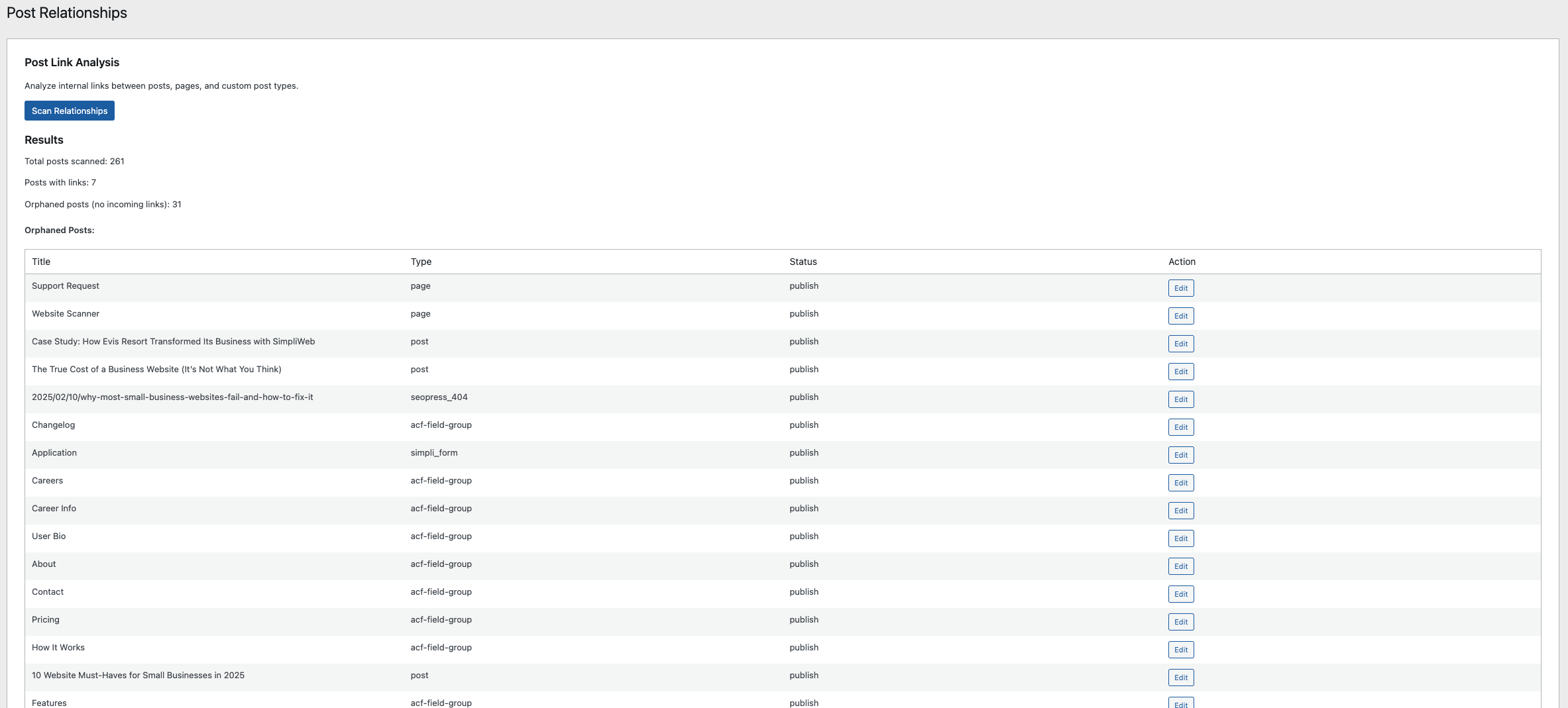
1. Post Relationship Visualiser
Analyse your site's internal linking structure to improve SEO and content discoverability.
- Scans all posts, pages, and custom post types
- Identifies orphaned content (posts with no incoming links)
- Shows top 20 most connected posts
- Displays "Links To" and "Linked By" counts
- One-click access to edit posts
2. Transient Manager
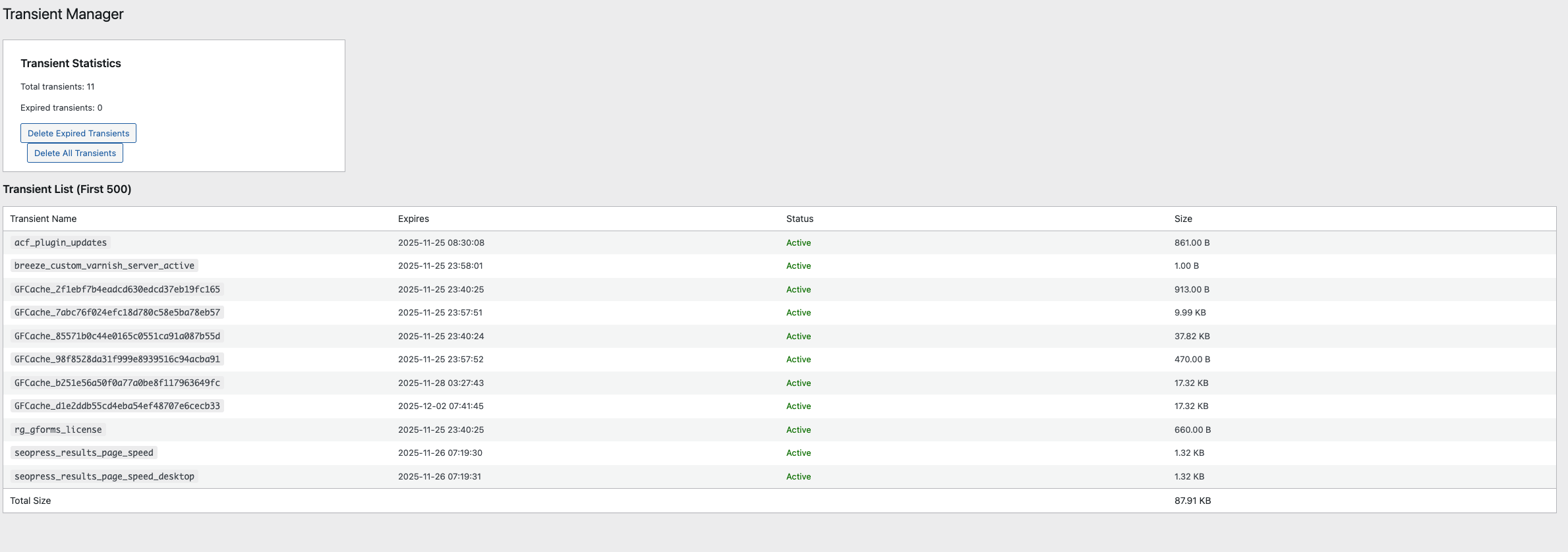
View and manage WordPress transients to optimise database performance.
- Lists up to 500 transients with details
- Shows expiration date and status for each transient
- Displays individual and total size information
- Delete expired transients with one click
- Delete all transients when needed (with confirmation)
- Free up database space quickly
3. Shortcode Finder
Scan all content to find and verify shortcodes before they break.
- Finds all shortcodes used across your site
- Identifies registered vs orphaned (broken) shortcodes
- Shows usage count per shortcode
- Lists all posts using each shortcode
- Essential before deactivating plugins
- Displays all currently registered shortcodes
4. Media Library Source Tracker
Automatically track where media files are uploaded from.
- Tracks upload source automatically (no configuration needed)
- Adds "Upload Source" column to Media Library
- Shows which post/page the media was uploaded from
- Displays source post type
- Shows last 200 uploads with tracking data
- Helps identify and clean up unused media
5. Image Optimisation & Management
Comprehensive image optimisation tools to reduce file sizes and manage your media library.
Image Optimisation Settings
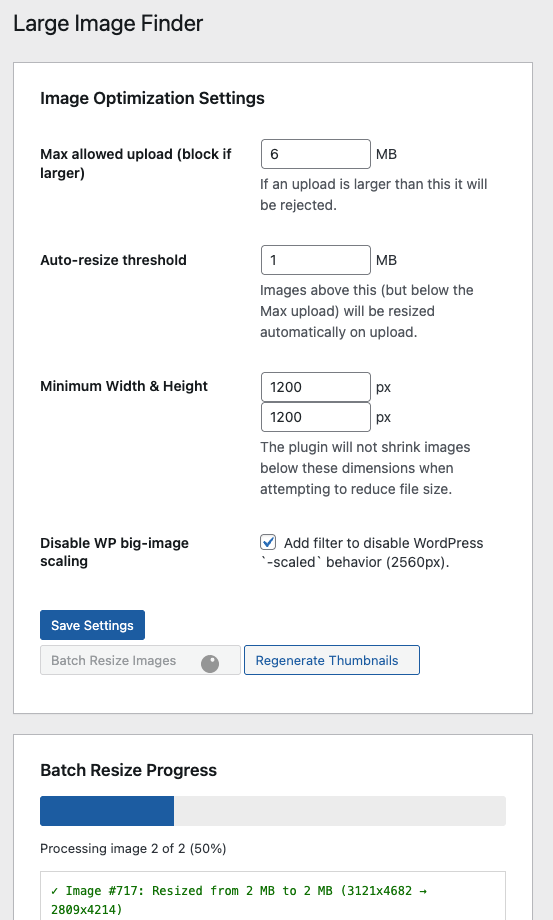
- Max Allowed Upload: Block uploads larger than specified size (default: 6 MB)
- Auto-Resize Threshold: Automatically resize images above this size on upload (default: 1 MB)
- Minimum Dimensions: Set minimum width/height to prevent over-compression (default: 1200×1200px)
- Disable WordPress Scaling: Remove WordPress's automatic 2560px
-scaledimage generation - Automatic Cleanup: When disabling scaled images, automatically removes existing
-scaledfiles and updates database references
Batch Operations (AJAX-powered with progress tracking)
- Batch Resize Images: Process all existing images above the auto-resize threshold
- Real-time progress bar and detailed logging
- Maintains aspect ratio and respects minimum dimensions
- Updates thumbnails after resizing
- Shows before/after file sizes
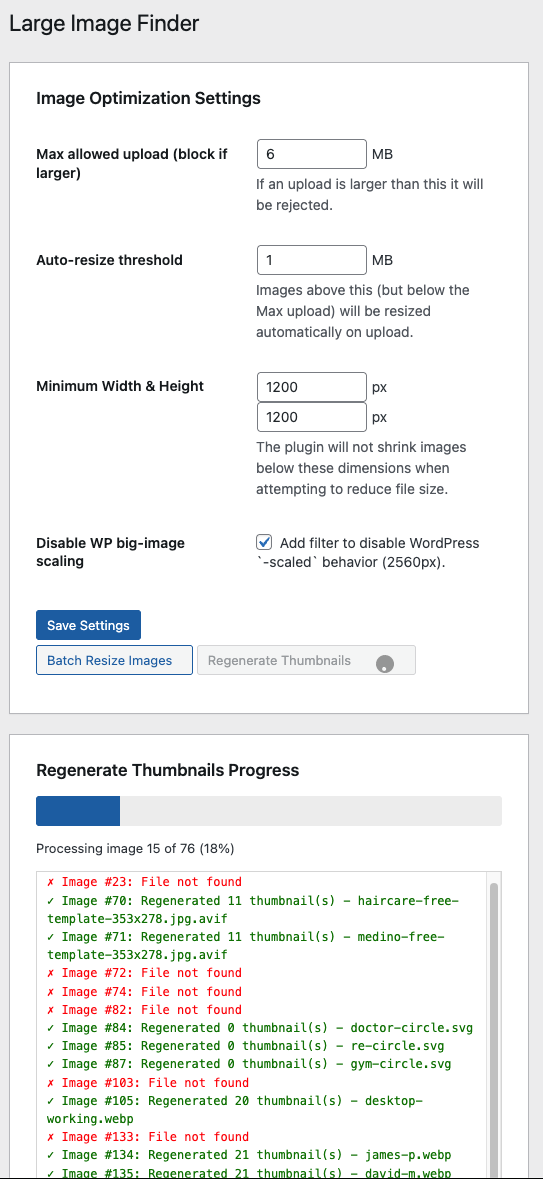
- Regenerate Thumbnails: Rebuild all image thumbnails site-wide
- Deletes old thumbnails before regenerating
- Updates image metadata
- Shows count of thumbnails generated per image
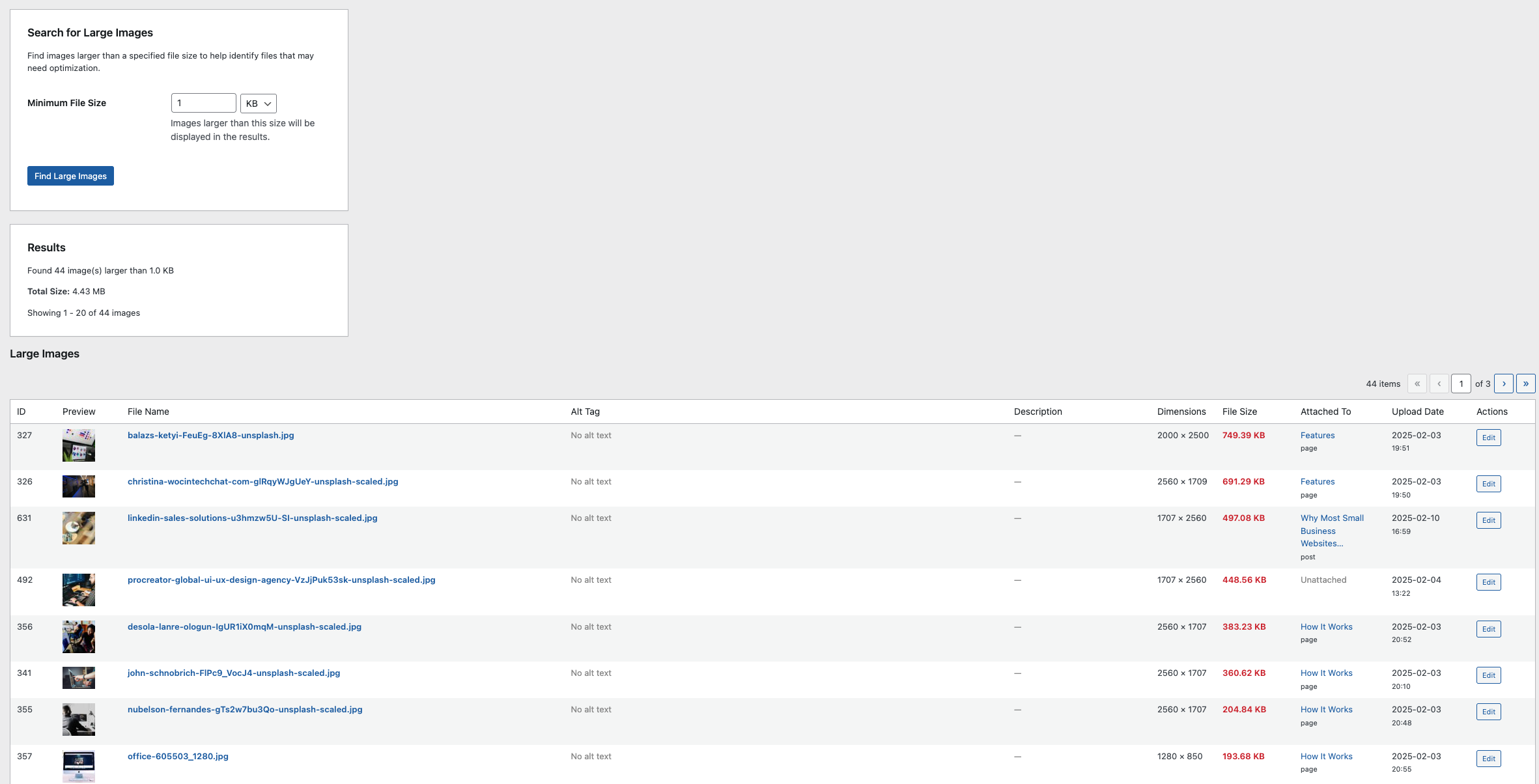
Large Image Finder
- Search for images by minimum file size (KB/MB/GB)
- Paginated results (20 per page)
- Displays for each image:
- Preview thumbnail
- File name and dimensions
- File size (highlighted in red)
- Alt text and description
- Attached post/page
- Upload date
- Quick edit access for each image
- Total size calculation
- Optimisation tips and recommendations
Automatic Features
- Upload Size Enforcement: Blocks images exceeding maximum upload size with clear error message
- Smart Auto-Resize: Resizes large uploads automatically while respecting minimum dimensions
- Quality Control: Uses 82% JPEG quality (WordPress default) for optimal size/quality balance
- Thumbnail Generation: Registers
simpli-thumbnailsize (50×50px) for plugin interface
6. Gravity Forms Manager
Comprehensive management and cleanup tools for Gravity Forms.
Form Overview & Statistics
- Last Known Entries: View all forms with detailed activity metrics
- Total Entries: See entry count for each form at a glance
- Total Views: Track how many times each form has been viewed
- Last Entry Date: Monitor when forms last received submissions
- Last View Date: Track when forms were last viewed by visitors
- Sortable Columns: Click any column header to sort by ID, title, views, entries, or dates
Bulk Entry Management
- Trash All Entries: Move all entries for a form to trash with one click
- Entries can be restored from Gravity Forms trash
- Shows confirmation dialog before processing
- Displays count of entries trashed
- Safe alternative to permanent deletion
- View Entries: Quick link to Gravity Forms entry list for each form
- Delete Form: Permanently delete forms (with backup warning)
Visual Interface
- Color-coded entry counts with thousand separators for readability
- Formatted dates (e.g., "November 28, 2025")
- Real-time AJAX processing with progress indicators
- Responsive table layout with WordPress native styling
Screenshots
Posts Relationships
Transient Manager
Shortcode Finder

Media Library Source Tracker
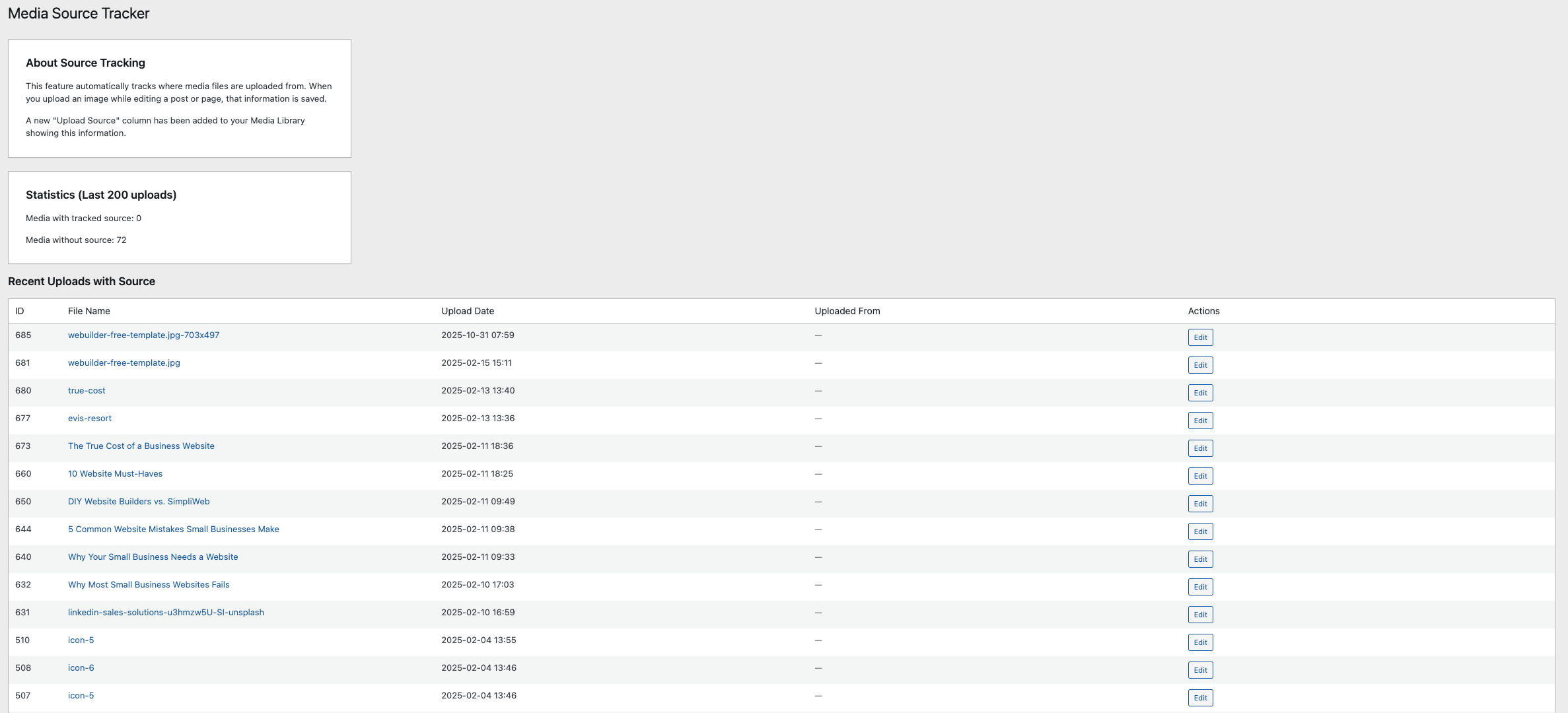
Image Optimisation Settings
Batch Resize Progress
Regenerate Thumbnails Progress
Gravity Forms Manager

Installation
Method 1: Upload via WordPress Admin
- Download the plugin folder
- Create a zip file of the
simpliweb-wp-optimiserfolder - In WordPress admin, go to Plugins > Add New > Upload Plugin
- Choose the zip file and click Install Now
- Click Activate Plugin
Method 2: Manual FTP Upload
- Download the plugin folder
- Upload the entire
simpliweb-wp-optimiserfolder to/wp-content/plugins/ - Go to Plugins in WordPress admin
- Find "WP Optimiser by SimpliWeb" and click Activate
Usage
Accessing the Plugin
After activation, find the Optimiser menu item (with hammer icon) in your WordPress admin sidebar.
Post Relationships
- Navigate to Optimiser > Post Relationships
- Click Scan Relationships button
- Wait for the scan to complete (may take 30-60 seconds on large sites)
- Review the results:
- Total posts scanned
- Posts with outgoing links
- Orphaned posts list
- Link map of top 20 most connected posts
- Click Edit on any post to improve internal linking
Transient Manager
- Navigate to Optimiser > Transient Manager
- View transient statistics and list
- Options:
- Delete Expired Transients - Removes only expired entries (recommended)
- Delete All Transients - Clears all transients (may temporarily slow your site)
- Refresh the page to see updated statistics
Shortcode Finder
- Navigate to Optimiser > Shortcode Finder
- View automatically generated report showing:
- Total unique shortcodes found
- Orphaned shortcodes (not registered)
- Posts with shortcodes
- Check the status column (✓ Registered or ✗ Not Registered)
- Expand details to see which posts use each shortcode
- Fix or remove broken shortcodes before users see them
Media Library Source Tracker
This feature works automatically once activated.
- Navigate to Optimiser > Media Library Source Tracker to view tracking report
- Or go to Media > Library to see the new "Upload Source" column
- Upload images as normal - source is tracked automatically
- View statistics on tracked vs untracked uploads
Image Optimisation & Management
Configure Settings
- Navigate to Optimiser > Image Optimisation
- Configure your optimisation settings:
- Max Allowed Upload: Set maximum file size (blocks uploads if exceeded)
- Auto-Resize Threshold: Images above this will be automatically resized
- Minimum Dimensions: Prevent images from being resized too small
- Disable WP Scaling: Check to prevent WordPress from creating
-scaledversions
- Click Save Settings
Batch Resize Existing Images
- Navigate to Optimiser > Image Optimisation
- Click Batch Resize Images button
- Confirm the action (recommended: backup first)
- Watch the progress bar and log:
- Shows current image being processed
- Displays before/after file sizes
- Reports any errors
- Wait for completion (may take several minutes on large sites)
Regenerate Thumbnails
- Navigate to Optimiser > Image Optimisation
- Click Regenerate Thumbnails button
- Confirm the action
- Monitor progress as all thumbnails are regenerated
- Useful after:
- Changing theme
- Adding new image sizes
- Fixing corrupted thumbnails
Find Large Images
- Navigate to Optimiser > Image Optimisation
- Scroll to "Search for Large Images"
- Enter minimum file size and select unit (KB/MB/GB)
- Click Find Large Images
- Review results:
- Total images found and combined size
- Image details with preview thumbnails
- Quick access to edit each image
- Use pagination if more than 20 results
Automatic Upload Optimisation
This works automatically for all new uploads:
- Images exceeding max upload size are blocked with error message
- Images above auto-resize threshold are automatically resized
- Dimensions respect your minimum width/height settings
- Upload source is tracked for reference
- No manual action required
Gravity Forms Manager
Note: This feature requires Gravity Forms to be installed and activated.
View Form Statistics
- Navigate to Optimiser > Gravity Forms
- View comprehensive statistics for all forms:
- Form ID and title
- Total views and last view date
- Total entries and last entry date
- Click any column header to sort (supports ascending/descending)
Manage Form Entries
Trash All Entries (Recommended for cleanup):
- Locate the form you want to clean up
- Click Trash Entries button
- Confirm the action in the dialog
- Wait for processing (button shows "Trashing...")
- Review success message showing count of trashed entries
- Entries can be restored from Forms > Entries > Trash if needed
View Entries:
- Click View Entries to jump directly to the Gravity Forms entry list
Delete Form (Permanent):
- Click Delete button next to the form
- Confirm deletion (recommended: backup first - this cannot be undone)
- Form and all entries are permanently removed
When to Use
- Before plugin updates: Clear old test entries
- Data privacy compliance: Remove outdated form submissions
- Database optimization: Clean up forms with thousands of old entries
- Site maintenance: Archive old forms and their data
- Testing cleanup: Remove test submissions after development
Requirements
- WordPress 5.0 or higher
- PHP 7.2 or higher
- Administrator user role
- PHP GD or Imagick extension (for image processing)
- Gravity Forms plugin (for Gravity Forms Manager feature only)
Performance Notes
- Post Relationship Visualiser: May take 30-60 seconds on large sites (1000+ posts). Uses AJAX to prevent timeouts.
- Transient Manager: Instant deletion. Site may be slightly slower after clearing all transients as they rebuild.
- Shortcode Finder: Queries database once per page load. Results are always current (not cached).
- Media Library Source Tracker: Minimal performance impact. Only fires on upload.
- Image Optimisation:
- Auto-resize on upload adds 1-2 seconds per image
- Batch operations use AJAX to prevent timeouts
- Processing speed depends on image count and server resources
- Recommended to run batch operations during low-traffic periods
- Gravity Forms Manager:
- Statistics load instantly from Gravity Forms database tables
- Trash operations process entries individually (may take longer with thousands of entries)
- Real-time progress indicators during bulk operations
Database Storage
The plugin stores minimal data:
- Media source tracking uses postmeta:
_upload_source_post,_upload_source_url,_upload_date - Image optimisation settings stored in wp_options:
simpli_max_upload_bytessimpli_resize_bytessimpli_min_widthsimpli_min_heightsimpli_disable_scaled
- No custom database tables are created
- Gravity Forms data uses existing Gravity Forms tables
Security
All features include:
manage_optionscapability requirement (Administrator only)- WordPress nonce verification for CSRF protection
- Proper output escaping
- Prepared statements for database queries
- Permission checks on all AJAX requests
- File type validation for image operations
- Confirmation dialogs for destructive actions
Frequently Asked Questions
Why are some posts showing as orphaned?
Orphaned posts have no incoming internal links from other content on your site. This can hurt SEO and discoverability. Consider adding internal links to these posts from relevant content.
Is it safe to delete all transients?
Yes, but your site may be temporarily slower as WordPress rebuilds needed transients. It's usually better to delete only expired transients.
What happens to shortcodes marked as "Not Registered"?
These shortcodes won't work and will appear as plain text (e.g., [shortcode_name]) to visitors. Fix them before deactivating the plugin that provided them.
Does Media Source Tracker work for old uploads?
No, it only tracks uploads made after the plugin is activated. Old uploads won't have source information.
Will batch resizing reduce image quality?
Images are resized at 82% JPEG quality (WordPress default), which provides an excellent balance between file size and visual quality. Quality loss is typically imperceptible.
What happens to the original images when I batch resize?
The original full-size images are permanently replaced with the resized versions. Always backup your media library before running batch operations.
Can I undo batch resize or thumbnail regeneration?
No, these operations permanently modify files. Restore from backup if needed.
Why are my uploads being blocked?
Your image exceeds the "Max Allowed Upload" setting. Either reduce the image size or increase the limit in Image Optimisation Settings.
What's the difference between WordPress's -scaled images and this plugin?
WordPress automatically creates -scaled versions of images larger than 2560px. This plugin lets you disable that behavior and manage image sizes with more granular control.
How does auto-resize on upload work?
When you upload an image larger than the "Auto-Resize Threshold", it's automatically resized before being saved to your media library. This happens transparently without user intervention.
Can I restore trashed Gravity Forms entries?
Yes! Entries moved to trash using the Trash Entries button can be restored from Forms > Entries > Trash in Gravity Forms. They're not permanently deleted.
What's the difference between "Trash Entries" and "Delete"?
- Trash Entries: Moves entries to trash (reversible, recommended)
- Delete: Permanently removes the entire form and all entries (irreversible)
Why doesn't the Gravity Forms feature appear?
The Gravity Forms Manager feature only appears if Gravity Forms plugin is installed and activated. It gracefully hides when Gravity Forms is not available.
Will trashing thousands of entries slow down my site?
The trash operation processes entries individually, so it may take a minute or two for forms with thousands of entries. The button shows "Trashing..." during processing to indicate progress.
Changelog
1.2.0
- Added Gravity Forms Manager feature
- View form statistics (entries, views, dates)
- Sortable table columns for all metrics
- Bulk trash entries with reversible action
- Form deletion with safety confirmation
- Integration with Gravity Forms GFAPI
- AJAX-powered operations with progress indicators
1.1.0
- Added comprehensive image optimisation settings
- Added batch resize images functionality with AJAX progress tracking
- Added regenerate thumbnails functionality with AJAX progress tracking
- Added large image finder with search and pagination
- Added automatic upload size enforcement
- Added automatic image resizing on upload
- Added WordPress scaled image cleanup functionality
- Enhanced image management with detailed reporting
1.0.0 (Initial Release)
- Post Relationship Visualiser with AJAX scanning
- Transient Manager with expired/all deletion options
- Shortcode Finder with registration status
- Media Library Source Tracker with automatic tracking
- Large Image Size (simpli-thumbnail, 50x50px) for plugin interface
- Admin interface with native WordPress styling
- Security features (nonces, capability checks, escaping)
Support
For support, feature requests, or bug reports:
- Author: Jon Mather
- Website: https://jonmather.au
- GitHub: https://github.com/westcoastdigital/Simpli-WP-Optimser
Credits
Developed by Jon Mather at SimpliWeb
License
GPL v2 or later - https://www.gnu.org/licenses/gpl-2.0.html
This program is free software; you can redistribute it and/or modify it under the terms of the GNU General Public License as published by the Free Software Foundation; either version 2 of the License, or (at your option) any later version.
This program is distributed in the hope that it will be useful, but WITHOUT ANY WARRANTY; without even the implied warranty of MERCHANTABILITY or FITNESS FOR A PARTICULAR PURPOSE. See the GNU General Public License for more details.
Releases
1 release.
These releases are tags only. The author does not attach a packaged zip, so there are no download counts to report.