Portfolio Manager
A custom WordPress plugin to manage and display portfolio projects.
by Tvisha · github.com/tvisha03/custom-portfolio-manager-wp-plugin
Install
No release zip yet. The repository archive installs, but the folder name will carry the branch suffix and updates will not flow:
wp plugin install https://github.com/tvisha03/custom-portfolio-manager-wp-plugin/archive/refs/heads/main.zipCustom Portfolio Manager WordPress Plugin
Project Overview
The Custom Portfolio Manager is a lightweight yet powerful WordPress plugin designed to provide users with a highly customizable and dedicated system to showcase their projects (e.g., web development, graphic design, photography, etc.) directly on their WordPress website. Unlike relying on generic post types or theme-specific portfolio features, this plugin offers complete control over project data, its management, and its display, demonstrating a full-stack development approach within the WordPress ecosystem.
Features
- Custom Project Database: Stores project data (title, description, image URL, technologies, live URL, GitHub URL) in a dedicated MySQL table (
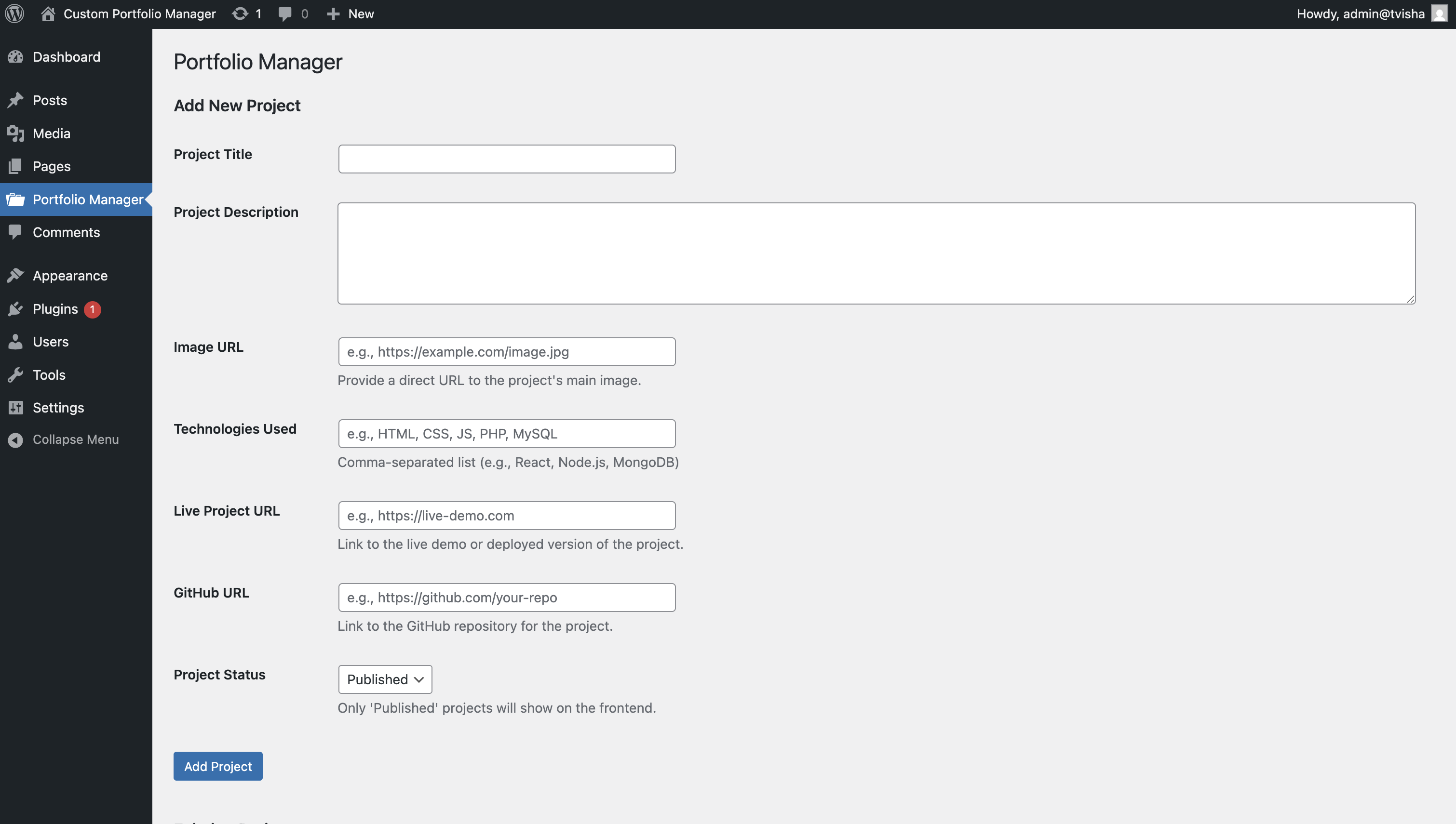
wp_my_projects), ensuring data independence and scalability. - Intuitive Admin Interface: A custom "Portfolio Manager" menu in the WordPress dashboard provides a user-friendly panel for CRUD (Create, Read, Update, Delete) operations on portfolio items.
- Add New Projects: Simple forms to input all project details.
- Edit Existing Projects: Ability to modify project information with pre-filled forms.
- Delete Projects: Secure deletion functionality with nonce verification.
- List Projects: Clear table view of all added projects for easy overview.
- Frontend Display Shortcode: A simple
[my_projects]shortcode allows users to effortlessly display their entire portfolio on any page or post. - Modern UI/UX:
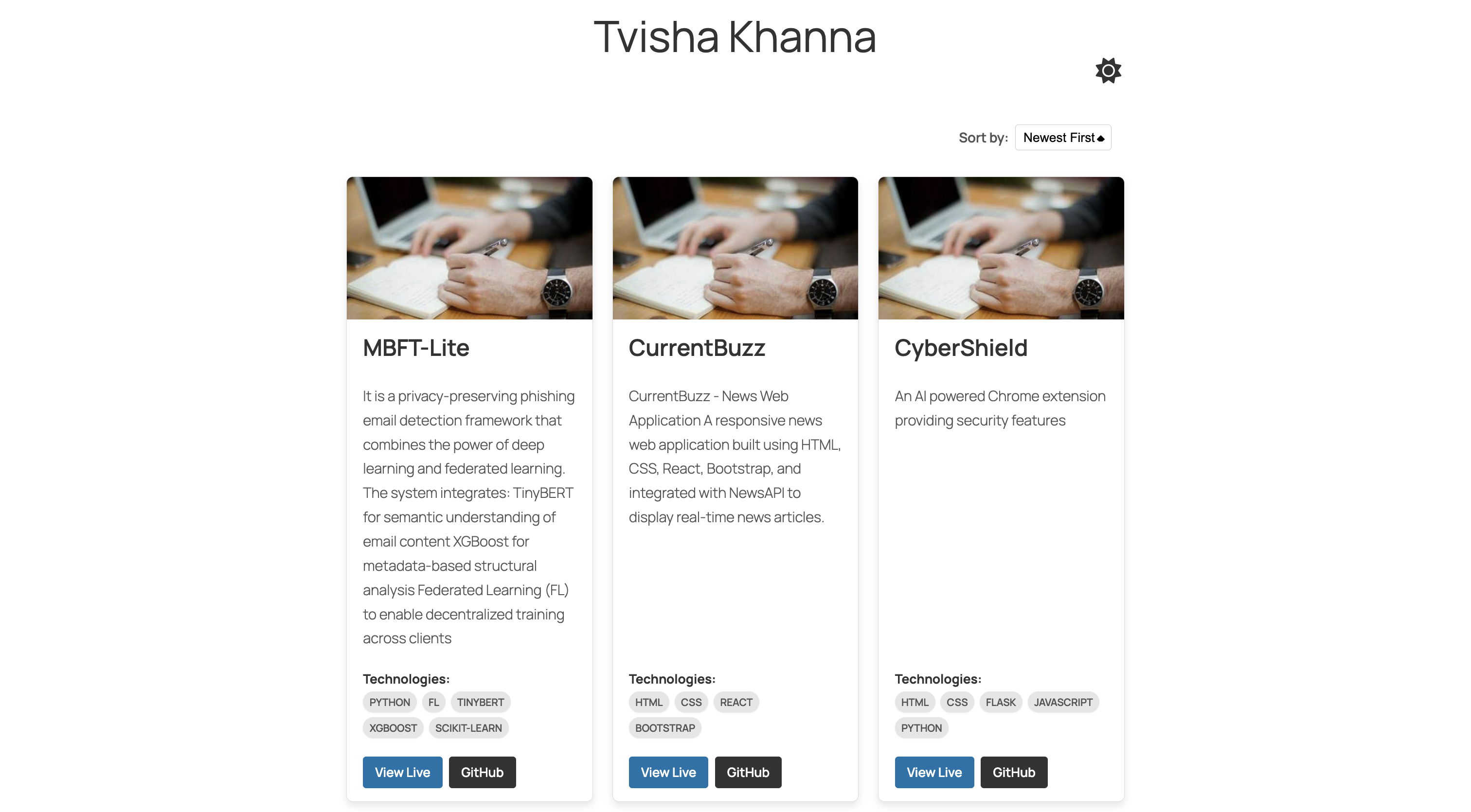
- Responsive Grid Layout: Projects are displayed in a fluid, mobile-friendly grid using CSS Grid and Flexbox, adapting beautifully to different screen sizes.
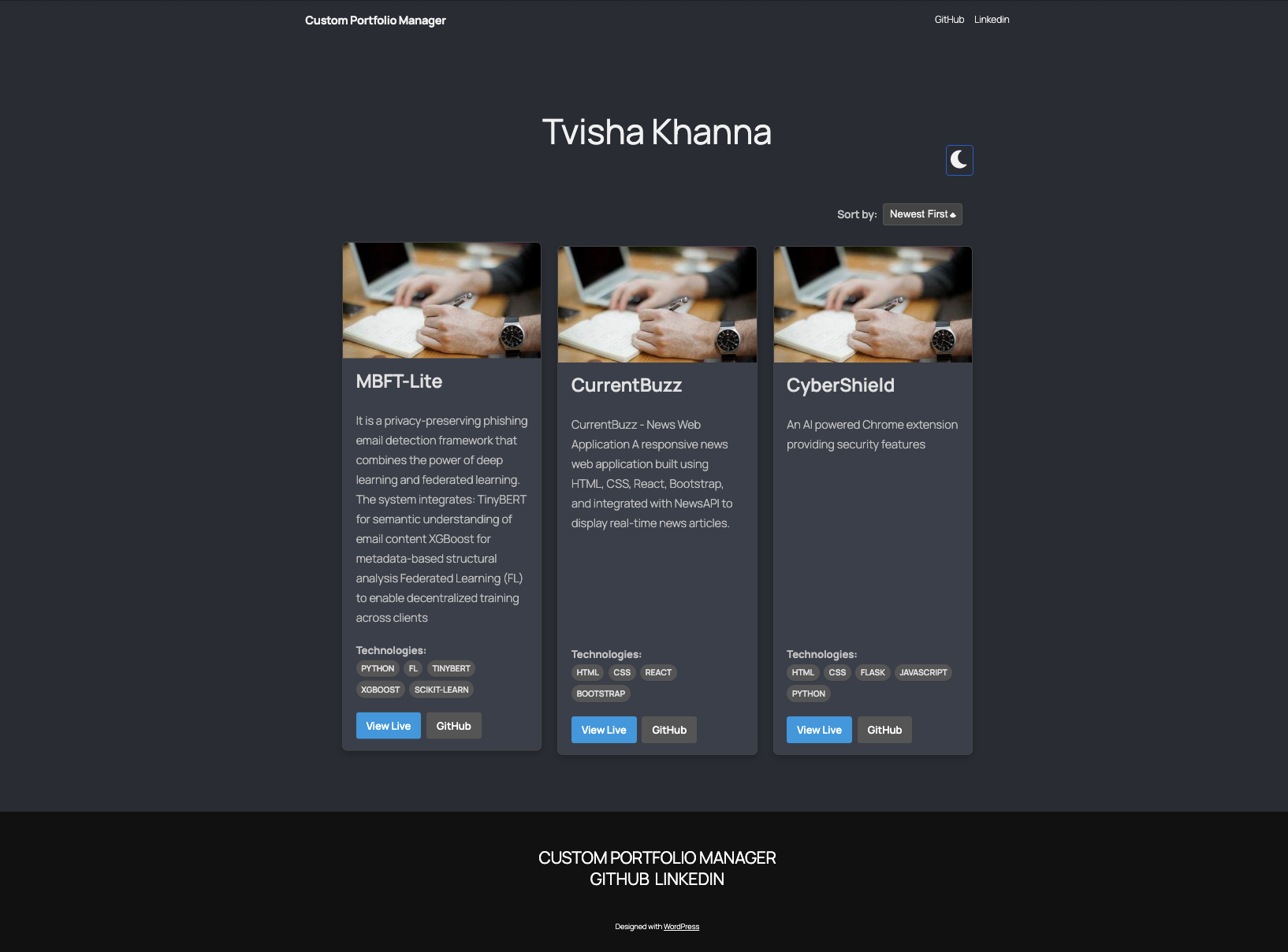
- Interactive Dark Mode Toggle: Users can switch between light and dark themes, with preference saved in local storage, enhancing user experience. (Positioned at top-right with an icon).
- Stylized Project Tags: Technologies used are displayed as visually appealing, pill-shaped "chips" for better readability and modern aesthetics.
- External Project Links: Each project card includes direct "View Live" and "GitHub" buttons, linking to the actual project or repository.
- Subtle Hover Effects: Smooth transitions and shadows on project cards enhance visual engagement.
- Clean Navigation: Unnecessary default WordPress menus and footer content are removed for a focused portfolio presentation.
- Security Best Practices:
- Nonce Verification: Implemented for all form submissions and actions (add, edit, delete) to prevent CSRF attacks.
- Input Sanitization & Escaping: All user input is sanitized before database storage, and all output is escaped (
esc_html,esc_attr,esc_url,esc_textarea) to prevent XSS vulnerabilities. - User Role Check: Access to the Portfolio Manager admin panel is restricted to administrators (
manage_options).
Technologies Used
- HTML: Structuring project forms and frontend display.
- CSS: Styling the entire plugin UI, implementing responsive design, grid layouts, and dark mode theming.
- JavaScript: Handling the interactive Dark Mode toggle with local storage.
- PHP: Core plugin logic, database interaction, form processing, WordPress hooks (activation, admin menu, shortcode).
- MySQL: Custom database table (
wp_my_projects) for storing project data. - WordPress: The Content Management System (CMS) platform that hosts the plugin, providing its architecture, admin environment, and API for development.
- Font Awesome: For scalable vector icons (sun/moon toggle, potential social icons).
How to Install and Run Locally
-
Prerequisites:
- Local Server Environment: Install XAMPP, WAMP, or MAMP. Ensure Apache and MySQL services are running.
- WordPress: Download and install a fresh copy of WordPress in your local server's
htdocs(orwww) directory (e.g.,http://localhost/myportfolio/). - Code Editor: Visual Studio Code, Sublime Text, Notepad++, etc.
-
Plugin Setup:
- Navigate to your local WordPress installation's
wp-content/plugins/directory. - Create a new folder named
portfolio-manager. - Place all plugin files (
portfolio-manager.php,style.css,script.js) inside thisportfolio-managerfolder. - Crucial: Ensure all plugin files are saved as
UTF-8 without BOMencoding. (This resolves common "unexpected output" errors).
- Navigate to your local WordPress installation's
-
Database Table Creation (Manual Override):
- Go to
http://localhost/phpmyadmin/. - Select your WordPress database (e.g.,
myportfolio_db). - Click the "SQL" tab.
- Execute the following SQL queries to manually add the necessary columns:
  ALTER TABLE wp_my_projects ADD COLUMN live_url VARCHAR(255) DEFAULT '' NOT NULL;
  ALTER TABLE wp_my_projects ADD COLUMN github_url VARCHAR(255) DEFAULT '' NOT NULL;
(Adjust
wp_my_projectsif your table prefix is different, e.g.,yourprefix_my_projects)
- Go to
-
Activate Plugin:
- Log into your WordPress admin dashboard (
http://localhost/myportfolio/wp-admin/). - Go to "Plugins" -> "Installed Plugins".
- Locate "Portfolio Manager" and click "Activate". (If you encounter "unexpected output," perform a strict Deactivate/Activate cycle after ensuring clean files).
- Log into your WordPress admin dashboard (
-
Configure & Use:
- Manage Projects: Go to the new "Portfolio Manager" menu item in the admin sidebar. Use the form to add, edit, or delete your projects, including image URLs, live links, and GitHub links.
- Display Portfolio: Create a new WordPress page (e.g., "My Portfolio") and simply add the shortcode
[my_projects]to its content. Publish the page. - Clean UI (Full Site Editing): If using a Block Theme (like Twenty Twenty-Five), go to
Appearance -> Editorto customize your site's header and footer. Remove irrelevant default navigation items and footer content to focus on your portfolio.
Screenshots / Demo
Frontend Display (Light Mode)
Frontend Display (Dark Mode)
Admin Panel
What I Learned & Challenges Faced
- Full-Stack WordPress Plugin Development: Gained hands-on experience in building a complete application within WordPress, from custom database design to frontend display.
- WordPress Core Interaction: Deepened understanding of WordPress hooks (activation, admin menu, enqueue scripts), shortcode API, and the
$wpdbobject for secure database operations. - Security Best Practices: Implemented nonces, input sanitization, and output escaping to protect against common web vulnerabilities (CSRF, XSS).
- Modern CSS Techniques: Applied CSS Grid and Flexbox for responsive layouts, and mastered CSS transitions and effects for UI polish.
- JavaScript for UI/UX: Integrated client-side logic for dynamic features like Dark Mode with local storage.
- Debugging Persistence: Overcame significant challenges related to file encoding (Byte Order Mark - BOM) causing "unexpected output" and CSS parsing errors, requiring meticulous file cleaning and browser cache management.
- Database Schema Management: Learned to modify database tables programmatically using
dbDelta(and a manual override when encountering specific environmental issues during activation).
Future Enhancements
- Implement an AJAX-based form submission for project management in the admin dashboard for a smoother user experience.
- Add a modal popup for detailed project views on the frontend.
- Introduce sorting (e.g., by date, alphabetically) and filtering (by technology tags) options for the frontend portfolio.
- Enable users to upload images directly from the WordPress media library instead of providing URLs.
- Explore WordPress REST API integration to serve project data for headless applications.
Made by [Tvisha]