Install
Upload it under Plugins → Add New Plugin → Upload Plugin, then activate.
Install straight from GitHub with WP-CLI:
wp plugin install https://github.com/svgforge/sf-icon-manager/releases/download/v0.5.0/sf-icon-manager.zipGutenberg plugin that inserts SVG icons from a central SVG sprite file (ico.svg) via <use> and links them. The sprite file can be uploaded directly from a settings page as an SVG fragment library or theme override.
This plugin is only useful for advanced theme and plugin developers who manage their own SVG sprite file. It is not an icon library manager: there is no UI to collect, organize or import individual icons — every icon must first exist as a <symbol> in a sprite file you own, build and version. The editor's symbol picker (see screenshot) then lets you select icons from that sprite simply by clicking and browsing.
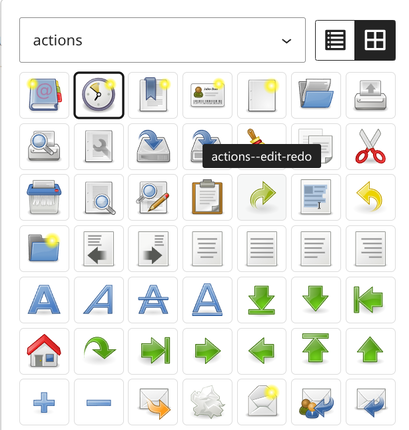
WordPress 7.1 already has SVG icons — why this plugin?
Since WordPress 7.1, core ships its own icon system: wp_register_icon_collection() / wp_register_icon() register icons once and they appear in the core Icon block picker, the REST API and the wp_get_icon() rendering helper. If you only need a few icons and they're single color, register them in your theme/plugin and use core instead of this plugin.
The fragment approach of this plugin still has advantages when you run a real sprite pipeline:
- Full SVG survives. The browser loads the
<symbol>from the sprite and renders it via<use>unmodified — stroke-based icons, gradients,currentColor, inline styles and customviewBoxvalues all work. WordPress 7.1's sanitizer is intentionally strict (<svg>/<path>/<polygon>only, nostroke, no inline styles) and breaks most stroke-based icon sets. - Reuse existing assets. Upload a sprite you already have (or generate one with a CLI tool like svgforge-cli — no per-icon PHP code required.
- Icon Groups. Icons can be grouped, so you can find the icon you need much easier.
- One file. The sprite is a single cacheable file that can live in your theme repo and is versioned with Git.
- Per-block control. Fill and stroke colours, size (standard Dimensions panel with preset slider + custom input), links with
relhandlingWordPress and aria-labels — per instance, without touching a stylesheet. - Works on WordPress < 7.1. The plugin supports 6.6+, so it works where the native API does not exist yet.
Honest limitations:
- To add or edit icons you must rebuild the sprite file — typically with a CLI tool such as svgforge (there is no in-browser icon editor, and no code-free icon management UI).
- Icons live in your content as a block. The frontend markup is server-rendered (
render.php), but there is no simplewp_get_icon()-style helper for theme PHP — for that, use the native 7.1 API.
Features
- Settings page (Settings → Icon Library) for uploading the SVG sprite file, including sanitization of scripts and event handlers
- Symbol picker in the editor with a live preview of all
<symbol>elements from the sprite - Icons can be linked (new tab with
noopener/noreferrer) - Aria-label for screen readers
- Fill/stroke colours and size per block (square, preset slider + custom input with units)
- Dynamic frontend rendering via
render.phpusingget_block_wrapper_attributes() - Block supports: alignment, anchor, additional CSS classes
Requirements
- WordPress >= 6.6
- PHP >= 8.3
Installation
- Upload the plugin folder to
/wp-content/plugins/(or install the ZIP from a GitHub release) - Activate the plugin
- Under Settings → Icon Library, upload the
ico.svgfile containing<symbol id="my-icon" viewBox="0 0 24 24">…</symbol>elements (or configure another source, see below) - In the editor, add the "SVG Icon" block and choose an icon
Composer users should read Composer installation.
Sprite file configuration
Generating a sprite with svgforge-cli
Install svgforge-cli and build a valid ico.svg sprite (with <symbol id="…" viewBox="…"> elements) from a folder of SVG icons:
npm install --global @svgforge/svgforge-cli
svgforge --symbol --dest=out 'assets/./**/*.svg'
svgforge-cli sanitizes the SVG (stripping scripts, event handlers and javascript: links) and optimizes the output with svgo. The ./ keeps the relative paths, so files in subdirectories become directory--filename IDs — each directory is then a filter group in the icon picker. The generated sprite can be uploaded via the settings page or referenced from the theme via the sfim_sprite_url filter, see below.
The SVG sprite file is resolved in this order (the first existing source wins):
- Filter
sfim_sprite_url– the canonical override (theme file, CDN). Has priority. - Upload from settings – file uploaded via the settings page.
- Fallback
sprite.svgbundled with the plugin (wp-content/plugins/sf-icon-manager/sprite.svg).
Override with a filter (recommended, Git-versionable)
In your theme's functions.php, return the URL of your own sprite file — the file then lives in the theme repo and is versioned with the theme:
add_filter( 'sfim_sprite_url', fn () => get_theme_file_uri( 'assets/ico.svg' ) );or point it at a CDN:
add_filter( 'sfim_sprite_url', fn () => 'https://cdn.example.com/icons/ico.svg' );The filter is the only supported override mechanism and wins over everything, including a backend upload.
WordPress 7.1 native icon integration (experimental)
On WordPress >= 7.1 the plugin can register every <symbol> of the configured sprite as an sf-icon-manager collection via wp_register_icon(). The same sprite then also powers the core Icon block and wp_get_icon(), in addition to the SVG Icon block.
Experimental: this integration relies on the brand-new WordPress 7.1 icon API and core's strict sanitizer. The behavior may change as that API evolves; treat it as opt-in and test carefully.
The integration is controlled on the settings page ("WordPress native icon integration", default Off):
- Off: nothing is registered natively (the fragment block works as before).
- On: the sprite's symbols are registered as core Icon block icons. Registration is lazy — it only runs when the REST icon endpoints are called or a core Icon block renders, so plain page loads stay free of registration work regardless of the icon count.
- Off + disable the core Icon block: same as Off, plus
core/iconis truly deregistered — server-side (unregister_block_type(), it no longer appears in the block editor settings or the block-types REST API) and in the block editor itself (wp.blocks.unregisterBlockType()), so the block also stops working for instances already saved in content.
Caveat: core's conservative sanitizer strips stroke and inline styles, so stroke-based sprite icons degrade to their fill shapes when consumed through the native path. The fragment block remains the primary experience; the core integration is a companion, not a replacement.
Performance: none of the three modes slows down plain page loads. off (the default) does no native work at all, and on registers lazily — only when a REST icon endpoint is hit or a core Icon block renders — cached and idempotent per request. no_block only adds cheap registry guards. A frontend page that uses neither the core Icon block nor the REST icon routes never parses the sprite for the native path.
Block settings in theme.json
Colors follow the standard Gutenberg block color controls (supports.color, like the core Icon block): the icon is rendered with fill: currentColor, so the Color panel ("Text" – the icon color) recolors monochrome icons. Like the core Icon block, both Color and Background are applied to the SVG element itself, not to the block row. To disable the Color/Background panels for the block entirely, set it in your theme:
{
    "version": 3,
    "settings": {
        "blocks": {
            "sf-icon-manager/svg-icon": {
                "color": { "custom": false, "palette": [] }
            }
        }
    }
}
Multi-color sprite icons (e.g. Tango icon sets) keep their baked-in colors — recoloring has no visible effect on them, exactly like the core Icon block. Monochrome icons (fill currentColor / no fixed fill) follow the chosen color.
The Size is the standard Gutenberg Dimensions panel (supports.dimensions.width, like the core Icon block): the block is square, and size presets come from the theme via the standard dimensions.dimensionSizes per block:
{
    "version": 3,
    "settings": {
        "blocks": {
            "sf-icon-manager/svg-icon": {
                "dimensions": {
                    "dimensionSizes": [
                        { "name": "S", "slug": "s", "size": "32px" },
                        { "name": "L", "slug": "l", "size": "64px" }
                    ],
                    "width": true
                }
            }
        }
    }
}
With presets the panel shows a slider that moves across the preset sizes (like the core Icon block). A toggle next to it switches to a custom value input with a slider, using the allowed units (spacing.units). setting.dimensions.width: false disables sizing entirely, so the block always renders at its default size.
Documentation
Developer and maintenance topics are split into docs/:
- Composer installation – install the plugin via Composer (GitHub repo or WP Packages)
- Translations – extract, translate and build the
languages/files - Release & WordPress.org – automatic release workflow and publishing requirements
- Development – build scripts, tests and project structure
License
MIT, see LICENSE.
Releases
10 releases. Each count is every asset in that release; expand a row for the breakdown.