Typing Text Block WP Registry grade A. No security issues foundWP RegistryNo security issues foundOpen the reportA
A Gutenberg block for showing typewriter animation for text
Install
Upload it under Plugins → Add New Plugin → Upload Plugin, then activate.
Install straight from GitHub with WP-CLI:
wp plugin install https://github.com/stephin-gasper/sg-typing-text-block/releases/download/v1.0.1/sg-typing-text-block.zipA Gutenberg block for showing typewriter animation for text
Description
Create eye-catching animated typing text for your website when the block is used within the Wordpress Gutenberg editor. Useful for showing multiple texts, each text replacing old one with typewriter effect.
Features
- Content: Interactive interface for adding texts which can be deleted and dragged to change position
- Prefix and Suffix: Add prefix and suffix text around the typing.
- Options: Configure the typing such as Type Speed, Delete Speed, Pause time, enable/disable Loop.
Installation
Upload
- Download the latest tagged archive (choose the "zip" option).
- Go to the Plugins -> Add New screen and click the Upload tab.
- Upload the zipped archive directly.
- Go to the Plugins screen and click Activate.
Manual
- Download the latest tagged archive (choose the "zip" option).
- Unzip the archive.
- Copy the folder to your
/wp-content/plugins/directory. - Go to the Plugins screen and click Activate.
Check out the Codex for more information about installing plugins manually.
Git
- Using command line, browse to your
/wp-content/plugins/directory and clone this repository. - Then go to your Plugins screen and click Activate.
Local development
- Clone or download this repository inside
/wp-content/plugins/directory. - Navigate to the block folder using the command line:
cd sg-typing-text-block. - Install the required dependencies using:
npm install. - Go to the Plugins screen and click Activate.
Starting development server
Run following command: npm run start
Creating local build
Build the block using: npm run build.
For publishing plugin
Zip the necessary files for plugin using: npm run plugin-zip.
Usage
- First, install the Typing Text Block plugin.
- Add the Typing Text Block block from the block category called “Widgets” in the Gutenberg editor.
- You can change block settings from the right-side settings sidebar and from the toolbar above the block.
- Enjoy!
Screenshots

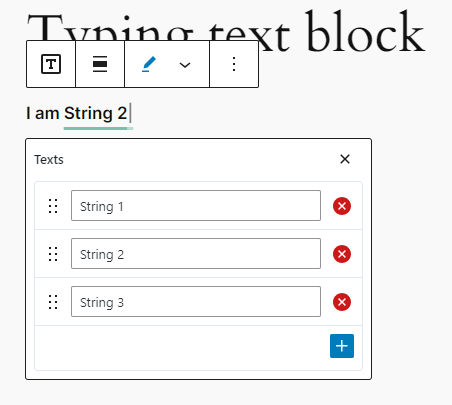


Contributors
Stephin Gasper - stephingasper.com
License
This plugin is licensed under the MIT License - see the LICENSE file for details.
Releases
2 releases. Each count is every asset in that release; expand a row for the breakdown.
Active-site estimate ≈10 comes from the median of recent superseded releases. Method.