Install
This is the repository archive. It installs, but the folder name will carry the branch suffix and updates will not flow.
Install straight from GitHub with WP-CLI:
wp plugin install https://github.com/siphon880gh/wp-icon-plugin/archive/refs/heads/main.zipCustom Cursor Plugin for WordPress
Summary
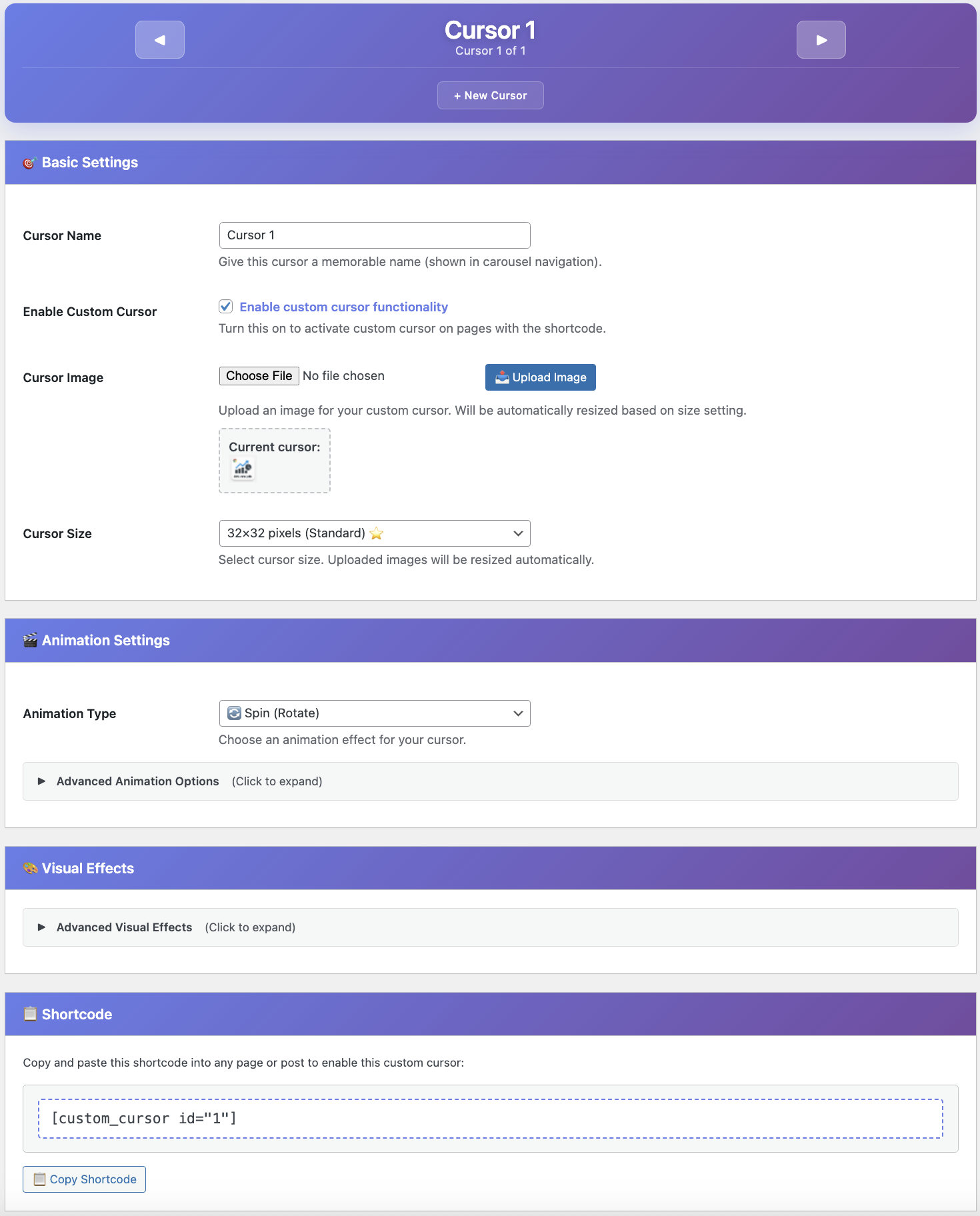
A WordPress plugin for managing multiple custom animated cursors with a beautiful gallery interface. Create and manage unlimited cursors through an intuitive carousel-based admin UI with left/right navigation arrows. Each cursor can have its own image (16-64px), animations (pulse, spin, bounce, shake, glow), visual effects (blend modes, shadows), and click interactions. Navigate between cursors with arrow keys, create new cursors with one click, and use unique ID-based shortcodes ([custom_cursor id="1"]) to display specific cursors on any page. Features progressive disclosure, real-time color picker, and an organized gallery workflow.
For Developers: See context.md for technical architecture, code flow, and extension guides.


By Weng Fei Fung (Weng). A WordPress plugin that allows you to upload a custom cursor image and display it on any page using a shortcode.
Features
- 🎨 Cursor Gallery System - Create and manage unlimited custom cursors
- ⬅️➡️ Carousel Navigation - Browse cursors with left/right arrow buttons
- Beautiful modern admin interface with card-based layout and gradient styling
- Named Cursors - Give each cursor a memorable name for easy identification
- Upload custom cursor images through WordPress admin
- Multiple cursor sizes: Choose from 16x16, 24x24, 32x32, 48x48, or 64x64 pixels
- Six animation types: Pulse, Spin, Bounce, Shake, Glow, or None (static)
- Advanced animation controls:
- Customizable speed (0.5s-3s)
- Loop control (infinite or single-play)
- Click animation (pulse on mouse click)
- Visual effects:
- Blend modes (Normal, Multiply, Screen, Overlay, Difference, Exclusion)
- Drop shadow with custom color picker
- Progressive disclosure UI - Advanced options collapse/expand for cleaner interface
- Automatic image resizing based on selected size
- Enable/disable functionality with a simple toggle
- Easy-to-use shortcode for displaying custom cursor on any page
- One-click shortcode copying with visual confirmation
- Organized Save Settings button at bottom for intuitive workflow
Installation
-
Upload the
custom-cursor-plugin.phpfile to your WordPress plugins directory:/wp-content/plugins/custom-cursor/
-
Activate the plugin through the 'Plugins' menu in WordPress
-
Navigate to 'Custom Cursor' in the WordPress admin menu
Usage
Step 1: Navigate the Cursor Gallery
- Go to Custom Cursor Gallery in the WordPress admin menu
- You'll see a carousel navigation bar at the top showing your current cursor
- Use ◀ and ▶ arrows to browse between cursors
- Click ➕ New Cursor to create additional cursors
- Click 🗑️ Delete Cursor to remove the current cursor (requires at least 2 cursors)
Step 2: Configure Current Cursor
- Give your cursor a memorable name (displayed in the carousel)
- Check "Enable custom cursor functionality" to activate this cursor
- Upload an image file (any size - it will be automatically optimized)
- Click "📤 Upload Image" right next to the file selector
- Select your preferred cursor size (16px to 64px, default is 32px ⭐)
Step 3: Configure Animations (Optional)
- Choose an animation type from the dropdown (Pulse, Spin, Bounce, Shake, Glow, or None)
- Click "Advanced Animation Options" to expand additional settings:
- Select animation speed (⚡ Fast to 🦥 Very Slow)
- Toggle "Loop animation continuously" for infinite animation
- Enable "Pulse on click" for click interaction feedback
Step 4: Add Visual Effects (Optional)
- Click "Advanced Visual Effects" to expand styling options:
- Choose a blend mode for creative color mixing effects
- Enable drop shadow and pick a custom color for depth
Step 5: Save and Get Shortcode
- Click the large "💾 Save All Settings" button at the bottom of the page
- You'll see a success message confirming all settings were saved
- The shortcode will appear in a dedicated card with the cursor's unique ID:
[custom_cursor id="1"] - Click "📋 Copy Shortcode" for one-click copying
- Paste the shortcode into any WordPress page or post
- Use different cursor IDs on different pages to show different cursors!
How It Works
Gallery System
- All cursors are stored in a JSON array in WordPress options
- Each cursor has a unique auto-incremented ID
- Navigate between cursors using left/right arrow buttons
- Current cursor position tracked separately for seamless editing
- Automatic migration from single-cursor to gallery on first load
Frontend Display
- Shortcode
[custom_cursor id="X"]loads specific cursor by ID - The shortcode applies the custom cursor to the entire page when activated
- For static cursors: Uses CSS
cursorproperty with your image URL - For animated cursors: Creates a floating div element that tracks mouse movement
- All animations use CSS3 keyframes for smooth performance
- Visual effects (blend modes, shadows) are applied via CSS filters
- Click animations respond to mousedown/mouseup events
- Falls back to default cursor if the custom image fails to load or cursor ID doesn't exist
Requirements
- WordPress 5.0 or higher
- PHP 7.0 or higher
- GD or ImageMagick library (usually included with WordPress)
Browser Compatibility
The custom cursor feature is supported in all modern browsers:
- Chrome/Edge
- Firefox
- Safari
- Opera
Troubleshooting
Cursor not changing:
- Make sure the plugin is enabled in settings
- Verify the shortcode
[custom_cursor]is on the page - Check that the image uploaded successfully
- Try a different image format (PNG works best for cursors)
Image too large:
- The plugin automatically resizes images, but smaller source images work better
- Recommended: Upload images close to your selected size for best quality
Animation not working:
- Verify an animation type other than "None" is selected
- Check that the page has fully loaded
- Try a different animation type to isolate the issue
- Ensure JavaScript is enabled in the browser
Cursor appears too large/small:
- Adjust the cursor size setting (16px-64px options available)
- Re-upload the image after changing the size setting
Technical Details
- Cursor Sizes: Five preset options from 16x16 to 64x64 pixels
- Image Formats: Supports JPG, PNG, GIF, WEBP (including animated GIFs)
- Animation Engine: CSS3 keyframe animations with JavaScript mouse tracking
- Animation Types:
- Pulse (scale effect)
- Spin (rotation)
- Bounce (vertical movement)
- Shake (horizontal movement)
- Glow (opacity + drop-shadow)
- None (static)
- Click animation (pulse on mousedown)
- Visual Effects:
- CSS blend modes for creative color mixing
- Drop shadow with customizable RGB color
- Dynamic filter application
- UI/UX Features:
- Card-based admin interface with gradient headers
- Progressive disclosure (collapsible advanced sections)
- Real-time color picker with hex code display
- Visual feedback for all actions
- Single unified Save Settings button
- Performance:
- Uses
pointer-events: noneto avoid interaction interference - CSS transforms for hardware-accelerated animations
- Efficient event delegation
- Uses
- WordPress Integration:
- Media library for image management
- Options API for settings storage (11 options total)
- Security best practices (nonces, capability checks)
- Automatic input sanitization
License
GPL v2 or later