Universal OpenAI Connector
OpenAI API compatible provider for the WordPress AI Client with a configurable endpoint and default text/image models.
by rtCamp · github.com/rtcamp/universal-openai-connector · website
Install
No release zip yet. The repository archive installs, but the folder name will carry the branch suffix and updates will not flow:
wp plugin install https://github.com/rtcamp/universal-openai-connector/archive/refs/heads/main.zipUniversal OpenAI Connector - Connect Any OpenAI-Compatible API to WordPress
This plugin is licensed under the GPL v2 or later.
Overview
Universal OpenAI Connector registers an openai_compatible provider with the WordPress AI Client so that any OpenAI-compatible API can power AI features across WordPress — text generation, chat, and image generation included.
Description
Universal OpenAI Connector bridges the WordPress AI Client with any OpenAI-compatible REST API, allowing you to:
- Connect to any OpenAI-compatible endpoint — official OpenAI, self-hosted, or third-party
- Generate text using any LLM accessible through the configured endpoint
- Generate images using models that support that supports images generations
- Configure default models for text and image generation from WordPress admin settings
- Discover available models automatically from your configured endpoint
- Switch endpoints and models without changing any code — just update your admin settings
This makes it simple to integrate any OpenAI-compatible API into your WordPress site while keeping full control over which service and models you use.
Why Universal OpenAI Connector?
Many teams need the flexibility to swap AI providers without being locked into a single service — for cost, privacy, compliance, or feature reasons. This plugin handles that by:
- Provider-agnostic: Point at OpenAI, Ollama, LM Studio, Groq, Mistral AI, or any compatible service
- Local inference support: Works with self-hosted servers; WordPress HTTP restrictions for local URLs are resolved automatically
- Standardized interface: All models exposed through the WordPress AI Client's consistent API
- Flexible configuration: Switch endpoints and models from admin settings — no code changes required
- Automatic model discovery: Dropdowns are populated by querying the
/modelsendpoint of your configured API
Key Benefits
- Provider freedom: Change AI providers by updating a single URL in settings
- No lock-in: Use the official OpenAI API today, switch to a local Ollama instance tomorrow
- Cost control: Route requests to cheaper or self-hosted models as needed
- Vision support: Use multimodal models for image + text prompts
- Image generation: Full support for text-to-image models
- Simple setup: Enter an endpoint URL and API key to start generating
API Integration
The plugin communicates using the standard OpenAI REST API format:
| Endpoint | Purpose |
|---|---|
GET /v1/models |
Populate the model dropdowns in settings |
POST /v1/chat/completions |
Text generation requests |
POST /v1/images/generations |
Image generation requests |
Supported endpoints (examples)
| Service | Example base URL |
|---|---|
| OpenAI | https://api.openai.com/v1 |
| Ollama | http://localhost:11434/v1 |
| LM Studio | http://localhost:1234/v1 |
| LocalAI | http://localhost:8080/v1 |
| Mistral AI | https://api.mistral.ai/v1 |
| Together AI | https://api.together.xyz/v1 |
| Groq | https://api.groq.com/openai/v1 |
| Fireworks AI | https://api.fireworks.ai/inference/v1 |
| Xiaomi AI | https://api.ai.xiaomi.com/v1 |
Any service that implements the OpenAI REST API (/v1/chat/completions, /v1/images/generations, /v1/models) should work.
Limitations
- Only models registered through the configured endpoint are available; models from other providers are not mixed in.
- When the endpoint is not
api.openai.com, strict OpenAI-only parameters (response_format,n,quality,style,reasoning_effort) are stripped automatically to improve compatibility with non-OpenAI backends.
System Requirements
- WordPress: 7.0 or higher
- Requires at least: 7.0
- Tested up to: 7.0
- Stable tag: 1.1.0
- PHP: 7.4 or higher
- Requires PHP: 7.4
- Required Plugin: WordPress AI Client (
ai) must be active
Installation & Setup
As a WordPress Plugin
- Ensure the WordPress AI Client plugin (
ai) is installed and activated. - Clone or download this plugin into
wp-content/plugins/universal-openai-connector. - Activate Universal OpenAI Connector from the Plugins screen.
- Go to Settings → Connectors and enter your API key for the Universal OpenAI Connector provider.
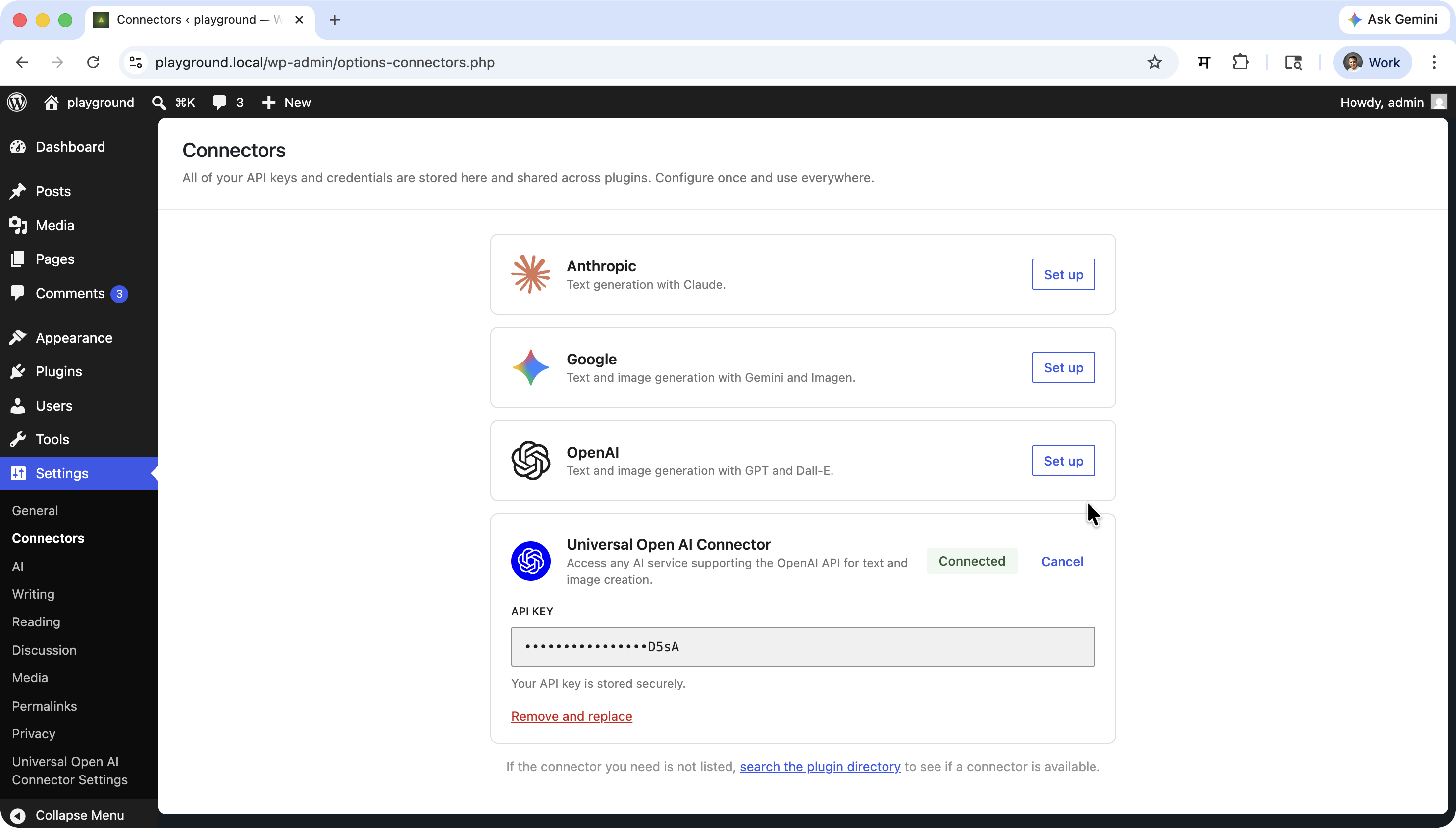
- Go to Settings → Universal OpenAI Connector and enter your API Endpoint URL.
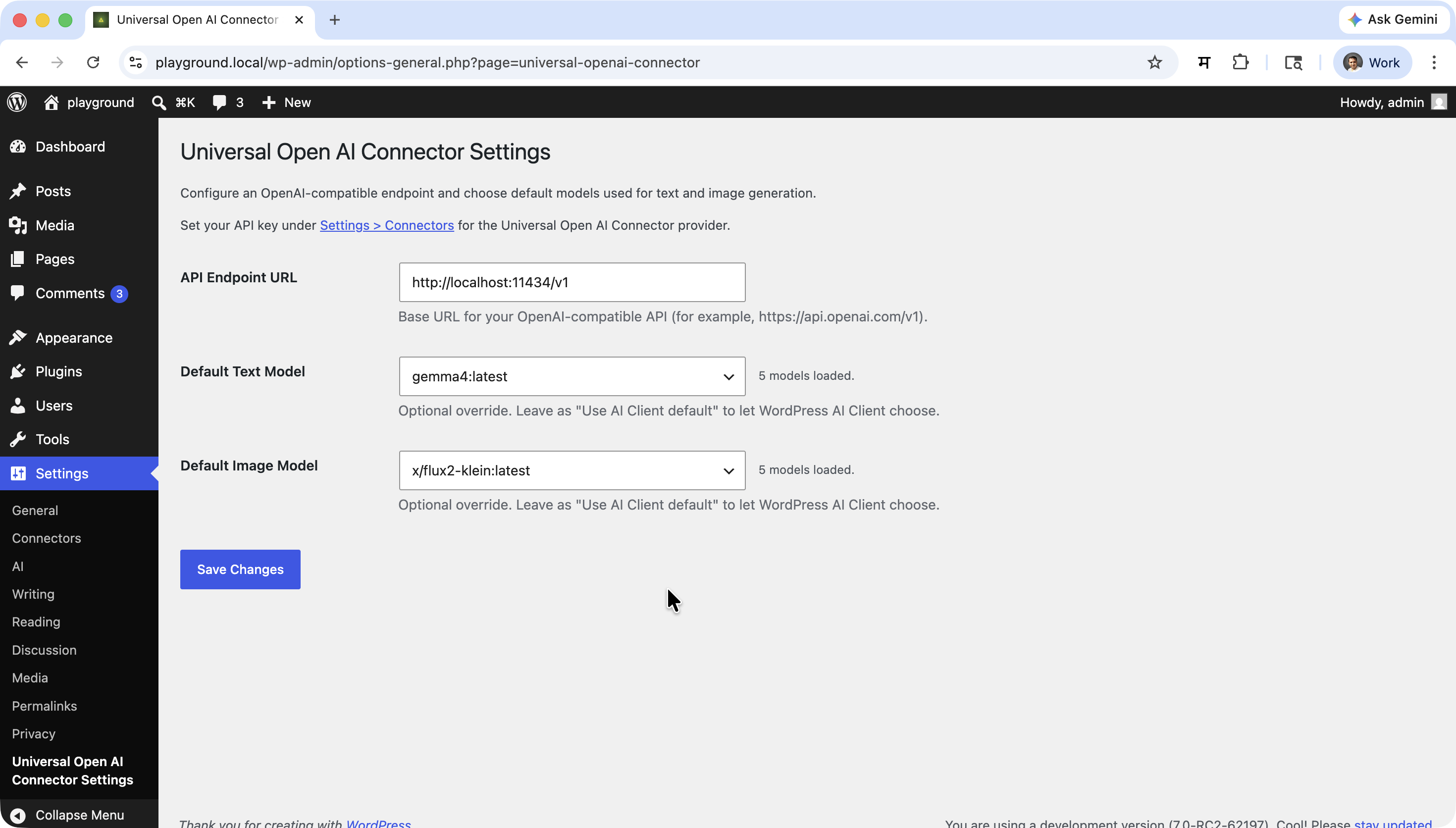
- Optionally select a Default Text Model and Default Image Model from the auto-populated dropdowns.
- Save settings.
As a Composer Package
composer require rtcamp/universal-openai-connectorUsage Guide
Accessing the Settings
Navigate to Settings → Universal OpenAI Connector in your WordPress admin to configure the plugin.
Configuring Universal OpenAI Connector
Setting Up Authentication (Optional)
For services that require an API key:
- Go to Settings → Connectors.
- Enter your API key under the Universal OpenAI Connector provider and save.
For local servers that do not require authentication, leave the field blank.
Setting the Endpoint URL
The plugin connects to https://api.openai.com/v1 by default. To use a different service:
- Navigate to Settings → Universal OpenAI Connector.
- Enter the base URL of your API in the API Endpoint URL field (e.g.
http://localhost:11434/v1for Ollama). - Save your settings.
You can also override the endpoint via the OPENAI_COMPATIBLE_BASE_URL environment variable — this takes priority over the admin setting.
Selecting Default Models
- Navigate to Settings → Universal OpenAI Connector.
- The Default Text Model and Default Image Model dropdowns are populated automatically by querying the
/modelsendpoint of your configured API (responses are cached for one hour). - Select models to use as defaults for AI Client requests routed to this provider.
- Leave fields empty to let the AI Client choose the model per request.
- Save your settings.
If you type a model ID that is not returned by the API it will still be saved and used.
Text Generation
use WordPress\AI_Client\Prompt_Builder;

$result = Prompt_Builder::create()
    ->using_provider( 'openai_compatible' )
    ->set_model( 'gpt-4o' ) // Any model available at your endpoint
    ->set_system_instruction( 'You are a helpful assistant.' )
    ->add_text_message( 'Write a short haiku about sunrise.' )
    ->generate_text();
Supported text generation options
- Chat history
- System instructions
- JSON / structured output
- Function / tool calling
- Generation options: candidate count, max tokens, temperature, top-p, stop sequences, frequency penalty, presence penalty, custom options
WordPress Ability
You can use Universal OpenAI Connector for any WordPress AI Client feature that supports text generation, such as:
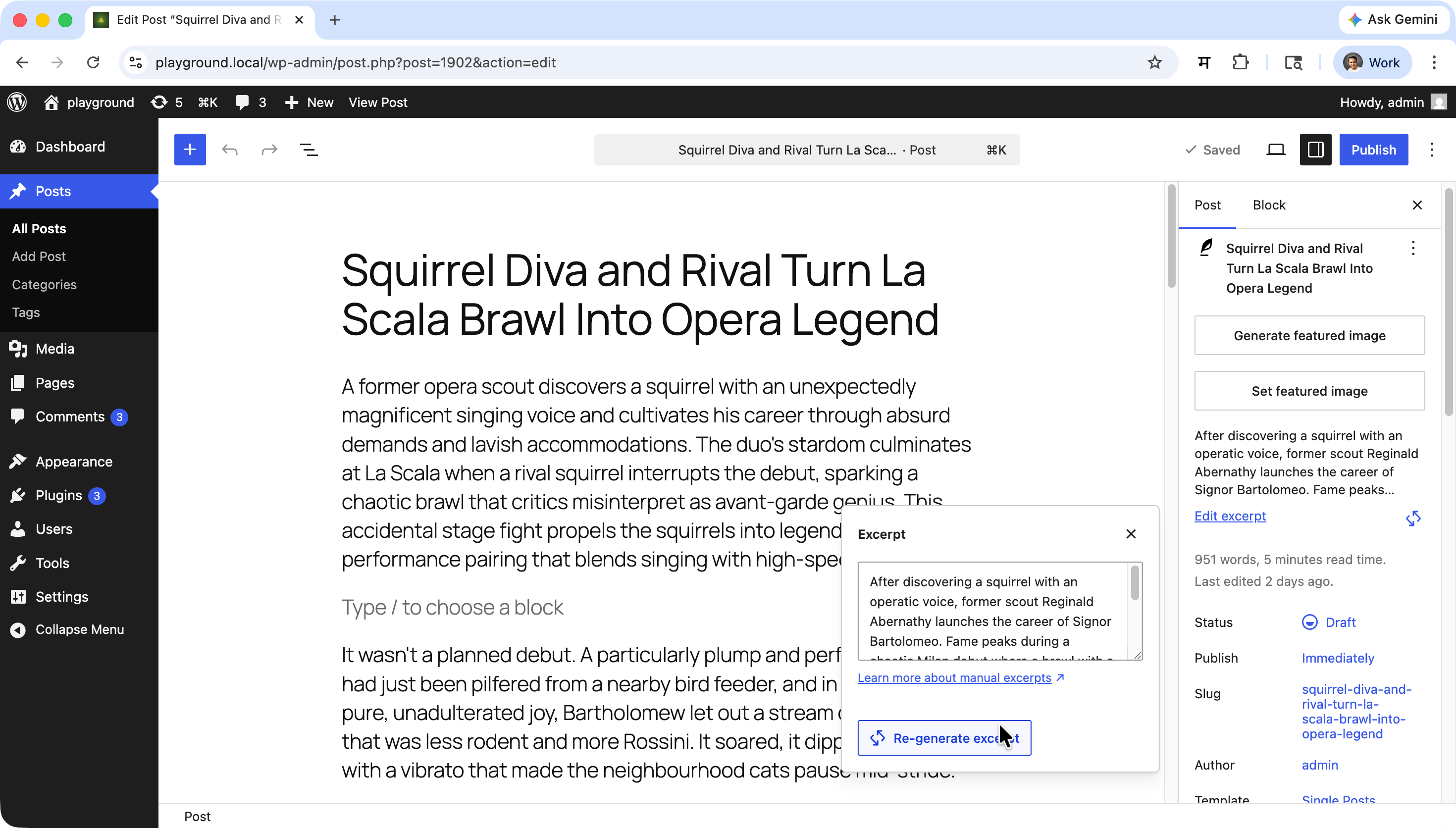
- Title generation
- Excerpt generation
- Content summarization
- Generate Review notes
Image Generation
use WordPress\AI_Client\Prompt_Builder;

$result = Prompt_Builder::create()
    ->using_provider( 'openai_compatible' )
    ->set_model( 'dall-e-3' ) // Image generation model at your endpoint
    ->add_text_message( 'A serene mountain lake at sunset, photorealistic.' )
    ->generate_image();
Supported image generation options
- Output formats: PNG, JPEG, WebP
- Aspect ratios: 1:1, 3:2, 2:3, 7:4, 4:7
- File delivery: inline or remote URL
- Custom options passthrough
- Extended timeout (300 s) to accommodate slow generation backends
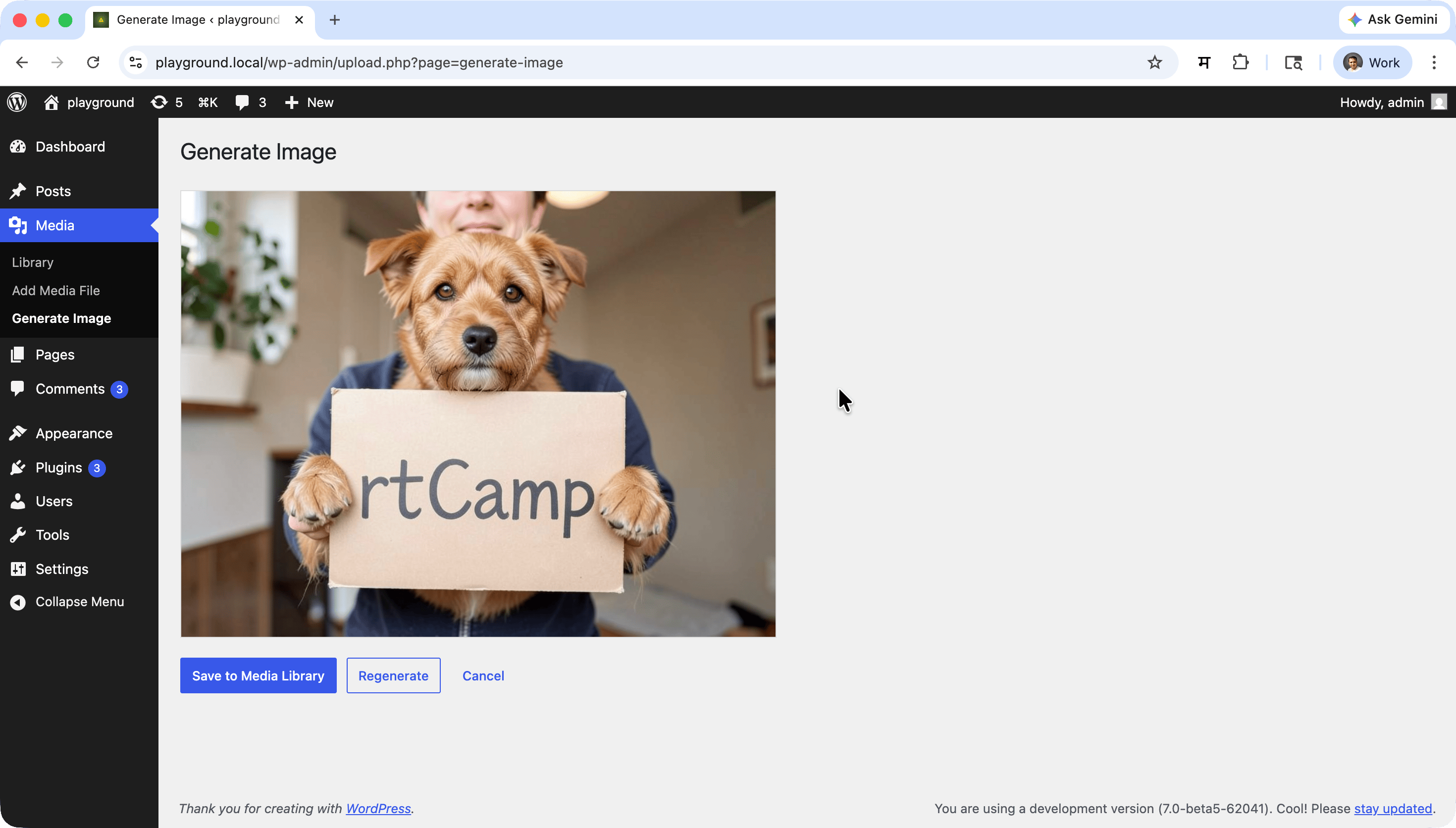
WordPress Ability
You can use Universal OpenAI Connector for any WordPress AI Client feature that supports image generation.
Multimodal (Vision) Input
Vision-capable models can accept image inputs alongside text. The plugin detects image parts in the prompt and switches to the multimodal input format automatically:
use WordPress\AI_Client\Prompt_Builder;

$result = Prompt_Builder::create()
    ->using_provider( 'openai_compatible' )
    ->set_model( 'gpt-4o' ) // Vision-capable model at your endpoint
    ->add_text_message( 'Describe what you see in this image.' )
    ->add_image_from_url( 'https://example.com/photo.jpg' )
    ->generate_text();
WordPress Ability
You can use Universal OpenAI Connector's vision capabilities in any WordPress AI Client feature that supports image input, such as:
- Alt text generation
- Image captioning / analysis
Environment Overrides
For advanced deployments, override defaults using environment variables:
| Variable | Description |
|---|---|
OPENAI_COMPATIBLE_BASE_URL |
Override the API endpoint URL |
OPENAI_COMPATIBLE_API_KEY |
Override the API key |
Environment variables take priority over database-stored settings.
Developer Filters
openai_compatible_text_generation_params
Called before sending a text-generation request. Receives and must return the full parameters array.
add_filter( 'openai_compatible_text_generation_params', function ( array $params ): array {
    $params['temperature'] = 0.2;
    return $params;
} );
openai_compatible_image_generation_params
Called before sending an image-generation request. Receives and must return the full parameters array.
add_filter( 'openai_compatible_image_generation_params', function ( array $params ): array {
    $params['size'] = '1024x1024';
    return $params;
} );
Non-OpenAI backend compatibility
When the configured endpoint URL does not contain api.openai.com, the plugin automatically strips parameters that strict OpenAI-compatible backends often reject: response_format, n, quality, style, and reasoning_effort. You can re-add any of these via the filters above if your backend supports them.
Development & Contributing
Universal OpenAI Connector is actively developed and maintained by rtCamp.
We welcome contributions! Please open an issue or pull request on GitHub.
PHP
composer run-script lint
composer run-script format
composer run-script phpstan
JavaScript
npm run lint:js
npm run lint:js:fix
Combined Lint
npm run lintBuild Release Zip
npm run plugin-zipThis creates universal-openai-connector.zip in the plugin root, excluding all development-only files.
Frequently Asked Questions
What is an OpenAI-compatible API?
Any REST API that implements the OpenAI API format — specifically /v1/chat/completions, /v1/images/generations, and /v1/models — is considered OpenAI-compatible. This includes the official OpenAI API as well as many self-hosted and third-party services.
Do I need an API key?
It depends on the service. The official OpenAI API requires an API key. Self-hosted services like Ollama or LM Studio do not require authentication by default. If authentication is needed, enter your API key in Settings → Connectors.
Does this plugin require the WordPress AI Client plugin?
Yes. The WordPress AI Client plugin (ai) must be installed and activated. This plugin registers the openai_compatible provider within that framework.
Can I use local or self-hosted models?
Yes. The plugin automatically lifts WordPress's default restriction on HTTP requests to private IPs for localhost, 127.0.0.1, and ::1 — but only when the request URL matches your configured endpoint. This means local AI servers work out of the box without affecting other WordPress HTTP calls.
Can I use vision / image-input models?
Yes. When a model supports vision capabilities, the plugin automatically uses the multimodal input format when image parts are included in a prompt. No additional configuration is needed.
Can this plugin generate images?
Yes. Any endpoint that implements /v1/images/generations is supported. Configure the Default Image Model in settings to a model that supports image generation (e.g. dall-e-3 for OpenAI).
Can I change the API endpoint?
Yes. Enter the full base URL in Settings → Universal OpenAI Connector → API Endpoint URL, or set the OPENAI_COMPATIBLE_BASE_URL environment variable. The environment variable takes priority.
Why does text generation sometimes time out?
Large models can take significant time to respond, especially on self-hosted hardware. The plugin extends the HTTP timeout to 300 seconds for image generation requests to accommodate slow backends. For text generation, the standard WordPress timeout applies; if you consistently time out, consider running a faster or smaller model.
Is multisite supported?
The plugin can be network-activated on multisite. Each site's settings are managed independently via their own Settings → Universal OpenAI Connector page.
Troubleshooting
No models appearing in the settings dropdowns
- Confirm the API endpoint is reachable and the URL in settings is correct.
- Check that the endpoint implements
/v1/modelsand returns a valid response. - Verify the WordPress AI Client plugin is active.
- If authentication is required, make sure the API key is entered in Settings → Connectors.
Text or image generation failing
- Check that the selected model is available at the configured endpoint.
- Review the PHP error log for detailed error messages.
- For self-hosted backends, ensure the server is running and the model has finished loading.
Settings not saving
- Check file permissions and database write access.
- Look for conflicting plugins that may be overriding the settings page.
Common Issues
- "AI provider not found" error in settings: The WordPress AI Client plugin may not be fully initialised — deactivate and reactivate both plugins, then reload the settings page.
- Connection refused errors: Confirm the API server is running and the endpoint URL (including path) is correct.
- Authentication errors: Make sure your API key is entered correctly in Settings → Connectors.
- Parameters rejected by backend: Non-OpenAI backends may reject certain parameters. The plugin strips the most common incompatible ones automatically; use the
openai_compatible_text_generation_paramsoropenai_compatible_image_generation_paramsfilters to fine-tune the request.
Support & Community
- Issues & Bug Reports: GitHub Issues
- Source Code: GitHub Repository
License
This project is licensed under the GPL v2 or later — see the LICENSE file for details.
Made with ❤️ by rtCamp