OneMedia WP Registry grade B. Medium-severity findings · 2 findingsWP RegistryMedium-severity findings · 2 findingsOpen the reportB
Empower your WordPress multi-brand network with unified, effortlessly shared media.
Install
Upload it under Plugins → Add New Plugin → Upload Plugin, then activate.
Install straight from GitHub with WP-CLI:
wp plugin install https://github.com/rtcamp/onemedia/releases/download/ci-artifacts/pr-92-1ad99956e19c6a66ecd5919ec7370a27fb489cfc.zip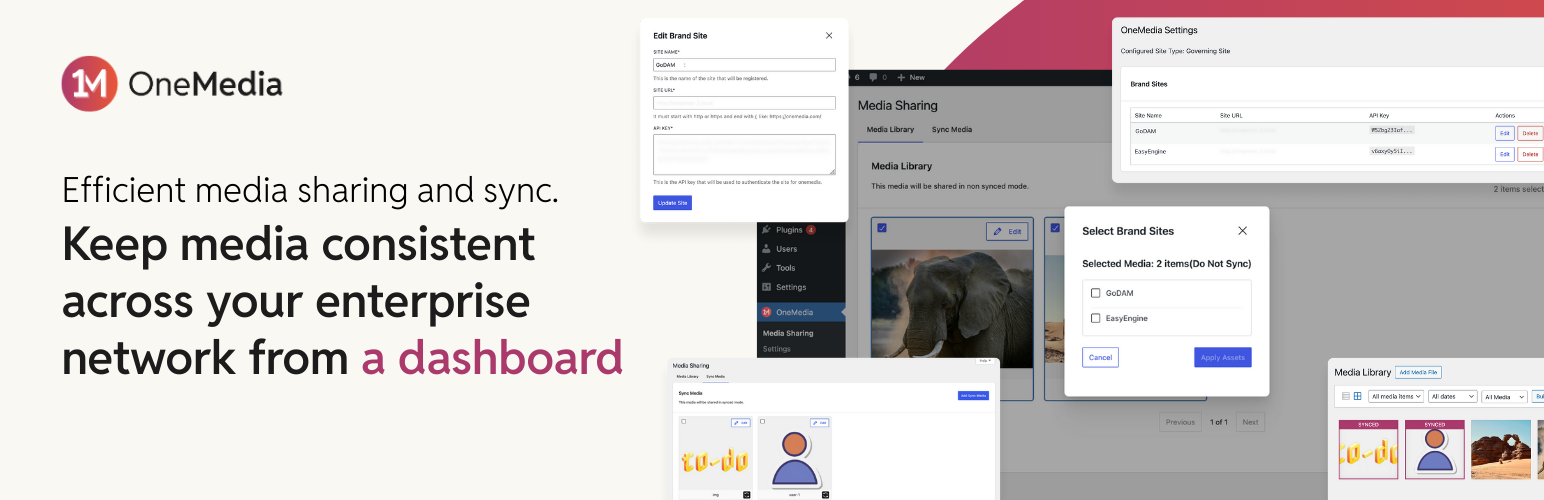
OneMedia 
Contributors: rtCamp, up1512001, ahmarzaidi, danish17, AnuragVasanwala, aviral-mittal, rishavjeet, vishal4669, SushantKakade
Tags: OneMedia, OnePress, Media Manager, WordPress, Media Manager, WordPress Automation, WordPress Plugins, WordPress Enterprise, Sync Media, Non-Sync Media
This plugin is licensed under the GPL v2 or later.
Overview
OneMedia, part of the OnePress suite, is a centralized media library for multi-brand enterprises using WordPress. It allows a central Governing Site to manage and distribute media assets to any number of connected Brand Sites, streamlining your workflow and ensuring brand consistency.
Features
Core Functionality
OneMedia enables you to share media from a central Governing Site to your network of Brand Sites. You can share assets using two distinct modes: Sync and Non-Sync.
Note: Supported file types are JPG, PNG, WEBP, BMP, SVG, and GIF.
Sync Mode
When an asset is shared in Sync Mode, a live link is maintained between the Governing Site and the Brand Sites. Any updates made on the Governing Site—from metadata changes to file replacements—are automatically synchronized across all Brand Sites where the asset has been shared.
Non-Sync Mode
In Non-Sync Mode, a copy of the media asset is sent to the Brand Sites and remains static. Shared assets cannot be deleted on Brand Sites; however, non-synced assets can be edited independently on each site.
Key Features & Benefits
- Time Efficiency: Upload assets once and distribute them everywhere, eliminating redundant work.
- Brand Consistency: Ensure all websites in your network display the latest, approved brand assets.
- Flexibility: Choose between Sync Mode for live updates or Non-Sync Mode for one-time sharing.
- Centralized Control: Assets shared in Sync Mode are read-only on Brand Sites, preventing unauthorized edits and ensuring brand integrity.
- File Replacement: Easily replace a synced media file on the Governing Site, and the update will propagate across all connected Brand Sites automatically.
- Secure Communication: Brand Sites generate unique API keys to ensure all communication with the Governing Site is secure and authorized.
Site Types
- Governing Site: The central WordPress installation that controls all media sharing and synchronization. A single Governing Site can connect to multiple Brand Sites.
- Brand Site: A managed WordPress site that receives shared media. A Brand Site can connect to only one Governing Site at a time.
Installation, Setup & Configuration
For detailed installation instructions, system requirements, and step-by-step configuration guides, please see our comprehensive Installation, Setup and Configuration Guide.
Usage Guide
Once you have installed and configured the plugin, follow this guide to get started.
Governing Site Options
Managing Brand Site Connections
-
Add a Brand Site:
- Navigate to OneMedia → Settings on the Governing Site.
- Click Add Brand Site and enter the following details:
- Site Name: A descriptive name for the Brand Site (max 20 characters).
- Site URL: The full URL of the Brand Site.
- API Key: The unique API key generated on the Brand Site.
- Click Add Site to complete the connection.
-
Update or Remove a Brand Site:
- From the OneMedia → Settings page, click the edit icon to update a site's details or the delete icon to remove it.
Managing and Sharing Media
-
Share Media with Brand Sites:
- Navigate to OneMedia → Media Sharing on the Governing Site.
- Select the Sync Media or Non-Sync Media tab based on your needs.
- Click Add to Sync Media or Add to Non-Sync Media to open the media library.
- Select the assets you wish to share and click the Share Selected Media button.
- In the pop-up modal, choose the destination Brand Sites and click Share Media.
Note: The Non-Sync Media tab is pre-populated with existing assets from your WordPress Media Library.
-
Update Synced Media Metadata:
- In the Sync Media tab, click the edit icon next to any asset.
- Update the title, caption, alt text, or description and click Update. The changes will automatically apply to all connected Brand Sites.
-
Replace a Synced Media File:
- Click the edit icon next to the relevant asset.
- In the edit modal, scroll down and click the Replace Media button.
- Upload the new file. Once complete, click Update. The new file will replace the old one across all Brand Sites where it was shared.
Brand Site Options
API Key Management
- Regenerate an API Key: On the Brand Site, navigate to OneMedia → Settings and click Regenerate API Key. The previous key will be invalidated, so remember to update it on the Governing Site.
- Disconnect from Governing Site: Click Disconnect from Governing Site to sever the connection. This will stop all future media synchronization but will not delete any assets already shared to the Brand Site.
Known Issues / Limitations
- Supported Files: Only JPG, PNG, WEBP, BMP, SVG, and GIF files are supported.
- Deleting Synced Media: Media shared in Sync Mode cannot be deleted directly from the Governing Site. To delete a synced asset, or any shared asset from a Brand Site, you must first disable the OneMedia plugin and then perform the deletion.
- API Save Delay: Due to a WordPress REST API issue, metadata updates for Sync Media may occasionally fail to save on the first attempt. If you encounter this, please refresh the page and try updating again.
- Image Replacement Sizing: The media replacement feature for synced assets does not currently validate image dimensions. Replacing an image with one of a different size may affect its appearance on the front end.
- Subdirectory Multisite Limitation: On a subdirectory multisite installation, a Brand Site can only be connected to a Governing Site that exists within the same multisite network.
- Subdomain Multisite Limitation: Subdomain multisite installations have not been fully tested.
Development & Contributing Guidelines
OneMedia is actively developed and maintained by rtCamp.
Contributions are welcome and encouraged! To learn how you can contribute, please read our Contributing Guide. For local setup and development, see the Development Guide.
Frequently Asked Questions
How does media sharing work?
Media is uploaded once to the Governing Site and can then be distributed to any connected Brand Site in either Sync or Non-Sync Mode.
Can I control which sites receive specific assets?
Yes. When you share media, you can select the specific Brand Sites you want to send it to.
What's the difference between Sync and Non-Sync Modes?
- Sync Mode: Creates a live link. Changes on the Governing Site are automatically pushed to Brand Sites. Ideal for critical brand assets like logos.
- Non-Sync Mode: Sends a one-time copy. The asset can be edited independently on the Brand Site. Ideal for sharing a batch of images for a campaign.
How do I add a new Brand Site?
On the Governing Site, go to OneMedia → Settings, click Add Brand Site, and fill in the site's name, URL, and API key.
How can I check an asset's sync status?
- On the Governing Site, the OneMedia → Media Sharing screen displays a sync status badge on each asset.
- On a Brand Site, the WordPress Media Library shows a "SYNCED" status icon (in grid view) or a "Sync Status" column (in list view).
Can I edit or delete shared media on a Brand Site?
You can edit the metadata of non-synced media. You cannot delete any media (Sync or Non-Sync) that was shared from a Governing Site.
My media share is failing. What should I do?
First, ensure the API key is correct and the Brand Site is reachable. You can test the connection by navigating to OneMedia → Settings on the Governing Site, clicking "Edit" next to the Brand Site, adding a / after the URL, and clicking "Update Site". If a connection problem exists, an error message will appear.
Does this work on a multisite network?
Yes, OneMedia supports Subdirectory multisite and standard WordPress installations. As of now, Subdomain multisite installations have not been fully tested.
I accidentally set the incorrect site type during activation. How do I fix it?
You must uninstall and then reinstall the plugin, selecting the correct site type during reactivation. Note: Uninstalling removes OneMedia settings but leaves your media files intact.
Is this secure?
Yes. All communication between sites is authenticated using unique API keys and validated requests.
License & Credits
This project is licensed under the GPL v2 or later. See the LICENSE file for details.
Made with ❤️ by rtCamp
Releases
5 releases. Each count is every asset in that release; expand a row for the breakdown.