WP n8n Connector
WordPress admin dashboard to browse, activate, manually trigger, and inspect n8n workflows without leaving wp-admin.
Install
This is the repository archive. It installs, but the folder name will carry the branch suffix and updates will not flow.
Install straight from GitHub with WP-CLI:
wp plugin install https://github.com/rohit1090/n8n-secure-proxy-connection/archive/refs/heads/master.zipA WordPress admin dashboard for browsing, activating, manually triggering, and inspecting your n8n workflows — without leaving wp-admin.
Table of Contents
- Features
- Screenshots
- Requirements
- Installation
- Configuration
- Usage
- How "Trigger Workflow" actually works
- Known limitations
- Troubleshooting
- File structure
- Security notes
- Changelog
- Contributing
- License
Features
- 📋 Browse all workflows from your n8n instance in a clean card list
- 🔀 Drag-and-drop to reorder workflows (order is saved per WordPress site)
- ⚡ One-click manual trigger via a configurable webhook router
- 🟢 Activate / deactivate workflows directly, with real error messages surfaced instead of silent failures
- 📜 Execution log viewer with resolved workflow names and human-readable timestamps
- 🕸️ Interactive node pipeline canvas — pan, zoom, and see how a workflow's nodes actually connect, without opening n8n
- 🔒 Nonce-verified, capability-gated AJAX endpoints (
manage_optionsrequired for every action) - ⚙️ Store credentials in
wp-config.phpconstants instead of the database, if you prefer
Screenshots
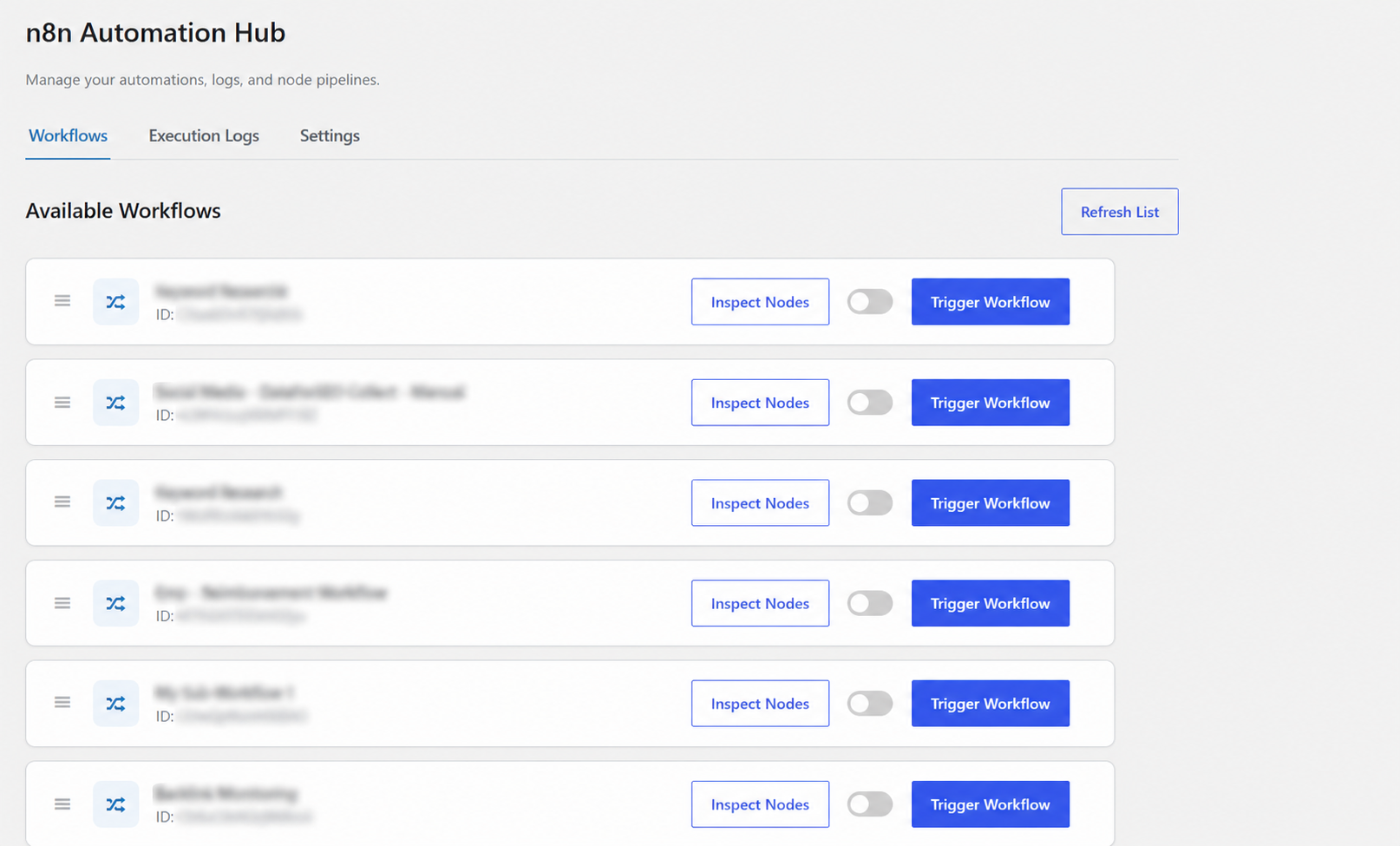
Workflows tab
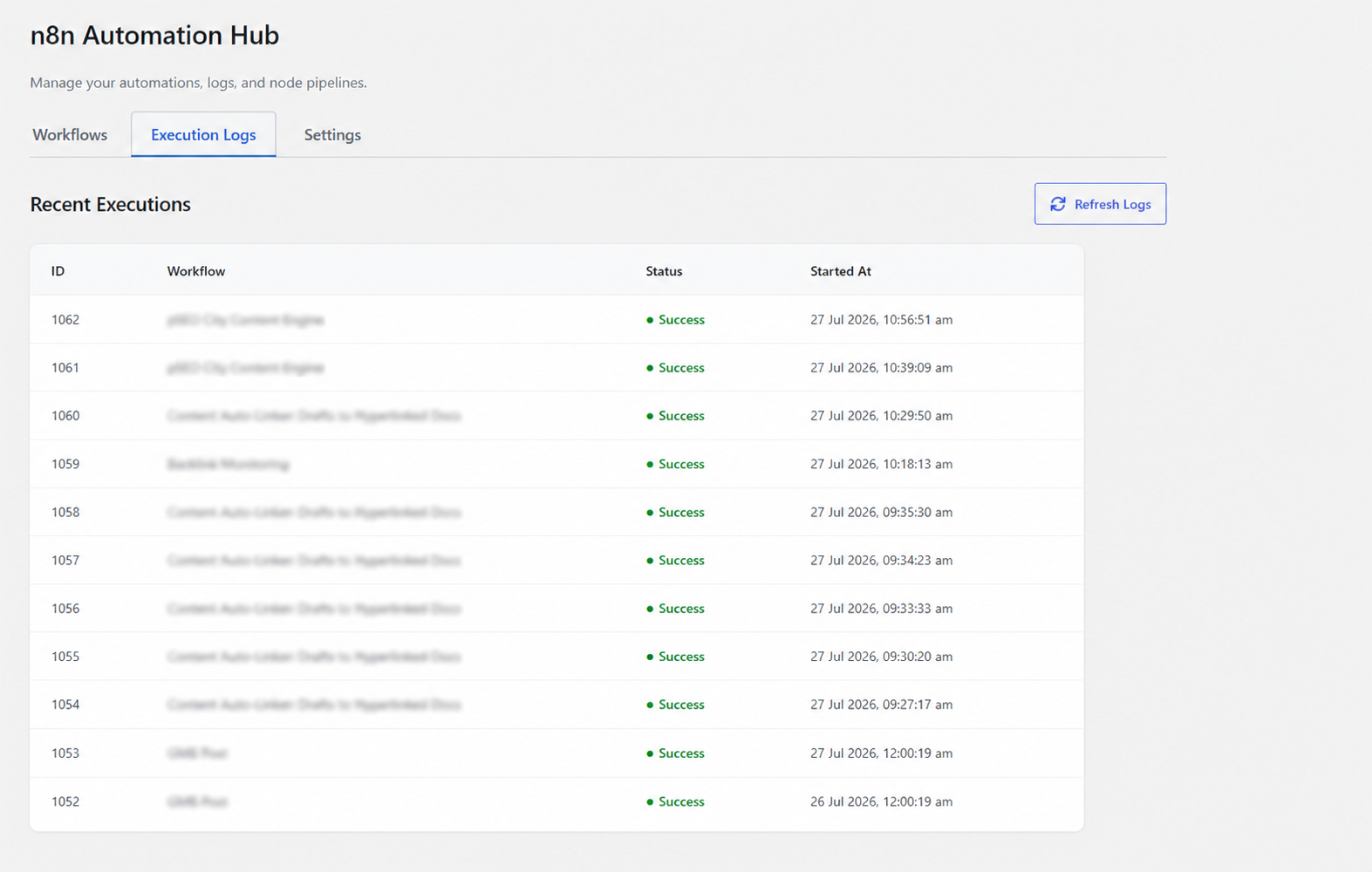
Execution Logs tab
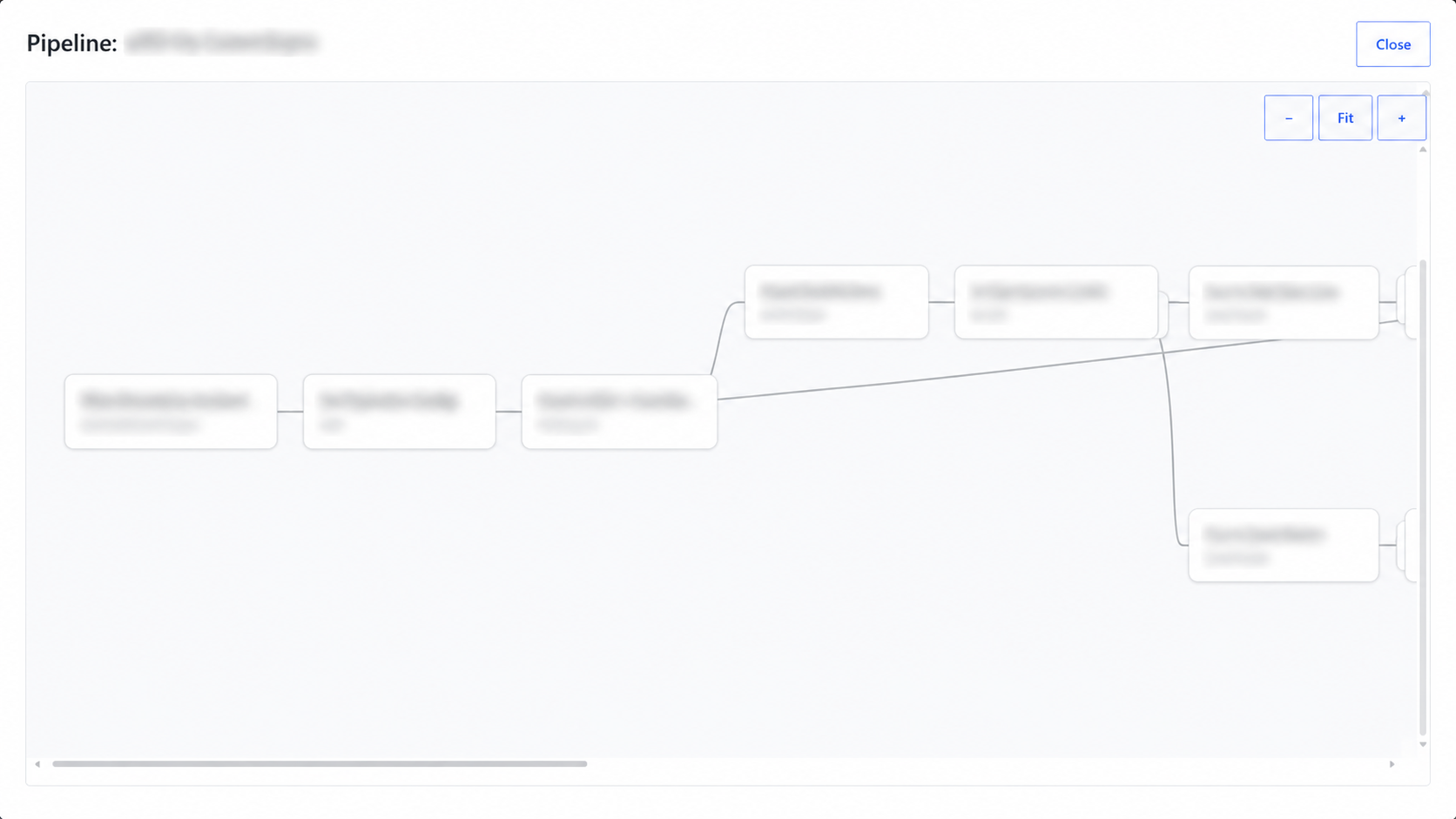
Node Pipeline canvas
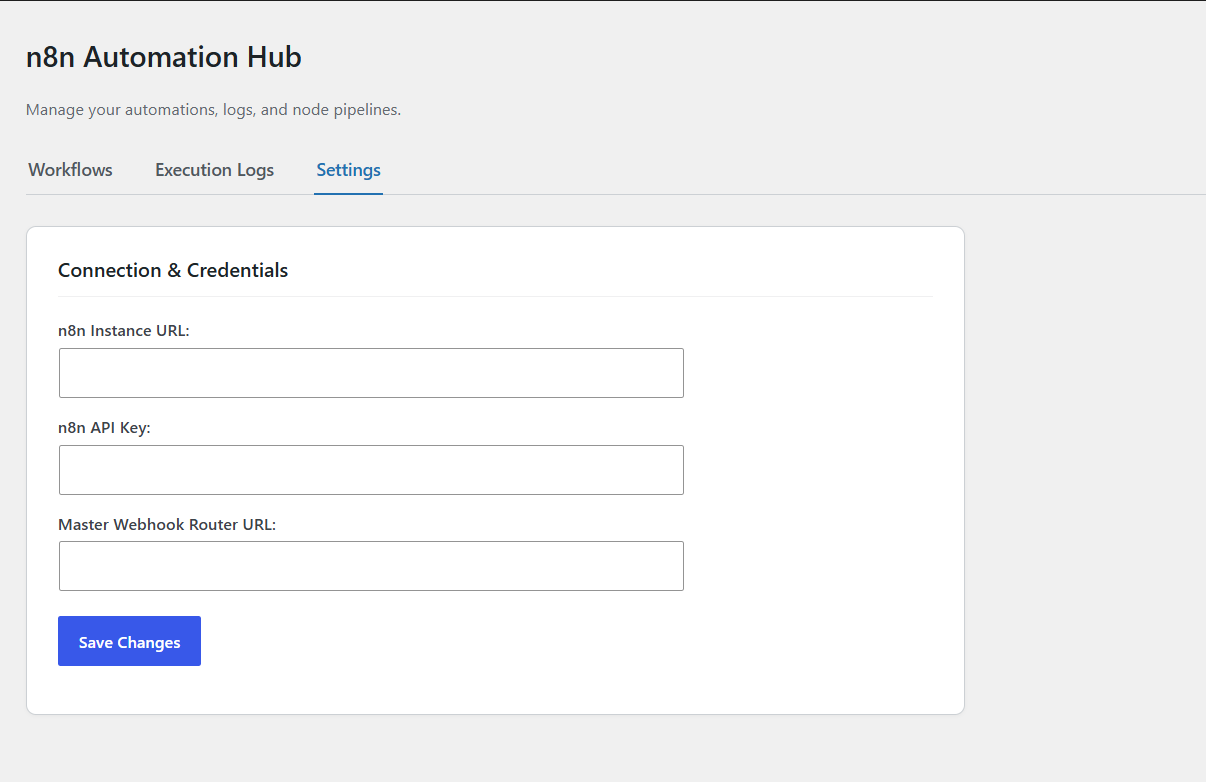
Settings
Requirements
| WordPress | 5.0+ |
| PHP | 7.4+ |
| n8n | Any version with the Public REST API enabled (/api/v1) |
| n8n API Key | Created under n8n → Settings → n8n API |
Installation
- Download or clone this repository.
- Upload the
wp-n8n-connectorfolder to/wp-content/plugins/.- Or zip the folder and install via Plugins → Add New → Upload Plugin in wp-admin.
- Activate WP n8n Connector from the Plugins screen.
- Go to WP n8n Connector → Settings in the WordPress admin sidebar and fill in your connection details (see Configuration below).
Configuration
1. n8n-side setup
- In n8n, go to Settings → n8n API and create an API key. Copy it — you won't be able to view it again.
- Confirm your n8n instance's Public API is reachable from your WordPress server:
- Self-hosted: usually your instance's base URL, e.g.
https://n8n.example.com - n8n Cloud:
https://<your-subdomain>.app.n8n.cloud
- Self-hosted: usually your instance's base URL, e.g.
- Build a Master Webhook Router workflow — a Webhook node, an Execute Workflow node, and a Respond to Webhook node — required for the "Trigger Workflow" button to actually do anything. Full step-by-step instructions are in How "Trigger Workflow" actually works below.
2. Plugin settings
Under the Settings tab in the plugin:
| Field | What it is |
|---|---|
| n8n Instance URL | The base URL of your n8n instance, e.g. https://n8n.example.com (no trailing /api/v1) |
| n8n API Key | The key generated in step 1 above |
| Master Webhook Router URL | The production webhook URL of your router workflow |
3. Using constants instead of the database (recommended for production)
Rather than storing these values in the WordPress database via the Settings screen, you can define them in wp-config.php:
define('N8N_API_URL', 'https://n8n.example.com');
define('N8N_API_KEY', 'your-api-key-here');
define('N8N_MASTER_WEBHOOK', 'https://n8n.example.com/webhook/master-router');
When any of these constants are defined, the plugin uses them and ignores the corresponding Settings field. This is useful if you manage secrets outside the database (e.g. via your hosting provider's environment config) or want them excluded from database backups.
Usage
Workflows tab
- Refresh List pulls the current workflow list from n8n.
- Drag the ☰ handle to reorder — order is saved per WordPress site and layered on top of whatever n8n returns.
- The toggle activates/deactivates a workflow directly against n8n's API. If activation fails (most commonly because the workflow has no valid trigger node), the real reason from n8n is shown next to the toggle instead of failing silently.
- Trigger Workflow fires the workflow via your Master Webhook Router — independent of activation state, so you can manually trigger a workflow whether or not it's currently active.
- Inspect Nodes opens the node pipeline canvas.
Execution Logs tab
Shows the most recent executions from n8n, with workflow names resolved (cached briefly to avoid extra API calls) and human-readable timestamps instead of raw ISO strings.
Node Pipeline canvas
A lightweight pan-and-zoom view of a workflow's actual node graph, built from n8n's own node and connection data:
- Drag to pan
- + / − / Fit buttons to zoom
- Node positions and connection lines mirror what you'd see in the n8n editor
How "Trigger Workflow" actually works (Master Webhook Router)
The plugin does not call each workflow's individual webhook trigger. Instead, every click POSTs a single JSON body —
{ "workflow_id": "abc123" }— to the one Master Webhook Router URL configured in Settings. This keeps the plugin simple to configure (one URL, not one per workflow), but it means you need a small routing workflow in n8n to receive that call and dispatch it to the right target workflow. Nothing about this router is created by the plugin — you build it once, directly in n8n, using the steps below.
Webhook (POST, path: master-router)
  → Execute Workflow (Source: By ID, Workflow ID: {{$json.body.workflow_id}})
    → Respond to Webhook
Building the router workflow in n8n, step by step
- In n8n, click + New workflow and name it something recognizable, e.g.
Master Webhook Router. - Add a Webhook node as the trigger (this is the entry point the plugin will call):
- HTTP Method:
POST - Path: any unique slug, e.g.
master-router - Respond: set to
Using 'Respond to Webhook' Node, so the response is controlled explicitly by step 4 instead of firing immediately.
- HTTP Method:
- Add an Execute Workflow node and connect it after the Webhook node. This is the node that actually runs whichever workflow the plugin asked for:
- Source:
Database - Workflow:
By ID - Workflow ID: don't type a fixed ID — set this field to an expression:
{{$json.body.workflow_id}}. This reads theworkflow_idthe plugin sent in its POST body, so one router node can dispatch to any workflow on the instance.
- Source:
- Add a Respond to Webhook node after the Execute Workflow node, so the plugin's AJAX call gets back a clean success response instead of timing out.
- Save the workflow, then flip it to Active using the toggle in the top-right corner — an inactive router silently receives nothing, which is the #1 cause of "Trigger Workflow says success but nothing happens" (see Troubleshooting).
- Open the Webhook node and copy its Production URL — not the Test URL. The Test URL only listens while you have the workflow open in the editor with "Listen for test event" active; it will not work for real usage.
- Paste that Production URL into the plugin's Settings → Master Webhook Router URL field (or set it via the
N8N_MASTER_WEBHOOKconstant — see Using constants) and save.
Once that's done, every Trigger Workflow click in the Workflows tab does the following round trip: the plugin POSTs { "workflow_id": "<id>" } to your router → the Webhook node receives it → the Execute Workflow node looks up and runs that specific workflow by ID → Respond to Webhook returns success back to the plugin, which shows "Triggered!" next to that workflow's card.
Known limitations
- No credentials management. n8n's public REST API doesn't support listing, reading, or updating existing credentials — this is a deliberate n8n platform restriction (only n8n's own logged-in UI can display saved credential values), not something this plugin can work around. An earlier iteration of this plugin attempted a partial credentials tab; it was removed because it couldn't do what people actually needed.
- Activation depends on n8n's own rules. A workflow can't be activated if it has no valid trigger node — the plugin surfaces n8n's error message when this happens, but can't activate a workflow n8n itself would refuse to activate.
- Execution log name resolution is capped per lookup by n8n's API pagination; on very large instances, some workflow names may briefly show as raw IDs until the next cache refresh.
Troubleshooting
| Symptom | Likely cause |
|---|---|
| "Trigger Workflow" shows success but nothing happens in n8n | Master Webhook Router isn't set up, isn't active, or the URL in Settings doesn't match its production webhook URL |
| Toggle reverts right after activating | n8n rejected activation — check the error text shown next to the toggle for the specific reason (commonly "no valid trigger node") |
| Execution Logs tab is empty | API key may be missing the Executions read scope, or there are no executions yet on the instance |
| Node canvas looks like nodes are stacked/overlapping | The workflow's nodes may share identical or near-identical saved positions in n8n; try Fit, or reposition nodes in n8n's own editor |
File structure
wp-n8n-connector/
├── wp-n8n-connector.php                 # Core: dashboard, workflow list, toggles, logs, drag-and-drop
├── includes/
│   └── n8n-advanced-features.php        # Node Pipeline canvas data proxy
└── assets/
    ├── css/
    │   └── n8n-admin.css                # Dashboard, card, modal, and canvas styles
    └── js/
        ├── n8n-admin.js                 # Core JS: tabs, toggles, logs, sortable, escaping/date helpers
        └── n8n-advanced.js              # Node pipeline pan/zoom canvas renderer
Security notes
- Every AJAX action is gated behind
check_ajax_referer()andcurrent_user_can('manage_options')— only WordPress admins can use any part of this plugin. - All data rendered from n8n API responses is HTML-escaped client-side before insertion into the DOM.
- Prefer the
wp-config.phpconstants approach for your API key and webhook URL in production, especially on multi-admin sites. - Never commit your actual
N8N_API_KEY, instance URL, or webhook URL to a public repository, README, or screenshot.
Changelog
1.7.0
- Renamed the plugin to WP n8n Connector (menu, dashboard heading, main file, and menu slug all updated)
- API key is no longer echoed back into the Settings page HTML in plaintext; the field now stays blank with a placeholder and only overwrites the stored key when a new value is submitted
- Hardened the workflow-order save endpoint against malformed/nested payloads
- Added missing empty-
workflow_idvalidation on the trigger and activate/deactivate actions - Replaced the default Dashicon menu icon with n8n's official logo mark (embedded as an SVG data URI)
1.6.2
- Removed the Credentials tab — n8n's API doesn't support the list/read operations it would have needed to be genuinely useful
1.6.1
- Fixed workflow activation failing with HTTP 415 (explicit
Content-Type: application/jsonnow sent on activate/deactivate calls)
1.6.0
- Added HTTP status-code checking to every n8n API proxy call, fixing several silent-failure bugs
- Execution logs now resolve and display workflow names (previously IDs only)
- Replaced the flat node list in "Inspect Nodes" with a pan/zoom node pipeline canvas
- Fixed a missing script dependency between core and advanced JS
- Consistent output escaping across all rendered n8n data
1.5.0
- Initial release — dashboard, drag-and-drop ordering, activation toggles, execution logs, modular advanced-features file
Contributing
Issues and pull requests are welcome. Please:
- Fork the repo and create a feature branch
- Keep changes scoped — one fix/feature per PR
- Test against a real n8n instance before submitting
License
Licensed under the GPLv2 (or later), consistent with WordPress's own plugin licensing requirements. Add a LICENSE file with the full GPLv2 text to the repository root before publishing if you don't already have one.
Releases
1 release.
These releases are tags only. The author does not attach a packaged zip, so there are no download counts to report.