OpenChat Engine – AI Chatbot Plugin for WordPress
Add a customizable AI-powered chatbot to your site using OpenRouter. Users can enter their own API key and model, and optionally enable Google reCAPTCHA for spam protection.
Install
No release zip yet. The repository archive installs, but the folder name will carry the branch suffix and updates will not flow:
wp plugin install https://github.com/ridhwanahsan/openchat-engine/archive/refs/heads/main.zipThis guide will help you install, configure, and use the OpenChat Engine plugin to add a customizable AI-powered chatbot to your WordPress website.
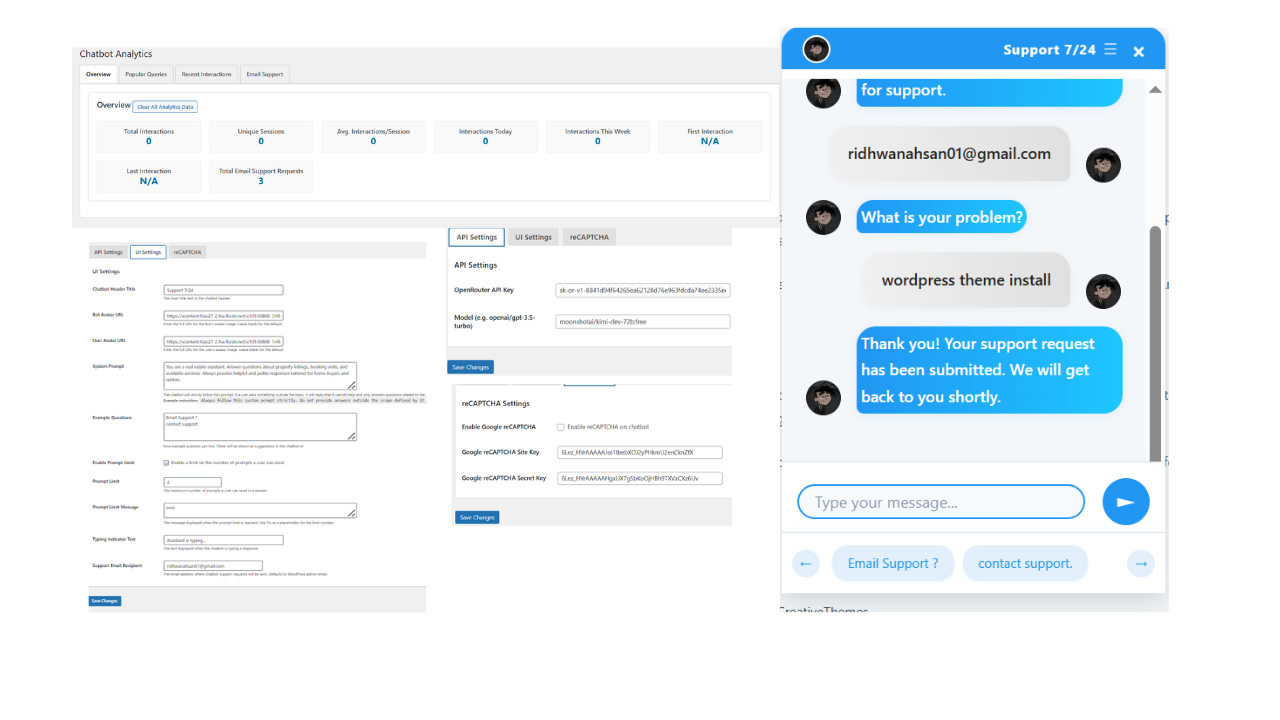
Table of Contents
1. Installation
A. Via WordPress Dashboard (Recommended)
- Navigate to Plugins > Add New in your WordPress admin dashboard.
- Click Upload Plugin at the top of the page.
- Click Choose File and select the
openchat-engine.zipfile you downloaded. - Click Install Now.
- Once installed, click Activate Plugin.
B. Manual Installation
- Unzip the
openchat-engine.zipfile. - Upload the entire
openchat-enginefolder to the/wp-content/plugins/directory of your WordPress installation via FTP or your hosting provider's file manager. - Navigate to Plugins in your WordPress admin dashboard.
- Locate "OpenChat Engine – AI Chatbot Plugin for WordPress" and click Activate.
2. Configuration
After activation, you'll find the plugin settings under the main OpenChat menu in your WordPress admin sidebar.
A. License
- Navigate to OpenChat > License.
- Enter your license key and click Save License.
- A valid license key is required to receive automatic plugin updates and access premium features like Analytics.
B. Settings
- Navigate to OpenChat > Settings.
- The settings are organized into three tabs:
- API Settings: Configure your OpenRouter API key and the desired AI model.
- UI Settings: Customize the chatbot's appearance, behavior, and prompts.
- reCAPTCHA Settings: Enable and configure Google reCAPTCHA for spam protection.
C. Analytics (Premium)
- Navigate to OpenChat > Analytics.
- This section is a premium feature and requires a valid license key.
- Here you can view:
- Total interactions, unique sessions, and average interactions per session.
- Interactions today and this week.
- First and last interaction timestamps.
- Total email support requests.
- Popular queries (with a chart visualization).
- Recent interactions.
3. Premium Features
A valid license key unlocks the following premium features:
- Advanced Usage Analytics: Gain insights into how users are interacting with your chatbot.
- Priority Support: Get faster and more dedicated support for any issues you encounter.
- Automatic Updates: Receive the latest features and security updates directly in your WordPress dashboard.
- Upcoming Integrations: Get access to future integrations with AI model insights and user behavior tracking.
4. Usage
Once configured, the chatbot widget will appear on the frontend of your website. Users can interact with it to get information and support.
5. Troubleshooting
If you encounter any issues, please refer to the following steps:
- Check License Key: Ensure your license key is entered correctly and saved in the OpenChat > License settings.
- Check API Settings: Verify that your OpenRouter API key and model are correctly configured.
- Deactivate/Reactivate: Deactivating and reactivating the plugin can sometimes resolve minor issues.
- Contact Support: If you have a valid license key, you can contact us for priority support.