Install
This is the repository archive. It installs, but the folder name will carry the branch suffix and updates will not flow.
Install straight from GitHub with WP-CLI:
wp plugin install https://github.com/raivis-kalnins/my-family-tree/archive/refs/heads/master.zipA free, open-source WordPress plugin for the stories, photographs and people that connect generations. Explore relatives in a responsive oak-inspired family tree, open a person in a detailed modal, and manage the archive through familiar WordPress posts.
Version 1.2.4 · WordPress 6.5+ · PHP 7.4+ · GPL-3.0-or-later
Developed by Raivis Kalnins, web developer at DigitalPulse.
Project: github.com/raivis-kalnins/wp-my-family-tree
Free plugin: all included features are available free of charge, with no paid plugin license or subscription required. Source code is included under GPL-3.0-or-later. Optional hCaptcha and Polylang integrations are documented separately and follow their providers' terms.
The package is prepared for free distribution through the WordPress.org Plugin Directory submission process. Directory publication remains subject to review. A reusable submission description and reviewer notes are included in docs/wordpress-org.md.
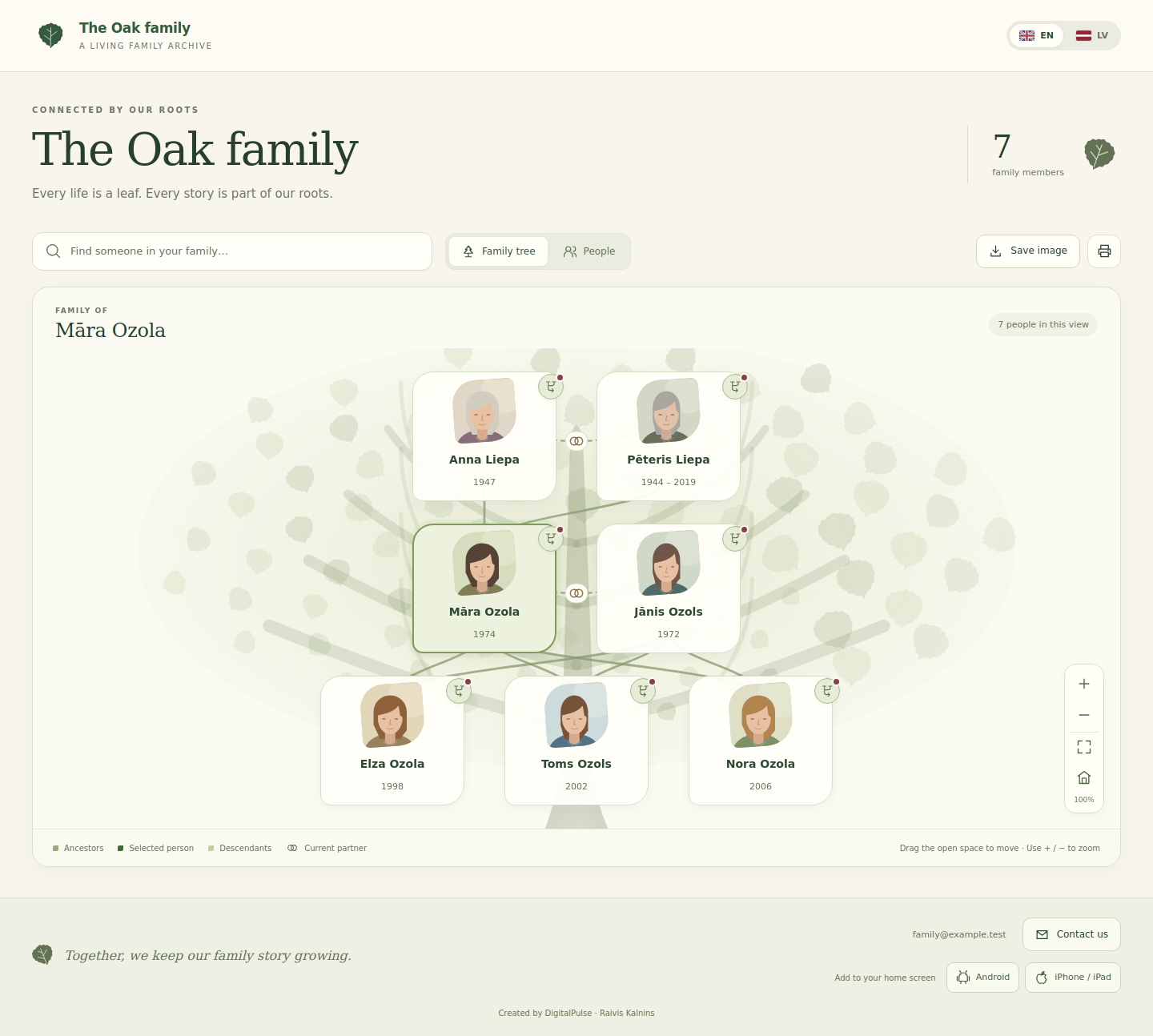
The screenshot contains fictional demonstration records and illustrated portraits. No private family records or photographs are included in this plugin.
What is new in 1.2.4
- Current WordPress compatibility metadata. The directory readme declares
Tested up to: 7.1, with verification performed against the official WordPress 7.1.3 release. - Release consistency. The plugin header, stable tag, asset version, block metadata and translation catalog metadata identify version 1.2.4.
- Free distribution information. The descriptions, FAQ and submission notes explain that the complete plugin is free and open source under GPL-3.0-or-later.
Version 1.2.3 improvements
- Updated public name. The plugin is now My Family Tree, packaged in
my-family-tree/with a matching translation domain and amy-family-tree.phpentry point. The new ZIP addresses the directory reviewer's name objection; acceptance and the final directory permalink remain subject to review. - Existing archive compatibility. Family records, settings, shortcodes and saved blocks retain their existing identifiers. Follow the rename migration below once when updating from the old
wp-my-family-treefolder.
Version 1.2.2 improvements
- Restored footer contact form. Contact us (Pieteikties in Latvian) opens the existing form for sending the family administrator a description and an optional photo. The same button is available to signed-out and signed-in visitors whenever contact is enabled.
Version 1.2.1 improvements
- Daily demo reset. Shared demo content returns to its saved starting state every 24 hours. The plugin handles scheduling and recovery without a backup plugin.
- Clearer family connections. Tree connectors and relationship highlighting make dense family views easier to follow.
- A tighter footer. The optional developer credit sits directly below the left-hand motto. Email, the contact-form button and device installation controls remain together.
Version 1.2.0 improvements
- Swipe through person galleries. Touch gestures move between photographs, with arrows, keyboard controls, larger dot targets and zoom retained. Vertical scrolling and panning a zoomed photograph do not change slides.
- A fullscreen tree. Expand just the tree panel, exit with the close button or Escape, and keep person details usable inside fullscreen. Browsers without element fullscreen use an in-page alternative. PNG exports and printing contain only the selected tree branch, without the site header or contact footer.
- Edit in a new tab. Authorized editors can open a person's editor while keeping their place in the tree.
- Object-cache support and a toolbar tool. Choose automatic, WordPress-transient or persistent object-cache storage. Administrators can clear only the Family Tree cache from the WordPress toolbar; the clean icon rotates while the request runs.
- Fourteen language presets and custom languages. English is the default for new installations. Add or edit any number of interface languages in settings, with optional Polylang content translations and English fallback for untranslated labels.
- An optional cinema-family demo. Import eight fictional crossover characters, eleven original illustrations and two English pages after confirmation. Existing content is preserved. A separate, explicitly enabled demo-sharing mode provides a restricted sample editor and a front-end demo password only when no real family records exist.
- A compact footer. Email is a mail button beside the contact form and optional Android / iPhone installation controls, with a mobile layout and an optional credit beneath the motto.
- Public distribution documentation. A WordPress.org-format readme, external-service disclosures, readable source, build instructions and review notes are included.
The existing private-media, contact-photo, relationship-status, mobile tree-gesture and performance-cleanup features are retained.
Features at a glance
| Area | Included |
|---|---|
| Tree | Fluid oak layout, leaf portraits, pan, zoom, relative navigation, search and people directory |
| Person modal | Portrait, biography, dates, places, relationships, contact information, social links and gallery lightbox |
| WordPress content | Ordinary posts for people; a Family Tree block and [wp_my_family_tree] shortcode for the page |
| Theme integration | Optional full-window page with its own H1, header and contact footer; embedded mode for a theme layout |
| Languages | Fourteen bundled frontend interfaces, unlimited custom languages, editable labels, English fallback and optional Polylang page/content translations |
| Privacy | Optional family password, remembered viewing access up to 30 days, server access checks and no-store responses |
| Photographs | Top-aligned portraits and optional encrypted family-media delivery |
| Contact | Independent recipient settings, optional hCaptcha, private single-photo attachment and WordPress mail delivery |
| Installation | Oak favicon, Apple touch icon, web-app manifest and Android / Apple footer help |
| Sharing | Fullscreen tree panel, tree-only PNG export and printing |
| Performance | Server-side relationship index, optional persistent object cache, scoped animated toolbar clearing, minified assets, full-window HTML compaction and configurable WordPress cleanup |
| Demo | Additive fictional content import and an isolated, restricted shared editor available only after administrator opt-in |
Update an existing installation
Update My Family Tree 1.2.3 or later
Back up the site, upload the complete my-family-tree-1.2.4.zip through Plugins → Add New Plugin → Upload Plugin, and choose Replace current with uploaded. Keep the my-family-tree/ folder name, then verify the tree page, photographs and contact form. Existing data and settings are retained.
Migrate from WP My Family Tree 1.2.2 or earlier
The package now uses my-family-tree/. WordPress treats this folder as a separate plugin; uploading it does not replace the old wp-my-family-tree/ copy.
- Back up the site's database and uploads together. If the archive contains private published content, enable independent site access protection for the switch because deactivating the old plugin stops its access checks.
- Open Plugins and deactivate WP My Family Tree. If it is network-active, deactivate it in Network Admin first.
- Open Plugins → Add New Plugin → Upload Plugin, select the complete
my-family-tree-1.2.4.zip, and click Install Now. - Activate My Family Tree. Keep the old copy inactive; the new entry point blocks activation while the previous copy is active.
- Open the tree page and verify the privacy gate, photographs, person editor and Contact us / Pieteikties form. Review Family Tree → Settings & help, then clear the Family Tree cache and any applicable page cache.
- After verifying the new version, delete the inactive WP My Family Tree copy from the Plugins screen. Its bundled code has no uninstall data-deletion routine. Leave My Family Tree active.
Your person posts, relationships, uploaded photographs, stored password, settings and media-encryption key remain in the site's existing data. Existing [wp_my_family_tree], [family-tree] and [family-members] shortcodes and saved wp-my-family-tree/tree blocks remain valid. No database import, theme replacement or backup restore is required.
Deactivating the old plugin revokes the public demo account and sessions. On an isolated demonstration site, explicitly enable shared demo mode again if needed. Imported samples and the saved reset baseline are retained.
Later updates to My Family Tree
Once installed in my-family-tree/, subsequent complete packages using that same folder can use WordPress's Replace current with uploaded option. Use the complete installable ZIP; a package containing only changed files is not suitable for the WordPress plugin uploader. Keep your usual site backup before updating, particularly when the site uses encrypted photographs.
First-time setup
- Install and activate My Family Tree.
- If the original WP Family Tree plugin is active, deactivate it to avoid competing shortcodes and older public endpoints. Retain its people and media.
- Open Family Tree → Settings & help. Select the category containing family posts and choose a starting person.
- Use Create a tree page, or put the Family Tree block / shortcode on an existing page and select it as the tree page.
- Under Privacy & access, set a family password, or deliberately switch password protection off for a public tree. New private installations remain locked until a password is configured.
- Under Appearance, set the title, introduction, colours and optional installation controls. Use Languages for translated titles and interface labels.
- Under Contact & hCaptcha, enter the family administrator's name and recipient email address. Review photo uploads and optional hCaptcha.
- Open the page in a signed-out browser window to check the visitor experience.
The original WP Family Tree category is detected when available. Existing father, mother, spouse, born, died and gender metadata are reused; people do not have to be moved to another post type or assigned new IDs.
Block and shortcodes
Insert the Family Tree block on a WordPress page. Its starting-person option accepts the person's post ID. The equivalent shortcodes are:
[wp_my_family_tree]
[wp_my_family_tree root="123"]
[wp_my_family_tree view="list"]
Legacy [family-tree] and [family-members] shortcodes are supported for migration. A configured starting person removes the need for a name-based legacy shortcode.
Full-window mode supplies the tree page's complete layout, including its H1, header and footer, independently of the theme. Turn that setting off to place the tree inside the active theme's normal page. The page block remains available even when Gutenberg is disabled for person records.
Move around the tree
On a phone or tablet, swipe anywhere inside the tree, including a portrait, name or branch button, to move it. Tap a person without dragging to open their details, or tap the branch button to explore their relatives. Pinch with two fingers to zoom; lifting one finger lets the remaining finger continue moving the tree. Scroll outside the tree area to move down the page.
On a computer, drag the tree or use the on-screen zoom and fit controls. With the tree area focused, arrow keys move it, + / − zoom and Home fits the tree. The person and branch buttons remain keyboard accessible.
Add and edit people
Use Family Tree → Settings & help → Add a person, or edit an existing family post. The post title is the person's full name.
With the default editor setting, the person form appears immediately below the title. It includes:
- A portrait chooser using the post's featured image.
- Gender, birth and death dates, birth / maiden name, birthplace, place of death, location and occupation.
- Father / parent 1, mother / parent 2, primary and additional partners, and explicit partner statuses.
- Email, telephone, mobile phone, postal address and website.
- Facebook, Instagram, LinkedIn, X / Twitter, YouTube and TikTok profile URLs.
- A gallery picker for adding and reordering photographs.
The biography editor follows the form. Save or publish the WordPress post to save its details. The plugin retains an existing biography, including its block markup, when you only change person fields. If you edit the biography itself in the classic editor, it is saved using that editor's normal behaviour.
For a block-based biography workflow, enable General → Enable the WordPress block editor for family people. The person fields then appear as a metabox in the block editor. This setting does not change the editor used by unrelated posts or pages.
Dates, contact details and photographs
Dates accept YYYY, YYYY-MM or YYYY-MM-DD. Leave the date of death blank for a living person. Existing legacy date text remains intact unless it is changed. Birth dates of living people can be hidden under Privacy & access.
Use full https:// or http:// URLs for websites and social profiles. Contact details are visible to everyone who can view the tree, including public visitors when password protection is off. Add details with the person's agreement. Empty fields do not produce empty contact cards in the modal.
Portraits and gallery previews align to the top of the available photograph. The lightbox shows the full image. If the original file was already cropped, upload an uncropped source to restore the missing area. Removing a photograph from a gallery removes its gallery reference; it does not delete the original media file.
Current and former partners
In Partner relationships, select the other person and choose Together, Divorced, Separated or Former partner. Use Together for a current partner. The paired-rings icon means a current relationship and does not assume marriage.
| Recorded relationship | Tree behaviour |
|---|---|
| Together | Current partner appears beside the selected person, with paired rings |
| Divorced / separated / former | Former partner is excluded from the selected person's partner branch |
| Shared child after separation | Selecting that child still shows both recorded parents and their parent-to-child lines |
| Shared child without an explicit status | Parents remain neutral co-parents; no current-partner rings are inferred |
| New current partner | Does not become a child's parent unless explicitly selected in that child's parent fields |
A status recorded on either person applies to the pair. Saving one person does not silently edit the other person's post. If both records contain conflicting explicit statuses, a former status takes precedence; review both records and make them agree. Legacy spouse links without an explicit current status remain neutral.
Edit from a person modal
A WordPress user who can edit the displayed person sees a small Edit button in the modal. It opens the appropriate post editor in a new browser tab and preserves the selected plugin language. A shared family password only grants viewing access; it does not grant editing permissions or expose an edit link.
Interface languages and optional Polylang
New installations start in English. Existing installations retain their saved language. The Languages tab includes these ready-to-use frontend presets:
| Language | Code | Language | Code |
|---|---|---|---|
| English | en |
Latvian | lv |
| Spanish | es |
Lithuanian | lt |
| Polish | pl |
Estonian | et |
| French | fr |
Danish | da |
| German | de |
Swedish | sv |
| Norwegian Bokmål | nb |
Norwegian Nynorsk | nn |
| Finnish | fi |
Icelandic | is |
Enable the languages you want, select the default, and save. The public language menu scales to the configured languages rather than displaying a fixed pair of buttons. Dates and numbers use the selected locale. English remains available as the fallback.
Use Add language to add a unique language code, name and locale. There is no fixed limit on the number of languages. Supply frontend translations as a JSON object whose keys match languages/interfaces/en.json → frontend; supply administrator labels as a JSON object mapping the original English text to its translation. A partial dictionary is valid: missing labels fall back to English. Preserve placeholders such as {name}, {count} and {days}. Per-language titles and subtitles can also be configured.
For example, a custom frontend override can contain:
{"tree":"Our family connections","contact":"Write to the archive"}The bundled frontend dictionaries contain the complete interface key set. Administrator translation coverage varies: Latvian includes the existing detailed catalog, while the other presets include common controls and use English for remaining labels. All administrator labels can be overridden or translated further. The WordPress dashboard, theme and core editor use their own language settings.
Translate pages and biographies with Polylang
Polylang is optional. When it is absent, the Languages panel links to its free WordPress.org installation screen; no additional plugin is installed automatically. The family tree and its interface language menu work without it.
- Install and activate Polylang if you want translated WordPress content.
- Configure your content languages in Polylang.
- Create a tree page in each language, insert the same block or shortcode, and connect the pages as translations.
- Add translations of person posts where needed. Names and biographies remain exactly as entered; this plugin does not machine-translate them or duplicate people.
- Keep the plugin language switch enabled. With configured Polylang languages, it follows translated page URLs so the theme and tree use the same page language.
A published linked person translation is used when available, with the original record as fallback. Relationship and contact metadata synchronization is described in wpml-config.xml. An old wpmft_lang query parameter does not override Polylang's current page language.
The visitor access/session setup is designed for one site origin. Separate Polylang domains or subdomains require independent access and hosting configuration and are not covered by this release's verified setup.
Plugin labels in the dashboard
The Plugin interface language control changes this plugin's labels without replacing unsaved form values. Person-form labels can follow the person's Polylang language. To change the entire WordPress dashboard, choose the user's WordPress language and install its language pack separately. Changing the content language in the block editor may trigger Polylang's own save/reload workflow.
Demo content and optional shared demo mode
Demo content is never imported on activation. Open Demo in the plugin settings, read the notice, tick its confirmation and choose Import demo content. A second browser confirmation makes the intended import explicit.
The importer adds eight sample people: George McFly, Lorraine Baines McFly, Marty McFly, Jennifer Parker, Amélie Poulain, Nino Quincampoix, Paddington Brown and Matilda Wormwood. Their dates, locations and crossover family links are invented examples, not film canon or real biographies. Original English descriptions, eight monogram portraits, three gallery landscapes, a tree page and an introduction page demonstrate the plugin. Social buttons link to the social networks themselves and do not impersonate character accounts.
The importer adds marked records and keeps existing people, relationships, pages, settings and media. Repeating it reuses marked demo items and preserves edits to them. It does not enable shared access, replace your tree page or starting-person setting, change the family password, or create an account. Imported sample people are part of the archive's person data; remove them in WordPress when they are no longer wanted.
Share an isolated demo
On a separate single-site installation containing only demo family records, enable Shared demo mode after its additional confirmation. This creates:
| Access | Demo credential |
|---|---|
| WordPress username | demo |
| WordPress password | Demo@demo123Editor |
| Front-end family password | demo |
These intentionally public credentials apply only after an administrator enables the mode. No account or demo mode is enabled by default. An existing user named demo is never taken over or assigned a new password; activation stops instead.
The shared account has a custom Family Tree Demo Editor role. It opens a constrained editor for marked sample people and pages, including names/titles, story text and selected person fields. It is not a standard WordPress Editor. It cannot manage settings, real content, users, plugins, uploads, arbitrary shortcodes or dynamic blocks. Contact sending is disabled while demo sharing is guarded. Visitor edits to sample stories are public.
Enabling shared mode is blocked if real family posts exist, including drafts, private posts and items in the trash. If a real family record is introduced later or the demo's isolation checks fail, shared access is locked and demo sessions are revoked. An administrator must disable the mode to restore the normal privacy configuration. Demo sharing is unavailable on Multisite; importing the sample content remains available.
The demo gate uses its own cookie and session generation. It leaves the normal family password hash and privacy settings intact. Disable demo mode revokes the shared account and sessions while retaining sample posts, pages and media. Plugin deactivation also revokes the shared account. As with all family access controls, independently protect the site before disabling the plugin if it contains private published content.
Automatic reset every 24 hours
Shared demo mode keeps a saved starting copy of the fields visitors can edit: person/page titles and stories, birth dates, locations and occupations. The plugin restores those fields every 24 hours. The starting copy is retained across resets and demo-mode restarts, so a visitor edit does not become the new default merely because sharing was switched off and on.
To deliberately replace the starting copy, disable demo sharing, finish the sample edits as an administrator, then use Save current demo as reset baseline and confirm the replacement. Enable sharing again when the saved examples are ready.
The reset affects only records still owned by the demo importer. Relationships, photographs, unrelated posts, real family data and normal site settings are not restored or deleted. UpdraftPlus or another backup plugin is not required. A first upgrade from an already-active 1.2.0 demo without a saved copy uses the original bundled sample fields.
WordPress schedules the daily task. On an idle site, WP-Cron may run after its scheduled time; the plugin also checks for an overdue reset before allowing the next demo access or edit. The Demo settings show the next reset and provide a separately confirmed Reset demo now action. A form opened before a reset must be reloaded before it can save again.
Contact form and photo attachments
The footer's Contact us / Pieteikties button and the private archive's access-help link open the contact modal. Set the recipient in Contact & hCaptcha. The footer contact button works for both signed-out and signed-in visitors; it does not open the WordPress dashboard. The form asks for the visitor's full name, email address, message and an optional photograph. The privacy text has space above the Send button.
Upload settings
| Setting | Default | Options |
|---|---|---|
| Photo attachment | Enabled | Enable or disable independently of the contact form |
| Maximum photo size | 10 MB | 1–100 MB, subject to lower server limits |
| Allowed formats | JPG, JPEG, PNG, WebP | Optionally GIF and AVIF when the server supports decoding them |
| Photos per message | One | Single optional attachment |
Visitors can drag a photograph onto the upload area or use its keyboard-accessible chooser. The form shows a preview, filename and size, with controls to remove or replace the photo. It retains the selected photo if sending fails.
The effective file limit is the lowest of the plugin setting and the hosting server's upload/request limits, with space reserved for the message and request fields. Raising the plugin setting cannot override a lower PHP or web-server limit. The form advertises the actual effective limit and formats supported by the server.
The server checks real image content, extension, file size and decoder support. SVG, executable files, renamed scripts and invalid images are not allowed. Very large pixel dimensions may be rejected even when a compressed file is below the byte limit.
The original photo is attached privately to the administrator's email. It is not published, added to the WordPress Media Library or automatically attached to a person's gallery. Temporary upload files are removed after processing, including failed sending attempts. The plugin does not save contact messages as family records. The mail provider or a separate mail-logging plugin may retain its own message and attachment copies.
Mail delivery and hCaptcha
Messages use wp_mail() and the site's configured mail transport. A successful response means WordPress accepted the send operation; delivery to the recipient's inbox depends on the mail service. Verify the recipient and use a correctly configured SMTP transport if required by the host.
hCaptcha is optional and disabled by default. Supply your own site key and secret before enabling it on the contact form, password form or both. The browser loads https://js.hcaptcha.com/1/api.js only on enabled challenge forms. Completing a challenge contacts hCaptcha and its asset hosts. The server posts the site key, secret, response token and visitor IP address to https://api.hcaptcha.com/siteverify; the secret is never sent to the browser. Leaving the secret field blank in settings preserves the stored value.
The form also retains server-side origin and CSRF checks, a honeypot, a minimum completion interval and rate limits. Enabling this service requires an hCaptcha account and keys. Review hCaptcha, its privacy policy and terms. The plugin has no analytics or telemetry and makes no call to an author-operated service. Email uses your site's mail provider. Social links and optional author credits open only when a visitor follows them.
Favicon and Home Screen installation
The included forest-green oak icon is supplied as touch.png (180 × 180), SVG, PNG favicons, an ICO file, 192 / 512 px app icons and a maskable Android icon.
Under Appearance, independently enable the oak favicon/touch icons and the footer's Android / Apple installation controls. The favicon changes only on family-tree pages; other pages retain the theme's site icon. The manifest uses the selected language's tree title and starting page, without including people, passwords, contact details or session tokens.
- Android: the footer button opens the browser's install prompt when available. Otherwise it shows instructions for the browser menu's install / Add to Home screen option.
- iPhone / iPad: the footer button shows instructions for opening the page in Safari, using Share → Add to Home Screen, and enabling Open as Web App where offered.
- Already opened as an installed app: the footer reflects the standalone installed state.
Browser installation requires HTTPS on a live site. Browser support and menu wording vary, so a custom native prompt is not available everywhere. This is an installable web view of the family page; it is not an App Store or Google Play package.
No service worker or offline family-data cache is registered. An internet connection is required. The installed app uses the same password protection and server access checks as the website. Apple/browser storage policies can require signing in again; the plugin does not promise that an existing browser session will transfer to a Home Screen installation.
References: MDN installability guide and Apple's Home Screen guide.
Performance, page source and cache tools
Open Family Tree → Settings & help → Performance & cache. The relationship cache, comments cleanup, emoji removal, head cleanup, minified assets and full-window HTML compaction are enabled by default. Each can be switched off independently. Lean styles are off by default.
Relationship index and clearing
The cache stores numeric person IDs, relationship lists, translation mappings and partner-status values on the server. Its default lifetime is 15 minutes, adjustable from 1 to 60 minutes. It avoids rebuilding the graph on every tree request. It does not store profile responses, names, biographies, photographs, contact details, viewing tokens or permission decisions. WordPress may discard a transient early; the plugin rebuilds a missing index when needed.
Saving people, relationship metadata, categories, Polylang mappings or relevant settings invalidates the index automatically. Imports that bypass WordPress hooks with direct SQL need a manual clear or must wait for expiry. The panel displays whether the cache is ready, which storage WordPress is using, and the last manual clear time. A separate cache service is not required for the transient backend.
The Cache storage option supports Automatic, WordPress transients and Persistent object cache. Automatic uses the WordPress object-cache API when a persistent backend is installed and falls back to transients otherwise. An explicitly requested object cache also falls back safely when no persistent backend is available, with the status shown in settings. The transient option uses WordPress's Transients API, which WordPress itself may back with object storage when an external cache is active.
This plugin does not install Redis or Memcached, replace wp-content/object-cache.php, or configure a host service. A host-supported persistent cache plugin/drop-in must already be available to retain object-cache entries between requests.
Use Clear Family Tree cache to remove this site's relationship index and change the version used in plugin script and stylesheet URLs. The next tree request rebuilds the index. Only administrators can use this POST-and-nonce-protected action. The Family Tree cache item in the WordPress administrator toolbar performs the same scoped clear; its icon rotates while the request runs and announces success or failure. Save changed settings before using the settings-panel tool.
Clearing preserves passwords, remembered family access, anti-spam limits, media-encryption keys and uploaded photographs. It does not flush other plugins' caches or host/CDN caches. Private pages and API responses still use no-store; this feature does not enable public page caching.
Comments, emoji and head cleanup
Comment cleanup closes comments and pingbacks on ordinary posts, pages and attachments, hides their public comment output and removes their editor controls. It leaves the original comment records and stored discussion settings intact, with existing comments available for moderation. Custom post types, including product reviews and order notes, are unaffected. Turning the option off restores the site's normal discussion behaviour.
Emoji cleanup removes WordPress fallback detection scripts, styles, TinyMCE support and related resource hints. Native device emoji still display. Head cleanup removes generator, RSD, Windows Live Writer, adjacent-post and shortlink tags. Full-window family pages also omit feed, oEmbed and REST discovery links; the underlying REST endpoints remain available. Canonical URLs, Polylang language links, privacy directives, app icons, the manifest and third-party scripts are retained.
Minification and optional lean styles
The plugin ships prebuilt .min.js and .min.css files for the tree, dashboard controls and installation helper. WordPress loads them by default. Turning off Use minified plugin JavaScript and CSS, or enabling SCRIPT_DEBUG, selects the readable source files. The small block-editor script remains readable.
Full-window HTML compaction reduces whitespace between HTML tags while preserving word spacing, complete attribute values, comments, inline scripts, styles and preformatted elements such as pre, code and textarea. It leaves admin pages, embedded theme pages, API responses and documents larger than 2 MB alone. Documents with nested protected elements are left unchanged. It does not combine or rewrite third-party inline scripts. The duplicate block-theme viewport tag is removed from the standalone document regardless of the compaction setting.
Enable Use lean styles on full-window tree pages to omit theme styles, global presets and theme fonts from that layout. Core block styles remain available. Review existing biographies and any extra page blocks after enabling it; theme colour, spacing or typography presets may have been used in that content. Embedded tree pages retain their normal theme styles.
Privacy, access and backups
A family password grants viewing access. Editing still requires a WordPress account with appropriate permissions. Set a password of at least 12 characters under Privacy & access. Remembered access can last up to 30 days and uses a server-validated cookie; the family password is not stored in browser local storage. Changing the password or using Revoke all remembered access invalidates existing viewing sessions.
Private pages, AJAX responses and protected media use no-store headers. Exclude the family page, private media endpoints and family AJAX requests from host/CDN page caches. Password-protected family records are excluded from public discovery routes. A public tree deliberately makes its selected details visible to visitors.
Protect existing family photographs
The optional media-protection workflow encrypts linked family files and serves them through the family access check. Protect existing family photos processes older files in batches. The automatic-protection setting controls new files when people are saved; turning it off does not decrypt previously protected photographs.
Keep encrypted uploads and the database together in your usual backups: the database holds the encryption key required to read the files. Retain a complete original backup before protecting existing files. Restoring encrypted uploads without their matching database key cannot restore readable photographs.
Keep the plugin active while relying on its access controls. Original WordPress post statuses are preserved; disabling the plugin can make previously published person text accessible through normal WordPress routes. Use independent site access protection before maintenance that disables the plugin.
Old public photograph URLs, third-party copies and external caches are outside the plugin's control. Purge old caches and check previously public URLs after migration. Exported tree images and printed copies are separate copies of the information, governed by how their recipients share them.
Troubleshooting
Errors naming wp-family-tree/family-tree.php, class.node.php or class.tree.php belong to the older WP Family Tree plugin. Deactivate that plugin after activating this replacement and keep its existing posts and media. The replacement reuses compatible data and provides its own guarded relationship handling; editing a different plugin's PHP files is not required. Errors from other plugins or their scheduled tasks need to be addressed in those plugins.
| Problem | What to check |
|---|---|
| The tree is locked after activation | Set a family password, then test signed out; WordPress editing access and visitor password access are separate |
| No people appear | Check the configured category, person checkbox, published status and starting person |
| A person still opens in Gutenberg | Disable the person block-editor setting and confirm the post is included as a family person; use Add a person for new records |
| The editor has an old photograph | Check the featured image and upload an uncropped original; framed images cannot recover an already cropped source |
| A translation does not appear | Check enabled Languages presets, custom label JSON, the plugin-interface selector and Polylang page links; missing admin labels intentionally use English |
| Object cache shows a fallback | Ask the host to enable a supported persistent cache backend; the plugin continues using WordPress transients |
| Demo mode cannot be enabled | Check for real family posts including drafts and trash, an existing demo account, or a Multisite installation |
| Gallery swiping does not change the photo | Exit photo zoom first; zoomed photos can be panned. Arrows and keyboard controls remain available |
| Fullscreen keeps browser chrome on a phone | The in-page fullscreen fallback fills the viewport when the browser does not offer element fullscreen |
| A former partner still appears as current | Inspect partner statuses on both records; former statuses take precedence when they conflict |
| A child is missing a parent | Set the child's actual parent fields; a partner relationship alone does not create parentage |
| Uploads stop below the configured limit | Review PHP upload_max_filesize, post_max_size, host request limits and mail-provider attachment limits |
| A format is selected but not offered | The local WordPress image editor must support decoding that format |
| An apparently small image is rejected | Check actual type, file integrity and pixel dimensions; compressed size alone does not measure decoding cost |
| Contact mail is not received | Check recipient, spam folder, sender domain and WordPress/SMTP mail transport |
| No automatic installation prompt appears | Use HTTPS and the browser's install menu; Apple uses Home Screen instructions and some browsers do not provide an in-page prompt |
| Old icon or styling remains | Reload after the update; an already installed Home Screen icon may need to be removed and added again |
| A protected photograph is missing | Confirm that the matching encrypted uploads and database key are present; preserve the original backup while investigating |
| The theme header is still visible | Enable full-window mode and verify that the selected page contains the supported block or shortcode |
Īsā pamācība latviski
- Pirms atjaunināšanas dublējiet datubāzi un augšupielādes. Privātai vietnei pārejas laikā nodrošiniet atsevišķu piekļuves aizsardzību. Deaktivizējiet WP My Family Tree, pēc tam sadaļā Spraudņi → Pievienot jaunu → Augšupielādēt spraudni instalējiet pilno
my-family-tree-1.2.4.zippakotni un aktivizējiet My Family Tree. Jaunās mapes dēļ WordPress to uzskata par atsevišķu spraudni; abas
This README is longer than the copy stored here. Read the rest on GitHub →