Install
Upload it under Plugins → Add New Plugin → Upload Plugin, then activate.
Install straight from GitHub with WP-CLI:
wp plugin install https://github.com/pressly-cloud/pressly-migrate/releases/download/v1.0.6/wp-vault-plugin-1.0.6.zip
WordPress backup, restore and migration
Features • Installation • Documentation • Contributing • Support
📋 Table of Contents
- Overview
- Features
- Requirements
- Installation
- Quick Start
- Configuration
- Usage
- Storage Providers
- Screenshots
- FAQ
- Contributing
- Changelog
- Support
- License
🎯 Overview
Pressly Migrate is backup, restore and migration for WordPress. It typically operates in two modes:
- Free Mode (Standalone): Fully functional local backup and restore solution. Schedule automated backups, download them manually, and restore with one click. No registration or cloud connection required.
- Cloud Mode (Connected): Connect to offload backups to cloud storage (S3, Google Drive, Pressly Cloud, etc.) and manage multiple sites from a central dashboard.
Why Pressly?
- ✅ Independent - Works 100% locally without registration
- ✅ Multi-Storage Support - Use your preferred cloud storage provider (optional)
- ✅ Incremental Backups - Save time and bandwidth with smart incremental backups
- ✅ Free Cloud Storage - 3GB free storage on Pressly Cloud
- ✅ One-Click Restore - Restore your entire site or specific components
- ✅ Enterprise Ready - Perfect for agencies managing multiple sites
- ✅ Secure - End-to-end encryption for all backups
✨ Features
🏠 Local Features (Free Mode)
(No Connection Required)
- Local Backups - Create full backups of your files and database
- Automated Scheduling - Native WordPress cron scheduling (Daily, Weekly, Monthly)
- One-Click Restore - Restore your site directly from local backups
- Downloads - Download backup archives to your computer
- Full Site Backups - Complete database and file system backups
- Selective Backups - Choose specific directories or database tables
- Compression - Automatic ZIP compression
☁️ Cloud Features
(Requires Connection)
- Automatic Offsite Backups - Offload backups to S3, Google Drive, etc.
- Incremental Backups - Only backup changed files, saving time and storage
- Pressly Cloud - 3GB free storage included
- Central Dashboard - Manage multiple sites from one place
- Secure Credentials - Cloud API keys are stored securely off-site
☁️ Storage Options
- Pressly Cloud - 3GB free storage included
- Amazon S3 - Full S3 compatibility
- Google Cloud Storage - Native GCS support
- Google Drive - Direct Google Drive integration
- FTP/SFTP - Traditional file transfer support
- MinIO - Self-hosted S3-compatible storage
- Wasabi - Cost-effective cloud storage
- Backblaze B2 - Affordable cloud storage
🔧 Restore Features
- One-Click Restore - Restore entire site with a single click
- Granular Restore - Restore only files or database
- Cross-Server Restore - Restore to different servers
- URL Replacement - Automatic URL updates during restore
- Preview Before Restore - Review backup contents before restoring
🛡️ Security & Reliability
- End-to-End Encryption - All backups are encrypted
- Secure Storage - Industry-standard security practices
- Backup Verification - Automatic integrity checks
- Activity Logging - Complete audit trail
- Site Health Monitoring - Regular heartbeat checks
🚀 Optimization Features
- Media Optimization - Optimize images to reduce file sizes and improve site performance
- Multiple Compression Methods - Choose from Native PHP, JavaScript client-side, or Server-side cloud optimization
- WebP Conversion - Convert images to modern WebP format for better compression
- Bulk Processing - Optimize multiple images at once with batch processing
- Optimization Tracking - Track compression statistics, space saved, and optimization history
- Gutenberg Integration - Optimize images directly from the block editor with one-click optimization modal
- Per-Image Optimization Modal - Configure compression options for each image individually (method, quality, format, dimensions)
- Show Difference Feature - Compare original and optimized images side-by-side with file size information
- Compression Settings Tab - Dedicated settings page for configuring default optimization preferences
- Original File Preservation - Keep original files by default (optional) with optimized versions saved separately
- Media Library Integration - Optimized images appear as separate attachments (
-min.extensionformat) in WordPress media library - System Capabilities Check - Automatic detection of available PHP extensions (GD, Imagick, WebP support)
- Smart Compression - Automatic format selection and quality adjustment
- Optimization Statistics Dashboard - View total images, optimized count, space saved, and average compression ratio
📦 Requirements
- WordPress: 5.8 or higher
- PHP: 7.4 or higher
- MySQL: 5.6 or higher
- Memory: 128MB minimum (256MB recommended)
- Storage: Varies based on backup size
PHP Extensions
zip- For backup compressioncurl- For API communicationopenssl- For encryptionmbstring- For string handlinggdorimagick- For image optimization (recommended)zlib- For compression support (recommended)
🚀 Installation
Method 1: WordPress Admin (Recommended)
- Download the latest release from GitHub Releases
- Go to Plugins → Add New → Upload Plugin
- Choose the downloaded ZIP file
- Click Install Now
- Activate the plugin
Method 2: Manual Installation
- Clone or download this repository
- Upload the
pressly-migratefolder to/wp-content/plugins/ - Activate the plugin through the WordPress admin panel
cd wp-content/plugins
git clone https://github.com/pressly-cloud/pressly-migrate.git pressly
Method 3: Composer (For Developers)
composer require pressly/pressly-migrate🎬 Quick Start
-
Activate the Plugin
- Navigate to Plugins in your WordPress admin
- Find Pressly and click Activate
-
Start Backing Up (Free Mode)
- Go to Pressly → Backups
- Click Backup Now to creating a local backup
- Go to Pressly → Schedule to set up automatic recurring backups
-
Connect Cloud Storage (Optional)
- Go to Pressly → Settings
- Register your site to enable cloud features
- You'll receive 3GB of free cloud storage
-
Configure Storage (Optional)
- Go to Pressly → Settings
- Choose your preferred storage provider
- Enter your credentials and test the connection
-
Create Your First Backup
- Go to Pressly → Backups
- Click Backup Now
- Wait for the backup to complete
-
Restore (When Needed)
- Go to Pressly → Restores
- Select a backup from the list
- Click Restore and confirm
⚙️ Configuration
Storage Configuration
Amazon S3
Access Key ID: [Your Access Key]
Secret Access Key: [Your Secret Key]
Bucket Name: [Your Bucket Name]
Region: [Your Region, e.g., us-east-1]
Google Cloud Storage
Service Account JSON: [Upload JSON Key File]
Bucket Name: [Your Bucket Name]
Google Drive
Client ID: [Your Client ID]
Client Secret: [Your Client Secret]
FTP/SFTP
Host: [Your FTP Host]
Username: [Your Username]
Password: [Your Password]
Port: [21 for FTP, 22 for SFTP]
Backup Settings
- Backup Schedule: Set automatic backup intervals
- Backup Retention: Configure how many backups to keep
- Compression Level: Adjust compression settings
- Exclude Files: Specify files/directories to exclude
📖 Usage
Creating a Backup
- Navigate to Pressly → Backups
- Click Backup Now
- Select backup type:
- Full Backup - Everything
- Files Only - Only file system
- Database Only - Only database
- Click Start Backup
- Monitor progress in real-time
Restoring a Backup
- Navigate to Pressly → Restores
- Select a backup from the list
- Choose restore options:
- Full Restore - Complete site restore
- Files Only - Restore only files
- Database Only - Restore only database
- Configure URL replacement if restoring to a different domain
- Click Start Restore
Optimizing Images
From Optimization Tab
- Navigate to Pressly → Optimization → Media
- View optimization statistics (Total Images, Optimized, Unoptimized, Space Saved)
- Click Optimize on any image to open the optimization modal
- Configure options in the modal:
- Compression Method: Native PHP, JavaScript, or Server-side
- Output Format: Auto, WebP, JPEG, PNG, or Original
- Quality: Adjust slider (1-100%)
- Max Width/Height: Set maximum dimensions
- Keep Original File: Enabled by default to preserve original
- Click Optimize Now to process the image
- For optimized images, click Show Difference to compare original vs optimized side-by-side
- Use Compress All for bulk processing of unoptimized images
Compression Settings
- Navigate to Pressly → Optimization → Compression Settings
- Configure default compression method and system capabilities
- Set default output options (format, quality, dimensions)
- Save settings to apply as defaults for future optimizations
Gutenberg Editor
- Click on any image block in the editor
- Click Pressly Optimize button (lightning bolt icon) in the toolbar
- Configure options in the modal (same as admin interface)
- Optimize with one click and see space saved notification
Scheduling Backups
- Go to Pressly → Settings
- Navigate to Backup Schedule
- Enable Automatic Backups
- Set your preferred schedule:
- Daily
- Weekly
- Custom (cron expression)
- Save settings
☁️ Storage Providers
Supported Providers
| Provider | Status | Free Tier | Notes |
|---|---|---|---|
| Pressly Cloud | ✅ Active | 3GB | Included with plugin |
| Amazon S3 | ✅ Active | - | Full S3 compatibility |
| Google Cloud Storage | ✅ Active | - | Requires service account |
| Google Drive | ✅ Active | 15GB | Free with Google account |
| FTP | ✅ Active | - | Standard FTP protocol |
| SFTP | ✅ Active | - | Secure file transfer |
| MinIO | ✅ Active | - | Self-hosted S3-compatible |
| Wasabi | ✅ Active | - | S3-compatible API |
| Backblaze B2 | ✅ Active | - | S3-compatible API |
📸 Screenshots
Dashboard
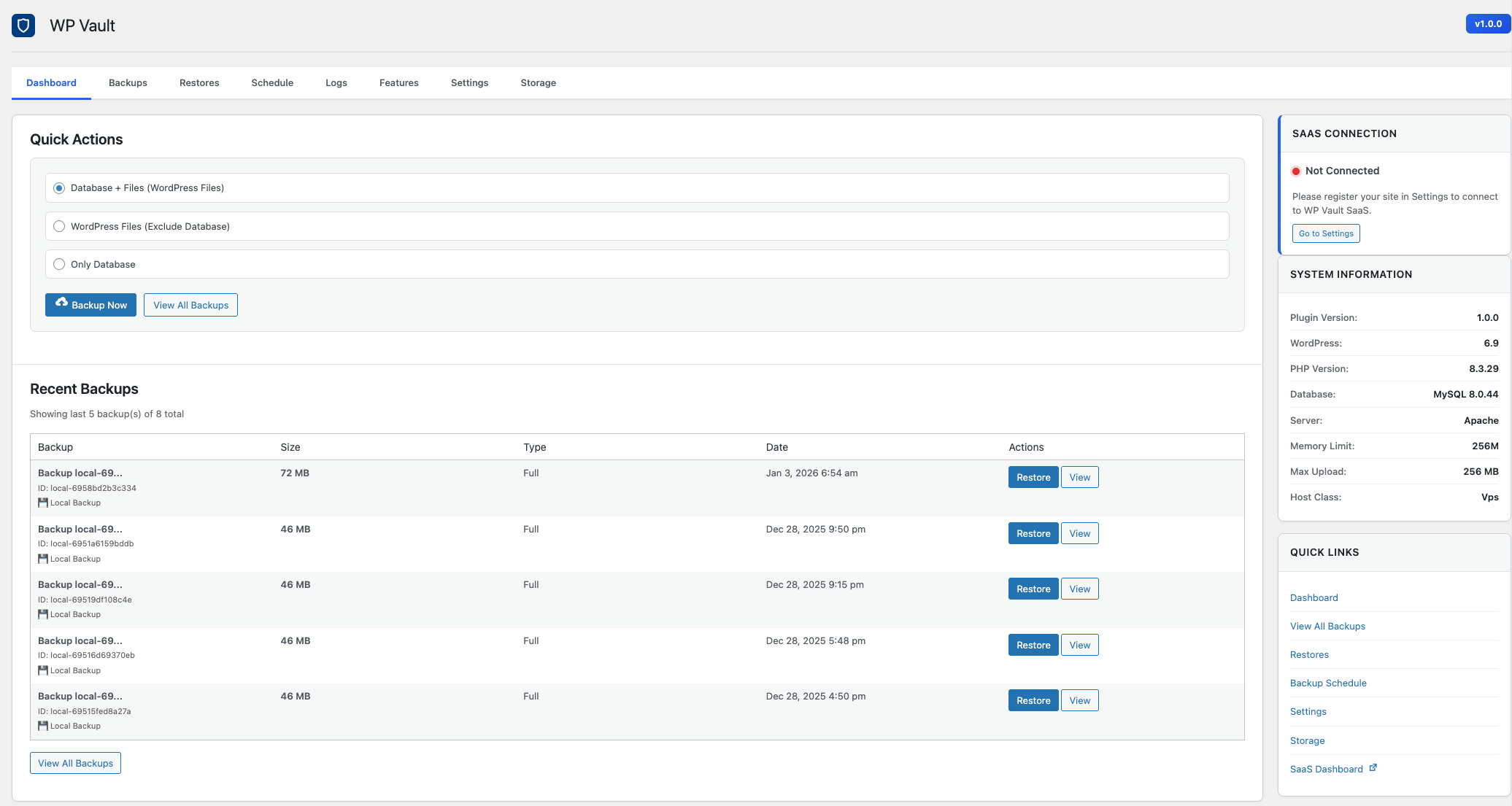 Main dashboard showing backup overview and site health
Backup Management
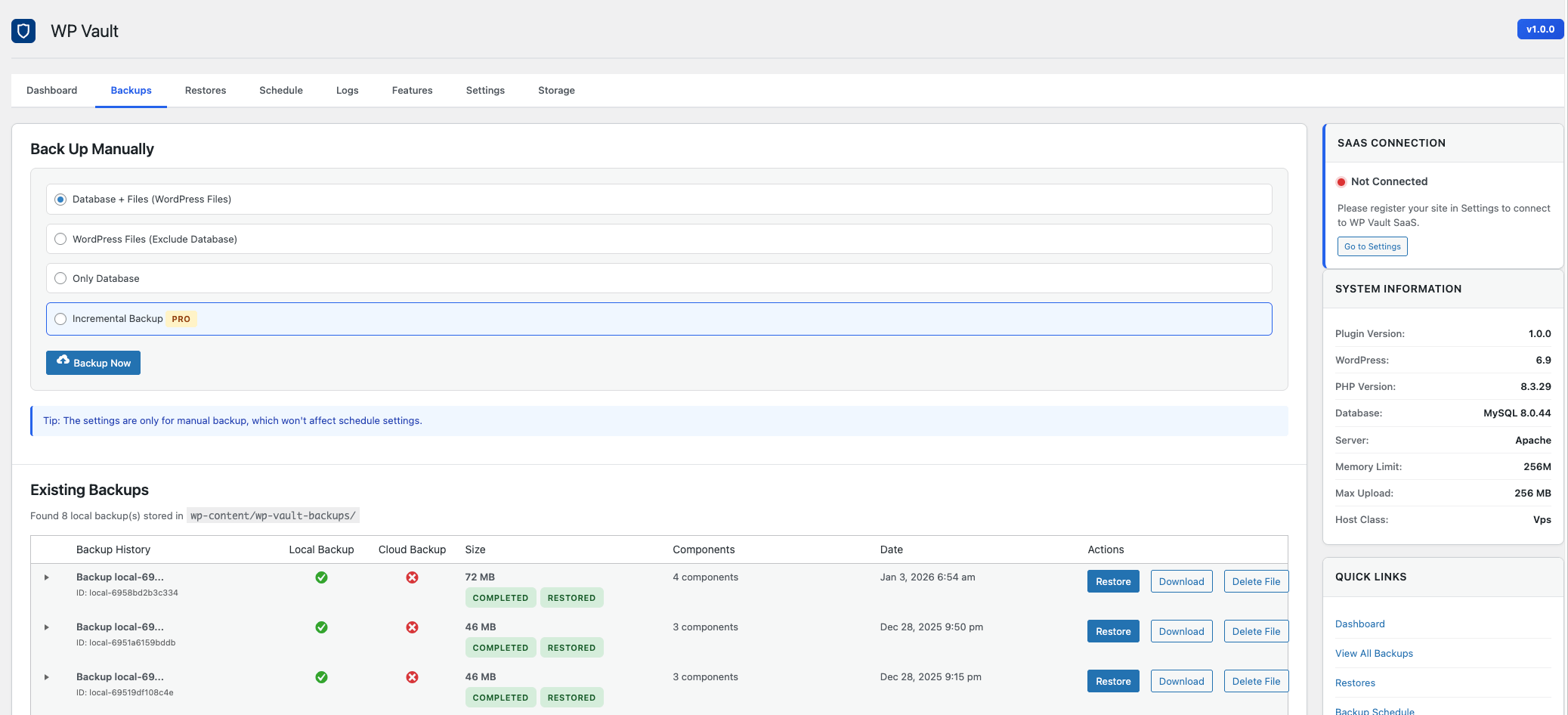 List of all backups with status and actions
Storage Settings
 Storage configuration and connection testing
Restore Options
 Restore interface with granular options
Media Optimization
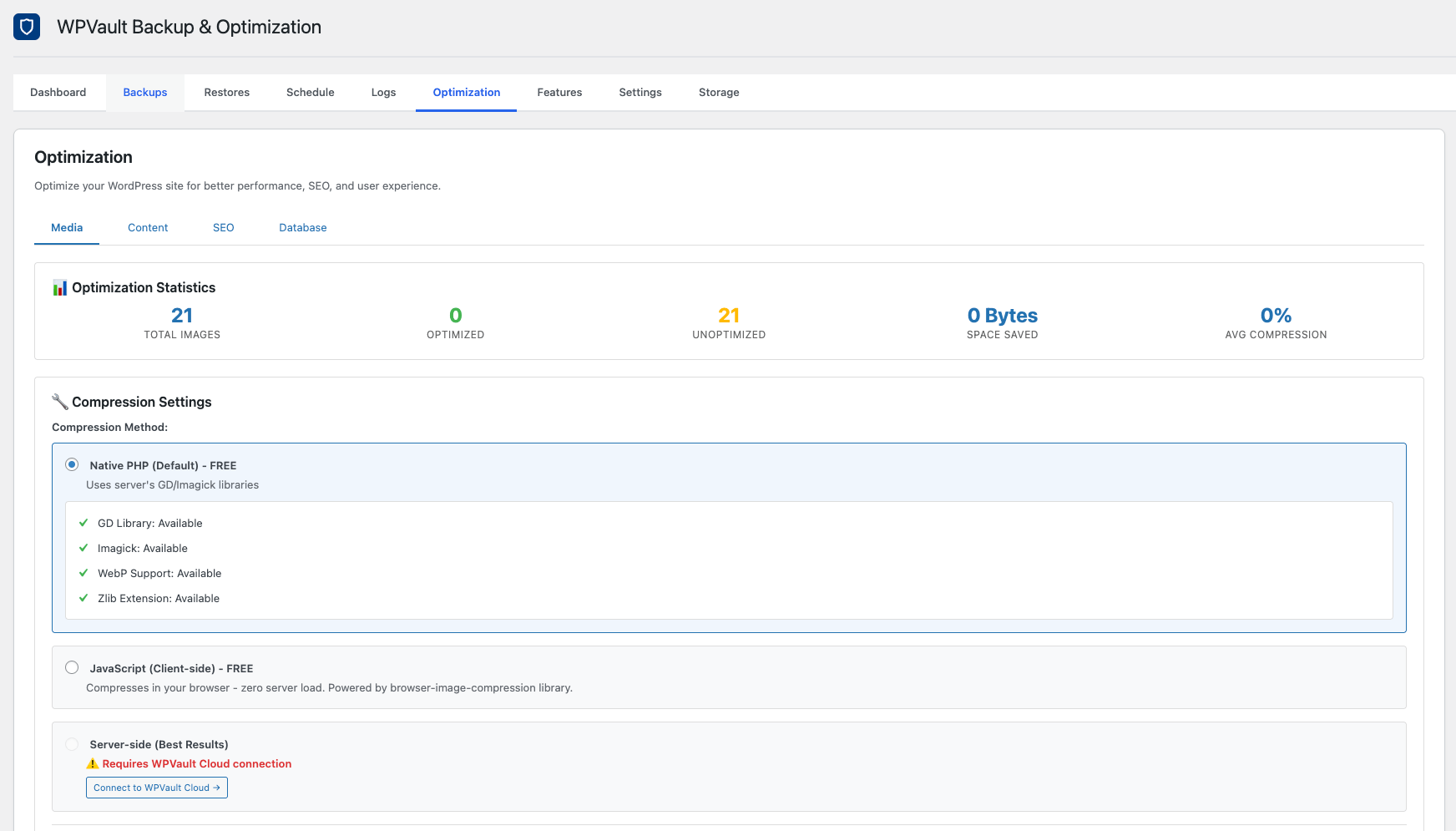 Media optimization interface with compression settings and statistics
Media Gallery
 Media gallery showing optimization status for each image with Optimize and Show Difference buttons
Single Image Optimization
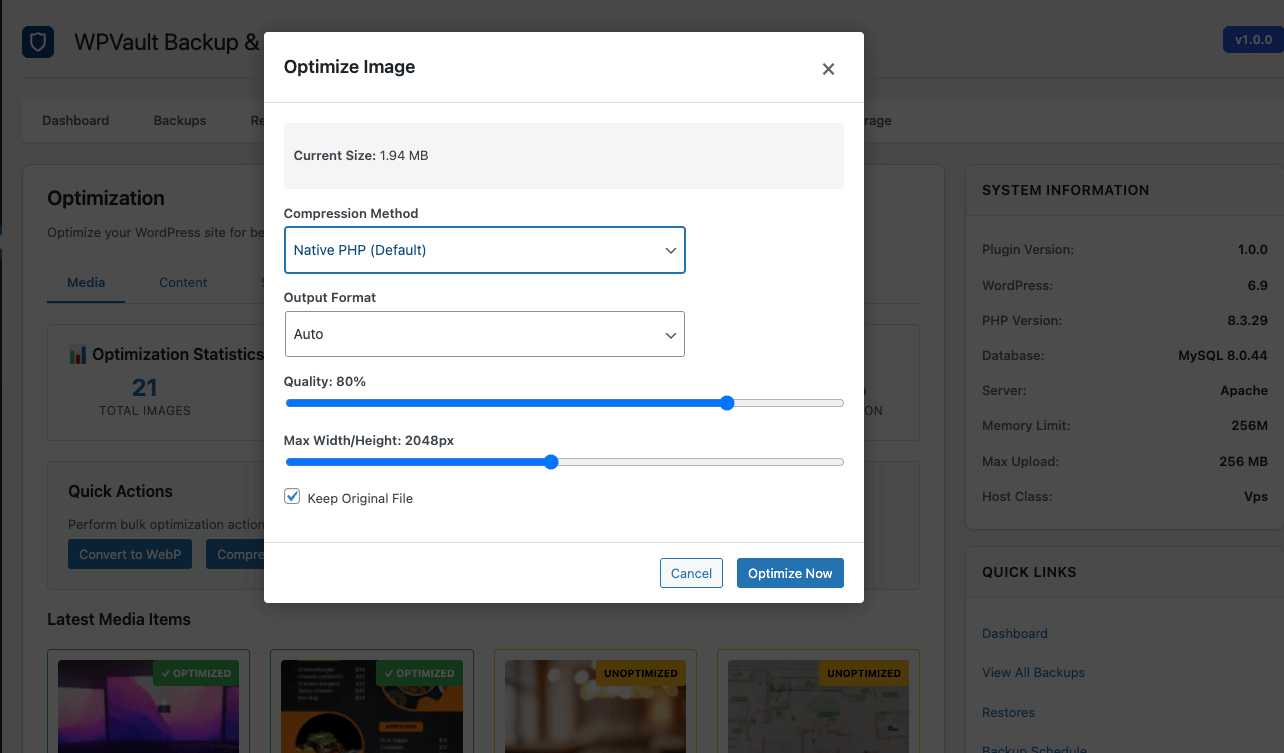 Optimization modal with compression options, quality settings, and format selection
Compression Settings
 Dedicated Compression Settings tab with method selection and system capabilities check
❓ FAQ
Is Pressly free?
Yes! Free Mode is truly free and independent. You can use it indefinitely for local backups and scheduling without ever registering.
Do I need to register or connect to the cloud?
No. Registration is completely optional. You only need to connect if you want to store backups in the cloud (like S3 or Google Drive) or use our free 3GB cloud storage.
What features work without a connection?
Local backups, automated scheduling (native WP-Cron), restores, and downloads all work 100% locally without any connection.
What storage providers are supported?
Pressly supports Amazon S3, Google Cloud Storage, Google Drive, FTP, SFTP, MinIO, Wasabi, and Backblaze B2. More providers are being added regularly.
Can I restore to a different server?
Absolutely! Pressly allows you to restore backups to any WordPress installation, even on a different server or domain. The plugin automatically handles URL replacement.
How does incremental backup work?
Incremental backups only upload files that have changed since the last backup. This saves bandwidth, storage space, and backup time, especially for large sites.
Is my data secure?
Yes! All backups are encrypted end-to-end. We follow industry-standard security practices and never store your credentials.
Can I use multiple storage providers?
Yes, you can configure multiple storage providers and choose which one to use for each backup.
What happens if a backup fails?
Pressly Migrate will automatically retry failed backups and notify you of any issues. You can also view detailed logs in the admin panel.
Do I need technical knowledge to use Pressly Migrate?
No! Pressly Migrate is designed to be user-friendly. The one-click backup and restore features make it accessible to users of all technical levels.
How does image optimization work?
Pressly offers three optimization methods:
- Native PHP: Uses your server's GD or Imagick libraries to compress images. Works automatically if extensions are available.
- JavaScript: Compresses images in your browser before uploading, reducing server load.
- Server-side: Uses Pressly Cloud for advanced compression algorithms (requires connection).
All methods support WebP conversion, quality adjustment, and automatic resizing. Optimization history is tracked in the database.
How are optimized images stored?
By default, optimized images are saved as separate files with -min.extension format (e.g., image-min.jpg). They appear as separate attachments in your WordPress media library. The original file is preserved by default (can be disabled in settings). This allows you to compare original vs optimized versions and revert if needed.
Can I compare original and optimized images?
Yes! For any optimized image, click the Show Difference button to open a side-by-side comparison modal. This shows the original image on the left and optimized version on the right, along with file sizes and space saved information.
🤝 Contributing
We welcome contributions from the community! Here's how you can help:
How to Contribute
-
Fork the Repository
git clone https://github.com/pressly-cloud/pressly-plugin.git cd pressly-plugin -
Create a Feature Branch
git checkout -b feature/your-feature-name -
Make Your Changes
- Follow WordPress coding standards
- Add comments and documentation
- Test your changes thoroughly
-
Submit a Pull Request
- Provide a clear description of your changes
- Reference any related issues
- Include screenshots if applicable
Development Setup
# Install dependencies (if any)
composer install

# Run tests (if available)
phpunit

# Check code standards
phpcs --standard=WordPress .
Code Standards
- Follow WordPress Coding Standards
- Use meaningful variable and function names
- Add PHPDoc comments for all functions
- Test on multiple WordPress versions
Reporting Issues
Found a bug? Please open an issue with:
- WordPress version
- PHP version
- Plugin version
- Steps to reproduce
- Error messages (if any)
- Screenshots (if applicable)
📝 Changelog
1.0.0 (2024-01-XX)
- 🎉 Initial release
- ✅ Multi-storage support (S3, GCS, Google Drive, FTP, SFTP)
- ✅ Site registration and heartbeat monitoring
- ✅ Manual backup creation
- ✅ Backup listing and management
- ✅ Storage connection testing
- ✅ Basic restore functionality
- ✅ Incremental backup support
- ✅ Compression support
- ✅ Media Optimization System
- Native PHP image compression (GD/Imagick)
- JavaScript client-side compression
- Server-side cloud optimization (Pressly Cloud)
- WebP conversion support
- Bulk image optimization
- Optimization statistics and tracking
- Gutenberg block editor integration
- System capabilities detection
- Per-image optimization modal with customizable options
- Show Difference feature for side-by-side comparison
- Compression Settings tab for default configuration
- Original file preservation (enabled by default)
- Optimized files saved as separate attachments (
-min.extension) - Media library integration with optimization status badges
💬 Support
Get Help
- Documentation: pressly.cloud/docs
- GitHub Issues: Report a Bug
- Email Support: support@pressly.cloud
- Community Forum: forum.pressly.cloud
Commercial Support
For priority support, custom development, or enterprise licensing, please contact:
- Email: enterprise@pressly.cloud
- Website: pressly.cloud/enterprise
📄 License
This software is licensed under the GPLv2 or later license.
Copyright (c) 2024 Pressly
See LICENSE file for full terms and conditions.
For licensing inquiries: licensing@pressly.cloud
🙏 Acknowledgments
- WordPress community for inspiration and best practices
- All contributors who help improve Pressly
- Storage provider SDKs and libraries
🔗 Links
- Website: pressly.cloud
- Documentation: pressly.cloud/docs
- GitHub: github.com/pressly-cloud/pressly-migrate
- Support: support.pressly.cloud
Made with ❤️ by the Pressly Team
Releases
5 releases. Each count is every asset in that release; expand a row for the breakdown.