Install
Upload it under Plugins → Add New Plugin → Upload Plugin, then activate.
Install straight from GitHub with WP-CLI:
wp plugin install https://github.com/oiencrypted/banglaqr-gateway-by-oi/releases/download/v0.3.0/BanglaQR-By-Oi.zip
BanglaQR Gateway by Oi
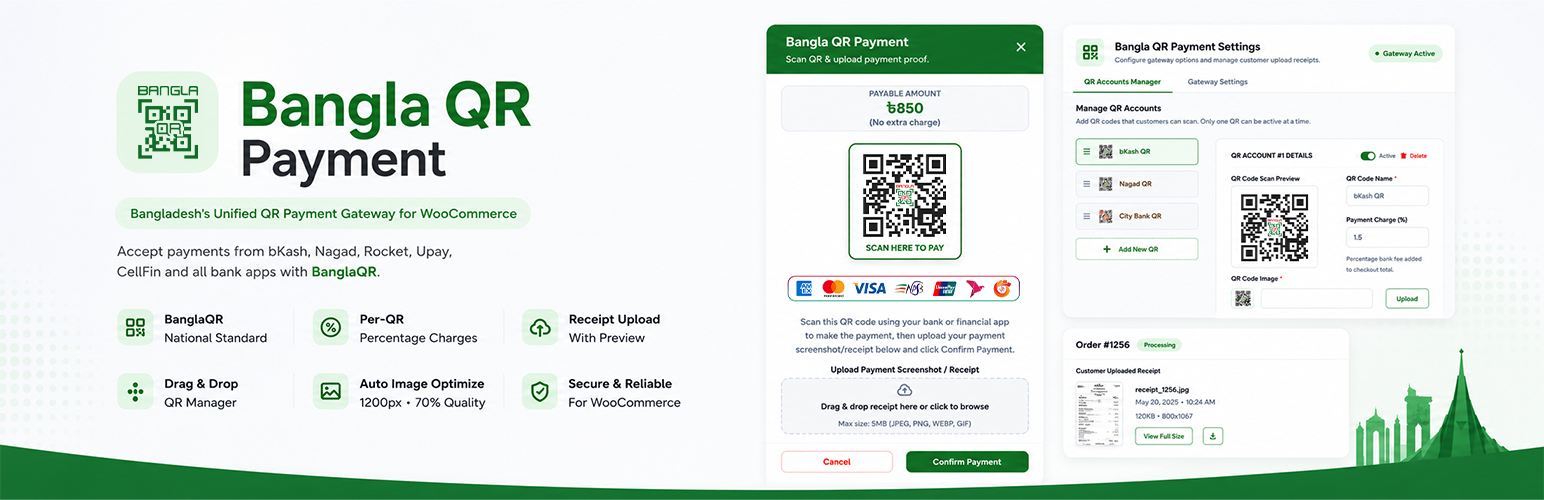
The Ultimate BanglaQR, MFS & Bank QR Gateway
Accept bKash, Nagad, Rocket, Upay, CellFin & Bank QR payments seamlessly with an interactive popup, live timer, and receipt verification.







Why BanglaQR? • Features • How It Works • Supported Apps • Installation • Configuration • Screenshots • Developers • Security • FAQ • Contributing • About Oi
⭐ If this plugin saves you money on gateway fees, please consider starring the repo — it genuinely helps other Bangladeshi merchants discover it.
📖 Why BanglaQR Gateway?
Taking digital payments in Bangladesh often involves expensive setup charges, complicated contracts, merchant account approval delays, and high gateway commissions.
BanglaQR Gateway by Oi brings the national interoperable BanglaQR framework (introduced by Bangladesh Bank) directly to your WooCommerce store. It bridges the gap between merchant simplicity and customer convenience:
| 💸 | Zero Gateway Fees — No expensive monthly gateway subscriptions or third-party merchant contracts required. |
| 📱 | Universal Compatibility — Works with any bank app or Mobile Financial Service (MFS) in Bangladesh. |
| ⚡ | Seamless Checkout Experience — Customers scan, pay, and attach proof without navigating away to confusing third-party gateways. |
| 🛡️ | Total Control — Review customer receipts and Transaction IDs directly inside the WooCommerce order dashboard before fulfilling orders. |
🔄 How It Works
sequenceDiagram
autonumber
actor Customer as 🛒 Customer
participant Checkout as 🌐 WooCommerce Checkout
participant Modal as 🪟 Interactive Popup
participant MFS as 📱 Banking / MFS App
actor Merchant as 👨💼 Merchant Admin
Customer->>Checkout: Selects "Bangla QR Payment" & clicks Place Order
Checkout->>Modal: Opens scan-to-pay popup with QR, order total & 15m timer
Customer->>MFS: Scans QR code using bKash/Nagad/Bank App & completes payment
Customer->>Modal: Inputs Transaction ID (TrxID) and/or uploads screenshot slip
Modal->>Checkout: Submits verified order (Status: On-Hold)
Checkout->>Merchant: Order arrives in dashboard with previewable receipt & TrxID
Merchant->>Merchant: Verifies payment & marks order as Processing/Completed✨ Key Features
| Feature | Description |
|---|---|
| 🇧🇩 Unified BanglaQR Standard | Fully compatible with Bangladesh Bank's interoperable QR system — one QR code works across all participating banks and MFS providers. |
| 🪟 Interactive Scan-to-Pay Modal | Clean popup modal that displays the active QR code, calculated payable total, and a live 15-minute countdown. |
| ⏱️ 1-Click Session Renewal | If the 15-minute timer expires, customers can extend it with a single click without losing checkout input or reloading. |
| 💰 Dynamic Percentage Fees | Set optional gateway processing or cash-out charges (e.g. 1.85% for bKash, 0% for bank transfers) automatically added to checkout. |
| 📸 Instant Slip & Receipt Upload | Customers can drag-and-drop or select payment screenshots directly inside the checkout popup. |
| 🗜️ Client & Server Image Compression | High-resolution mobile screenshots are automatically resized (max 1200px) and compressed to save hosting storage and bandwidth. |
| 📋 Manual Mobile Banking Fallback | Option to show direct personal or merchant numbers (bKash, Nagad, Rocket, Upay, CellFin) with one-click copy buttons. |
| ⚙️ Customizable Validation Rules | Configure Transaction ID and Receipt Screenshot fields as Mandatory, Optional, or Hidden. |
| 🔠 Smart TrxID Formatting | Automatically normalizes and formats Transaction IDs to clean uppercase alphanumeric characters to eliminate customer typos. |
| 🎨 Theme Color Customizer | Choose an accent color that perfectly matches your store's branding and theme typography. |
| 🔄 Drag-and-Drop QR Manager | Add multiple QR accounts, prioritize the active QR code, and reorder accounts with an intuitive admin interface. |
| 🚀 Full HPOS Compatibility | Fully tested and compatible with WooCommerce High-Performance Order Storage (HPOS) and legacy post-based storage. |
| 🧹 Automated Storage Cleanup | Built-in daily WP-Cron purges unattached temporary receipts older than 24 hours to prevent server disk bloat. |
📱 Supported Apps & Banks
Customers can pay using any app compatible with BanglaQR or direct MFS transfer:
| 💠 Mobile Financial Services (MFS) | 🏦 Banks & Digital Wallets |
|---|---|
|
|
⚙️ Installation & Setup
Requirements
| Requirement | Version |
|---|---|
| WordPress | 5.6 or higher (Tested up to 6.7) |
| WooCommerce | 5.0 or higher |
| PHP | 7.4 to 8.3+ |
| PHP Extensions | gd or imagick (for image compression and slip processing) |
Quick Setup
- Download & Upload
- Download the plugin
.zipfrom the Releases section. - In your WordPress Admin, navigate to Plugins → Add New → Upload Plugin.
- Select the
.zipfile and click Install Now.
- Download the plugin
- Activate
- Click Activate Plugin once the installation is complete.
- Configure Settings
- Go to WooCommerce → Settings → Payments.
- Click Manage next to Bangla QR Payment.
- Enable the gateway, upload your QR code, and save! 🎉
🛠️ Admin Configuration Guide
Navigate to WooCommerce → Settings → Payments → Bangla QR Payment to configure the following options.
1. General Gateway Settings- Enable/Disable: Turn the BanglaQR gateway on or off.
- Payment Title: The title displayed to customers on the checkout page (Default:
Bangla QR Payment). - Gateway Logo: Provide a custom logo image URL or use the built-in default logo.
- Payment Description: Instructions shown when the customer selects this payment option.
- Theme Accent Color: Pick a custom HEX color for modal buttons, highlights, and borders.
- Default Order Status: Choose the initial status for newly placed orders (
On-Hold,Processing,Completed, orPending Payment).
- Add / Remove Accounts: Add multiple QR codes for different banks or MFS providers.
- Active Account: Select which QR code will be presented to customers on checkout.
- Payment Charge (%): Specify a fee percentage (e.g.,
1.85for bKash cashout fee,0for no charge). - Drag-and-Drop: Easily reorder QR accounts in the admin interface.
Receipt Screenshot Rule
Mandatory— Customer must upload a screenshot before the order is placed.Optional— Customer can upload a screenshot or skip.Hidden— Upload field is completely hidden.
Transaction ID Rule
Mandatory— Customer must enter a TrxID.Optional— TrxID is optional.Hidden— TrxID input field is hidden.
- Enable Manual Payment: Check to display manual account numbers below the QR code.
- Account Numbers: Enter your numbers for bKash, Nagad, Rocket, Upay, and CellFin. Customers get a convenient one-click copy button for each number.
🖼️ Screenshots
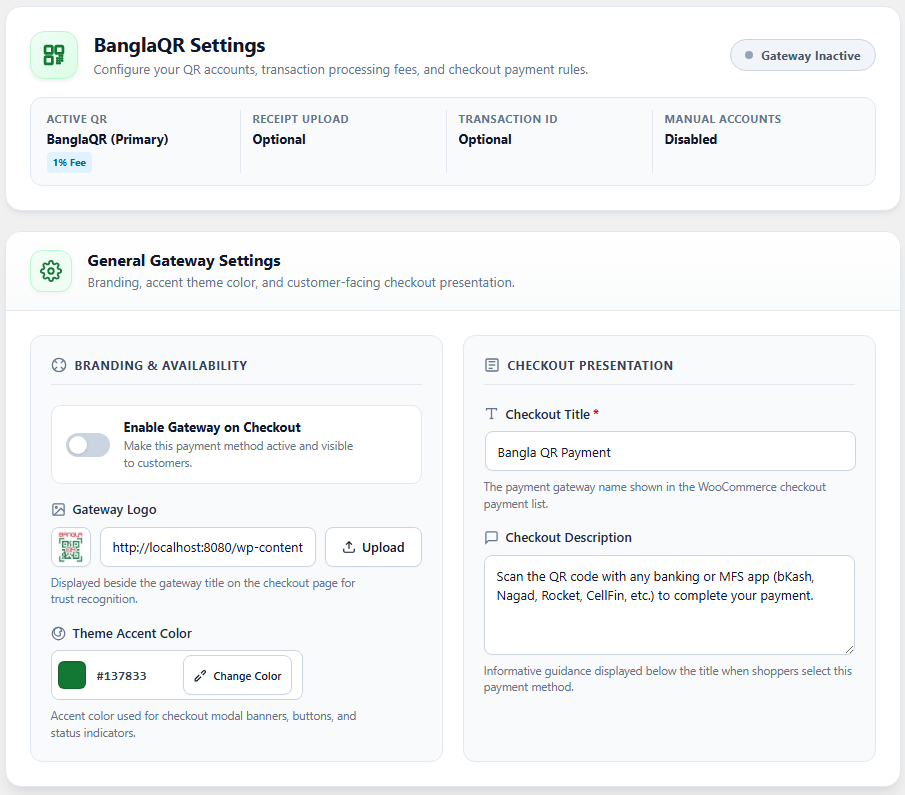 1. QR Accounts Manager Add, sort, and activate multiple payment QR codes. |
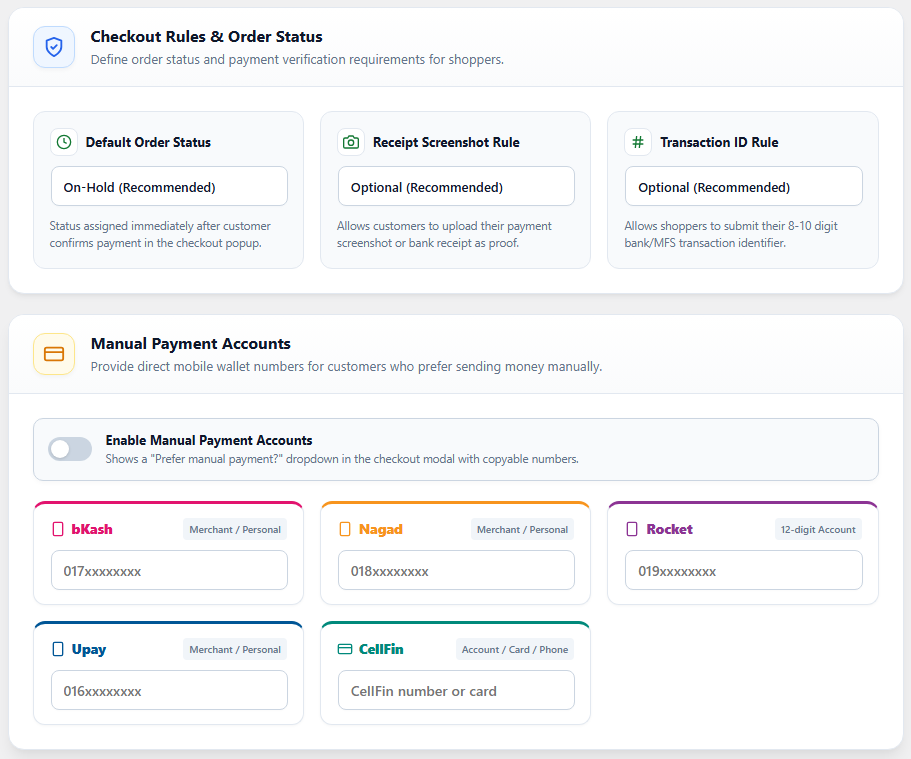 2. Gateway Settings Set fees, custom titles, manual numbers, and upload rules. |
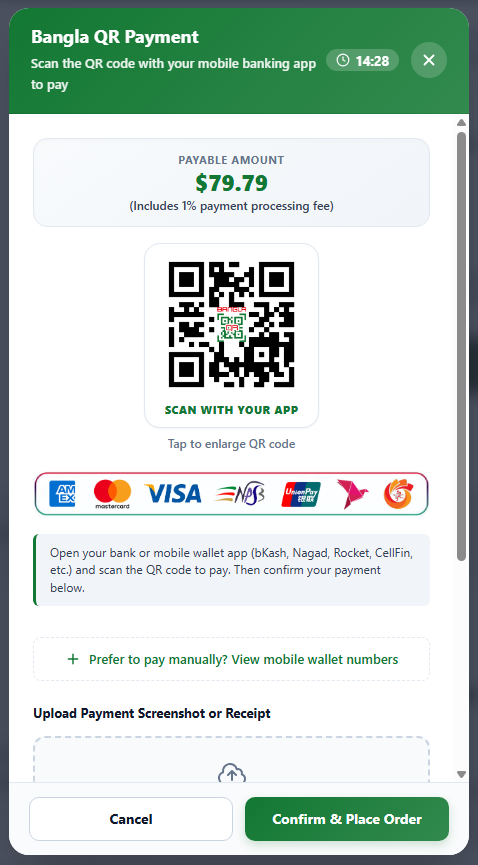 3. Checkout Popup Responsive scan-to-pay modal with QR, timer, and slip upload. |
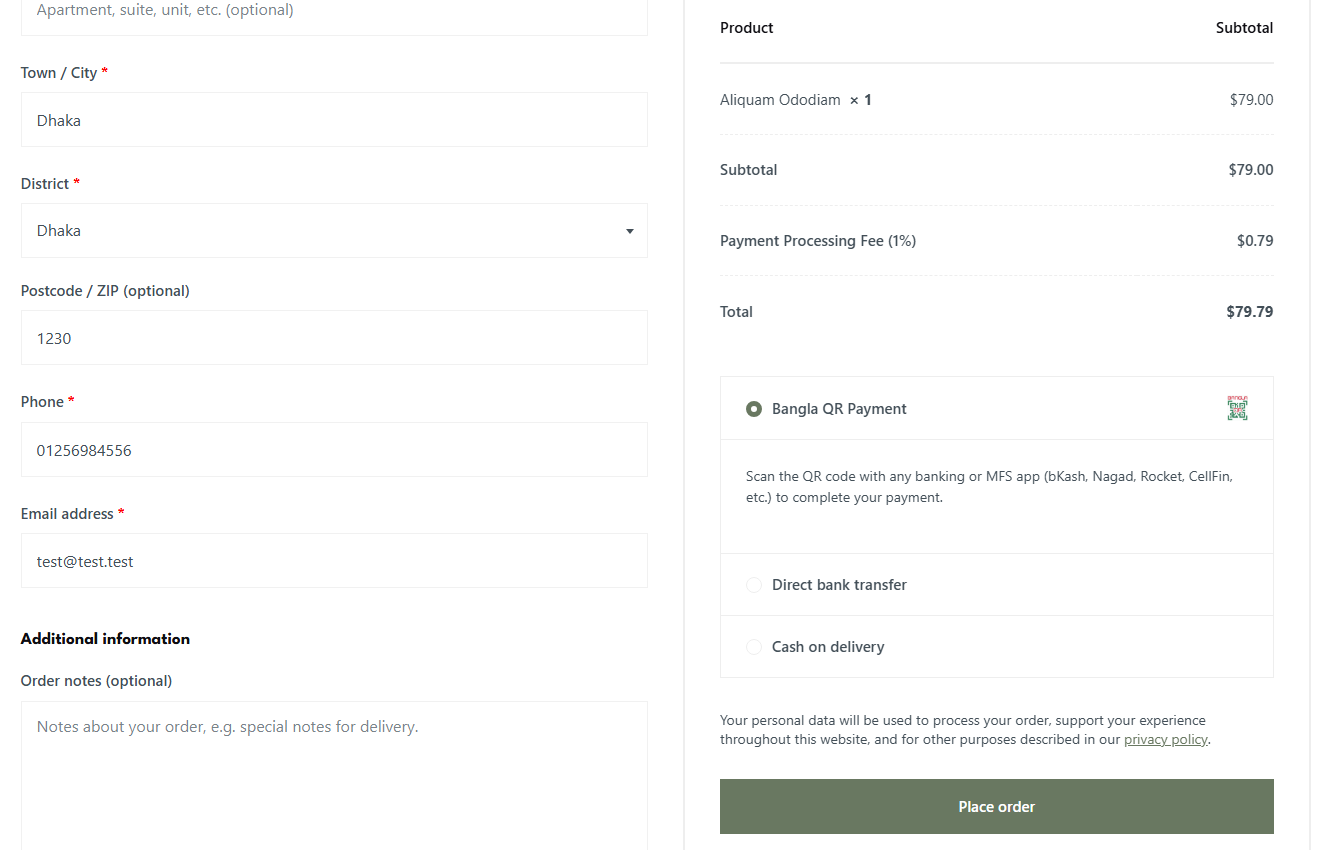 4. Checkout Selection Seamlessly integrates with the default WooCommerce checkout. |
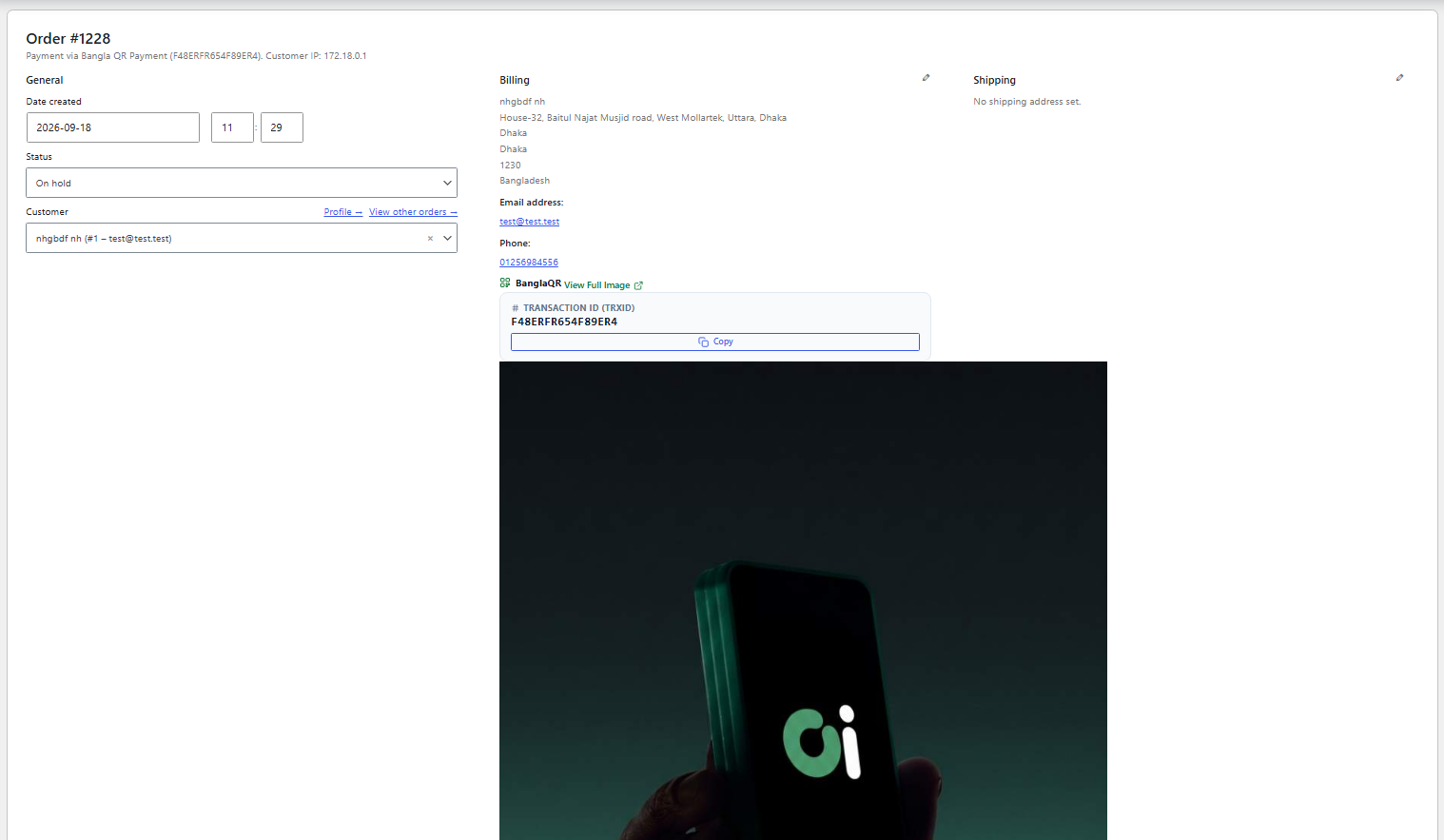 5. Admin Order Details Review customer Transaction ID and inspect the full payment receipt. |
👨💻 Developer Hooks & Meta
For developers looking to customize or integrate the plugin with custom themes and ERPs:
Filters
// Make the payment processing fee taxable or non-taxable (default: false)
add_filter('oi_banglaqr_fee_is_taxable', function($is_taxable) {
    return true; // Set to true if fees should include store taxes
});

// Customize the gateway icon HTML
add_filter('woocommerce_gateway_icon', function($icon, $gateway_id) {
    if ($gateway_id === 'oi_banglaqr') {
        // Custom icon logic
    }
    return $icon;
}, 10, 2);
Order Metadata Keys
When an order is created via BanglaQR, the following metadata is saved to the WC_Order:
| Meta Key | Description |
|---|---|
_oi_banglaqr_selected_qr |
The name of the QR account selected for the payment. |
_oi_banglaqr_transaction_id |
The transaction ID entered by the customer. |
_oi_banglaqr_receipt_id |
The WordPress media attachment ID (or URL) of the uploaded receipt. |
$order = wc_get_order($order_id);
$trx_id     = $order->get_meta('_oi_banglaqr_transaction_id');
$receipt_id = $order->get_meta('_oi_banglaqr_receipt_id');
$qr_name = $order->get_meta('_oi_banglaqr_selected_qr');🔐 Security & Data Integrity
We prioritize the security of both merchants and customers:
- 🛡️ Session-Locked Uploads — Uploaded payment slips are strictly bound to the customer's active WooCommerce session token, preventing Insecure Direct Object Reference (IDOR) exploits.
- 🛡️ Strict File MIME Verification — Server-side validation inspects real file headers and MIME types (
image/jpeg,image/png,image/webp). Executable scripts or forged extensions are immediately blocked. - 🛡️ Automated Orphan File Pruning — A scheduled daily WP-Cron cleans up unassociated temporary uploads older than 24 hours, preventing storage abuse.
- 🛡️ Input Sanitization & Escaping — All Transaction IDs, field values, and user inputs are strictly sanitized and escaped against SQL injection and XSS.
- 🛡️ HPOS & WooCommerce Standards — Compliant with WooCommerce High-Performance Order Storage (HPOS) and official WordPress Plugin Coding Guidelines.
For responsible vulnerability disclosure procedures, please refer to our Security Policy (SECURITY.md).
↑ back to top❓ Frequently Asked Questions
🔹 Do I need an official BanglaQR merchant account to use this plugin?No, an official merchant account is not required! You can upload an official bank merchant BanglaQR (City Bank, BRAC Bank, MTB, EBL, etc.), or use personal/agent QR codes from bKash, Nagad, Rocket, or CellFin. You can also provide manual phone numbers. 🔹 Can I add payment processing or cash-out charges to the customer's total?
Yes! You can specify a percentage fee (e.g. 1.85% for bKash, or 0% for bank transfers) for each QR account. When the customer selects that QR, the fee is automatically calculated and added to the order total. 🔹 Where do I view the customer's payment slip and Transaction ID?
When an order is placed, open the order in WooCommerce → Orders. A dedicated BanglaQR receipt card will show the customer's Transaction ID and a preview of their uploaded payment screenshot, with a one-click link to view the full resolution image. 🔹 What happens if the customer's 15-minute session timer expires?
The modal will display a friendly message with a "Renew Session (15m)" button. The customer can reset the timer with one click without losing entered information or reloading the page. 🔹 Does this work for guest checkouts?
Yes. Guest checkouts are fully supported through secure, temporary session tokens linked directly to the guest's checkout session. 🔹 Is this plugin compatible with WooCommerce High-Performance Order Storage (HPOS)?
Yes, the plugin is 100% compatible with HPOS and works flawlessly on both modern HPOS tables and classic post-meta order storage. ↑ back to top
🤝 Contributing
Contributions are warmly welcomed! We encourage developers and merchants to help improve BanglaQR Gateway by Oi.
Please review our Contributing Guidelines (Contributing.md) and Code of Conduct (Code of Conduct.md) before submitting code or opening pull requests.
Quick Contribution Steps
- Fork this repository.
- Create a branch for your feature or fix:
git checkout -b feature/amazing-feature - Commit your changes:
git commit -m "feat: add support for custom modal header" - Push to your fork:
git push origin feature/amazing-feature - Open a Pull Request describing your changes.
📄 License
This project is licensed under the GNU General Public License v3.0 or later (GPLv3) — see the LICENSE file for details.
🏢 About Oi
Oi builds high quality, accessible open-source tools that empower merchants, developers, and digital businesses across Bangladesh.




Crafted with ❤️ for the Bangladeshi eCommerce Community 🇧🇩
Simplifying digital payments, one store at a time.
Releases
1 release. Each count is every asset in that release; expand a row for the breakdown.