Kitestring Analytics for Umami
Simple, privacy-focused Umami Analytics integration for WordPress
Install
This is the repository archive. It installs, but the folder name will carry the branch suffix and updates will not flow.
Install straight from GitHub with WP-CLI:
wp plugin install https://github.com/nerveband/kitestring-analytics-for-umami/archive/refs/heads/main.zip
Connect WordPress to Umami Analytics. Use your own Umami server or Umami Cloud.
An independent integration maintained by Ashraf Ali, based on Integrate Umami by Ancocodet. It is not affiliated with, endorsed by, or supported by Umami.
Version 1.1.4. Requires WordPress 6.0+ and PHP 7.4+.
WordPress.org review is in progress. The plugin is not yet listed in the directory.
Setup
- Install the plugin ZIP and activate Kitestring Analytics for Umami.
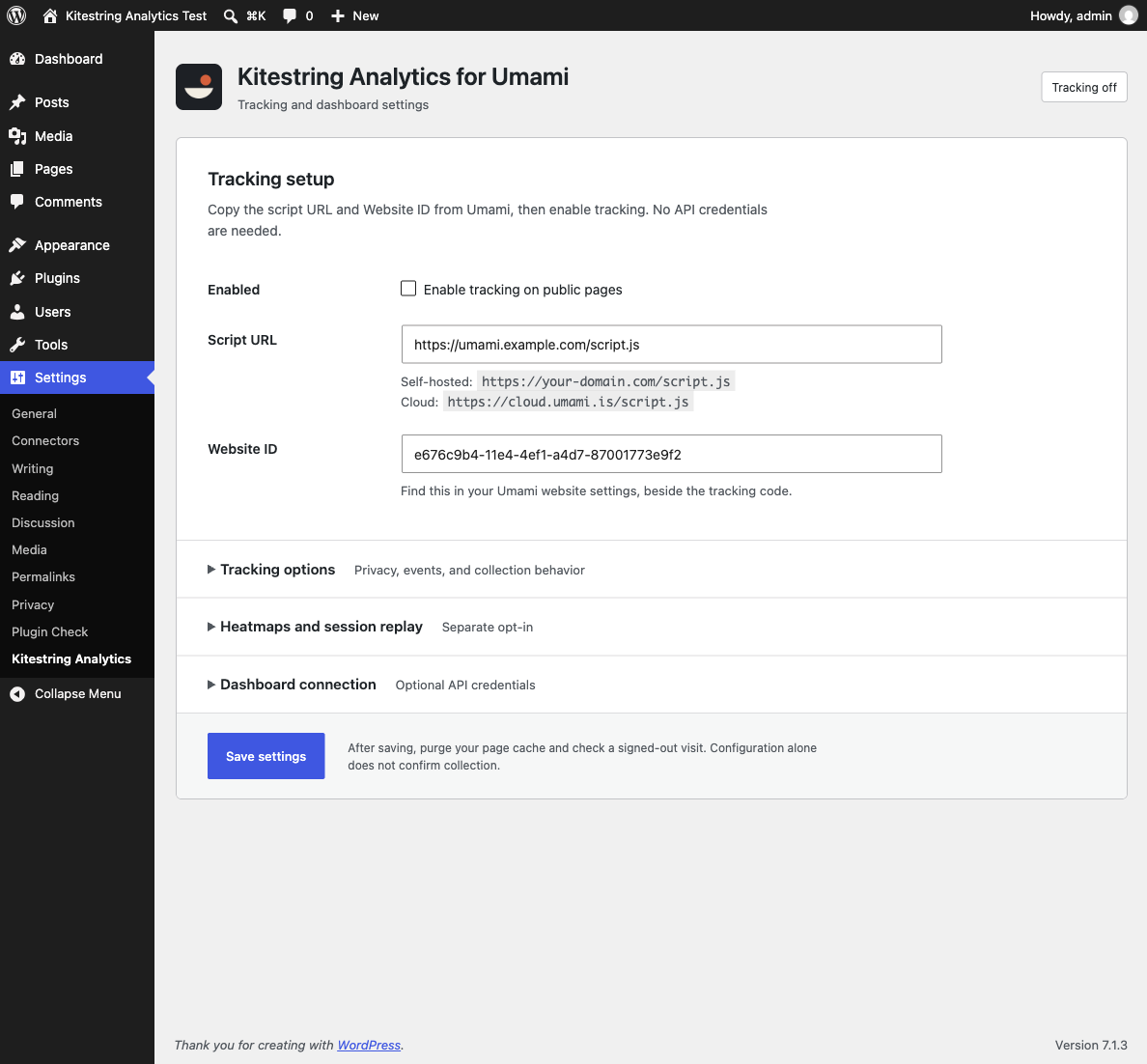
- Open Settings > Kitestring Analytics for Umami.
- Copy the Script URL and Website ID from Umami.
- Check Enabled and save.
- Clear your page cache and CDN cache, if used.
- Visit your site while signed out to check tracking. Admin visits are excluded by default.
API access is optional. Add a username and password for a self-hosted server, or an API key for Umami Cloud, to show stats in WordPress. Tracking works without these details.
Upgrading from an earlier release
Deactivate the previous plugin before installing and activating this renamed plugin. Saved tracking settings and API credentials are retained. Do not run both plugins together.
Settings
Tracking
The plugin uses Umami's own scripts. It supports pageviews, events, revenue events, and performance data. You can skip admin visits, respect Do Not Track, limit tracking to chosen domains, and remove query strings and URL fragments.
After the tracker loads, you can send events like this:
window.umami.track('purchase', { revenue: 12.5, currency: 'USD' });View reports, heatmaps, and session recordings in Umami. Cloud features depend on your plan and access rights.
Heatmaps and session replay
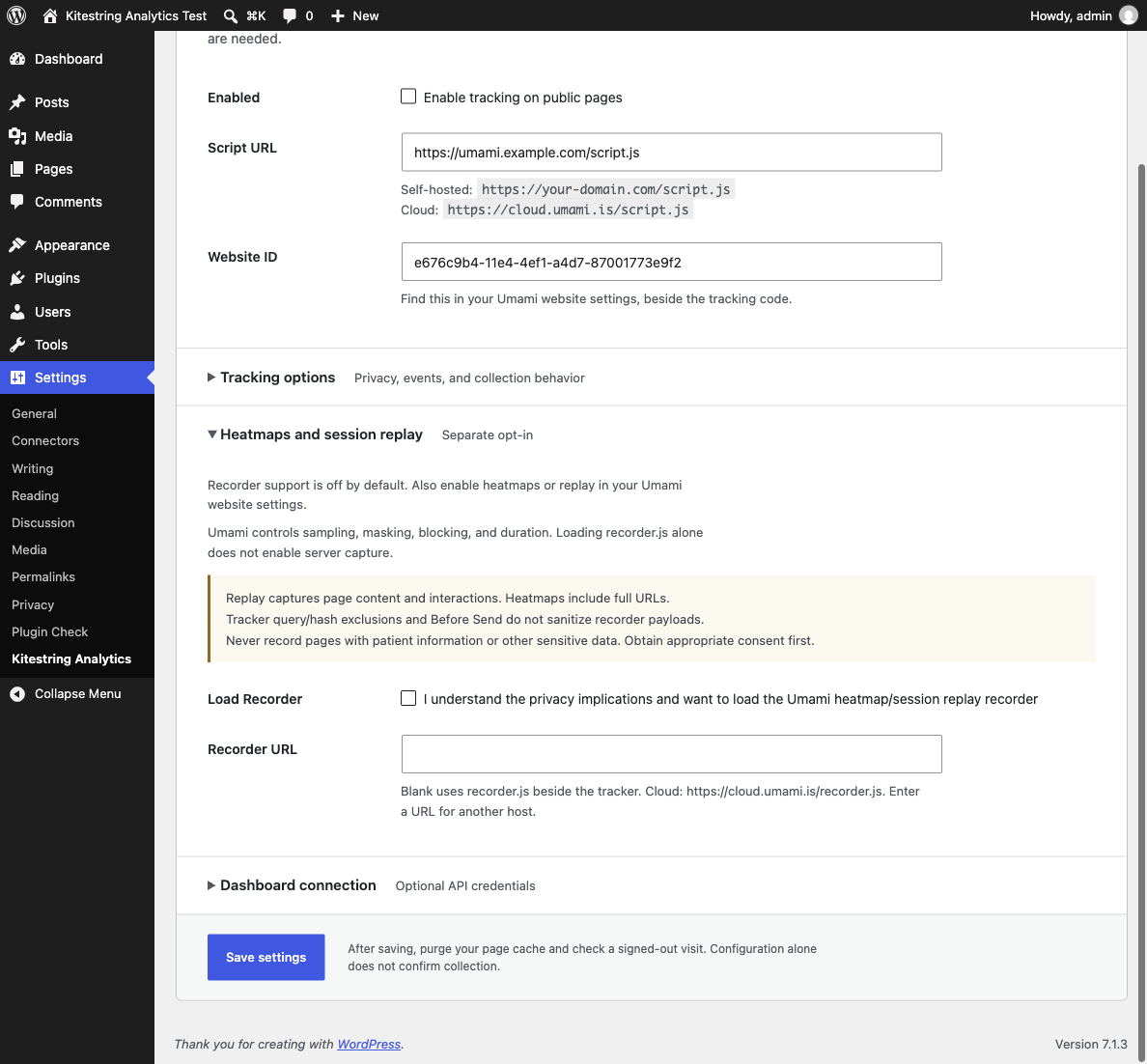
Recording is off by default. To use it, turn on recording in your Umami website settings, then enable Load Recorder in WordPress.
Leave Recorder URL blank to load recorder.js from the same location as your tracker. Set a URL if the recorder uses a different host or filename. Umami controls sampling, masking, and which page elements are blocked.
Check that Umami stores recordings. Loading the script alone does not mean recording works.
Privacy
Recordings can capture page content and actions. Do not record pages with personal or sensitive information. Removing query strings from tracking does not remove them from recordings.
The plugin does not include a consent banner or ensure legal compliance. You are responsible for consent and privacy notices. See readme.txt for details about data sent to Umami.
Developer hooks
Use kitestring_umami_tracker_attributes to change tracker attributes. It receives the attribute map and saved settings.
add_filter( 'kitestring_umami_tracker_attributes', function ( $attributes, $options ) {
    $attributes['data-tag'] = 'campaign-a';
    return $attributes;
}, 10, 2 );
Use kitestring_umami_tracking_allowed to block all tracking on a page, or kitestring_umami_recorder_enabled to block recording only. Both receive the current decision and saved settings.
add_filter( 'kitestring_umami_recorder_enabled', function ( $enabled, $options ) {
    return $enabled && ! is_page( array( 'private-pages', 'account' ) );
}, 10, 2 );
These filters do not replace browser consent controls. Check that your page cache respects any consent rules.
Development
Use Node.js 24, npm, Composer, and Docker with Compose. Both docker compose and the standalone docker-compose command are supported.
composer install
npm ci
npm run start
npx playwright install chromium
npm test -- --reporter=line
The local WordPress site runs at http://localhost:8888. Docker Compose starts WordPress, MariaDB, and WP-CLI, then installs WordPress and activates the plugin. The test administrator is admin with password password. Use this environment only for local development.
Run npm run env -- run cli -- wp plugin list for WP-CLI commands and npm stop to stop the containers while keeping test data. Set WORDPRESS_VERSION and PHP_VERSION before starting to test another core/PHP combination, as CI does. Use a different COMPOSE_PROJECT_NAME and WP_PORT for each combination so it gets its own database and files. Run npm run audit and composer audit --locked to check dependencies.
Tested with self-hosted Umami 3.4.0. Signed-in Umami Cloud features have not been tested.
To build a ZIP, run composer install --no-dev --optimize-autoloader. Put kitestring-analytics-for-umami.php, inc/, css/, js/, vendor/, composer.json, LICENSE.md, and readme.txt in one kitestring-analytics-for-umami/ folder. Leave out tests, Git files, credentials, and local settings.
Changes and assets
Version 1.1.4 renames the plugin and migrates earlier saved settings. Version 1.1.3 removes the remaining npm advisories and tests releases before packaging. Version 1.1.2 restricts dashboard analytics to administrators and preserves API passwords exactly. See readme.txt for the full changelog.
| Asset | Files |
|---|---|
| Icon | 128×128, 256×256 |
| Banner | 772×250, 1544×500 |
| Screenshots | Tracking setup, Recorder settings |
The admin icon uses the same artwork as the directory icon. WordPress.org assets can be published after the plugin is approved.
Based on Integrate Umami. Licensed under GPLv3 or later.