Install
This is the repository archive. It installs, but the folder name will carry the branch suffix and updates will not flow.
Install straight from GitHub with WP-CLI:
wp plugin install https://github.com/mistermusiker/dlv-mcp/archive/refs/heads/main.zip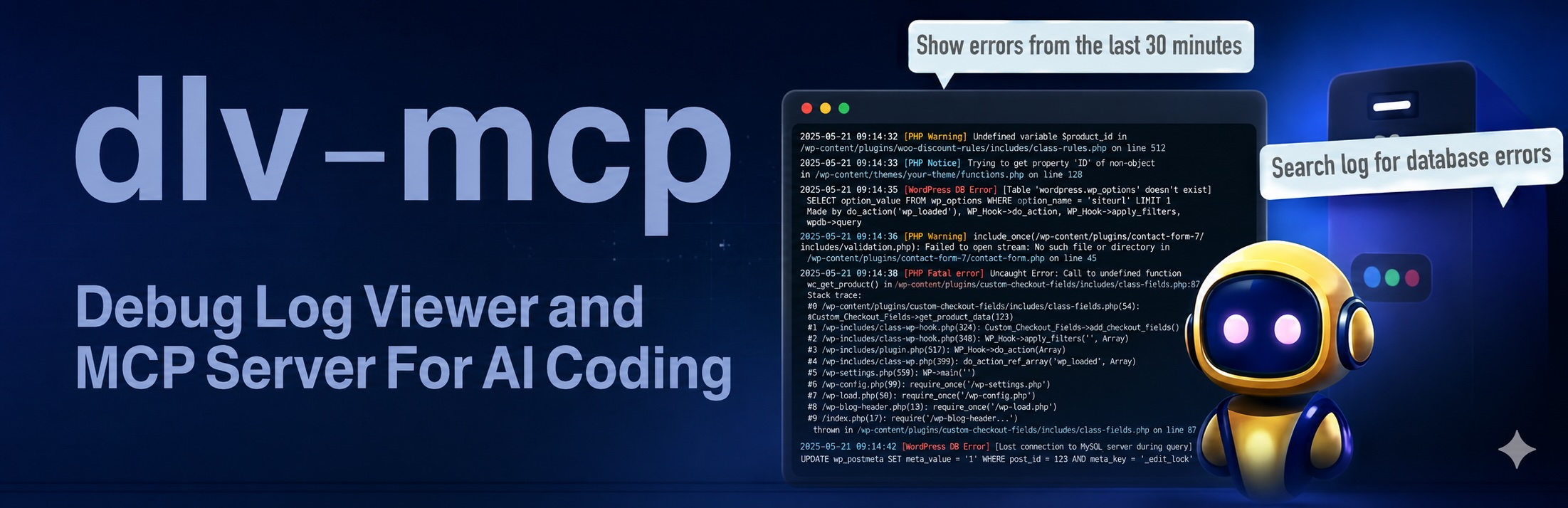
DLV-MCP - WordPress Debug Log Viewer and MCP Server
Let your vibe coding AI talk to your debug log.
A WordPress plugin that provides a modern debug log viewer with an integrated MCP (Model Context Protocol) Server for AI-assisted WordPress debugging with Claude Code and Cursor.
DLV-MCP lets Cursor and Claude Code connect to your WordPress log, read it, answer questions about it and find errors.
Description
DLV-MCP makes WordPress debugging easier by providing:
- Admin Log Viewer - View, search, and filter debug logs directly in WordPress admin
- Log Management - Enable/disable logging, clear logs, download log files
- Log Rotation - Automatic rotation when logs exceed 1 MB
- MCP Server - REST API for AI-assisted debugging with Claude Code, Cursor or other MCP-compatible tools
- Secure Access - API key authentication for remote access
Requirements
- WordPress 5.8 or higher
- PHP 7.4 or higher
Installation
DLV-MCP is not in the wordpress.org plugin directory, so install it manually.
- Download the repository: green Code button > Download ZIP
- Unpack it and rename the folder from
dlv-mcp-maintodlv-mcp - Upload the
dlv-mcpfolder to/wp-content/plugins/ - Activate the plugin through the 'Plugins' menu in WordPress
Configuration
Enable Debug Logging
- Go to Tools > DLV-MCP in your WordPress admin
- Click "Enable logging" to create a new log file
- The plugin will automatically configure PHP error logging
View Debug Logs
- Go to Tools > DLV-MCP
- The log viewer shows the most recent entries
- Use the search field to filter log entries
- Toggle "Wrap lines" and "Highlight" for better readability
- Enable "Auto-refresh" to monitor logs in real-time
MCP Server Setup
The MCP Server allows AI assistants like Claude Code to read and analyze your debug logs.
- Go to Tools > DLV-MCP Settings
- Ensure the MCP Server status shows "Enabled"
- Click "Generate New API Key" and give it a name
- Important: Copy the API key immediately - it will only be shown once!
After generating a key, you'll see a Quick Integration panel with ready-to-use configurations for Claude Code and Cursor IDE.
Using DLV MCP with Claude Code
What is MCP?
The Model Context Protocol (MCP) is an open standard that allows AI assistants like Claude to securely connect to external tools and data sources. DLV-MCP implements an MCP Server that gives Claude Code direct access to your WordPress debug logs.
This means you can ask Claude natural language questions like:
- "Show me the recent PHP errors"
- "Search the debug log for database errors"
- "What errors occurred in the last 30 minutes?"
And Claude will automatically use the DLV-MCP tools to fetch and analyze the data.
Step 1: Generate an API Key
- In WordPress admin, go to Tools > DLV-MCP Settings
- Enter a name for your key (e.g., "Claude Code Local")
- Click "Generate New API Key"
- Copy the key immediately - it will only be shown once!
Step 2: Add the MCP Server to Claude Code
Option A: Quick Integration (Recommended)
After generating an API key, you'll see a Claude Code section in the Quick Integration panel. Simply copy the pre-configured command and run it in your terminal:
claude mcp add --transport http 'your-site-debug-log' 'https://your-site.com/wp-json/dlv-mcp/v1/mcp' --header "Authorization: Bearer YOUR_API_KEY"The plugin generates this command with your actual site URL and API key - just click "Copy Command" and paste it into your terminal.
Option B: Manual Configuration
If you prefer to configure manually, run this command in your terminal:
claude mcp add --transport http 'my-wordpress-debug' 'https://your-site.com/wp-json/dlv-mcp/v1/mcp' --header "Authorization: Bearer YOUR_API_KEY"Replace:
my-wordpress-debugwith a name of your choiceyour-site.comwith your WordPress site URLYOUR_API_KEYwith the key you generated
Verify the connection:
claude mcp listYou should see your server listed as "Connected".
Step 3: Start Debugging with Claude
Once connected, you can ask Claude Code questions about your WordPress debug log:
Example prompts:
Check the debug log for errorsShow me the last 50 lines of the WordPress debug logSearch the debug log for "Fatal error"Are there any PHP warnings in the last hour?What's the current size of the debug log?Find all database-related errors in the logClaude will automatically use the appropriate DLV MCP tool to answer your question.
Step 4: Integrate into Your Workflow
For seamless integration, add the MCP server info to your Claude Code memory file:
File: ~/.claude/CLAUDE.md
## WordPress Debug Log Access

MCP Server for WordPress debugging is available.
Endpoint: https://your-site.com/wp-json/dlv-mcp/v1/mcp

When debugging WordPress issues, use the debug log tools to check for errors.
This way, Claude will remember the connection across all your projects.
Using DLV-MCP with Cursor IDE
Cursor IDE natively supports MCP (Model Context Protocol), allowing you to integrate DLV MCP directly into your development workflow.
Step 1: Generate an API Key
- In WordPress admin, go to Tools > DLV-MCP Settings
- Enter a name for your key (e.g., "Cursor IDE")
- Click "Generate New API Key"
- Copy the key immediately - it will only be shown once!
Step 2: Configure MCP Server in Cursor
Option A: One-Click Installation (Recommended)
After generating an API key, you'll see a Cursor IDE section in the Quick Integration panel:
- Click "Add to Cursor IDE" - this opens Cursor and installs the MCP server automatically
- Alternatively, click "Copy Link" to copy the installation URL
This is the fastest way to get started with Cursor.
Option B: Manual Configuration (mcp.json)
Create a .cursor/mcp.json file in your project root. After generating an API key, you'll see the ready-to-use JSON configuration in the Manual Configuration section - just click "Copy Configuration":
{
  "mcpServers": {
    "your-site-debug-log": {
      "url": "https://your-site.com/wp-json/dlv-mcp/v1/mcp",
      "headers": {
        "Authorization": "Bearer YOUR_API_KEY"
      }
    }
  }
}
The plugin provides the complete JSON with your actual site URL and API key pre-filled.
Important: Add .cursor/mcp.json to your .gitignore file to prevent committing sensitive API keys.
Option C: Global Configuration
For global access across all projects, create ~/.cursor/mcp.json in your home directory with the same configuration.
Option D: Using Environment Variables
You can use environment variable interpolation in the config:
{
  "mcpServers": {
    "your-site-debug-log": {
      "url": "https://your-site.com/wp-json/dlv-mcp/v1/mcp",
      "headers": {
        "Authorization": "Bearer ${env:DLV_MCP_API_KEY}"
      }
    }
  }
}
Then set the environment variable:
export DLV_MCP_API_KEY="your-api-key-here"Step 3: Verify Installation
- Restart Cursor IDE to load the MCP configuration
- Open Settings (
Cmd+Shift+Jon Mac,Ctrl+Shift+Jon Windows/Linux) - Navigate to Features → Model Context Protocol
- Verify that your MCP server appears in the list and is enabled
Step 4: Use MCP Tools in Cursor
Once configured, you can ask Cursor's AI assistant questions about your WordPress debug logs:
Example prompts:
Check the debug log for errorsShow me the last 50 lines of the WordPress debug logSearch the debug log for "Fatal error"What errors occurred in the last hour?Get information about the debug log fileCursor will automatically use the appropriate DLV MCP tool to fetch and analyze the data. You can see available tools listed under "Available Tools" in the chat interface.
Troubleshooting
"MCP Server not connected"
- Check that the API key is correct in your
mcp.jsonfile - Verify the endpoint URL is accessible (test with curl)
- Ensure the MCP Server is enabled in WordPress (Tools > DLV MCP Settings)
- Restart Cursor IDE after configuration changes
"401 Unauthorized"
- The API key is invalid or expired
- Generate a new key in WordPress admin and update your
mcp.json
"Server not appearing in Cursor"
- Check the MCP logs: Open Output Panel (
Cmd+Shift+U), select "MCP Logs" - Verify JSON syntax in
mcp.jsonis valid - Ensure the file is in the correct location (
.cursor/mcp.jsonfor project,~/.cursor/mcp.jsonfor global)
Available MCP Tools
| Tool | Description | Parameters |
|---|---|---|
get_debug_log |
Get last N lines (across all rotated log files) | lines (default: 100, max: 1000) |
search_debug_log |
Search for a pattern (across all rotated log files) | pattern (required), max_results (default: 100) |
get_errors_since |
Get errors from the last N minutes (across all rotated log files) | minutes_ago (default: 60), timestamp |
get_log_info |
Get log file information (includes totals across all files) | - |
tail_debug_log |
Get most recent log entries (across all rotated log files) | bytes (default: 10000) |
clear_debug_log |
Clear the current debug log | confirm (must be true) |
Direct API Access (curl)
For advanced use cases or when MCP is not available, you can use curl to directly access the API.
Add this to your ~/.claude/CLAUDE.md:
# Get log file info
curl -s -X POST "https://your-site.com/wp-json/dlv-mcp/v1/mcp" \
  -H "Content-Type: application/json" \
  -H "Authorization: Bearer YOUR_API_KEY" \
  -d '{"jsonrpc":"2.0","method":"tools/call","params":{"name":"get_log_info","arguments":{}},"id":1}'

# Get last 50 lines
curl -s -X POST "https://your-site.com/wp-json/dlv-mcp/v1/mcp" \
  -H "Content-Type: application/json" \
  -H "Authorization: Bearer YOUR_API_KEY" \
  -d '{"jsonrpc":"2.0","method":"tools/call","params":{"name":"get_debug_log","arguments":{"lines":50}},"id":1}'

# Search for errors
curl -s -X POST "https://your-site.com/wp-json/dlv-mcp/v1/mcp" \
  -H "Content-Type: application/json" \
  -H "Authorization: Bearer YOUR_API_KEY" \
  -d '{"jsonrpc":"2.0","method":"tools/call","params":{"name":"search_debug_log","arguments":{"pattern":"Fatal error","max_results":10}},"id":1}'
Claude Code CLAUDE.md Template
Add this to your ~/.claude/CLAUDE.md for global access:
## DLV MCP Server (WordPress Debug Log)

The DLV MCP WordPress plugin provides an MCP Server for AI-assisted debugging.

**Endpoint:** `https://your-site.com/wp-json/dlv-mcp/v1/mcp`
**Auth:** `Bearer YOUR_API_KEY`

### Available Tools

1. **get_debug_log** - Get last N lines from the log (default: 100, max: 1000)
2. **search_debug_log** - Search the log for a pattern (pattern, max_results)
3. **get_errors_since** - Get errors from the last N minutes (minutes_ago)
4. **get_log_info** - Get log file information (size, lines, last modified)
5. **tail_debug_log** - Get most recent log entries by bytes (bytes)
6. **clear_debug_log** - Clear the debug log (confirm: true required)
Security
- Log files are stored in
wp-content/uploads/dlv-mcp-logs/with.htaccessprotection - API access requires a valid API key
- Only users with
manage_optionscapability can access the admin interface - API keys can be revoked at any time from the MCP settings page
Frequently Asked Questions
Where are log files stored?
Log files are stored in wp-content/uploads/dlv-mcp-logs/ with automatic protection against direct web access.
How do I enable WordPress debug mode?
Add this to your wp-config.php:
define( 'WP_DEBUG', true );
define( 'WP_DEBUG_LOG', true );
define( 'WP_DEBUG_DISPLAY', false );
Note: DLV-MCP will override the log file location when logging is enabled.
Can I use multiple API keys?
Yes! You can generate multiple API keys for different team members or applications. Each key can be revoked independently.
Is the MCP Server compatible with other AI tools?
The MCP Server follows the Model Context Protocol specification (version 2025-11-25) and should work with any MCP-compatible client.
Changelog
0.0.10
- Log file listing now follows the configured log file's directory
- Fixes clones (staging copies) showing stale log files from the clone instead of the log that is actually being written
- Affects the file list, the log viewer and log deletion; creating a new log file still uses this site's own upload directory
- The plugin version now lives in a single constant, so the MCP server reports the real version
- Admin CSS and JS are versioned per release and are no longer served from the browser cache after an update
- Version 0.0.9 was skipped
0.0.8
- MCP tools now transparently read across all rotated log files
- Log entries are no longer lost after log rotation
search_debug_logincludes the source filename in resultsget_log_infoshows aggregate statistics across all log files- API remains fully backwards compatible
0.0.7
- Fixed settings persistence for toggle options
- Improved Hide Deprecated toggle functionality
- Updated to MCP Protocol version 2025-11-25
0.0.6
- Added Quick Integration panel for easy setup
- Added one-click Cursor IDE installation
- Improved API key generation workflow
0.0.5
- Added syntax highlighting for log entries
- Added Hide Deprecated toggle
- Improved search functionality
0.0.4
- Added auto-refresh functionality
- Added log rotation support
- Security improvements
0.0.3
- Added MCP Server for Claude Code integration
- Added API key authentication
- Added real-time log viewing
0.0.2
- Added search and filter functionality
- Improved admin interface
0.0.1
- Initial release
- Basic debug log viewer
License
GPL v2 or later - https://www.gnu.org/licenses/gpl-2.0.html
Author
Roger Kirchhoff
Support
For bug reports and feature requests, please use the GitHub issue tracker.