Install
This is the repository archive. It installs, but the folder name will carry the branch suffix and updates will not flow.
Install straight from GitHub with WP-CLI:
wp plugin install https://github.com/michaelnnahdev/woocommerce-checkout-payment-proof-upload/archive/refs/heads/main.zipWooCommerce Checkout Payment Proof & Bank Transfer Suite
A lightweight, secure, and mobile-optimized payment receipt upload suite for WooCommerce manual bank transfers.
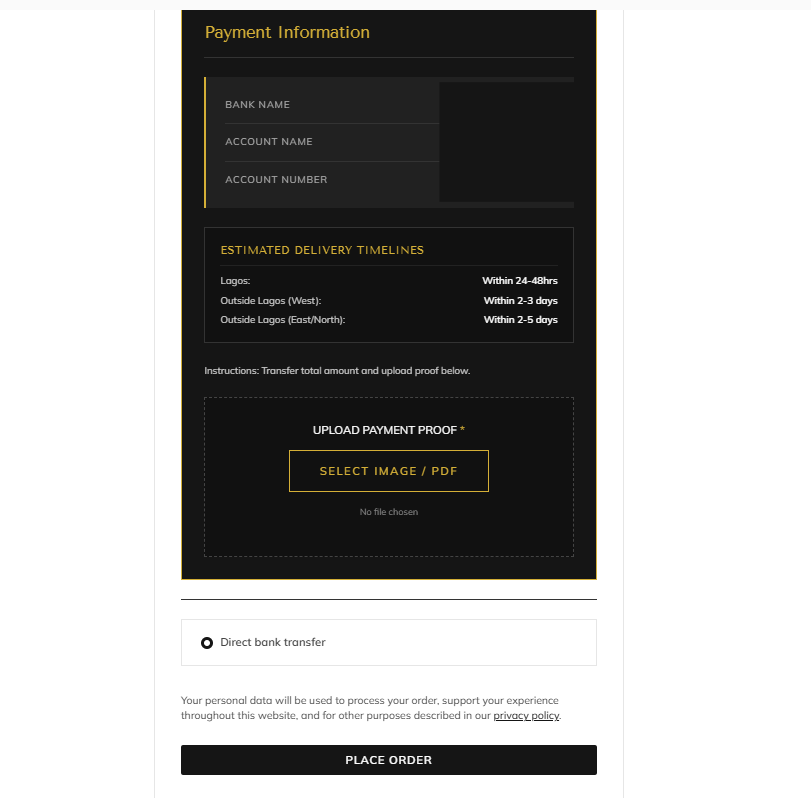
This snippet eliminates mobile browser file upload lockouts (Android/iOS gallery caching), enforces server-side validation, renders a customizable checkout interface, and links proofs directly across Admin Order panels, Order tables, and Admin email alerts.
🌟 Key Features
- Mobile Cache Lock Fix: Uses JavaScript
FileReaderand binaryArrayBufferblob streaming to prevent mobile browsers (Android/iOS) from dropping fresh screenshots and camera captures. - Server-Side Security Gatekeeper: MIME-type sniffing via
finfo_file(), extension whitelisting (JPG,PNG,PDF,HEIC,HEIF), randomized unique filenames, and nonce validation. - Full-Loop Admin Visibility:
- Displays clickable proof link on the WooCommerce Admin Order Details page.
- Injects proof preview/link directly into the Admin "New Order" Notification Email.
- Adds a dedicated "Proof" column to the WooCommerce Order Management table.
- Smart UI/UX:
- Live upload spinner with dynamic order button locking to prevent premature submissions.
- Direct WhatsApp order confirmation CTA on the "Thank You" receipt page.
- Fully customizable CSS typography, color palette, and card styling.
📋 Requirements
- WordPress 6.0+
- WooCommerce 7.0+
- PHP 7.4, 8.0, 8.1, 8.2, or 8.3
fileinfoPHP extension enabled on the host server
🚀 Installation & Setup
Method 1: Using WPCode / Code Snippets (Recommended)
- Navigate to Plugins > Add New and install WPCode (or any snippet management plugin).
- Go to Code Snippets > Add Snippet > Add Your Custom Code (New Snippet).
- Set Code Type to
PHP Snippet. - Paste the contents of
woocommerce-payment-proof.php. - Set Insertion method to Run Everywhere (or Front End Only).
- Activate the snippet and click Save Snippet.
Method 2: Child Theme functions.php
- Open your active child theme directory:
wp-content/themes/your-child-theme/. - Append the code inside
woocommerce-payment-proof.phpinto yourfunctions.phpfile. - Save changes.
⚙️ Configuration & Customization Guide
All settings are organized into distinct blocks within woocommerce-payment-proof.php.
1. Bank Account Details & WhatsApp Routing
Locate the GLOBAL CONFIGURATION section at the top of woocommerce-payment-proof.php (around lines 14–27):
php // ============================================================================= // GLOBAL CONFIGURATION (Update with your store details) // ============================================================================= if ( ! defined( 'WC_PROOF_BANK_NAME' ) ) { define( 'WC_PROOF_BANK_NAME', 'GTBank' ); // Replace with your Bank Name } if ( ! defined( 'WC_PROOF_ACCOUNT_NAME' ) ) { define( 'WC_PROOF_ACCOUNT_NAME', 'Acme Store Ltd' ); // Replace with your Account/Business Name } if ( ! defined( 'WC_PROOF_ACCOUNT_NUMBER' ) ) { define( 'WC_PROOF_ACCOUNT_NUMBER', '0123456789' ); // Replace with your Account Number } if ( ! defined( 'WC_PROOF_WHATSAPP_NUMBER' ) ) { define( 'WC_PROOF_WHATSAPP_NUMBER', '2348012345678' ); // Country code + Number (NO '+' or spaces) }
2. Customizing Colors & Visual Theme
Locate **Section 3 (`
Releases
1 release.
These releases are tags only. The author does not attach a packaged zip, so there are no download counts to report.