Install
This is the repository archive. It installs, but the folder name will carry the branch suffix and updates will not flow.
Install straight from GitHub with WP-CLI:
wp plugin install https://github.com/mbrucki/gtm-fpm/archive/refs/heads/main.zipGTM First-Party Mode Wordpress Plugin
Routes requests through WordPress backend to fps.goog and inserts GTM script in <head> for first-party data tracking.
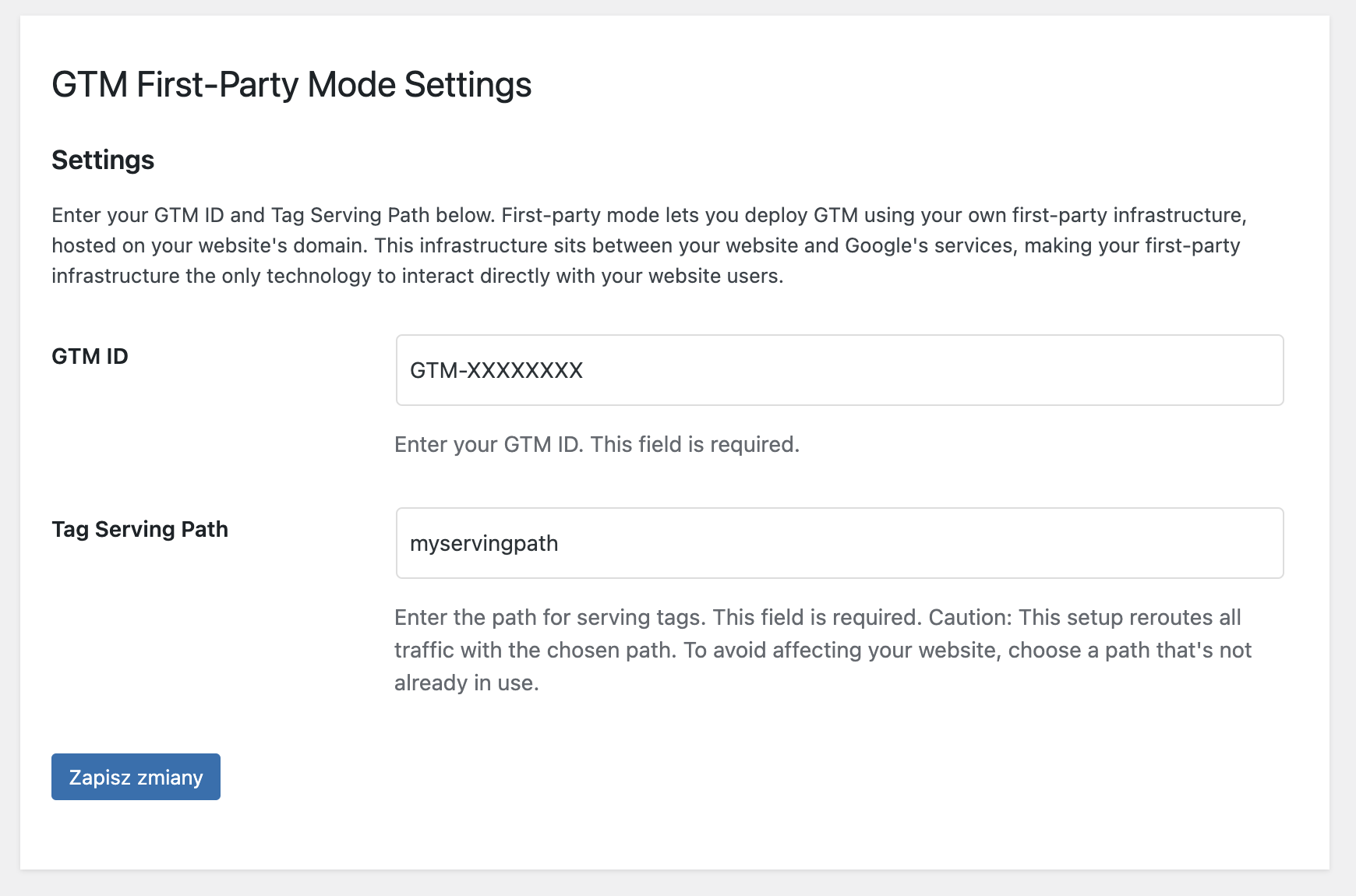
Description
GTM First-Party Mode WordPress Plugin routes requests through the WordPress backend to fps.goog and inserts GTM script in <head> for first-party data tracking. This plugin allows you to deploy Google Tag Manager using your own first-party infrastructure, hosted on your website's domain. Unlike other setups that require a CDN or load balancer, this free plugin leverages your existing WordPress site to route requests, making it simple and cost-effective to enhance data privacy and security.
Architecture Diagram
The following diagram represents the information flow in first-party mode:
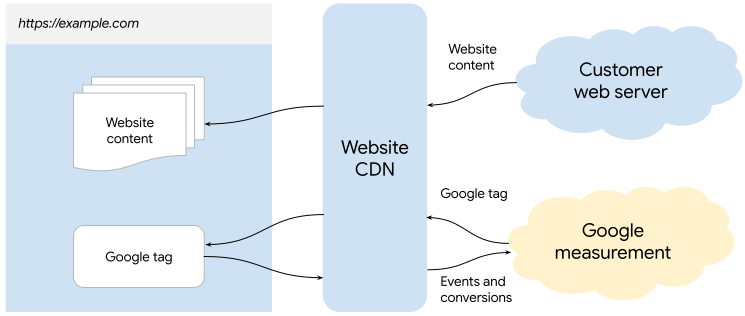 Instead of CDN you will be using the GTM FPM Plugin.
For more information about First-Party Mode, visit the Google Tag Manager First-Party Setup Guide.
Installation of the plugin
-
Download the Plugin:
- If you are downloading from GitHub, click on the green "Code" button and select "Download ZIP".
- Extract the ZIP file and locate the
gtm-fpmfolder inside the extracted contents.
-
Upload the Plugin:
- Upload the plugin using Wordpress Admin Panel.
-
Activate the Plugin:
- Go to the 'Plugins' screen in WordPress and activate the
GTM First-Party Modeplugin.
- Go to the 'Plugins' screen in WordPress and activate the
-
Configure the Plugin:
- Use the
Settings->GTM First-Party Modescreen to configure the plugin by entering your GTM ID and Tag Serving Path.
- Use the
Usage
- Enter your GTM ID and Tag Serving Path in the plugin settings page.
- Make sure to use a different GTM container if you're using the GTM4WP plugin or disable script injection in other GTM plugins.
Changelog
1.20
- Initial release.
Contributing
If you have any suggestions, feel free to open an issue or submit a pull request.
License
This plugin is licensed under the GPLv3.