Install
This is the repository archive. It installs, but the folder name will carry the branch suffix and updates will not flow.
Install straight from GitHub with WP-CLI:
wp plugin install https://github.com/matatashadrack/tuma-mpesa-for-woocomerce/archive/refs/heads/main.zipAccept M-Pesa payments to any bank account through the Tuma Payments API in your WooCommerce store. Includes optional POS inventory sync to keep your online and physical store inventory in sync.
Supported Payment Methods & Institutions
Tuma Payments Gateway supports all major banks, microfinance institutions, and SACCOs in Kenya, as well as mobile money platforms with real-time direct fund settlement to both personal and business accounts. Funds are settled instantly to your preferred account across all supported channels.
Mobile Money
- M-PESA (Paybill Number / Buy Goods Till Number)
- Airtel Money
Banks
- Equity Bank
- Kenya Commercial Bank (KCB)
- Cooperative Bank of Kenya
- Diamond Trust Bank (DTB)
- NCBA
- Family Bank
- Stanbic Bank
- I&M Bank
- Access Bank
- Standard Chartered Bank
- ABSA
- SBM Bank Kenya
- National Bank
- Sidian Bank
Microfinance & Digital Banks
- Loop
- KWFT
- Faulu Bank
SACCOs
- Fortune Sacco
- K-Unity Sacco
- And many more...
Getting Started
Step 1: Create Your Tuma Payments Account
- Visit https://merchant.tuma.co.ke and sign up for a merchant account
- Complete the registration process and verify your account
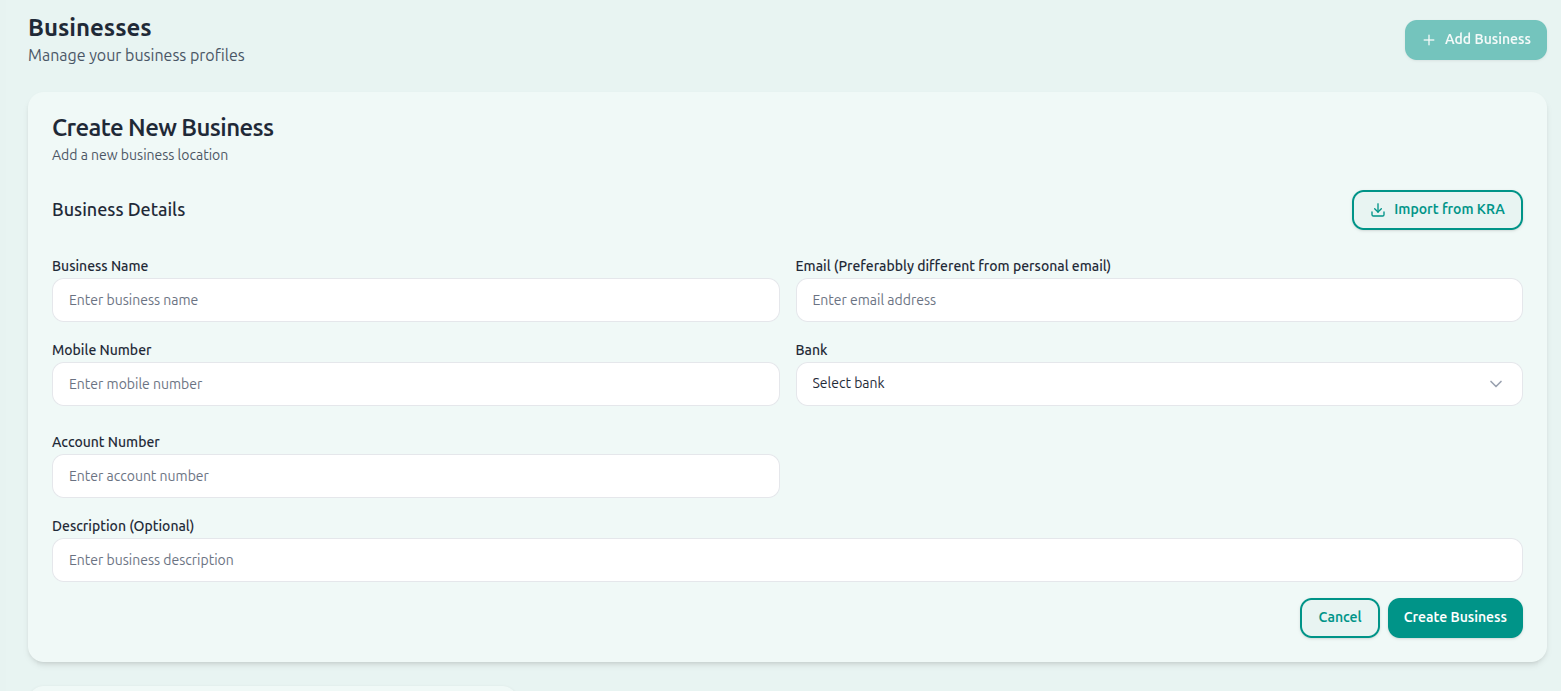
Step 2: Set Up Your Shop
-
Login to your Tuma Payments merchant dashboard
-
Navigate to Shops section and create a new shop
Step 3: Get Your API Credentials
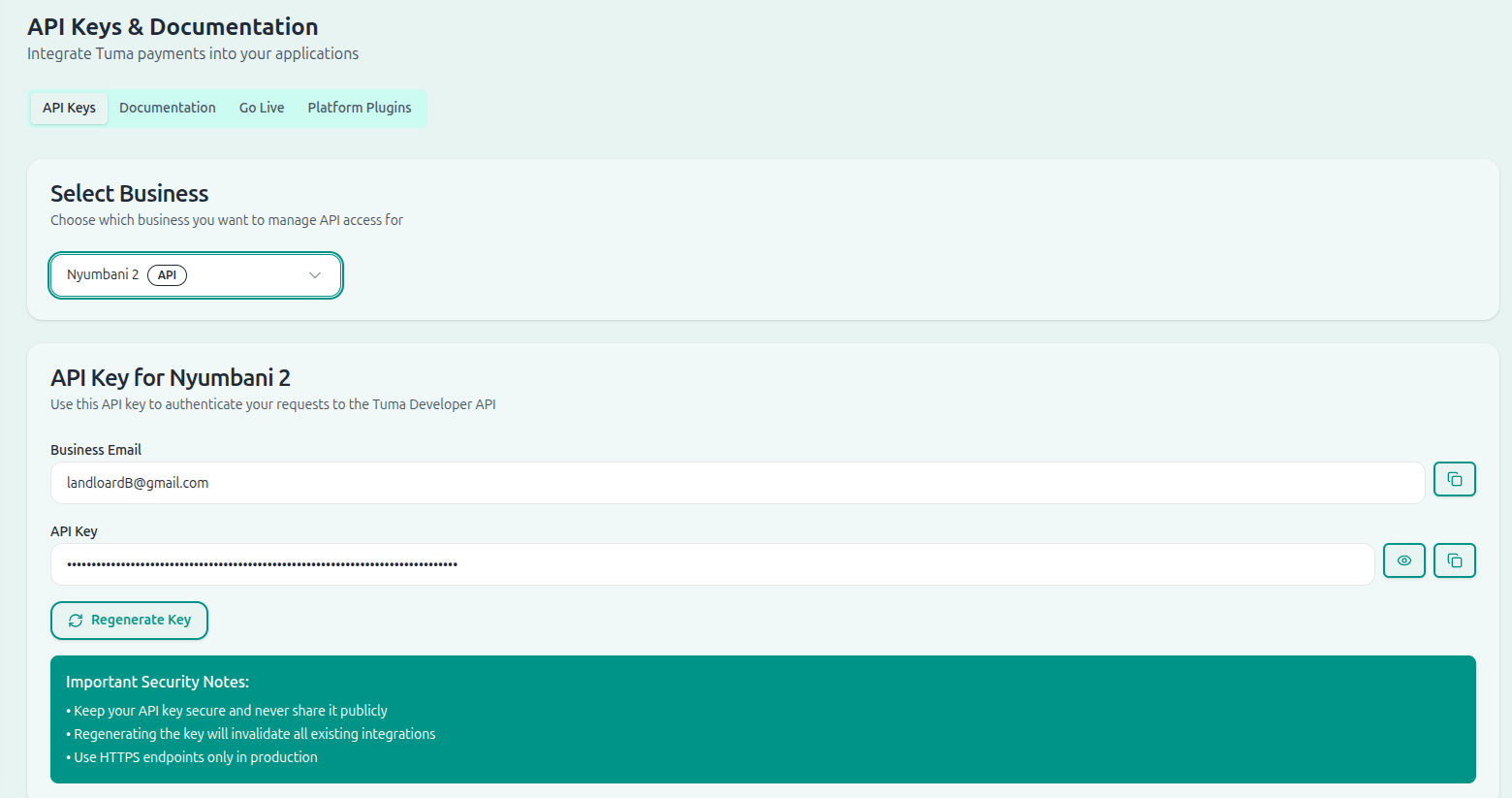
-
Go to the Developer section in your dashboard
-
Copy your Shop Email and API Key
Installation
Step 4: Download and Install Plugin
- Download the plugin from https://github.com/matatashadrack/tuma-mpesa-for-woocomerce/archive/refs/tags/v1.0.0.zip
- Upload the plugin to your WordPress site:
- Go to Plugins > Add New > Upload Plugin
- Choose the downloaded zip file and click Install Now
- Activate the plugin through the 'Plugins' menu in WordPress
Step 5: Configure the Plugin
-
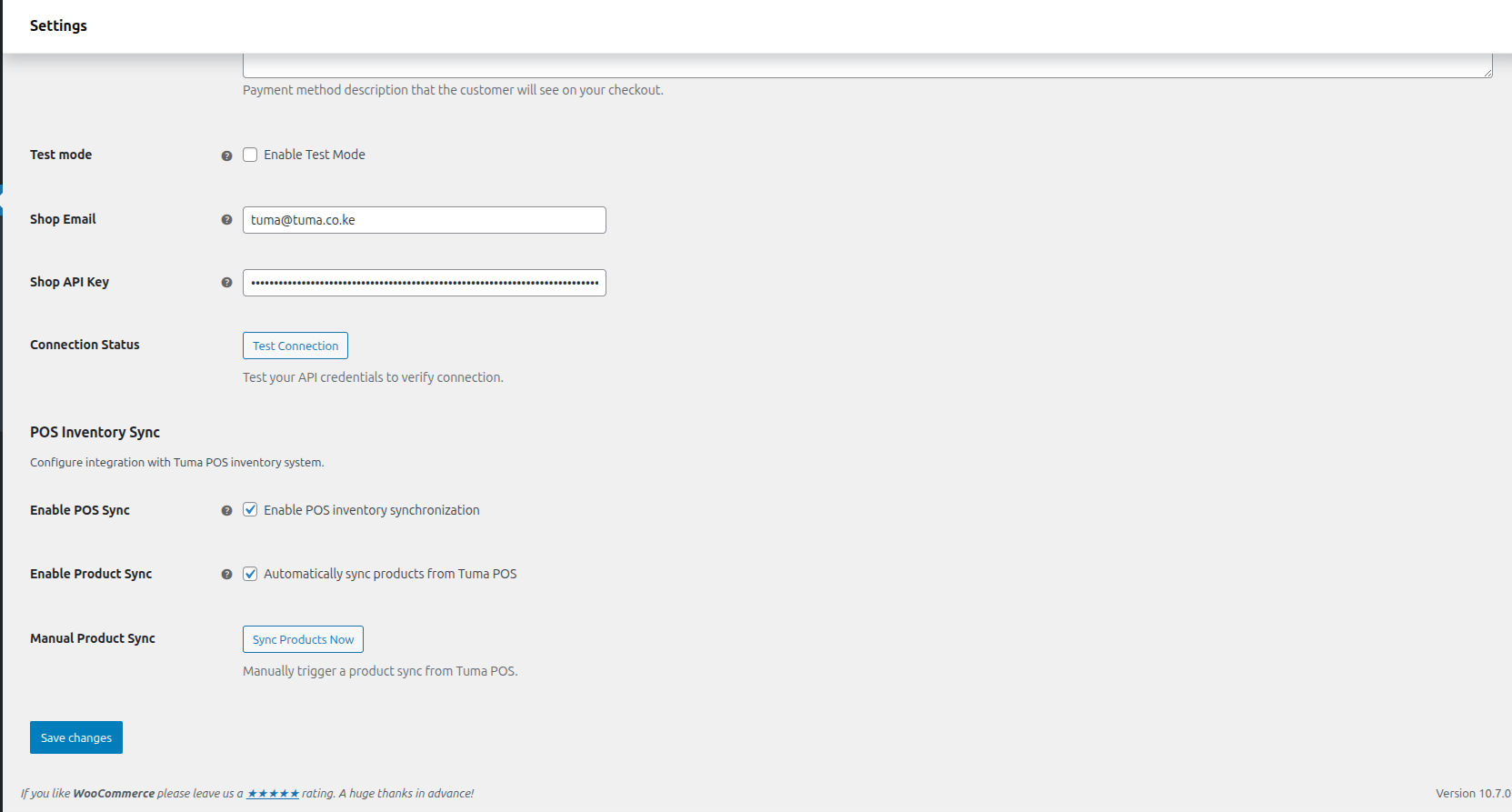
Go to WooCommerce > Settings > Payments
-
Find Tuma Payments and click Configure

-
Enter your credentials:
- Shop Email: The email from your Developer section
- Shop API Key: The API key from your Developer section
-
Click Test Connection to verify your credentials
-
Enable the payment method and save settings
POS Sync Setup (Optional)
If you use Tuma POS for your physical store, you can enable inventory and sales sync to keep both stores in sync.
Enable POS Sync
- Go to WooCommerce > Settings > Payments > Tuma Payments
- Scroll down to the POS Sync Settings section
- Configure the following options:
Enable POS Sync
- Check Enable POS Sync to sync online sales with your Tuma POS
- When enabled, each WooCommerce order is recorded as a sale in your POS
- Stock levels are managed by the POS system
Enable Product Sync
- Check Enable Product Sync to import products from your Tuma POS
- Products and stock are synced every 30 minutes by default
- Set Stock Sync Frequency to any value from 15 to 60 minutes
- Use Import POS to WooCommerce for an immediate refresh from the primary POS catalog
Import an Existing Website into POS
- Use Import WooCommerce to POS to migrate an existing website catalog and its current stock in one click
- Existing products are matched by their stored Tuma ID or exact SKU, so running the import again updates instead of duplicating them
- Simple and variable products are supported, including per-variation SKU, price, and stock
- WooCommerce descriptions are intentionally not sent to POS, avoiding oversized website HTML/content in POS product records
- Leave Website to POS Sync enabled to create future WooCommerce products in Tuma POS immediately
How POS Sync Works
-
Product Sync: Products from your Tuma POS are imported to WooCommerce with:
- Product name, description, and price
- SKU mapping for inventory tracking
- Product images (if available)
- Stock quantities
- Variable products with all their variations (color, size, etc.)
- Individual variant pricing and stock levels
-
Sales Sync: When a customer places an order:
- The sale is sent to your Tuma POS
- M-Pesa STK push is triggered for payment
- Stock is deducted from POS inventory
- Order status updates automatically on payment confirmation
-
Other payment gateways and manual orders:
- When POS Sync is enabled, paid orders completed through another gateway or manually in WooCommerce automatically deduct their line quantities from Tuma POS
- Tuma POS Sales API orders are excluded because their stock is already managed by POS
- Sync is queued immediately and failed lines retry every 5 minutes, up to 12 attempts
- Every order line uses an idempotency reference, so status hooks and retries cannot deduct the same stock twice
Product Sync Status
After enabling product sync, you can see the sync status in Products > All Products:
- A POS Sync column shows which products are linked to your Tuma POS
- Products display their Tuma Product ID for reference
Notification Setup
Real-time Payment Notifications
Get instant Payment alerts via WhatsApp, Telegram and Slack.
Configure Notifications
- Navigate to Notifications: In your merchant dashboard, go to the "Notifications" tab
Configure Telegram:
- Click "Setup Telegram Notifications"
- Follow the bot setup instructions
- Enter the verification code
Configure WhatsApp:
- Enter your WhatsApp API token
- Provide your WhatsApp phone number
- Click "Activate WhatsApp Notifications"
SMS Confirmation (Mobile Sasa)
Send an SMS to the customer and the admin whenever a payment succeeds or fails.
Configure SMS
- Go to WooCommerce > Settings > Payments > Tuma Payments
- Scroll to the SMS Notifications (Mobile Sasa) section
- Tick Enable SMS — the credential fields below only appear once SMS is enabled
- Enter your Mobile Sasa API Token (starts with
mbs_) - Enter an approved Sender ID (case-sensitive, e.g.
MOBILESASA) - Enter the Admin Phone Number — it is included in the customer SMS and receives the admin alerts
Messages sent
- Customer, payment successful:
Hi, we have received your order and KES {amount} payment via MPESA transaction {mpesa_receipt_number}. Thank you call {admin_number}. - Customer, payment failed:
Hi, your KES {amount} payment has failed due to {failure_reason}. Try again. - Admin, payment successful: order number, amount, customer number and M-Pesa receipt
- Admin, payment failed: order number, customer number, amount and failure reason
The customer number is taken from the last 10 digits of the callback's checkout_request_id, falling back to the number stored on the order. Messages are sent from the payment callback, and are de-duplicated so repeated callbacks do not resend the same SMS.
Features
Payment Features
- Real-time Payment Status: Customers see live payment confirmation
- Webhook Fallback: If no callback arrives within 45 seconds, the plugin securely queries Tuma for the payment status using the original STK-push JWT
- STK Push Integration: Seamless M-Pesa payment experience
- Payment Retry: Customers can resend STK push if needed
- Receipt Display: M-Pesa receipt numbers are shown when supplied; status-query confirmations also complete normally when no receipt number is available
- PDF Receipts: Paid customers can download a secure receipt from the confirmation page or My Account
- Order Management: Automatic order status updates
- Comprehensive Logging: Detailed payment notes in order history
POS Sync Features (Optional)
- Inventory Sync: Sync products from your Tuma POS to WooCommerce
- Variable Products: Full support for products with variations (size, color, etc.)
- Sales Sync: Online sales automatically recorded in your POS
- Variant Stock Management: Individual stock tracking for each product variation
- Stock Management: Unified stock levels across online and physical stores
- Automatic Sync: Hourly product sync keeps inventory up to date
- Manual Sync: One-click product sync from admin panel
- Two-way Onboarding: One-click import from an existing WooCommerce store into Tuma POS
- New Website Products: Newly created WooCommerce products are pushed to POS automatically
Product Variations Support
- Variable Product Sync: Products with variants in Tuma POS are synced as WooCommerce Variable Products
- Attribute Mapping: Variation attributes (Color, Size, etc.) are automatically created
- Variant Stock: Each variation maintains its own stock level
- Variant Pricing: Support for different prices per variation
- SKU Mapping: Variant SKUs are mapped for accurate inventory tracking
Requirements
- WordPress 4.6+
- WooCommerce 3.5.0+
- PHP 7.0+
- Active Tuma Payments merchant account
- Valid Kenyan M-Pesa phone number for testing
Troubleshooting
Common Issues / FAQs
-
"Connection Failed" Error
- Verify your Shop Email and API Key are correct
- Ensure your Tuma Payments account is active and verified
-
STK Push Not Received
- Check that the phone number is registered with M-Pesa
- Ensure the phone number format is correct (254XXXXXXXXX)
-
Payment Status Not Updating
- Check that your site has a valid SSL certificate
- Verify the callback URL is accessible from the internet
-
Product Sync Not Working
- Ensure Enable Product Sync is checked in settings
- Verify your API credentials are correct
- Check the error log for sync failures
- Try clicking Sync Products Now for manual sync
-
POS Sale Not Recording
- Ensure Enable POS Sync is checked in settings
- Verify products have a valid Tuma Product ID (sync products first)
- Check that the product SKU matches between WooCommerce and POS
Support and Resources
Documentation
- API Documentation: https://github.com/matatashadrack/tuma-mpesa-stk-push
- Merchant Portal: https://merchant.tuma.co.ke
Support Channels
- Email: matata@tuma.co.ke
- Phone: +254722854082 / +254733854082
- Twitter: @tumaonline
- Business Hours: Monday - Friday, 8:00 AM - 6:00 PM EAT
Getting Help
For technical support and questions:
- Email: matata@tuma.co.ke
- Documentation: https://merchant.tuma.co.ke/docs
License
This plugin is licensed under the GPL v3 or later.
Releases
15 releases.
These releases are tags only. The author does not attach a packaged zip, so there are no download counts to report.