Plugin Settings Finder
WordPress admin bar dropdown that takes you straight to every active plugin's settings pages, wherever they hide: own menu, Tools, Settings, Media, WooCommerce tabs, hidden pages. Plus a Plugin Check (PCP) shortcut.
Install
Upload it under Plugins → Add New Plugin → Upload Plugin, then activate.
Install straight from GitHub with WP-CLI:
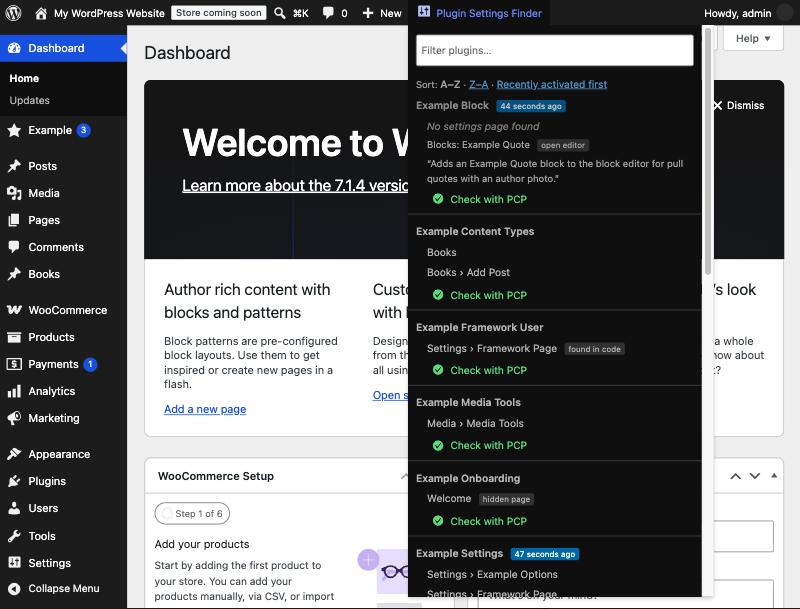
wp plugin install https://github.com/marceltannich/plugin-settings-finder/releases/download/v1.5.1/plugin-settings-finder.zipStop hunting for plugin settings pages. An admin bar dropdown that lists every active WordPress plugin with direct links to its settings, wherever the plugin decided to put them.
The problem
When you review or test a plugin, you install it, activate it, and then go looking for its settings. There is no rule for where they end up:
- its own top-level menu item, near the top or at the very bottom
- under Tools
- under Settings
- under Users or the profile screen, if it is about user profiles
- under Media, if it handles media
- under WooCommerce or Products, for WooCommerce extensions
- as a new tab in the WooCommerce settings tab bar, or a section inside one (payment gateway, shipping method, integration, email)
- on a hidden page with no menu item at all, like a setup wizard
Plugin Settings Finder solves that. Open the Plugin Settings Finder dropdown and every active plugin is listed with its pages and a breadcrumb showing where each one lives, for example Settings › Example or WooCommerce › Settings › Payments › Example Pay. If a plugin has no admin screen, it says No settings page found and shows what it adds instead: blocks, shortcodes, widgets, hints from its readme and the readme's short description. So you know whether to look in the block editor, a shortcode, a widget area, or nowhere at all.
Features
- Every location covered: top-level menus, submenus anywhere, hidden pages, post type and taxonomy screens, WooCommerce settings tabs and sections, payment gateways, shipping methods, integrations and emails.
- No settings page? Find out why: blocks (from
block.jsonandregister_block_type()), shortcodes and widgets registered by the plugin, plus readme hints such as works without configuration. - Plugin Check (PCP) shortcut: when Plugin Check is active, every plugin gets a highlighted Check with PCP link that opens PCP with that plugin preselected.
- Sort switch: A to Z (default), Z to A, or recently activated first, saved per user. Each plugin is its own segment, separated by a line. Recently activated plugins get a "x minutes ago" badge.
- Filter field to narrow the list by plugin name or page.
- One click to settings: clicking a plugin name opens the page that looks most like its settings.
- Less noise: Elementor, WooCommerce and Contact Form 7 are hidden by default, because they are installed almost everywhere. Their extensions are still listed.
- WP-CLI:
wp settings-finder list | rescan | install-mu, including a one-command move intomu-plugins. - Works on the front end too, using the list from the last admin screen.
- Nothing leaves your site. No settings screen, no external requests.
How it finds pages
It does not guess from plugin names. Each page is attributed by asking PHP where the code behind it lives:
| Source | How it is attributed |
|---|---|
| Admin menu and submenu pages | File of the page callback (via Reflection) |
| Hidden pages (wizards, welcome screens) | Same, for pages registered without a visible parent |
| Post type and taxonomy screens | The plugin file that called register_post_type() / register_taxonomy() |
| WooCommerce tabs, sections, gateways, shipping methods, integrations, emails | The concrete class file, so an add-on extending WC_Settings_Page counts as the add-on, not WooCommerce |
| Plugins screen row links ("Settings") | The plugin's own plugin_action_links filters |
| Fallback | The plugin's PHP files are scanned for slugs passed to add_*_page() and matched against pages that are actually registered (marked found in code) |
The list is rebuilt right away when the set of active plugins changes (so a plugin you just activated is listed immediately) and when you click Rescan now. Otherwise it is refreshed every ten minutes in the background, after the page has been delivered, so admin screens never wait for a scan.
Installation
Requires WordPress 6.0+ and PHP 7.4+. Pick one of the three ways below.
Option A: as a normal plugin (quickest)
- Download
plugin-settings-finder.zipfrom the latest release. - In wp-admin go to Plugins › Add New Plugin › Upload Plugin, choose the ZIP, click Install Now, then Activate.
- Open any admin screen. The Plugin Settings Finder dropdown appears in the admin bar.
Or with WP-CLI:
wp plugin install https://github.com/marceltannich/plugin-settings-finder/releases/latest/download/plugin-settings-finder.zip --activateUse the release ZIP, not GitHub's green Code › Download ZIP button. That one unpacks to a folder called
plugin-settings-finder-main, which works but looks odd and does not update cleanly.
Option B: as a must-use plugin (recommended for review and test sites)
A must-use plugin is always on, cannot be deactivated by accident, and keeps working while you activate and deactivate the plugins you are reviewing.
With WP-CLI, after Option A:
wp settings-finder install-mu
wp plugin delete plugin-settings-finder
install-mu copies the plugin to wp-content/mu-plugins/plugin-settings-finder/, writes the loader file wp-content/mu-plugins/plugin-settings-finder-loader.php and deactivates the regular copy.
By hand:
- Unzip the release and copy the
plugin-settings-finderfolder intowp-content/mu-plugins/(create the folder if it does not exist). - Copy
plugin-settings-finder/extras/mu-loader.phptowp-content/mu-plugins/plugin-settings-finder-loader.php.
WordPress only loads PHP files that sit directly in mu-plugins, never files inside sub-folders. Without the loader file nothing happens. The result must look like this:
wp-content/mu-plugins/
├── plugin-settings-finder-loader.php
└── plugin-settings-finder/
    ├── plugin-settings-finder.php
    ├── includes/
    └── ...
Check it under Plugins › Must-Use: "Plugin Settings Finder (MU loader)" should be listed.
Option C: with Git (to pull updates)
cd wp-content/plugins            # or wp-content/mu-plugins, plus the loader from Option B
git clone https://github.com/marceltannich/plugin-settings-finder.git
wp plugin activate plugin-settings-finder   # skip for mu-plugins
Update later with git pull in that folder.
Updating and removing
- Update: install the new release ZIP over the old one (Upload Plugin offers Replace current with uploaded),
git pull, or for mu-plugins replace the folder. - Remove (normal plugin): deactivate and delete it under Plugins. Its stored data (the page index, activation times, sort choice) is removed too.
- Remove (mu-plugins): delete
plugin-settings-finder-loader.phpand theplugin-settings-finderfolder frommu-plugins. Leftover data is three small options namedpsf_*; remove them withwp option delete psf_index psf_activations psf_code_cache psf_usage_cacheif you like.
If both a normal and a must-use copy are present, only the first one loaded (the must-use copy) runs; the other is skipped without errors.
Usage
Hover Plugin Settings Finder in the admin bar:
- Every active plugin is one segment with its admin pages. Click a page to open it; click the plugin name to open the page that looks most like its settings.
- No settings page found is followed by what the plugin adds instead (blocks, shortcodes, widgets, readme hints).
- Check with PCP opens Plugin Check with that plugin preselected (only when Plugin Check is active).
- Sort: A–Z, Z–A or recently activated first. Saved per user.
- Filter field: type part of a plugin or page name.
- Rescan now at the bottom rebuilds the list. It is also rebuilt automatically when plugins are activated, deactivated or updated, and refreshed in the background every ten minutes.
Elementor, WooCommerce and Contact Form 7 are hidden by default (see Filters).
WP-CLI
wp settings-finder rescan                 # rebuild the index now
wp settings-finder list                   # all plugins and their pages
wp settings-finder list akismet           # one plugin (folder name or basename)
wp settings-finder list --empty           # only plugins without a settings page
wp settings-finder list --format=json     # table, csv, json or yaml
wp settings-finder install-mu             # move into mu-plugins (see Option B)
rescan needs wp-admin, which only exists in a browser request, so it loads one wp-admin page of your own site (a loopback request) as an administrator, with a login session that is created for that one request and destroyed right after. Pick the user with --user=<login>. If your site cannot reach itself (local DNS, firewall, HTTP basic auth), it says so; then open any wp-admin page in the browser once, or use rescan --clear-only.
Filters
// Hide more always-installed plugins (folder names).
add_filter( 'psf_hidden_plugins', function ( $hidden ) {
    $hidden[] = 'elementor-pro';
    return $hidden;
} );

// Show everything, nothing hidden.
add_filter( 'psf_hidden_plugins', '__return_empty_array' );

// Who sees the dropdown (default: activate_plugins).
add_filter( 'psf_capability', function () {
    return 'manage_options';
} );
Development
Tests, coding standards and CI: see CONTRIBUTING.md. In short:
composer install
composer test-site   # throwaway WordPress with SQLite and the fixture plugins
composer test        # PHPUnit
composer smoke       # WP-CLI end to end
composer phpcs       # WordPress Coding Standards
Add your own detector with the psf_detectors filter (see CONTRIBUTING.md).
License
GPLv2 or later. See LICENSE.
Releases
3 releases. Each count is every asset in that release; expand a row for the breakdown.