Install
Upload it under Plugins → Add New Plugin → Upload Plugin, then activate.
Install straight from GitHub with WP-CLI:
wp plugin install https://github.com/lso2/tr-system-info-dashboard-widget/releases/download/v2.0.5/system-info-dashboard-widget-v2.0.5.zipComprehensive WordPress system information plugin with real-time memory monitoring, plugin analysis, performance insights, and a powerful modular dashboard widget with customizable settings page - all directly integrated into your WordPress admin experience.
🚀 Key Features
Real-Time Monitoring & Analytics
- Live memory usage graph with dynamic scaling and auto-refresh every 3 seconds
- Real-time system performance metrics with peak usage tracking
- Interactive dashboard widgets with collapsible sections
- Historical memory usage patterns and trend analysis
Advanced Plugin Analysis & Testing
- Individual plugin memory footprint tracking with activation timestamps
- Smart plugin memory initialization system
- Multi-point memory measurement tool with configurable test intervals
- Plugin activation/deactivation impact analysis with historical comparison
- Top memory usage plugin identification and alerts
Comprehensive System Information
- WordPress, PHP, MySQL version details with compatibility indicators
- Advanced server software detection (NGINX, Apache, reverse proxy detection)
- OS distribution identification with architecture details (x64/x86)
- SSL status, debug mode, multisite, and security indicators
- Hostname, IP address, and server environment analysis
Database Insights & Analysis
- Complete database size breakdown with table-level details
- Table row counts and individual table size analysis
- Database optimization recommendations
- Active plugins and themes inventory with version tracking
Memory Testing & Measurement Tools
- Advanced multi-point memory measurement system
- Historical test data with plugin impact tracking
- Configurable test intervals (500ms-10s) and measurement counts (1-100)
- Test configuration details in historical results
- Plugin deactivation tracking during tests for impact analysis
Performance Monitoring & Cron Analysis
- Cron job memory usage and execution time tracking
- Background process performance analysis with peak memory detection
- System resource utilization metrics
- Admin footer memory statistics integration
Modular Settings & Customization
- Comprehensive admin settings page with live preview sections
- Individual widget section toggles (8 configurable sections)
- Master widget enable/disable control
- Card-based settings interface with real-time AJAX saving
- Responsive design that works on all devices
- Settings organized in intuitive grid layout with section previews
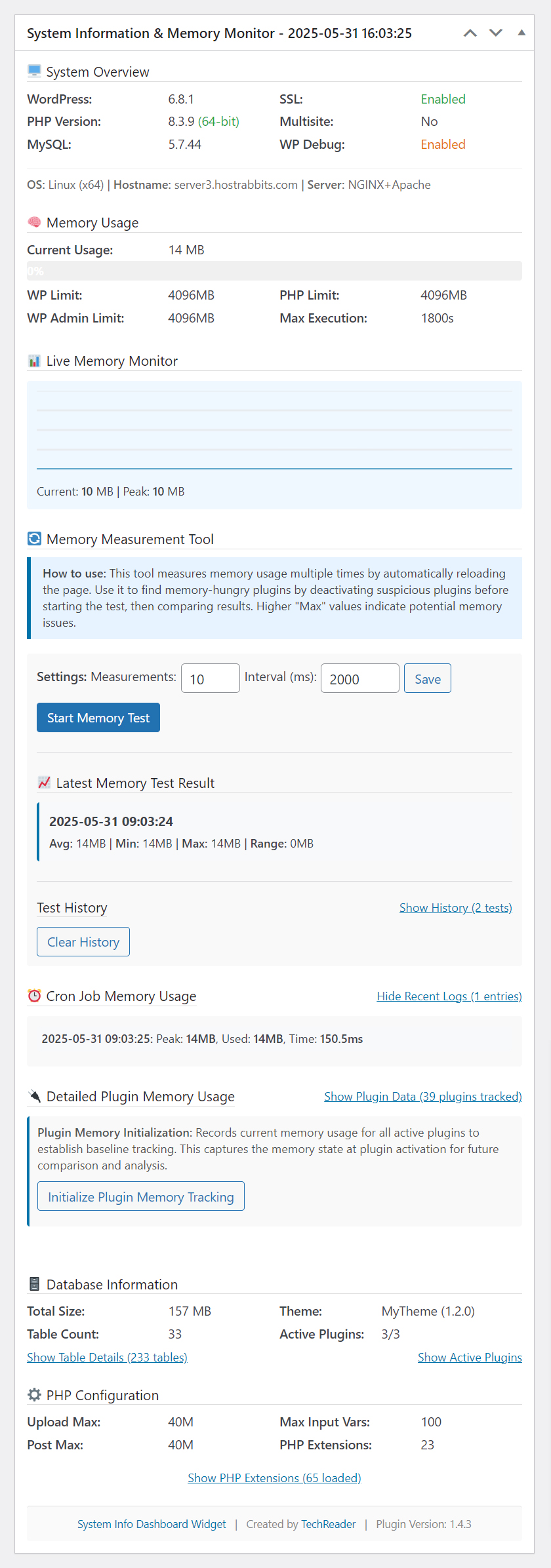
📸 Screenshot
🎯 Perfect For
- WordPress Developers - Debug memory issues, optimize plugin performance, and track code impact
- Site Administrators - Monitor system health, resource usage, and maintain optimal performance
- Performance Enthusiasts - Identify optimization opportunities and track improvements over time
- Troubleshooters - Diagnose site performance problems with detailed system analysis
- Hosting Providers - Monitor client sites and identify resource-heavy installations
- Plugin Developers - Test plugin memory usage and optimization during development
- System Administrators - Track WordPress installations across multiple environments
🔧 Advanced Features
Intelligent System Analysis
- Smart OS distribution detection (CentOS, Ubuntu, etc.) with lsb_release integration
- Advanced server software detection including reverse proxy identification
- SSL status monitoring and security configuration analysis
- PHP extension analysis with comprehensive loaded extensions list
Modular Architecture & Settings
- 8 Configurable Dashboard Sections: Enable/disable individual widget components
- Master Widget Toggle: Single control to enable/disable entire dashboard widget
- Live Settings Preview: Real dashboard sections displayed in admin settings
- AJAX-Powered Settings: Instant save without page refresh
- Responsive Admin Interface: Beautiful card-based settings with hover effects
Memory Analysis & Testing
- Historical Test Configuration Tracking: Test settings (count/interval) saved with results
- Plugin Impact Analysis: Track which plugins were deactivated during tests
- Configurable Test Parameters: 1-100 measurements, 500ms-10s intervals
- Visual Progress Indicators: Real-time test progress with percentage completion
- Test Cancellation: Cancel running tests with confirmation dialogs
User Experience & Interface
- Interactive Dashboard: Collapsible sections with toggle controls
- Modern Responsive Design: Works perfectly on desktop, tablet, and mobile
- Zero Configuration: Works out of the box with intelligent defaults
- Professional Styling: Custom CSS with hover effects and animations
- Accessibility Features: Keyboard navigation and screen reader support
💡 Use Cases
Development & Testing
- Plugin Development: Monitor memory usage during plugin development and testing
- Plugin Comparison: Compare memory footprint of different plugins performing similar functions
- Code Optimization: Track memory improvements after code optimizations
- Environment Testing: Compare performance across development, staging, and production
Site Management & Monitoring
- System Health Monitoring: Continuous monitoring of WordPress environment health
- Performance Baseline: Establish baseline metrics for performance tracking
- Resource Planning: Identify when hosting upgrades are needed
- Security Monitoring: Track debug mode status and SSL configuration
Troubleshooting & Diagnostics
- Memory Issue Diagnosis: Quickly identify memory-related performance problems
- Plugin Conflict Detection: Isolate problematic plugins causing memory issues
- Database Analysis: Identify database size issues and optimization opportunities
- Server Configuration Review: Analyze PHP settings and server environment
Client & Team Management
- Client Site Audits: Comprehensive system analysis for client sites
- Team Dashboard: Centralized system information for development teams
- Performance Reports: Generate insights for stakeholders and clients
🛡️ Security & Privacy
- No external connections or data transmission
- All data stored locally in WordPress database
- Secure AJAX requests with proper nonce verification
- Follows WordPress security best practices
🔧 Installation
Automatic Installation (WordPress.org)
- Go to Plugins > Add New in your WordPress admin
- Search for "System Info Dashboard Widget"
- Click Install Now and then Activate
- Navigate to System Info in the admin menu to configure settings
Manual Installation
- Download the plugin zip file
- Upload to
/wp-content/plugins/directory - Unzip the file
- Activate the plugin through the Plugins menu in WordPress
- Access settings via System Info menu item
GitHub Installation
cd /path/to/wordpress/wp-content/plugins/
git clone https://github.com/lso2/tr-system-info-dashboard-widget.git
Post-Installation Setup
- Dashboard Widget: Automatically appears on your WordPress dashboard
- Settings Configuration: Go to System Info in admin menu
- Section Customization: Enable/disable individual dashboard sections
- Plugin Memory Tracking: Click "Initialize Plugin Memory Tracking" to start monitoring
- Memory Testing: Configure test parameters in the Memory Measurement Tool section
📋 Requirements
- WordPress: 5.0 or higher (Tested to 6.8+)
- PHP: 7.4 or higher (Tested to 8.3+)
- MySQL: 5.6 or higher
- Memory: 64MB minimum (128MB recommended)
🎮 Usage
Quick Start Guide
- Dashboard Access: After activation, go to your WordPress Dashboard
- Widget Location: Look for the System Information & Memory Monitor widget
- Section Exploration: Click section headers to expand/collapse detailed information
- Settings Access: Navigate to System Info in the admin menu for configuration
Settings Page Features
- Admin Menu: Access via System Info menu item (located at bottom of admin menu)
- Live Preview: Settings page displays actual dashboard sections with real data
- Toggle Controls: Click any section card to enable/disable it instantly
- Master Control: Use "Toggle Dashboard Widget" to enable/disable entire widget
- AJAX Saving: All settings save automatically without page refresh
- Status Indicators: Green "ENABLED" or grey "DISABLED" tags show current state
Dashboard Widget Sections (8 Configurable Modules)
1. System Overview 🖥️
- WordPress, PHP, MySQL versions with compatibility indicators
- SSL status, multisite detection, debug mode status
- OS distribution, hostname, and server software details
2. Memory Usage 🧠
- Current memory usage with visual progress bar
- WP memory limit vs PHP memory limit comparison
- Memory percentage utilization with color-coded indicators
3. Live Memory Monitor 📊
- Real-time memory usage chart updating every 3 seconds
- Dynamic Y-axis scaling for optimal visualization
- Current and peak memory usage display
4. Memory Measurement Tool 🔄
- Configuration: Set number of measurements (1-100) and interval (500ms-10s)
- Testing Process: Automated page reloads for accurate memory measurement
- Progress Tracking: Visual progress bar with percentage completion
- Test Results: Average, min, max, and range calculations
- Historical Data: View up to 10 previous test results with configuration details
- Plugin Impact: Track which plugins were deactivated during tests
- Cancellation: Stop running tests with confirmation dialog
5. Cron Memory Usage ⏰
- WordPress cron job memory usage tracking
- Execution time monitoring for background processes
- Peak memory usage during cron execution
6. Plugin Memory Usage 🔌
- Initialization: Click "Initialize Plugin Memory Tracking" to start monitoring
- Individual Tracking: Memory usage for each active plugin
- Top Usage: Identify the 3 highest memory-consuming plugins
- Activation Timestamps: When each plugin was activated and memory recorded
7. Database Information 🗄️
- Total database size with table count
- Individual table sizes and row counts
- Active plugins list with version information
- Current theme name and version
8. PHP Configuration ⚙️
- Upload limits (max filesize, post size)
- Execution timeouts and input variable limits
- Loaded PHP extensions comprehensive list
Advanced Memory Testing Workflow
- Baseline Establishment: Run initial memory test to establish baseline
- Plugin Testing: Deactivate suspect plugins one by one
- Comparative Analysis: Run new tests and compare with baseline
- Impact Assessment: Review "deactivated plugins" in test history
- Optimization: Keep plugins with lowest memory impact
Live Monitoring Features
- Auto-Refresh: Memory monitor updates every 3 seconds automatically
- Dynamic Scaling: Chart adjusts Y-axis based on memory usage range
- Visual Indicators: Color-coded memory usage (green, orange, red)
- Peak Tracking: Displays highest memory usage since page load
Admin Footer Integration
- Memory Statistics: Current usage/limit percentage in admin footer
- PHP Version: Quick PHP version reference
- Server Info: Server IP and hostname display
📝 Changelog
Recent Updates
v2.0.5 - Enhanced memory test history with test configuration details v2.0.4 - Fixed settings page card hover jumping issues v2.0.3 - Fixed cancel button functionality in memory test popup v2.0.2 - Fixed memory test functionality across all admin pages
❓ Frequently Asked Questions
Installation & Setup
Q: Does this plugin slow down my website? A: No! The plugin has zero impact on frontend performance. It only loads in the WordPress admin area and uses efficient caching mechanisms. All monitoring happens in the background with minimal resource usage.
Q: Will this work with my hosting provider? A: Yes! The plugin works on all hosting types: shared hosting, VPS, dedicated servers, managed WordPress hosting, and cloud platforms. It automatically adapts to different server configurations and detects various server software (Apache, NGINX, etc.).
Q: Can I use this on multisite installations? A: Absolutely! The plugin is fully compatible with WordPress multisite networks and will display network-specific information when applicable.
Settings & Configuration
Q: How do I customize which sections appear in the dashboard? A: Go to System Info in your admin menu. The settings page displays live previews of all 8 dashboard sections. Click any section card to enable/disable it instantly. Use the "Toggle Dashboard Widget" master control to enable/disable the entire widget.
Q: Can I disable the entire dashboard widget? A: Yes! Use the "Toggle Dashboard Widget" master control in the settings page. When disabled, the widget won't appear on the dashboard at all.
Q: Do my settings save automatically? A: Yes! All settings use AJAX and save instantly when you click section cards. You'll see visual confirmation with status tags updating from "DISABLED" to "ENABLED" and vice versa.
Memory Testing & Analysis
Q: How do I interpret the memory usage data? A: Memory usage is displayed in MB. The plugin shows current usage, limits, and percentages. Values over 50MB per plugin may indicate optimization opportunities. The color-coded progress bars help identify concerning levels: green (good), orange (warning), red (critical).
Q: How does the Memory Measurement Tool work? A: The tool automatically reloads the page multiple times (1-100 configurable) at set intervals (500ms-10s) to measure memory usage accurately. It calculates average, minimum, maximum, and range values. The tool also tracks which plugins were active during testing for impact analysis.
Q: What should I do if I find a plugin using too much memory? A: First, use the Memory Measurement Tool to establish a baseline. Then deactivate the suspect plugin and run another test. Compare results to see the actual impact. Consider if the plugin is essential, look for alternatives, or contact the plugin developer about optimization.
Data & Privacy
Q: Does this plugin collect any personal data? A: No! The plugin only monitors your server's system information locally. No data is transmitted externally. All information stays within your WordPress installation.
Q: Where is the data stored? A: All data is stored in your WordPress database using the WordPress options API. Test history, plugin memory data, and settings are stored locally and can be cleared at any time.
Compatibility & Integration
Q: Is this plugin compatible with caching plugins? A: Yes! The plugin works alongside all caching solutions and can actually help you monitor their effectiveness by tracking memory usage patterns.
Q: Does it work with page builders and complex themes? A: Absolutely! The plugin monitors system-level information and works with any theme or plugin combination. It's particularly useful for identifying which page builders or themes consume the most memory.
Q: Can I use this with development tools and staging sites? A: Perfect for development! The plugin is ideal for comparing memory usage across development, staging, and production environments. Use it to test plugin combinations and optimizations before deploying to live sites.
Troubleshooting
Q: The live memory monitor isn't updating. What should I do? A: Ensure JavaScript is enabled in your browser. The live monitor uses AJAX to update every 3 seconds. Check browser console for any JavaScript errors and ensure the plugin is properly activated.
Q: Memory test gets stuck or doesn't complete. How to fix? A: Use the "Cancel Test" button to stop the current test. Check if any plugins are causing JavaScript conflicts. You can also try reducing the number of measurements or increasing the interval between measurements.
Q: I don't see all sections in my dashboard widget. Why? A: Check the System Info settings page. Some sections may be disabled. Click section cards to enable them, or use the master "Toggle Dashboard Widget" control to enable the entire widget.
Advanced Usage
Q: How can I use this for client site audits? A: The plugin provides comprehensive system information perfect for client reports. Export the system overview, database analysis, and memory usage data. Use the memory testing tool to identify optimization opportunities and provide concrete recommendations.
Q: Can I monitor multiple sites? A: Install the plugin on each site you want to monitor. Each installation tracks its own data independently. The consistent interface makes it easy to compare system information across multiple WordPress installations.
🏗️ Technical Architecture
Modular Design Philosophy
The plugin is built with a modular architecture that separates concerns and allows for easy maintenance and extension:
Core Structure
- Main Plugin File:
tr-system-info-dashboard-widget.php- Core plugin class and initialization - Admin Interface:
admin.php- Settings page management and AJAX handlers - Modular Sections:
/sections/directory containing individual widget components - Asset Management:
/assets/directory with separate CSS/JS for dashboard and settings
Section Modules (8 Independent Components)
system-overview.php- System information displaymemory-usage.php- Memory usage visualizationlive-memory-monitor.php- Real-time memory monitoringmemory-measurement-tool.php- Advanced memory testingcron-memory-usage.php- Cron job monitoringplugin-memory-usage.php- Plugin memory trackingdatabase-information.php- Database analysisphp-configuration.php- PHP settings display
Asset Organization
admin.css&admin.js- Dashboard widget styling and functionalityadmin-settings.css&admin-settings.js- Settings page interfacememory-measurement-tool.js- Specialized memory testing functionality
Data Management
- WordPress options API for settings persistence
- Efficient caching mechanisms for performance data
- Secure AJAX endpoints with nonce verification
- Database queries optimized with proper escaping and sanitization
Settings Page Architecture
Real-Time Settings Management
- AJAX-Powered: All settings save instantly without page refresh
- Visual Feedback: Loading states and success indicators
- Card-Based Interface: Modern UI with hover effects and animations
- Responsive Design: Mobile-friendly with adaptive layouts
Live Section Preview
Unique feature where settings page displays actual dashboard sections:
- Uses same section files as dashboard for consistency
- Real system data displayed in settings preview
- No code duplication - single source of truth for section rendering
- Grid layout showcasing all 8 configurable sections
Memory Testing System
Multi-Point Measurement Process
- Test Initialization: Records active plugins and baseline memory
- Automated Reloading: PHP-based page reloads for accurate measurement
- Progress Tracking: Real-time progress updates with visual indicators
- Data Collection: Multiple memory snapshots across page loads
- Statistical Analysis: Average, min, max, and range calculations
- Historical Storage: Up to 10 test results with full configuration details
Plugin Impact Tracking
- Records active plugins at test start
- Compares with active plugins at test completion
- Identifies plugins deactivated during testing
- Historical analysis of plugin impact on memory usage
Security & Performance
Security Measures
- WordPress nonce verification for all AJAX requests
- Proper input sanitization and output escaping
- Capability checks for admin-only functionality
- No external HTTP requests or data transmission
Performance Optimization
- Minimal impact on frontend (admin-only functionality)
- Efficient database queries with proper caching
- Conditional asset loading (only on relevant admin pages)
- Optimized memory usage tracking with minimal overhead
📄 License
This plugin is licensed under the GPLv3 or later.
🌟 Support & Contributing
Get Help
Contributing
We welcome contributions! Please visit our GitHub repository to:
- Report bugs and issues
- Suggest new features
- Submit pull requests
- View and improve source code
- Help with documentation
Privacy Policy
This plugin does not:
- Collect personal information
- Track user behavior
- Make external HTTP requests
- Store data outside your WordPress installation
All system information is processed and stored locally on your server.
🏆 Credits
Developed with ❤️ by TechReader for the WordPress community.
TechReader specializes in WordPress development, performance optimization, and technical solutions.
- Website: https://techreader.com
- GitHub: @lso2
- Support: Plugin Forum
Special thanks to all contributors and users who provide feedback to make this plugin better.
💖 Support This Project
If this tool has saved you time and made your WordPress development workflow smoother, consider supporting its continued development!
Buy me a coffee!
Why donate?
- ☕ Fuel more late-night coding sessions
- 🚀 Support new features and improvements
- 🐛 Faster bug fixes and updates
- 📚 Better documentation and tutorials
Even small contributions make a big difference! Every coffee helps keep this project actively maintained and growing.
Made with ❤️ for the WordPress community
Releases
1 release. Each count is every asset in that release; expand a row for the breakdown.