Install
This is the repository archive. It installs, but the folder name will carry the branch suffix and updates will not flow.
Install straight from GitHub with WP-CLI:
wp plugin install https://github.com/kdbaustert/pressport/archive/refs/heads/master.zipNot ready for use yet. PressPort is still in development and hasn't had a stable release. Don't run it on a live site until one is published. If you want to try it, use a test site or a copy you can throw away.
A WordPress plugin for moving content between WordPress sites as JSON. Export posts, pages, custom post types and WooCommerce products to a JSON file, then upload that file on another site to import it.
PressPort's own exports carry their field mapping and post type, so importing one needs no setup. You can still check the mapping, do a dry run and import in batches. Every import is logged and can be rolled back.
Why PressPort
Moving some content from one WordPress site to another is harder than it should be.
WordPress's built-in exporter writes a WXR file, and its importer copies custom fields as they are. ACF fields, though, often store IDs: an image field holds an attachment ID, and a relationship field holds post IDs. Those IDs belong to the old site. On the new one they point at the wrong items or at nothing. WooCommerce products don't come through cleanly either, because prices, stock and variations live in places a plain post import doesn't rebuild.
Full-site migration plugins solve a different problem. They copy the whole site and replace what's on the destination. That's no help when the destination already has its own content and you only want to bring some of it across.
PressPort is for that case. Use it to:
- move pages, posts or products from a staging site to the live one without overwriting anything else;
- merge content from one site into another;
- copy a product catalogue between WooCommerce stores, variations included;
- bring JSON from another system into WordPress, mapping its fields to posts, custom fields and ACF.
It downloads images and files into the new site's Media Library and points ACF fields at the new IDs. Products are rebuilt through WooCommerce's own API. Before anything is saved you can do a dry run, and if an import goes wrong you can roll it back from History.
Features
- JSON in, JSON out: export to a JSON file and import by uploading it. Other JSON files work too, as long as they hold a list of records; you map their fields by hand. You can add other sources with a filter.
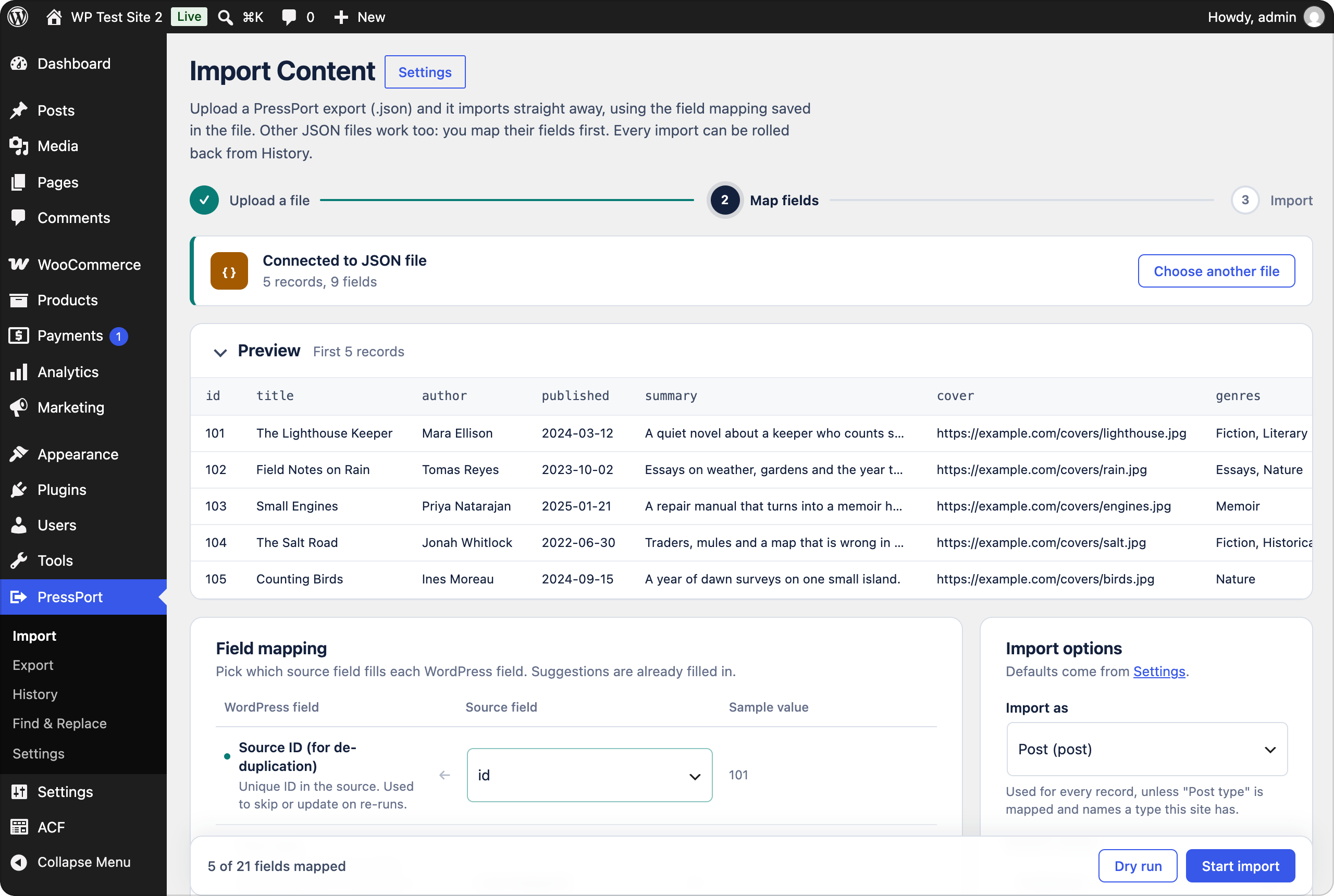
- Field mapping with a preview of real records. Map title, content, excerpt, date, slug, status, author, categories, tags, featured image, custom fields, custom taxonomies and ACF fields.
- Batched imports over AJAX, so large imports don't hit PHP timeouts. Includes a progress window with live counts and time remaining, pause/resume and a live log.
- Dry runs that show what would be created or updated without saving anything.
- Safe re-runs: records are tracked by their source ID, so running an import again can skip or update existing posts instead of duplicating them.
- Media import: downloads featured images and, optionally, images inside content, then rewrites the URLs. Each image is downloaded only once.
- Rollback: removes the posts and media an import created and leaves updated posts untouched.
- ACF support: every field type is converted properly. Image, file and gallery URLs are downloaded; relationships, post objects, taxonomy and user fields are looked up; dates, choices, links and maps are normalised; repeaters, groups and flexible content are rebuilt from nested data or JSON.
- WooCommerce support: export and re-import products through WooCommerce's own API, including prices, stock, tax and shipping settings, attributes, downloads and the variations of variable products. Galleries travel as URLs. Up-sells, cross-sells and grouped products are linked by SKU or by their ID on the old site, so products without a SKU link up too.
- Export posts, pages or any post type as JSON with terms, featured images, custom fields, ACF fields and WooCommerce product data. The file carries its own mapping and post type, so importing it on another site needs no setup.
- Find & Replace across database tables, for example an old domain after a migration. Serialized data stays valid, URLs only match whole (so
http://old.testleaveshttp://old.test.example.comalone), and a dry run previews every change first. - WP-CLI commands for big or scripted migrations.
- Settings page with default import options, access control, connection options and history cleanup.
Requirements
- WordPress 6.0+
- PHP 7.4+
Installation
Download pressport-<version>.zip from the Releases page and upload it under Plugins → Add New → Upload Plugin. Or clone it into wp-content/plugins/:
cd wp-content/plugins
git clone https://github.com/kdbaustert/pressport.git
Then activate PressPort under Plugins. A new PressPort menu appears in wp-admin.
Install it on both sites: the one you're copying from and the one you're copying to.
Using it
Copy content from one site to another
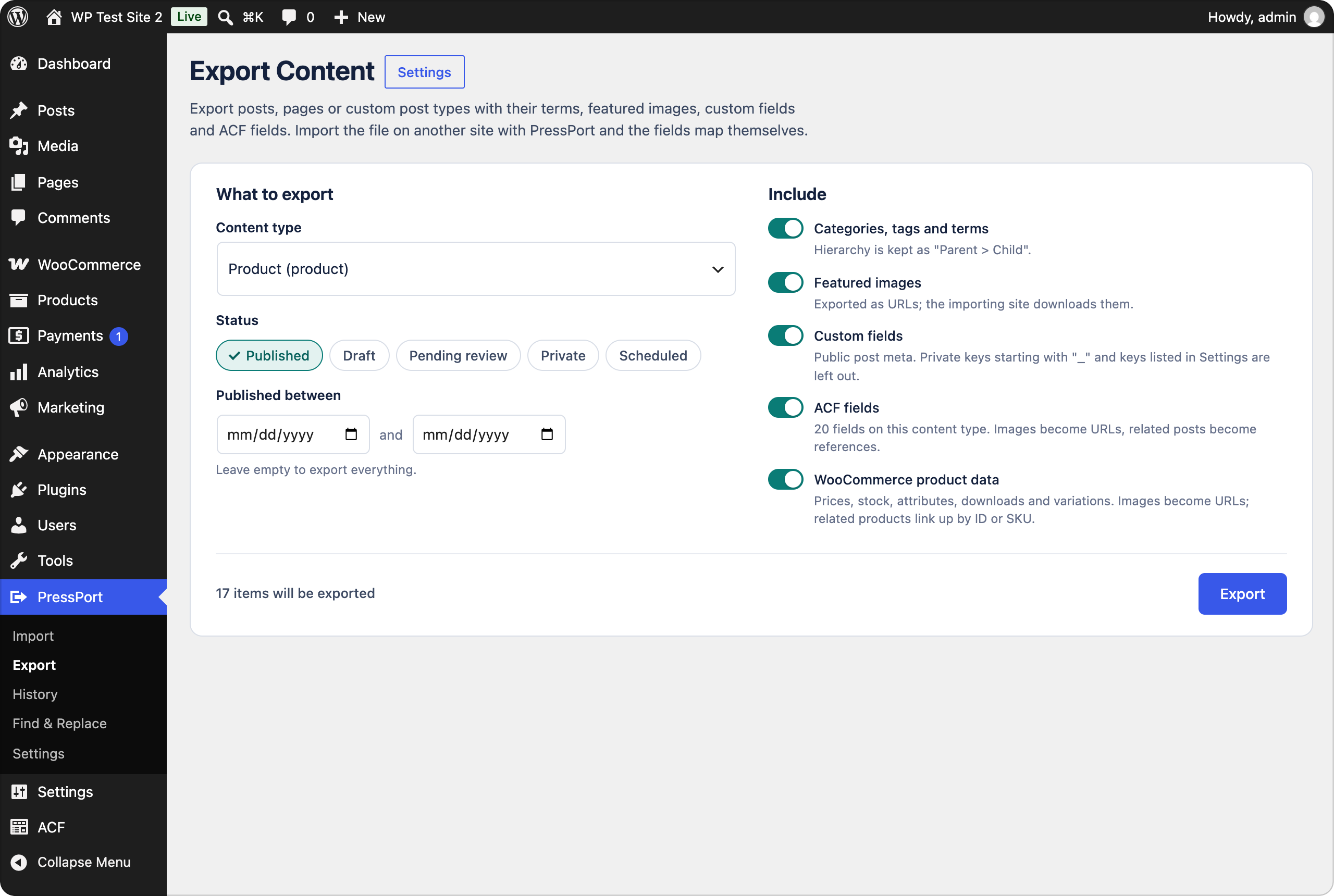
- On the site you're copying from, open PressPort → Export. Pick the post type (for example Pages or Products), choose which statuses to include, and click Export. Download the JSON file when it's ready. The link works for 24 hours.
- On the site you're copying to, open PressPort → Import and drop the file onto the page.
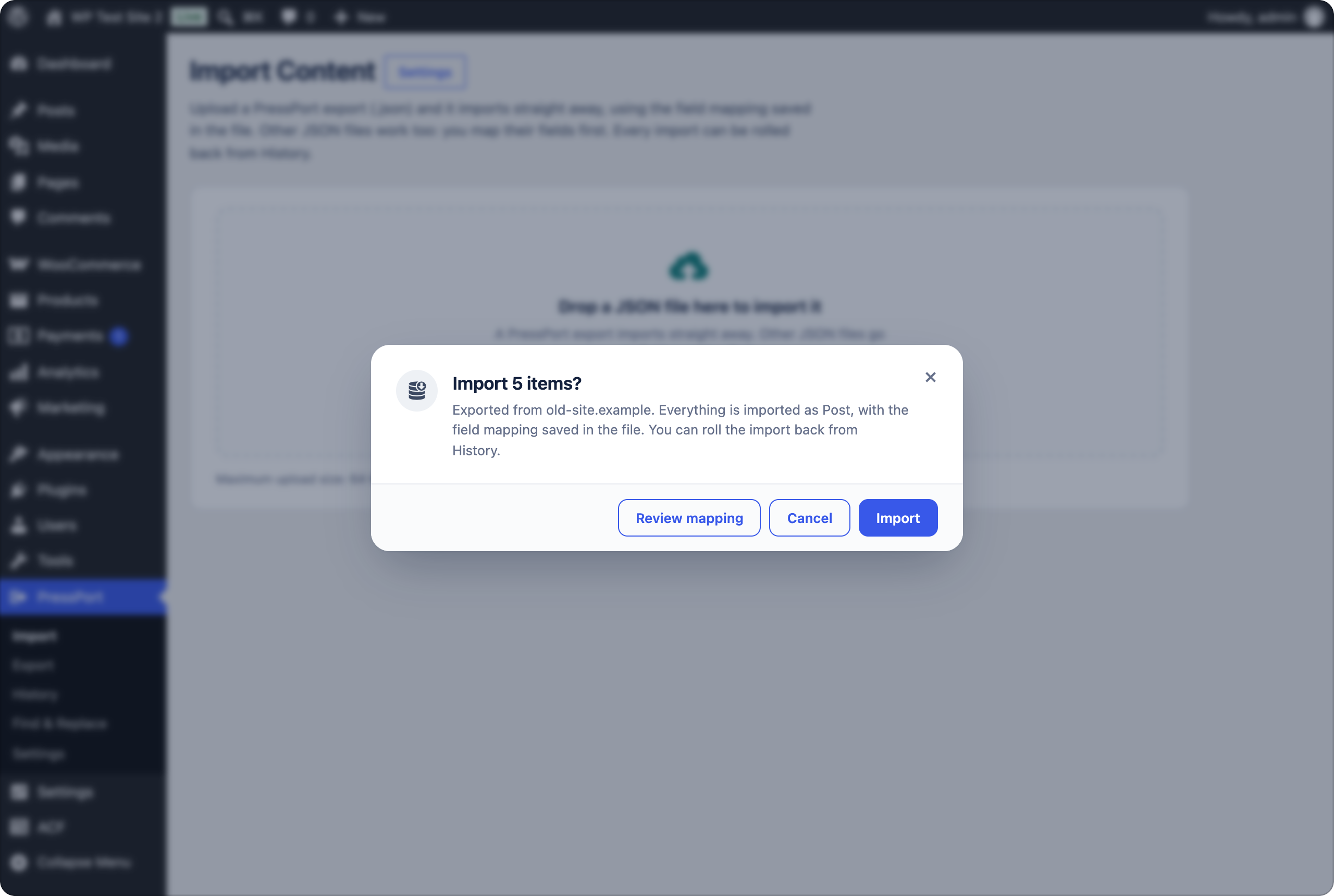
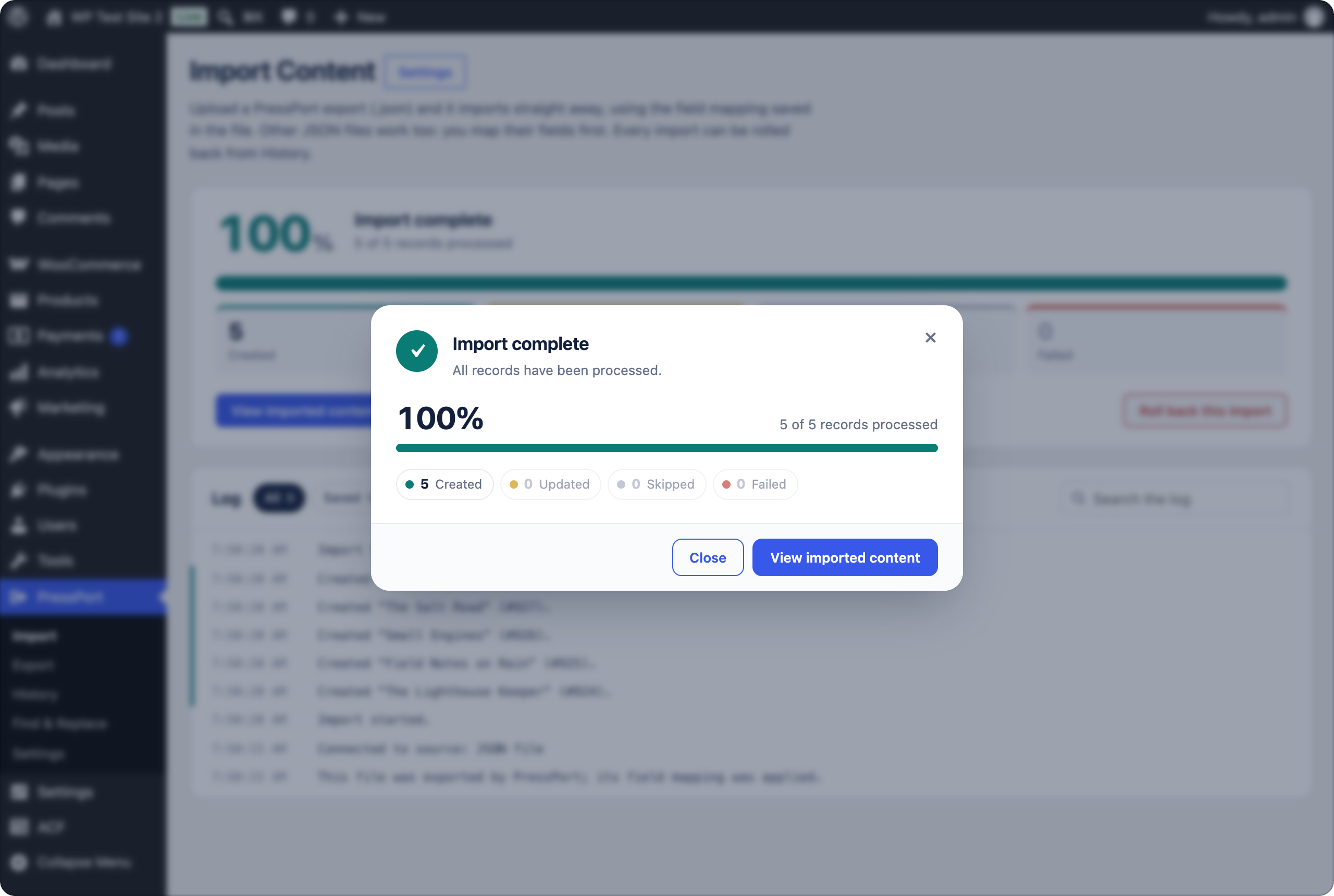
- PressPort recognises its own export and shows how many items it holds and which site they came from. If some are already on this site, it asks whether to skip them, import them anyway, or review what would change. Confirm, and the import runs in batches with a progress window.
- Check the result. If something looks wrong, open PressPort → History and click Roll back to delete what the import created.
Content that refers to other content links up on its own, in any order. That covers a parent page, a related product and an ACF relationship. If the item being referred to isn't on the site yet, PressPort remembers the link and makes it when that item is imported, whether later in the same file or in a later import. One exception: an ACF link inside a repeater or group row needs the import run again once the other item is there.
To check the mapping or do a dry run first, choose Review mapping instead of confirming in step 3.
Import JSON from somewhere else
Drop any JSON file that holds a list of records. PressPort shows a preview of the first records and suggests a field for the title. Pick a source field for each WordPress field you need (title, content, date, custom fields, ACF fields and so on), run a Dry run to see what would be created, then Start import.
On the command line
For big imports or scripts, the same steps work through WP-CLI:
wp pressport export product --output=products.json   # on the old site
wp pressport import json --file=products.json         # on the new site
See WP-CLI below for all the options.
Admin pages
| Page | What it's for |
|---|---|
| PressPort → Import | Drop or choose a JSON file. A PressPort export imports after one confirmation; other JSON files go through field mapping, options and an optional dry run first. |
| PressPort → Export | Export content as a JSON file, with terms, featured images, custom fields, ACF fields and WooCommerce product data. |
| PressPort → History | All past imports: view logs, resume, run again, roll back, or delete the record. Exports are listed below them, each with a log of what went into the file and a download link while the file is kept (24 hours). |
| PressPort → Find & Replace | Replace text across the site's database tables, with a dry run and sample changes per table (administrators only). |
| PressPort → Settings | Defaults and plugin-wide options (administrators only). |
Settings
| Section | Options |
|---|---|
| Import defaults | Post type, status, author, handling of previously imported records, batch size, image downloads, creating missing terms and authors, pointing links to the old site at this one (PressPort exports only) |
| Export defaults | Statuses and what to include (terms, featured images, custom fields, ACF, WooCommerce) for the Export screen and wp pressport export; custom field keys to leave out, with * for a prefix |
| Access | Administrators only, or Editors and Administrators |
| Connections | Request timeout; size limits for remote source files and for downloaded images and media; allow local/private network sources and non-standard ports (for migrating from a local dev site) |
| Housekeeping | Delete history after N days; remove tracking meta from imported posts on uninstall |
The settings page also includes a quick server check: upload folder, upload limit, PHP time and memory limits, and image support.
Importing
Drop a .json file onto PressPort → Import, or choose one. Its size is limited by your server's upload limit, shown under the drop area.
- A PressPort export is recognised from its header. PressPort asks once (how many items, which site they came from, which post type they import as) and then imports straight away with the mapping saved in the file. Import as follows the post type it was exported from when this site has that type, so a product export imports as WooCommerce products. Choose Review mapping instead to check the fields or run a dry run first.
- Any other JSON file works if it holds a list of records: a top-level array, or a list under a key such as
items,data,postsorresults. You map its fields on the next screen.
Nested fields are flattened with dots, for example authors.0.name or body.value.
Duplicates
Before an import starts, PressPort reads the whole file and looks for items already on this site. An item counts as a duplicate when PressPort imported it before from the same source (for a PressPort export, the same item from the same site), or when the site already has content of the same type with the same slug. Products also match by SKU, and media by file name. If it finds any, it shows how many and asks:
- Skip duplicates imports only the new items.
- Import anyway imports everything, so duplicates become copies. Records imported before are still updated if Records imported before is set to Update them.
- Review changes appears when some duplicate posts or pages differ from the version on this site. It lists each one with what would change: the title, content, excerpt, status, publish date, slug and author, with a line-by-line diff for longer text. Only the items you tick are updated; every other duplicate is skipped. Custom fields, terms and images of a ticked item are updated too, and WordPress keeps a revision of the old version. Products are not reviewed this way, because they carry much more than these fields.
- Media duplicates are shown side by side: the image on this site and the one in the import, with any title, caption, description or alt text that differs. For each, choose Skip, Update details (keep this site's file, copy the details) or Replace image (swap in the imported file as well, in the same Media Library item, so pages using it show the new image and its URL stays the same when the file type matches) or Keep both (add the imported file as a new item and leave this one alone). The imported preview is fetched through this site, so it shows even when your browser can't reach the old site. A replaced file can't be rolled back.
On the command line, wp pressport import lists the duplicates and the ones that differ, then asks. Pass --duplicates=skip, --duplicates=import or --duplicates=update (update every one that differs, skip the rest) to answer in advance; without a terminal to ask in, it skips them.
WP-CLI
# See fields and the mapping
wp pressport preview json --file=pressport-product.json

# Import
wp pressport import json --file=pressport-product.json --duplicate=update
wp pressport import json --file=feed.json --map=mapping.json --post_type=page --content-images

# Everything from one file (see examples/migration-config.json)
wp pressport import --config=migration.json

# Manage imports
wp pressport jobs
wp pressport resume <job-id>
wp pressport rollback <job-id> --yes

# Export
wp pressport export page --status=publish,draft --output=pages.json
wp pressport export product --after=2024-01-01 --no-meta
wp pressport export post --exclude-meta='rank_math_*,old_field'
Options: --post_type, --status, --author, --duplicate=skip|update|create, --duplicates=skip|import|update (see Duplicates above), --batch_size, --[no-]featured-images, --content-images, --create-authors, --[no-]create-terms, --[no-]rewrite-links, --dry-run. Any option you leave out uses the value from PressPort → Settings, except that a PressPort export imports into the post type it came from unless you pass --post_type.
Mapping file
{
  "fields": {
    "source_id": "id",
    "post_title": "title",
    "post_content": "content_html",
    "post_date": "date_published",
    "tags": "tags",
    "featured_image": "image"
  },
  "meta": [{ "key": "original_url", "source": "url" }],
  "taxonomies": [{ "taxonomy": "genre", "source": "genres" }],
  "acf": { "hero_image": "image_url", "ingredients": "recipe.ingredients" }
}
ACF fields are keyed by field name or key (field_…). A source can point at nested data (recipe.ingredients collects recipe.ingredients.0.name, recipe.ingredients.1.name, …) for repeaters, groups, galleries and relationships.
Available fields: source_id, post_type, post_title, post_content, post_excerpt, post_date, post_name, post_status, post_author, menu_order, comment_status, categories, tags, featured_image, featured_image_alt, and for Media imports media_url and media_alt.
Hooks
// Add a source (implement PressPort_Source or extend PressPort_Source_Base)
add_filter( 'pressport_sources', function ( $sources ) {
    $sources['my_cms'] = 'My_CMS_Source';
    return $sources;
} );

// Change or skip a record before it's imported
add_filter( 'pressport_record', function ( $record, $job ) {
    if ( empty( $record['title'] ) ) {
        return false;
    }
    return $record;
}, 10, 2 );

// Adjust the wp_insert_post() / wp_update_post() args
add_filter( 'pressport_post_data', function ( $postarr, $record, $job ) {
    return $postarr;
}, 10, 3 );

// After each post is saved ($action is "created" or "updated")
add_action( 'pressport_after_import_record', function ( $post_id, $record, $job, $action ) {}, 10, 4 );

// Override the capability needed to run imports
add_filter( 'pressport_capability', fn () => 'edit_pages' );

// Rewrite a remote file URL before it's downloaded (e.g. sign it or add a token)
add_filter( 'pressport_remote_file_url', function ( $direct_url, $original_url ) {
    return $direct_url;
}, 10, 2 );

// Custom sources get "Upload file / From URL" on any 'file' setting automatically.
// Opt out with 'remote' => false in the settings schema.
ACF fields
When Advanced Custom Fields (free or Pro) is active, the mapping step lists the ACF fields assigned to the chosen post type, grouped by field group, with suggestions for acf.<name>, meta.<name> or <name> source fields. Values are converted per field type:
| Field type | Accepts |
|---|---|
| Image, File | URL (downloaded into the Media Library), a local attachment ID, or { "url": … } |
| Gallery | A list of URLs or IDs, or "a.jpg\|b.jpg" |
| Relationship, Post object, Page link | IDs, slugs, titles, URLs, or source IDs of posts imported earlier with PressPort |
| Taxonomy | Term names (Parent > Child) or IDs; missing terms are created when allowed |
| User | Email, login or ID |
| Select, Checkbox, Radio, Button group | Choice values or labels |
| True / false | 1, true, yes, on |
| Date, Date time, Time | Any date format |
| Link | URL or { url, title, target } |
| Google Map | "lat, lng" or an object |
| Repeater, Group, Flexible content | Nested data or JSON; rows use sub field names (flexible content rows need acf_fc_layout) |
A custom field (post meta) row whose key matches an ACF field is saved through ACF too, so the field reference is set correctly. Adjust any value with the pressport_acf_value filter.
Export
PressPort → Export writes posts, pages or any post type to a JSON file you can import with PressPort on another site. The file starts with a header naming the post type and carrying a field mapping, so the import maps everything automatically.
Choose Media to export the Media Library itself: every image and other upload, with its title, caption, description and alt text, and the file as a URL. Importing it downloads each file into the other site's Media Library. A file that an earlier import already brought over (as a featured image, say) is updated, not copied twice, and a rollback leaves it in place. Files sold as WooCommerce downloads are left out, because they belong in the protected folder and travel with the product export. On the command line it is wp pressport export attachment.
Each item includes the core fields, the author's email, terms as Parent > Child paths, the featured image URL and alt text, public custom fields, and ACF values in a portable form: images as URLs, related posts as { id, slug, title } references, terms as names, and users as their email and login. On import, a user is matched by email first, then by login, because the same person often has a different email on each site. The original IDs become source IDs, so relationships link up in any order: a post or page that refers to one not imported yet is linked when that one arrives, later in the same file or in a later import. Links inside ACF repeater or group rows are the exception, and need the import run again once the other item is there. Exports run in batches with a progress window and the download link stays valid for 24 hours. Filter items with pressport_export_item.
Imported posts are tagged with _pressport_job_id, _pressport_source_id and _pressport_source_uid.
Find & Replace
PressPort → Find & Replace replaces text in the tables you pick, which by default is every table with this site's prefix. It's meant for things like changing an old domain to the new one after a migration.
- Dry run is on by default. It counts the matches per table and shows up to 20 sample changes per table, before and after, without saving anything.
- Whole URLs only is on by default. When the search text is a web address or domain, a match has to end where the URL's host or path ends.
http://old.testis replaced inhttp://old.test/pageandhttp://old.test:8080, but not inhttp://old.test.example.comorhttp://old.testing.com./blogdoesn't match/blogging, and a bareold.testdoesn't matchsub.old.test. Text that isn't a URL is matched as plain text. - Serialized data (options, widget settings, many plugins' meta) is unserialized, replaced and serialized again, so string lengths stay correct. Values that are already corrupt are left alone. Objects of classes other than
stdClassare never loaded: they are kept byte for byte, which also means text inside them is not replaced. - GUIDs in the posts table are left alone unless you turn on "Replace GUIDs".
- PressPort's own options (
pressport_*) and tracking meta (_pressport_*) are skipped, so later imports still recognise content they brought in. - Tables without a primary key are skipped and listed, because their rows can't be updated safely.
Real runs can be rolled back from Past replacements below the form. Before each row is updated, its original values are saved to a private file in wp-content/uploads/pressport/. Rollback puts them back, but only where a value still holds exactly what the replacement wrote: anything edited since is left alone, and the result says how many values that was. A run that stopped part way can be rolled back too. Deleting a run from the list, the "Keep import history" setting, or uninstalling removes its rollback file, and after that it can't be undone. A database backup before a big run is still a good idea. For WP-CLI, use the built-in wp search-replace.
WooCommerce
When WooCommerce is active, exporting the product type also carries the fields WooCommerce keeps in protected meta, which a plain export leaves out: SKU, regular and sale price (with sale dates), tax status and class, stock, weight and dimensions, shipping class, the virtual, downloadable, featured and catalog-visibility settings, downloadable files, and up-sells, cross-sells and grouped children (each as its SKU and its ID on the old site). Attributes travel with their term names, and a variable product brings its variations, each with its own SKU, price, stock and attribute values. A WooCommerce product data switch on the Export page turns this off; on the command line it is --no-woo.
Import the file on another site with WooCommerce active. It imports as Products automatically, and the products are rebuilt through WooCommerce's own API, so prices, stock and attributes end up where WooCommerce expects them. Galleries and variation images travel as URLs and are downloaded when image import is on. Downloadable files are copied too: each file on the old site is downloaded into this site's protected woocommerce_uploads folder (the same place WooCommerce's own "Upload file" puts them), so they pass WooCommerce's approved download directories check and keep working after the old site is gone. Files you sell normally sit in the old site's own protected folder, which refuses direct requests, so the export gives each one a private link that serves only that file and stops working after 24 hours. The old site has to be online for the import, and an export older than a day needs running again. A re-import reuses the copies, and rolling back the import removes them. Related products are found by their ID on the old site first, then by SKU. When one isn't on this site yet, the link is made as soon as that product is imported, later in the same file or in a later import. Missing global attributes and their terms are created when Create missing terms is on; a variation that already exists (by SKU, or by its attribute combination) is updated rather than duplicated. If WooCommerce is not active on the destination, the product fields are skipped with a warning.
Notes
- Uploaded and cached source files live in
wp-content/uploads/pressport/(web access denied). They are removed when their history entry is deleted or the plugin is uninstalled. - Uninstalling removes settings, history and cached files. Imported content is always kept.
Contributing
Issues and pull requests are welcome at github.com/kdbaustert/Pressport. For anything bigger than a small fix, open an issue first so we can agree on the approach.
You need PHP 7.4 or newer, Composer, and a MySQL or MariaDB server for the tests.
composer installThe checks below run on GitHub Actions for every push and pull request, so run them before you push:
composer lint     # PHP syntax check
composer phpcs    # WordPress Coding Standards and PHP 7.4 compatibility
composer test     # PHPUnit against a real WordPress install
composer phpcbf fixes most coding-standards problems automatically.
The tests empty every table in the database they run against, so give them a database of their own. By default they use pressport_tests on 127.0.0.1 as root with password root. Set WP_TESTS_DB_NAME, WP_TESTS_DB_HOST, WP_TESTS_DB_USER and WP_TESTS_DB_PASSWORD to change that. Create the database once:
mysql -h 127.0.0.1 -u root -p -e "CREATE DATABASE pressport_tests"When you change behaviour, add or update a test in tests/. Keep pull requests to one change each, and describe what a user would notice, not only what the code does.
License
PressPort is licensed under the GNU General Public License v3.0.