Install
This is the repository archive. It installs, but the folder name will carry the branch suffix and updates will not flow.
Install straight from GitHub with WP-CLI:
wp plugin install https://github.com/foferys/my-folder-gallery/archive/refs/heads/main.zipWordPress plugin for building a project-based portfolio gallery: media files are read automatically from dedicated image and video folders, while each frontend title comes from the linked WordPress project.
Table of Contents
- Description
- Features
- Requirements
- Installation
- Configuration
- Usage
- Shortcode
- Hooks and Filters
- Project Structure
- Local Development
- Testing
- Screenshots
- Roadmap
- Contributing
- Changelog
- License
- Author
Description
My Folder Gallery is a WordPress plugin designed to manage works, projects, and visual portfolios directly from the admin dashboard.
The core idea of the plugin is automatic media loading from project folders: each gallery is built from the files that actually exist inside its dedicated directory, without manually duplicating image lists or storing heavy gallery configurations. The title displayed on the frontend is taken from the WordPress project title, which is also used to generate the project folder on first save.
This approach keeps the code lighter, reduces the amount of data stored in the database, and makes the plugin simpler and faster than solutions that save the whole gallery structure in options or complex custom fields.
The plugin lets you:
- create projects through a dedicated custom post type;
- automatically read images and videos from each project folder;
- use the WordPress project title as the frontend work title;
- upload new media directly from the admin dashboard;
- choose a cover for each project;
- reorder files with drag and drop;
- display the gallery on the frontend with a shortcode;
- open each project in a fullscreen modal with media navigation;
- customize the gallery title, accent color, and card corners.
Files are stored under the WordPress uploads directory, inside a configurable base subfolder. Each project uses its own directory generated from the work title.
Features
Folder Gallerycustom post type- Multiple file upload per project
- JPG, PNG, GIF, and MP4 support
- Dedicated project folders inside
wp-content/uploads - Project cover selection
- Manual media ordering with drag and drop
- Manual project ordering with drag and drop from the WordPress backend
- Selective deletion of uploaded files
- Project description shown in the frontend modal
- Frontend shortcode with customizable title
- Fullscreen modal for images and videos
- Navigation with arrows, dots, and keyboard controls
- Admin settings for base folder, title, accent color, and card corners
- Quick shortcode copy from the settings page
- Security through capability checks, nonces, escaping, and sanitization
Requirements
| Technology | Minimum version |
|---|---|
| WordPress | 6.0+ |
| PHP | 8.0+ |
| MySQL | 5.7+ |
| WooCommerce | Not required |
| Composer | Not required |
| Node.js | Not required |
Installation
Manual installation
- Download or copy the plugin folder.
- Upload the folder to:
wp-content/plugins/my-folder-gallery- Log in to the WordPress admin dashboard.
- Go to Plugins.
- Activate my-folder-gallery.
Local XAMPP installation
In the current project, the plugin is located at:
/.../project-name/wp-content/plugins/my-folder-galleryAfter activation, WordPress adds the Folder Gallery item to the admin menu.
Configuration
Go to:
Folder Gallery > SettingsFrom this page you can configure:
| Option | Description | Default |
|---|---|---|
| Base folder in uploads | Main directory used to store project folders | sportime-lavori |
| Gallery title | Title displayed above the frontend gallery | SELECTED WORKS |
| Button and accent color | Color used for arrows, dots, and modal details | #fbed51 |
| Project corners | Shape of project cards | square |
The base folder is created automatically inside the WordPress uploads directory.
Usage
Create a project
- Go to Folder Gallery > Add New Project.
- Enter the project title.
- Save the project once to generate its dedicated folder.
- Upload images or videos from the Project Media box.
- Add a description, if needed.
- Choose a cover.
- Drag files to change their order.
- Publish or update the project.
Order projects
Go to Folder Gallery > Order Projects, drag the projects into the desired order, and click Save Order. The same order is used by the frontend shortcode.
File management
Each project stores its media in:
wp-content/uploads/{base-folder}/{project-folder}Example:
wp-content/uploads/sportime-lavori/project-nameWhen a project is moved to trash or deleted, the plugin also removes the related folder and linked attachments.
Shortcode
To display the gallery in a page or post:
[my_folder-gallery]The plugin also supports the long-dash variant:
[my_folder–gallery]Available attributes
| Attribute | Description | Default |
|---|---|---|
title |
Overrides the title configured in the settings | Global title |
limit |
Limits the number of projects displayed | -1 |
Example with a custom title:
[my_folder-gallery title="Selected projects"]Example without a title:
[my_folder-gallery title=""]Example with a limit:
[my_folder-gallery limit="6"]Hooks and Filters
The plugin uses standard WordPress hooks to register the post type, settings, shortcode, assets, and media saving logic.
Main actions
| Hook | Function |
|---|---|
init |
Registers the custom post type |
admin_menu |
Adds the settings page |
admin_init |
Registers plugin options |
add_meta_boxes |
Adds the media box to the project editor |
save_post_pwg_work |
Saves folder, description, uploads, order, and cover |
wp_enqueue_scripts |
Loads frontend assets |
admin_enqueue_scripts |
Loads admin assets |
trashed_post |
Removes files when a project is moved to trash |
before_delete_post |
Removes files and attachments when a project is deleted |
Registered shortcodes
| Shortcode | Function |
|---|---|
[my_folder-gallery] |
Renders the frontend gallery |
[my_folder–gallery] |
Long-dash compatible variant |
There are currently no public filters designed for external extensions.
Project Structure
my-folder-gallery/
├── assets/
│   ├── admin.css
│   ├── admin.js
│   ├── frontend.css
│   └── frontend.js
├── my-folder-gallery.php
└── README.md
Main files
| File | Description |
|---|---|
my-folder-gallery.php |
Main plugin file: post type, settings, uploads, shortcode, and frontend rendering |
assets/admin.css |
Styles for the media box and settings page |
assets/admin.js |
Drag-and-drop ordering, delete selection, and shortcode copy logic |
assets/frontend.css |
Styles for the gallery, cards, and frontend modal |
assets/frontend.js |
Frontend logic for opening the modal and navigating media |
Local Development
The plugin does not require a build step, Composer, or Node.js.
During local development:
- Edit the PHP, CSS, or JS files.
- Reload WordPress.
- If needed, deactivate and reactivate the plugin to regenerate rewrite rules.
To quickly check PHP syntax:
php -l my-folder-gallery.phpTesting
There is no automated test suite yet.
Recommended manual checklist:
- activate the plugin without errors;
- create a new project;
- upload JPG/PNG/GIF images;
- upload an MP4 video;
- save a project description;
- choose a cover;
- reorder media files;
- delete one or more files;
- insert the shortcode in a page;
- verify modal opening, arrows, dots, and the Esc key;
- verify desktop and mobile layout;
- trash/delete a project and check that files are removed.
Screenshots
Admin project list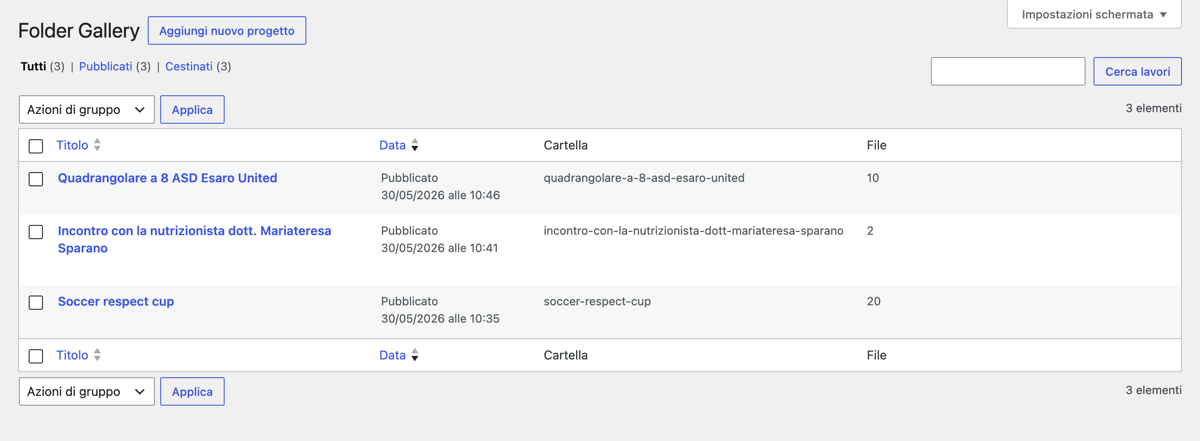
|
Settings page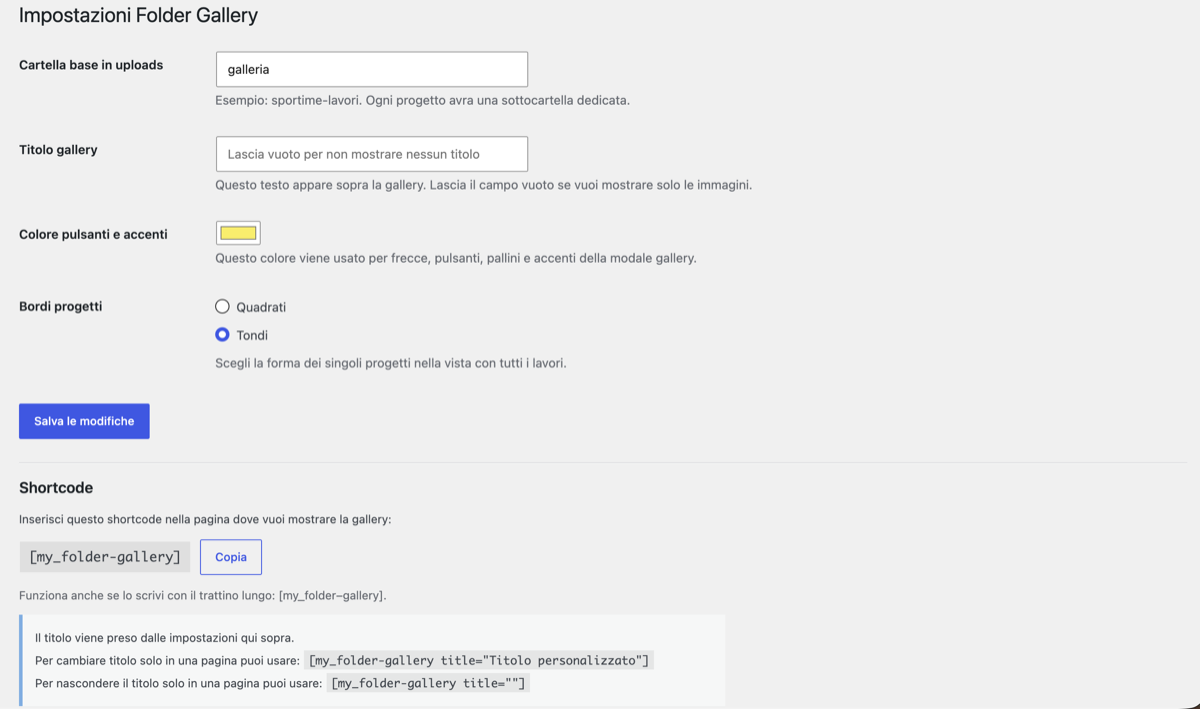
|
Frontend gallery
|
Fullscreen modal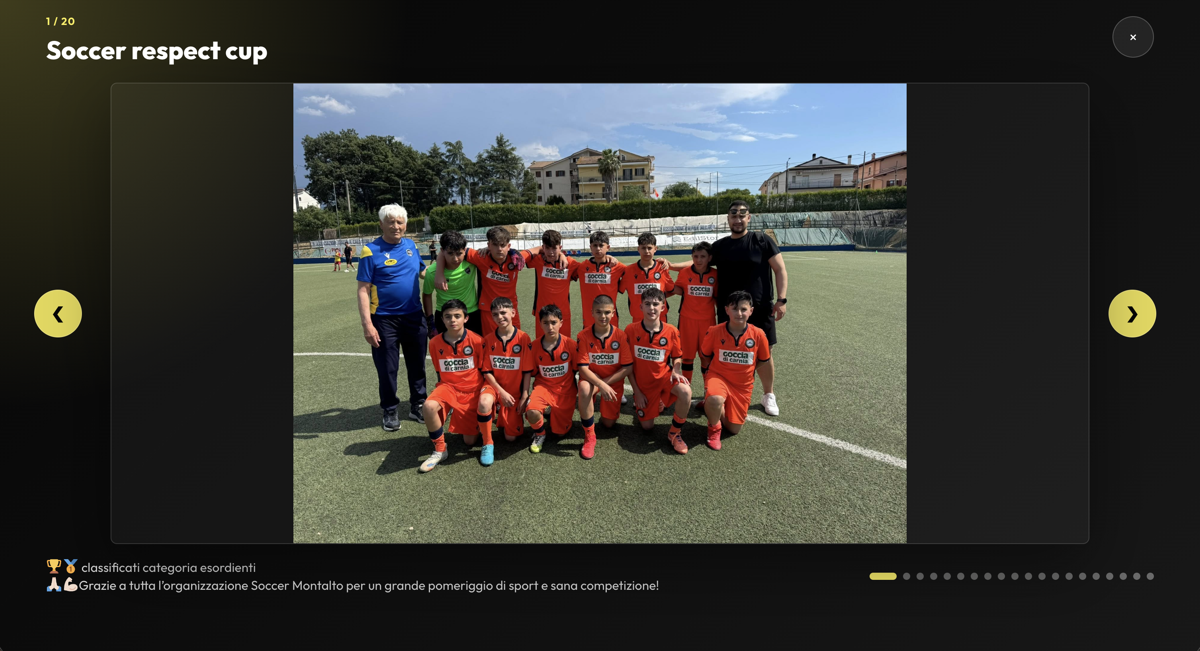
|
Contributing
To contribute:
- Create a dedicated branch.
- Keep changes as isolated as possible.
- Check PHP syntax.
- Manually test uploads, shortcode output, and frontend behavior.
- Document any new options or shortcodes.
Changelog
0.2.9
- Added settings for gallery title, accent color, and project corners.
- Added frontend shortcode for the portfolio gallery.
- Added upload handling in project folders.
- Added frontend modal with media navigation.
License
GPL-2.0-or-later.
Author
Created by Foferys and available for forks with attribution.