CV Lead-to-Sheet Bridge
Securely sync WordPress forms (Elementor, Gravity Forms, CF7) to Google Sheets using Smart-Match Webhooks.
Install
Upload it under Plugins → Add New Plugin → Upload Plugin, then activate.
Install straight from GitHub with WP-CLI:
wp plugin install https://github.com/cvinfotech/cv-lead-to-sheet-bridge/releases/download/v1.4.0/cv-lead-to-sheet-bridge.zip

CV Lead-to-Sheet Bridge
Send WordPress form leads straight into Google Sheets in real time — no Zapier, no manual field mapping, no monthly automation bill.




CV Lead-to-Sheet Bridge is a lightweight WordPress plugin that hooks into your form plugin's submission event and pushes each entry to a Google Sheet via a webhook, using a token-secured Google Apps Script as the receiving endpoint.
Features
- No Zapier required. The webhook target is a free Google Apps Script Web App you deploy yourself — no third-party automation subscription, no per-task limits, no external service holding your lead data.
- Zero-mapping field detection ("Smart-Match"). You don't configure which form field goes in which column. Name your Google Sheet headers whatever you like (
Name,Email,Phone...) and the receiving script normalizes and matches incoming field keys to headers automatically — case, spacing, and punctuation are ignored, and CF7'syour-*field-naming convention is handled on both sides of the match. - Security-hardened webhooks. Every request carries a per-site secret token, generated on activation and rotatable from the settings screen. Apps Script Web Apps can't read custom HTTP headers, so the token is authenticated as a POST body field the receiver validates before writing a single row — anyone who discovers your Web App URL still can't write to your sheet without it.
- Four form plugins, one integration. Contact Form 7, WPForms (Lite & Pro), Gravity Forms, and Elementor Pro Forms are all supported out of the box, each normalized to the same
label => valueshape before it's sent. - Fire-and-forget delivery. Webhook calls are non-blocking, so a slow or unreachable Sheet never delays the visitor's form submission.
How It Works
WordPress Form Submission
        │
        ▼
 Form-plugin hook (CF7 / WPForms / Gravity Forms / Elementor)
        │  normalizes fields to { label: value }
        ▼
 cv_lts_send_to_webhook()
        │  appends security token, POSTs (non-blocking)
        ▼
 Google Apps Script Web App  (doPost)
        │  validates token → Smart-Match normalizes keys against
        │  Sheet Row 1 headers → appends matched row
        ▼
   Google Sheet
Project Structure
cv-lead-to-sheet-bridge/
├── assets/
│   └── logo-mark.png            # Plugin branding, shown on the settings screen
├── includes/
│   ├── admin-settings.php       # Settings page, security token management,
│   │                             #   generated Apps Script code box
│   └── integrations.php         # Form-plugin hooks + webhook dispatcher
├── cv-lead-to-sheet-bridge.php  # Plugin bootstrap / header
├── index.php                    # Directory-listing silence stub
├── readme.txt                   # WordPress.org plugin readme
├── README.md                    # You are here
├── LICENSE                      # GPLv2
└── .gitignore
Screenshots
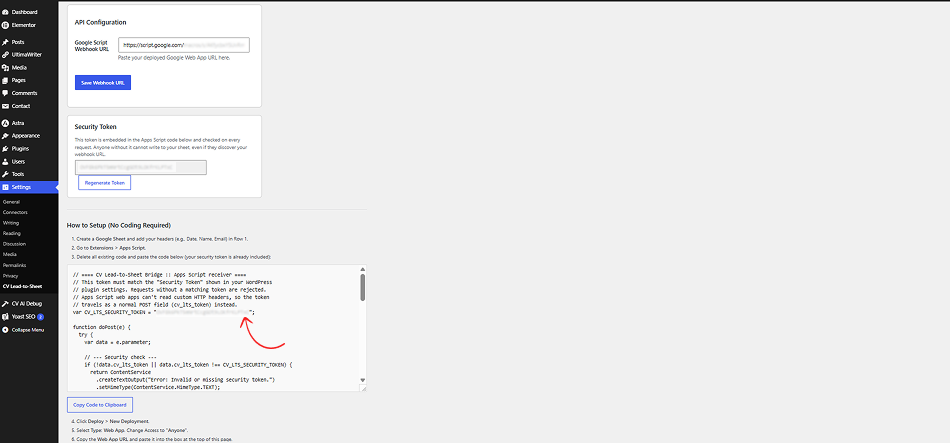 Settings dashboard — webhook URL, security token, and the generated Apps Script code, ready to copy. |
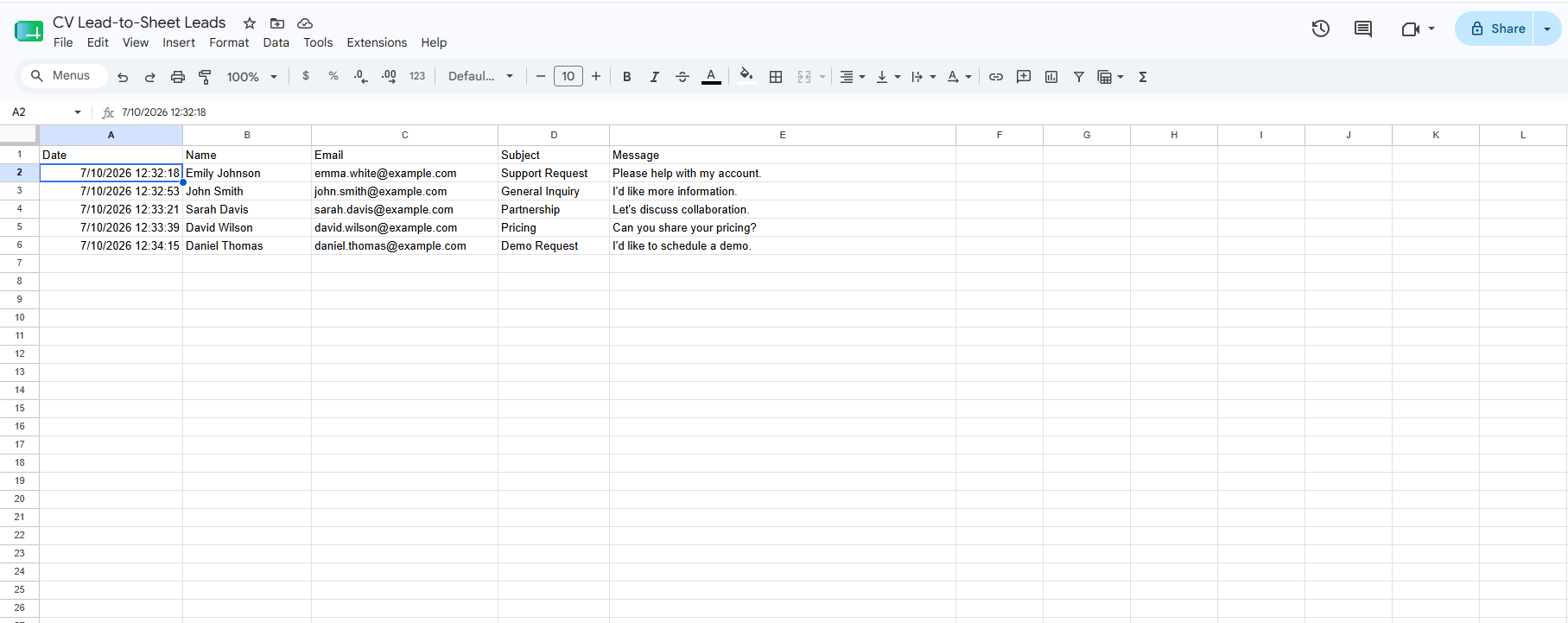 Google Sheets output — real submissions landing in the right columns, Smart-Matched with zero manual mapping. |
 Apps Script setup — the generated receiver script, pasted straight into the Sheet's script editor. |
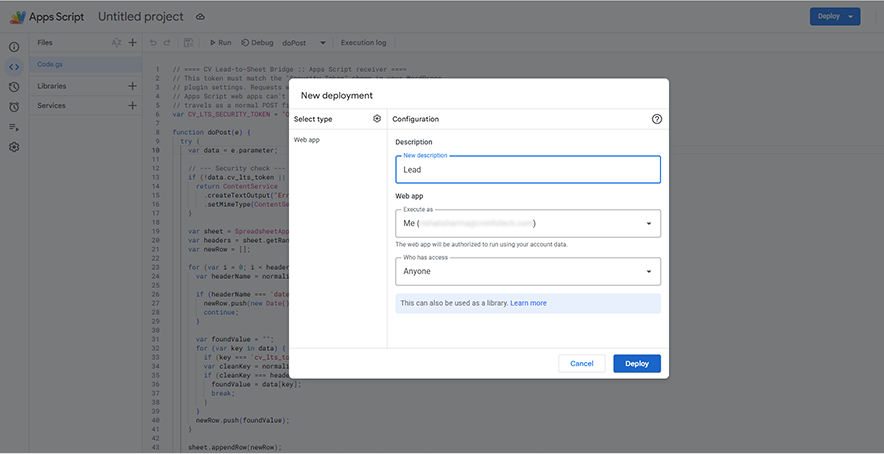 Web app deployment — deploying the script with "Anyone" access, secured by the embedded token. |
Installation
- Upload the
cv-lead-to-sheet-bridgefolder to/wp-content/plugins/, or install the zip via Plugins → Add New → Upload Plugin. - Activate the plugin through the Plugins menu in WordPress.
- Go to Settings → CV Lead-to-Sheet to complete the Apps Script setup below.
Technical Setup Guide
1. Create the Google Sheet
Create a new Google Sheet and add your column headers in row 1 — for example: Date, Name, Email, Subject, Message. Header names, capitalization, and word order don't need to match your form fields exactly; Smart-Match handles that.
2. Open Apps Script
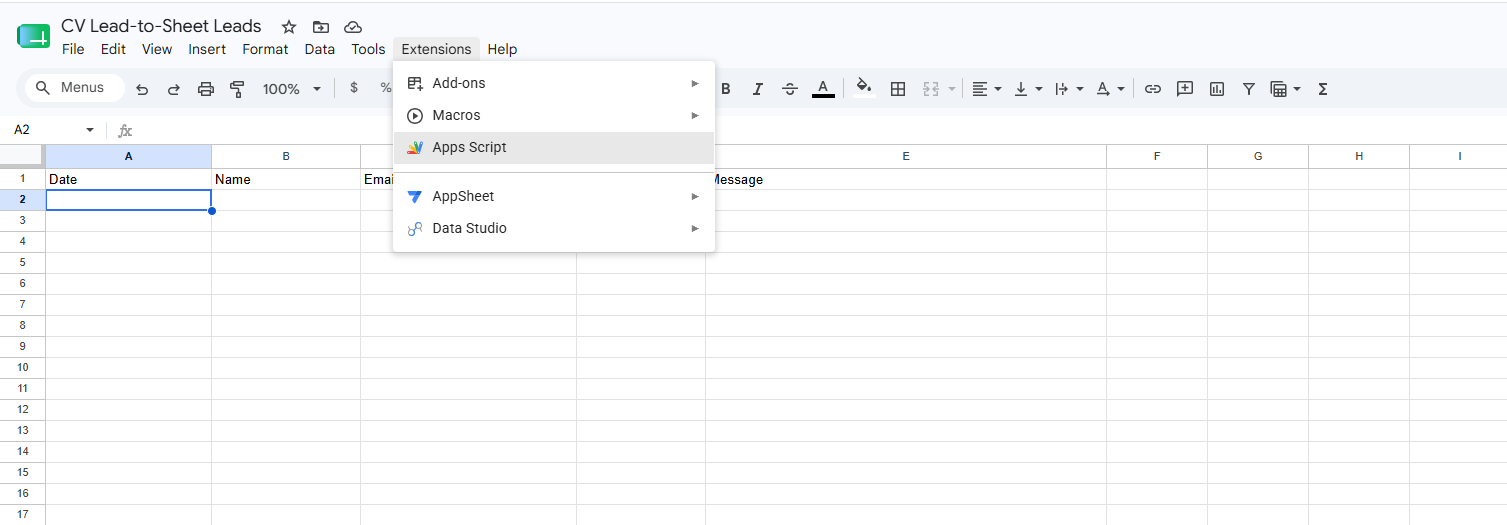
In the Sheet, open Extensions → Apps Script.
3. Paste the generated script
In WordPress, go to Settings → CV Lead-to-Sheet. The plugin generates a ready-to-use script with your unique security token already embedded — copy it with the Copy Code to Clipboard button, then paste it into the Apps Script editor (replacing any boilerplate) and save the project (Ctrl/Cmd+S).
4. Deploy as a Web App
Click Deploy → New deployment.
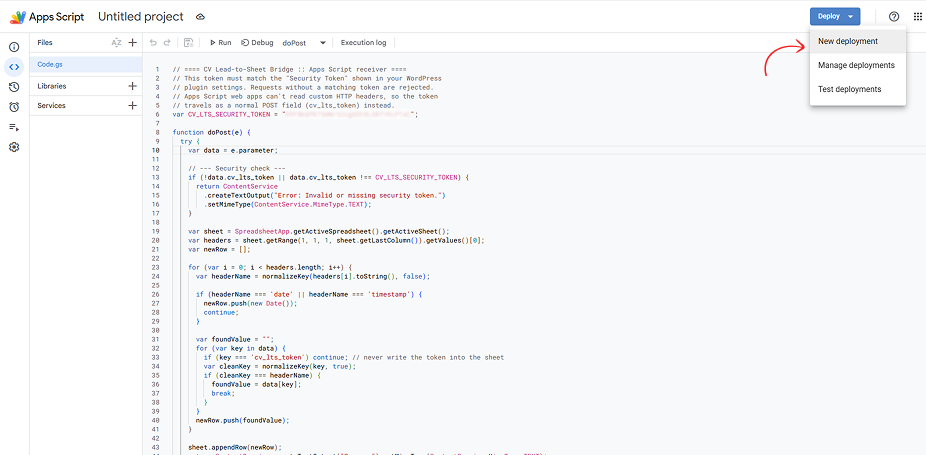
Click the gear icon next to "Select type," choose Web app, set Execute as to Me, and Who has access to Anyone — this only controls who can reach the URL, not who can write data, since that's enforced by the security token baked into the script.
Click Deploy, authorize access when prompted (Google's standard first-run consent for scripts you own), then copy the generated Web app URL.
5. Connect WordPress to the Web App
Paste the Web App URL into the Google Script Webhook URL field on the settings screen and click Save Webhook URL.
6. Test it
Submit a test entry through any supported form —
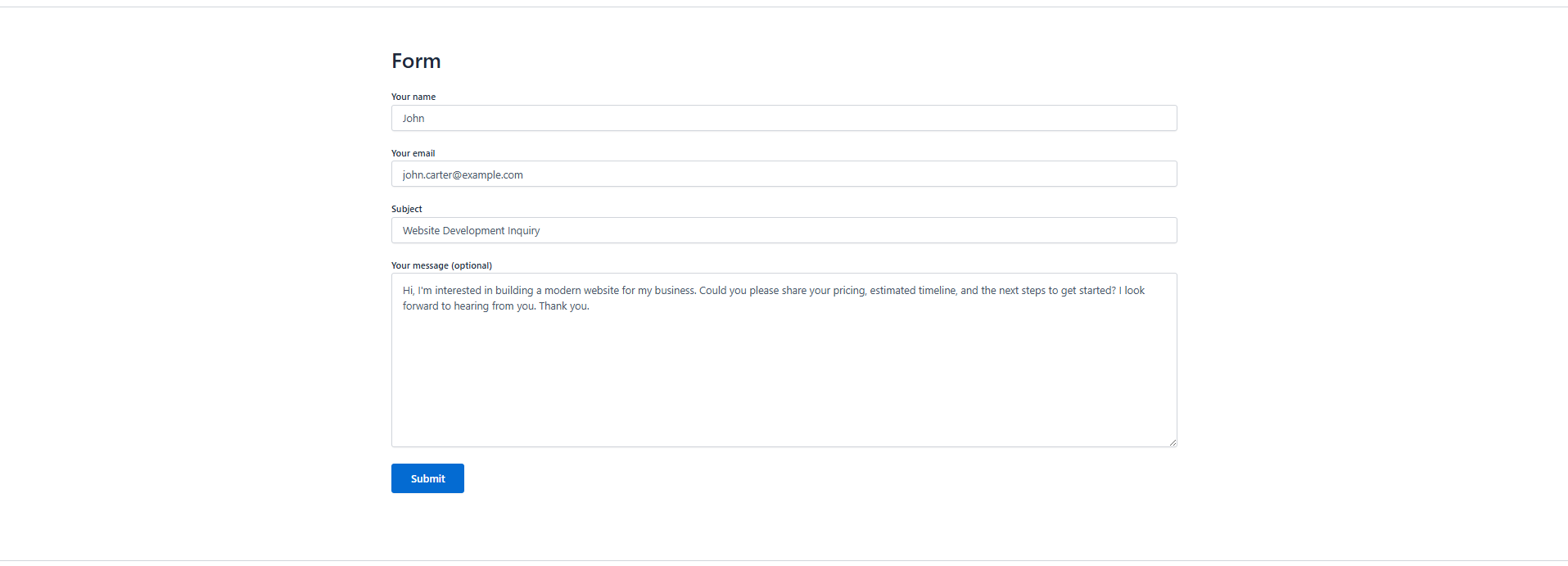
— and confirm a new, correctly matched row appears in the Sheet within a few seconds.
Rotating the security token
If you ever suspect your Web App URL has leaked, click Regenerate Token on the settings screen. This immediately invalidates the old token — you'll need to re-copy the updated script into the Apps Script editor and redeploy (Deploy → Manage deployments → Edit → New version → Deploy) for the change to take effect.
Supported Form Plugins
| Plugin | Hook Used | Field Key Source |
|---|---|---|
| Contact Form 7 | wpcf7_mail_sent |
Raw field names (e.g. your-name) |
| WPForms (Lite & Pro) | wpforms_process_complete |
Field name |
| Gravity Forms | gform_after_submission |
Field label (composite fields like Name/Address are stitched from sub-inputs) |
| Elementor Pro Forms | elementor_pro/forms/new_record |
Field title |
Frequently Asked Questions
Does this cost anything beyond WordPress and Google Sheets? No. The receiving endpoint is a Google Apps Script Web App, which is free to deploy on any Google account.
What happens if a form field has no matching sheet header? It's simply not written — Smart-Match only fills columns it finds a match for. Add a header for any field you want captured.
Is the webhook URL alone enough to write to my sheet? No. Every request must include the security token generated on your settings screen; requests without a valid token are rejected by the Apps Script before any row is written.
Publishing a Release
Releases are automated with GitHub Actions (.github/workflows/release.yml). Pushing a version tag builds a clean install-ready ZIP, publishes a GitHub Release, and attaches the ZIP as a downloadable asset — no manual ZIP uploads.
1. Bump the version in cv-lead-to-sheet-bridge.php (the Version: header) and readme.txt (Stable tag:) so both match. This step is what the workflow validates against the tag, so it's mandatory.
2. Commit and tag:
git add .
git commit -m "Release 1.4.0"
git push

git tag v1.4.0
git push origin v1.4.0
3. GitHub Actions takes it from there:
- Checks out the repo at that tag.
- Confirms the tag (
v1.4.0) matches bothVersion:incv-lead-to-sheet-bridge.phpandStable tag:inreadme.txt. If either doesn't match, the workflow fails with an error naming the mismatch and no release is created. - Copies only the files WordPress needs (
assets/,includes/, the main plugin file,index.php,readme.txt,uninstall.php) into acv-lead-to-sheet-bridge/folder, leaving out.git/,.github/,README.md,LICENSE, and other dev-only files. - Zips that folder as
cv-lead-to-sheet-bridge.zip. - Creates a GitHub Release titled "CV Lead to Sheet Bridge v1.4.0", with auto-generated release notes from the commits since the last tag, marked as the Latest release.
- Attaches the ZIP to the release. GitHub tracks its download count automatically from that point on.
A tag pushed with a version that doesn't match the plugin files (e.g. tagging v1.4.1 while the plugin header still says 1.4.0) is rejected before anything is built or released, so a mismatched release can't accidentally go out.
License
GPLv2 or later. See LICENSE for the full text.
Support
Maintained by CV Infotech. For custom development or professional WordPress work, get in touch.
Releases
1 release. Each count is every asset in that release; expand a row for the breakdown.