Install
This is the repository archive. It installs, but the folder name will carry the branch suffix and updates will not flow.
Install straight from GitHub with WP-CLI:
wp plugin install https://github.com/craigpestell/variation-converter/archive/refs/heads/main.zipMany stores list one simple product per color or size: "Classic Tee Black", "Classic Tee Blue", "Classic Tee Red". Search for the product, tick the groups and products that belong together, and Variation Converter turns them into a single variable product. It has already grouped most of them for you. It also works the other way, splitting a variable product into separate simple products.
What it does
- Finds the products to combine with one search, showing the groups it suggests and the products it didn't group.
- Scans your catalog and suggests groups of simple products that are variants of one product.
- Combines products into one attribute (Color), or several groups into two (Flavor and Size).
- Lets you check and edit each group before anything changes.
- Creates one variable product per group, with a variation for each original product.
- Splits a variable product into one simple product per variation.
- Hides the products it converts from. It never deletes them.
- Undoes any conversion in one click.
- Sends visitors of an old product page to the new variable product, with that option already selected.
Requirements
- WordPress 6.5 or later
- WooCommerce 8.0 or later
- PHP 7.4 or later
- A user role that can manage WooCommerce, such as Shop Manager or Administrator
Installation
- Make sure WooCommerce is installed and active.
- Get the plugin zip,
variation-converter-for-woocommerce.zip, from the download button on the project website. - In WordPress, go to Plugins > Add New > Upload Plugin, upload the zip and activate it.
Take a database backup before converting many products at once. Undo is there, but a backup is good practice.
Combine simple products into a variable product
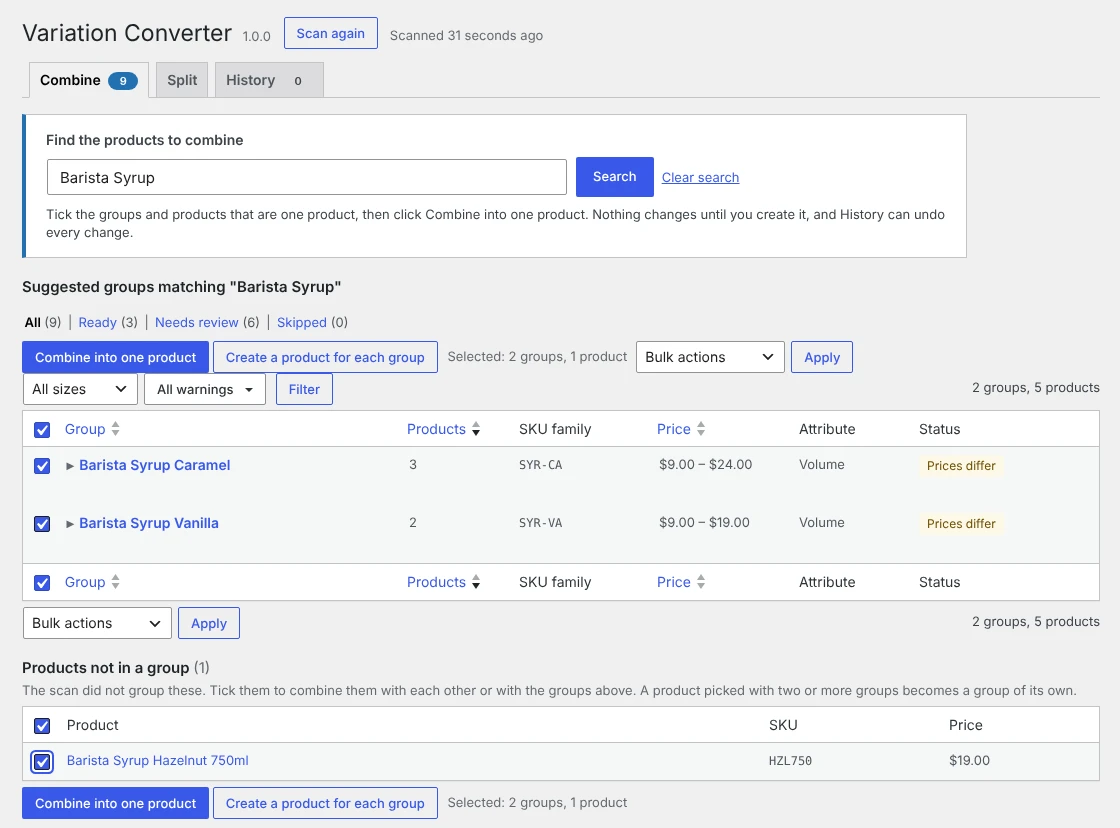
- Go to Products > Variation Converter. On the Combine tab, type a product name or SKU in Find the products to combine and click Search.
- The results show the suggested groups that match and, below them, Products not in a group: matching products the scan didn't group.
- Tick the groups and products that are one product and click Combine into one product. One group opens on its own. Products, or one group with extra products, open as one variable product with one attribute. Two or more groups open as one variable product with two attributes (see below).
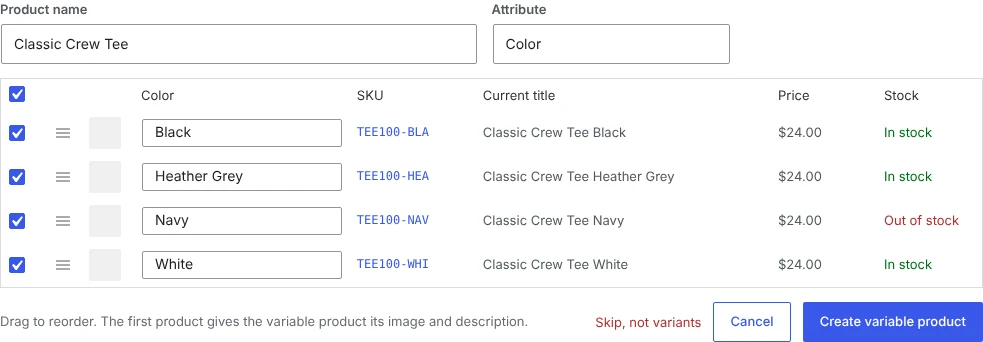
- Check the product name, the attribute (for example Color or Size) and the label of each variant ("Black", "Blue"). Untick any product that doesn't belong. Drag rows to change their order; the first product gives the variable product its image and description.
- Click Create variable product. If a group isn't really one product, click Skip, not variants so it stops appearing. Back to search results takes you back to your search for the next one.
Working through a long list. The Ready view shows groups with no warnings. Needs review shows groups with a warning, such as different prices, different categories, missing or repeated labels, long labels, or two products with the same SKU. Skipped lists the groups you skipped; you can restore them. Without a search, the tab lists every suggested group. Filter by brand, group size or warning, tick groups and click Create a product for each group to create them all (it runs in the background), or use Bulk actions to skip or restore many at once.
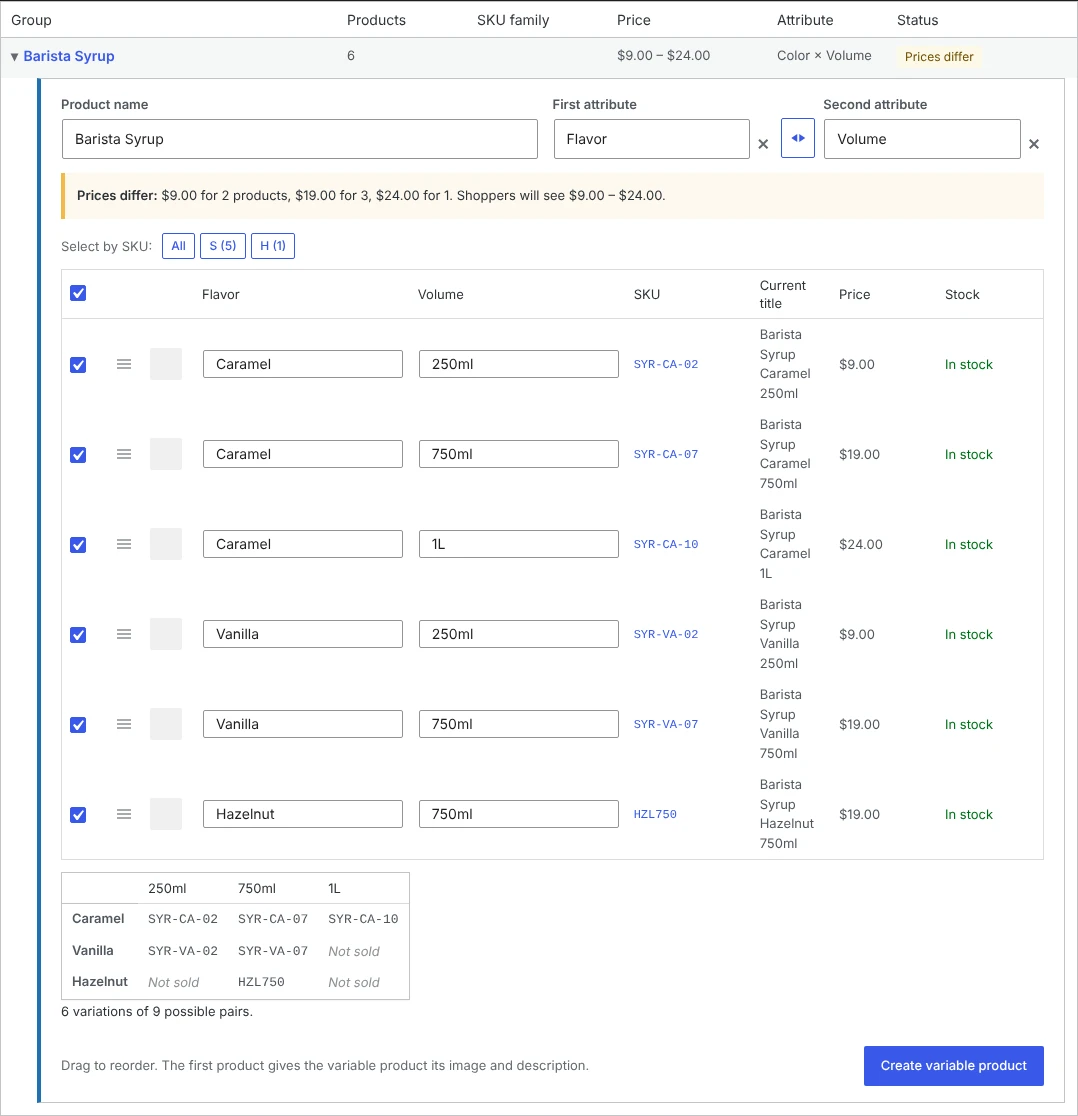
Combining groups into one variable product with two attributes. When each group is one flavor or color of the same product, for example Barista Syrup Vanilla (250ml, 750ml) and Barista Syrup Caramel (250ml, 750ml, 1L), search for "Barista Syrup", tick the groups and any matching products not in a group (such as Barista Syrup Hazelnut 750ml, which becomes a group of its own), and click Combine into one product. One card opens with two attributes: one from the groups (Flavor: Vanilla, Caramel) and the groups' own (Volume). The words the group names share become the product name, and the rest of each group's name its label; you can change all of them. A grid shows which product becomes each pair. Pairs that no product has, such as Vanilla 1L, get no variation, so shoppers see them as unavailable. Undo works as for any combine.
Combining products the plugin didn't group. Search for them on the Combine tab, where they show under Products not in a group. Or, in Products > All Products, tick the products, choose Combine into variable product from the bulk actions, and click Apply. Their SKUs don't need to match.
How groups are found. Only simple products that have a SKU and are shown in the catalog are scanned: published, private, pending and draft ones, as Products > All Products shows them. A product made by Combine or Split takes the status of what it was made from, so splitting a private product makes private products. Products without a SKU are never suggested. Products are grouped when:
- their SKUs belong to one family, such as
SE1421-01andSE1421-03, and - their names start with the same words. A brand name at the start doesn't count.
Whatever follows the shared words becomes the variant label. The plugin guesses the attribute (Color, Size, Flavor, Scent or Volume, otherwise Option); you can change it. Each group gets one attribute; to make a product with two, combine groups (below). Results are kept for 30 minutes, so click Scan again after you change products.
What the variable product gets. Each variation takes its original's SKU, regular and sale price, sale dates, stock settings, weight, dimensions and image. The variable product takes the first product's descriptions, image, categories, tags, tax and shipping class, and adds the other products' images to its gallery. It has no SKU of its own. When the products are in different categories, you choose the new product's categories in the group. If WooCommerce fails to save any part, the partial product is removed.
What happens to the originals. They are hidden from your shop and search, not deleted. Past orders still point to them. Their old URLs redirect (301) to the variable product with that option selected. Reviews are not copied. Each SKU now exists twice, on the hidden original and on the variation, so that Undo can restore everything. Once you are sure you will keep the new product, you can delete the hidden originals yourself.
Split a variable product into simple products
- Go to Products > Variation Converter and open the Split tab, or click Split into simple products under a variable product in Products > All Products.
- Each variation gets a row with a suggested name, such as "Classic Tee Black". Edit the names, and untick variations you don't want as separate products.
- Click Split into N simple products.
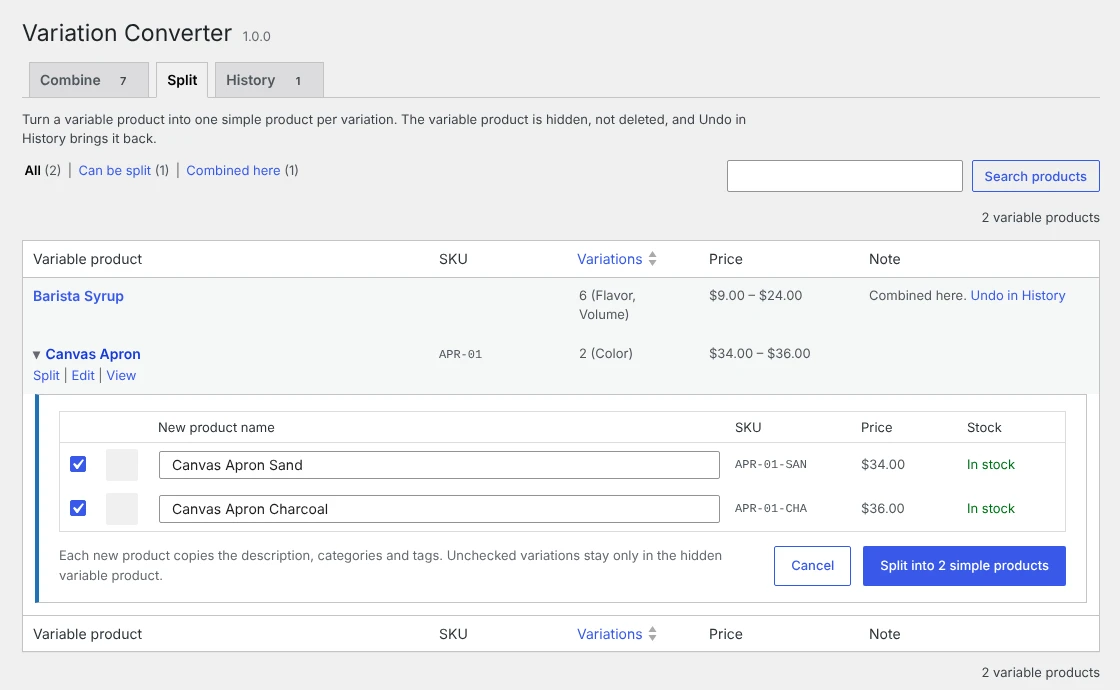
Each new product takes its variation's SKU, prices, sale dates, stock, weight, dimensions and image, plus the variable product's descriptions (a variation's own description wins if it has one), categories, tags, other attributes, tax status and purchase note. If a variation uses the variable product's shared stock count, the new product doesn't copy that count, so your stock isn't multiplied. The variable product is hidden, not deleted.
You can't split a variation set to "Any" for an attribute (for example "Any Size"). Give it a specific value first. A variable product that the plugin made by combining offers Undo instead of a split, so you get your original products back.
Undo a conversion
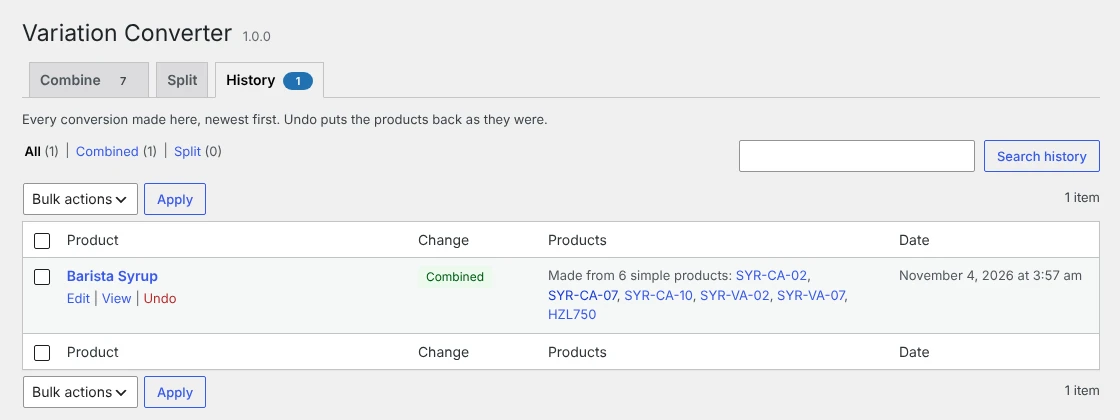
Open the History tab. It lists every combine and split, newest first. Click Undo on a row.
- Undoing a combine deletes the variable product and its variations, and shows the original simple products again.
- Undoing a split deletes the new simple products and shows the variable product again.
Restored products get back the visibility they had before, plus the current prices and stock from the products being deleted, so sales made in the meantime carry over.
If customers have already ordered the product that Undo deletes, their orders keep the line items and totals, but those lines no longer link to a product. In that case it is usually better to keep the variable product.
Good to know
- There is no settings page.
- If you use Relevanssi, changed products are reindexed automatically. Other search plugins pick up the changes on their next reindex.
- Deleting the plugin removes its saved options and cached scan. Products it made, and the products it hid, stay as they are.
WP-CLI
You can also combine and undo from the command line. There is no command for splitting.
wp varconv combine --all --dry-run   # list what would be created, with each group's key
wp varconv combine --all --min-size=3 --skip=price,cats
wp varconv combine 3f2a9c81d0e4      # create only the groups with these keys
wp varconv undo 1234                 # undo a combine or split by product ID
wp varconv undo --all --yes          # undo everything, without asking
combine options: --limit=<n> creates at most n groups; --min-size=<n> only takes groups of at least n products (default 2); --skip leaves out groups with these warnings: dupes, label, long, price, cats.
Groups are created as suggested, without products you unticked on the admin page. Groups with a missing or repeated label are skipped for you to fix on the admin page. Only one bulk run, from WP-CLI or the admin page, can create products at a time.
For developers
- Filters:
varconv_scan_products(leave products out of the scan),varconv_brand_names(brand names a product name can start with),varconv_collections(change the suggested groups) andvarconv_redirect_url(change or turn off the old-URL redirect by returning''). Click Scan again after changing a scan filter. - Build the plugin zip:
git archive --format=zip --prefix=variation-converter-for-woocommerce/ -o variation-converter-for-woocommerce.zip HEAD - Tests and a throwaway WordPress + WooCommerce test site: see harness/README.md.
License
GPL-2.0-or-later. See LICENSE.
Made by Craig Pestell.