Install
This is the repository archive. It installs, but the folder name will carry the branch suffix and updates will not flow.
Install straight from GitHub with WP-CLI:
wp plugin install https://github.com/civicopilot/admin-sidebar-organizer-wp/archive/refs/heads/main.zipStatus: alpha. This is an early release undergoing testing.
Organize the WordPress admin sidebar into configurable, collapsible sections while preserving native menu items and user permissions. Configure once for an installation using a small MU-plugin. Works on multisite.
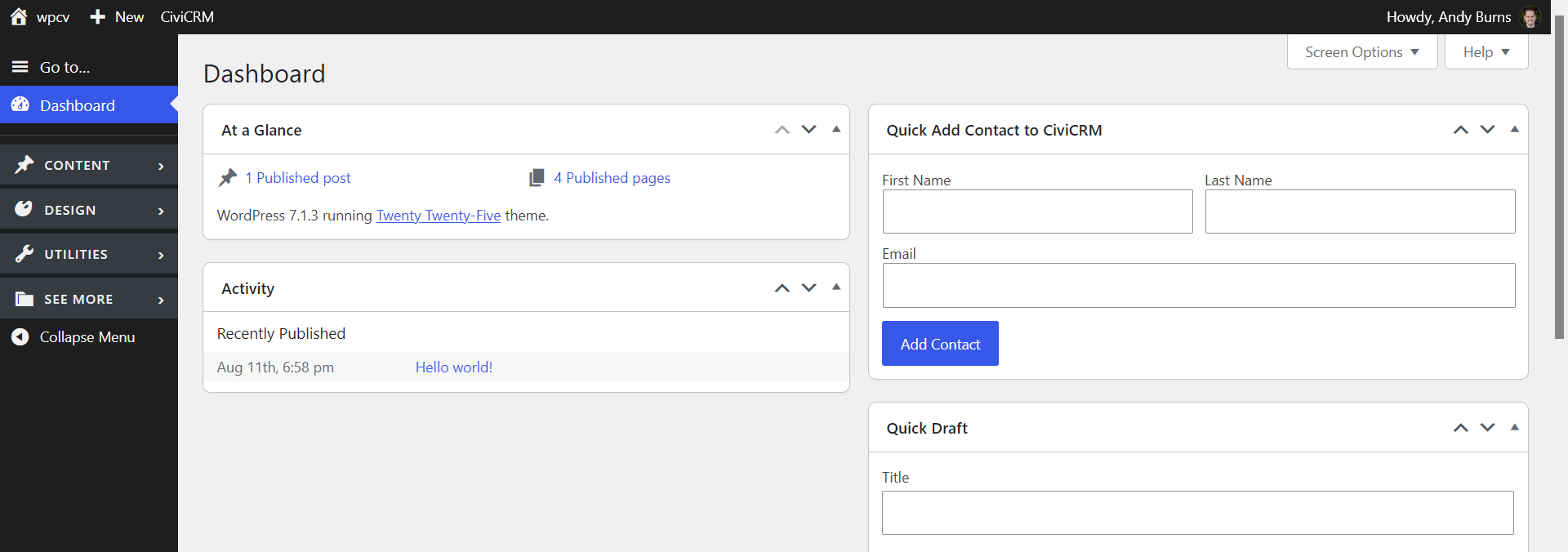
Features
- Group menu items into named sections with Dashicons.
- Omit empty sections and keep unassigned items visible under See More.
- Keep selected destinations standalone above the sections.
- Start sections collapsed in a new tab; automatically expand the section containing the current page.
- Remember section toggles per site and user within the current browser tab.
- Preserve the full native icon rail when the sidebar is collapsed.
- Keep WordPress's native collapse control at the bottom of the menu; pin the expand control to the viewport bottom in collapsed desktop mode.
- Move WordPress's existing command-palette trigger into a Go to… item when available.
- Optionally keep the WordPress Dashboard and CiviCRM submenus as flyouts.
Installation
- Install this directory as
wp-content/plugins/admin-sidebar-organizer-wp/. - Activate Admin Sidebar Organizer for WP. On multisite, network-activate it.
- Follow the configuration guide to install the configuration MU-plugin and define your sections to customize the sidebar organization to your needs.
Settings
On single sites, open Settings → Sidebar Organizer. The Sidebar Options meta box controls Move command palette to sidebar, enabled by default.
On multisite, open Network Admin → Settings → Sidebar Organizer.
Command palette
When relocation is enabled the existing toolbar trigger changes to a Go to… entry at the top of the sidebar.
Developers
See the developer guide for styling integration and code structure.