Certant Knowledgebase
WordPress plugin: choose which posts, pages and files go into your Certant knowledgebase.
Install
This is the repository archive. It installs, but the folder name will carry the branch suffix and updates will not flow.
Install straight from GitHub with WP-CLI:
wp plugin install https://github.com/certant-ai/certant-wordpress-kb-plugin/archive/refs/heads/main.zip






Certant Knowledgebase
Choose in WordPress which posts, pages and files go into your Certant knowledgebase.
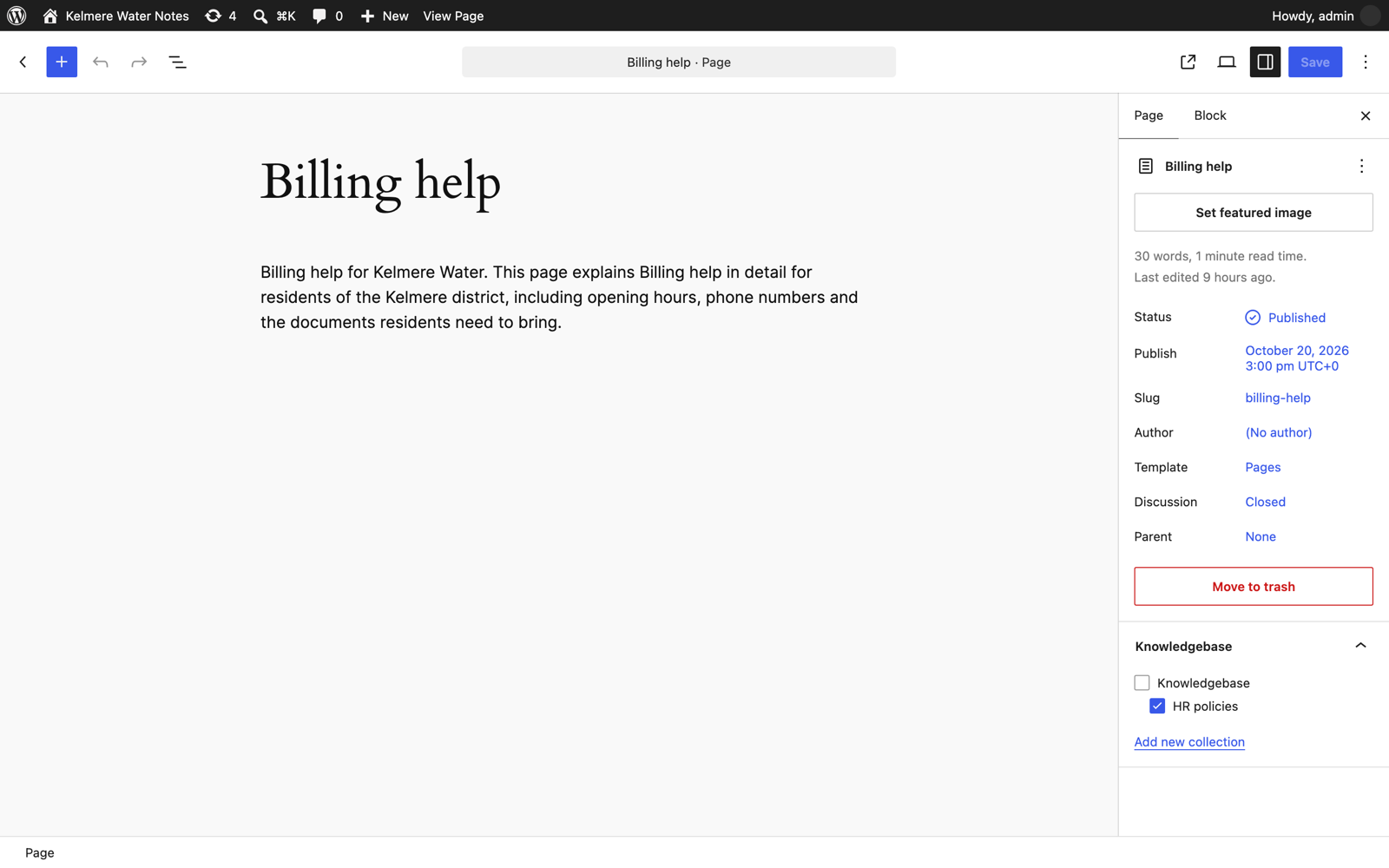
The plugin adds a Knowledgebase box to the editor and the media library. Tick a collection and that content is imported into Certant on the next sync. Untick it and it is removed. Your editors keep working in WordPress; nobody has to upload anything twice.
Install
1. Download certant-knowledgebase.zip from the latest release.
2. Upload it in WordPress: Plugins → Add New Plugin → Upload Plugin, choose the zip, then Install Now.
3. Activate it. A first collection, Knowledgebase, is ready to use.
Or with WP-CLI:
wp plugin install https://github.com/certant-ai/certant-wordpress-kb-plugin/releases/latest/download/certant-knowledgebase.zip --activateUse the release zip, not GitHub's green Code → Download ZIP button. That one is the source repository, not the plugin WordPress expects.
Use it
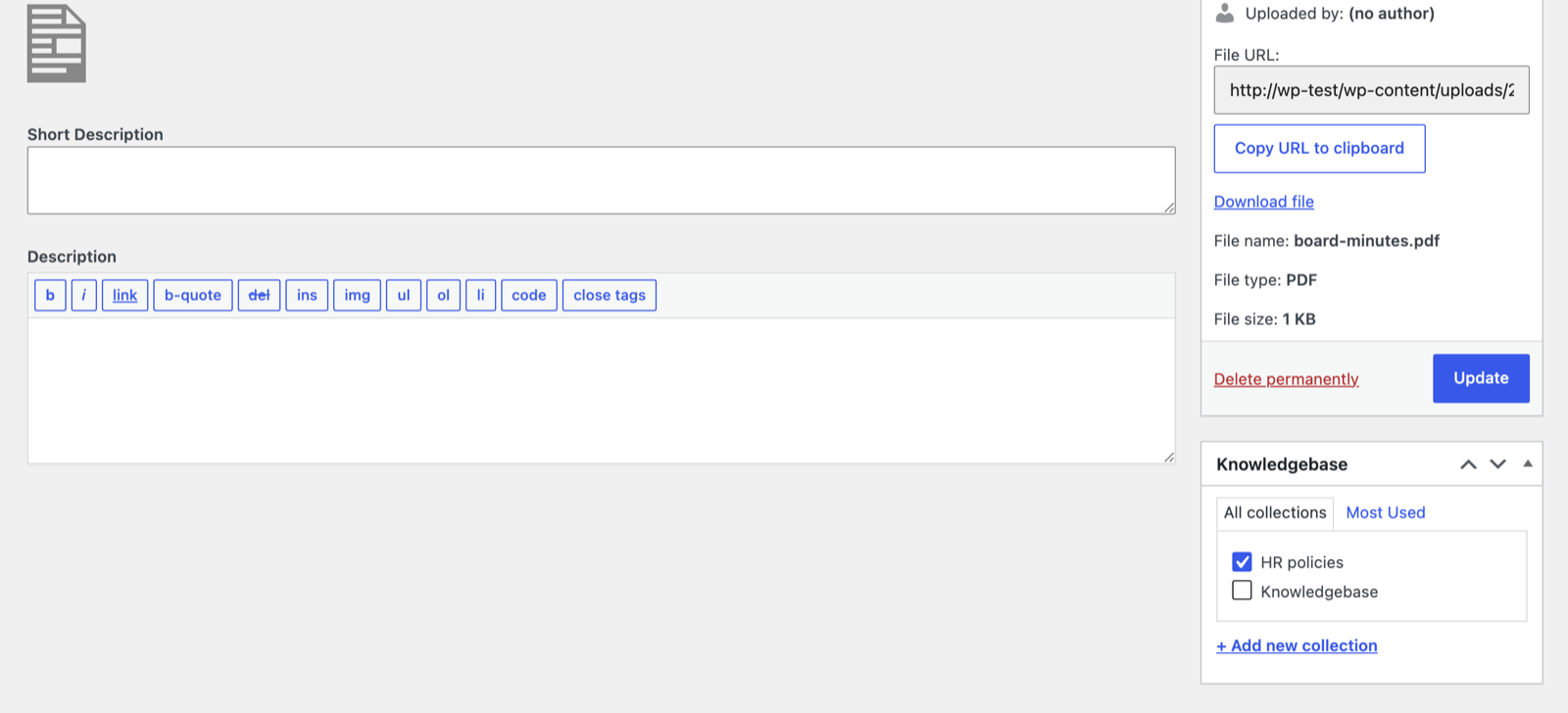
File content. Open a post or page and tick a collection in the Knowledgebase panel. For a PDF, Word, Excel or PowerPoint file, open it from Media → Library, choose Edit more details and tick a collection there. A file uploaded to a post or page follows that post or page, so you only need to tick the files that stand alone.
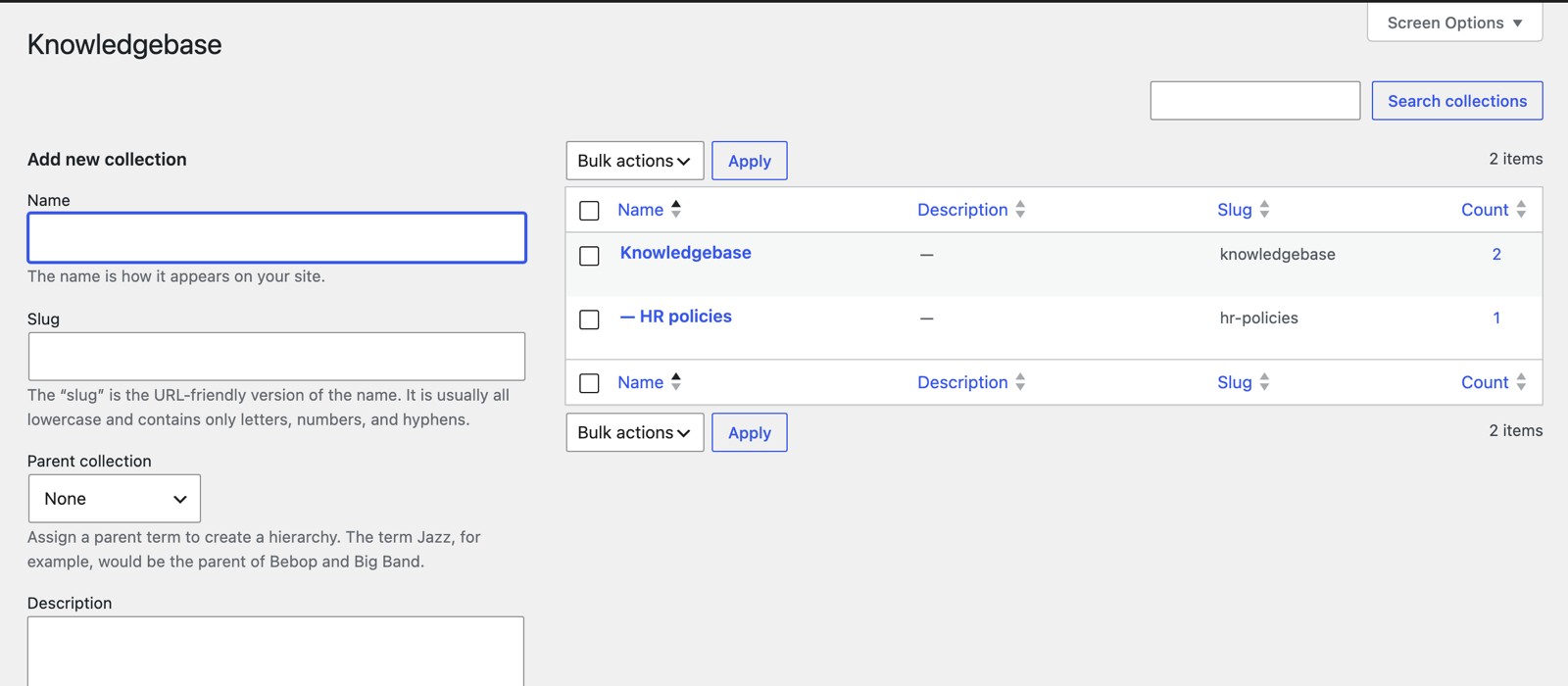
Organise collections. Go to Pages → Knowledgebase (also under Posts and Media). Collections nest like categories, so HR policies can sit inside Knowledgebase and syncing Knowledgebase includes it.
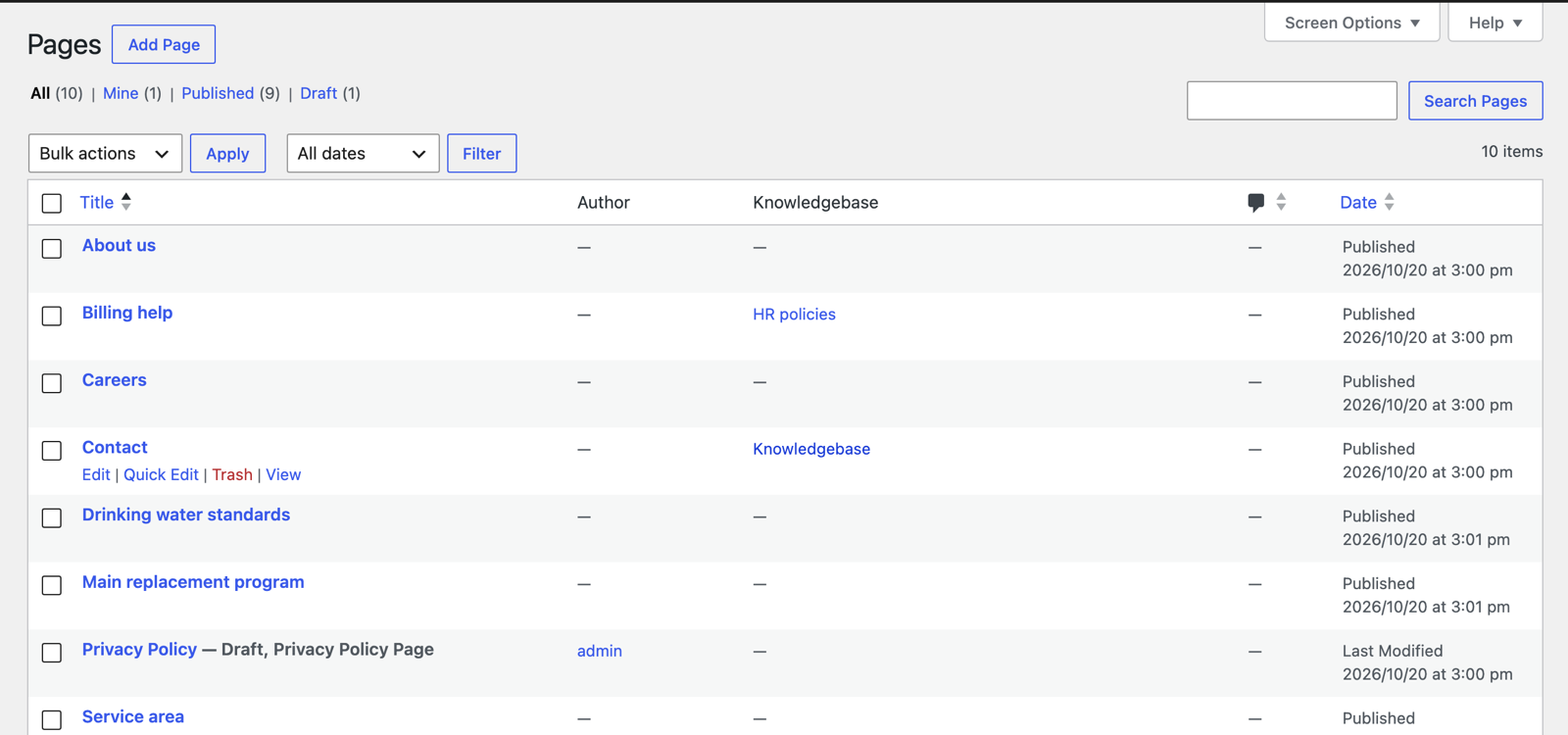
See what's in. The Posts, Pages and Media lists get a Knowledgebase column. Click a collection name to list everything in it.
| Collections | Pages list | A file in the media library |
|---|---|---|
 |
 |
 |
Connect it to Certant
Picking collections in Certant needs the Certant WordPress connector update that is rolling out now. The plugin itself works on any site today, so you can file content ahead of it.
Collections are private, so Certant signs in to read them, with an application password for a user who can only file content.
1. In WordPress, add a user for Certant. Go to Users → Add New User and give it the Contributor role. On that user's profile, under Application Passwords, add one named Certant and copy it. WordPress only offers application passwords on sites served over HTTPS.
2. In Certant, connect the site. Go to Connections → WordPress, enter your site's address, choose Sign in with an application password and enter the username and the application password.
3. Choose what to import. On Sources, tick Posts, Pages and Files from the media library, pick your collections under Knowledgebase, and choose how often to sync.
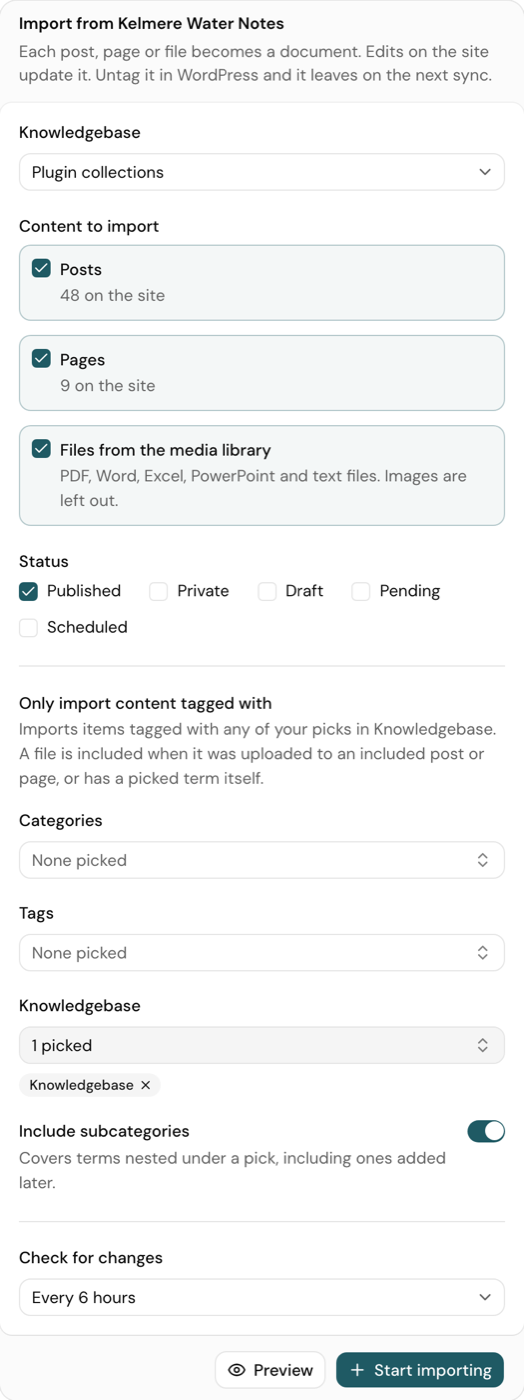
Only content in those collections, or their sub-collections, is imported. Content you untick, unpublish or delete leaves the knowledgebase on the next sync.
What the plugin does, and doesn't
It is one PHP file, certant-knowledgebase.php, about 190 lines and most of those are labels and comments. You can read all of it before you install it.
- Does: register one taxonomy,
certant_kb, on posts, pages and media, readable through the WordPress REST API by signed-in users who can file content (Contributor and up). That is how the block editor shows it and how Certant reads it. - Keeps collections private: visitors who aren't signed in can't see collection names or which content is in them, and can't filter by them. The REST API answers 401 instead.
- Doesn't: add anything to your public site (no archive pages, URLs or menus), store settings, make outbound requests, track anyone, or load scripts or styles.
To make collections readable by anyone, for example to connect Certant without a password, add add_filter( 'certant_kb_rest_public', '__return_true' ); to your theme's functions.php or a small plugin.
Custom post types
Posts, pages and media are covered out of the box. To include another type, for example a docs plugin's, add this to your theme's functions.php or a small plugin:
add_filter( 'certant_kb_post_types', function ( $types ) {
    $types[] = 'docs'; // the post type's name
    return $types;
} );
Update and remove
Update: download the new zip and upload it the same way. WordPress asks to Replace current with uploaded; your collections are kept.
Remove: deactivate and delete it from Plugins. Your collections stay in the database, so reinstalling brings them back. To remove them too, delete the collections under Pages → Knowledgebase first.
Verify the download
Each release is built and tested by GitHub Actions from the tagged commit, and ships with a SHA-256 checksum and a signed build provenance attestation:
shasum -a 256 -c certant-knowledgebase.zip.sha256
gh attestation verify certant-knowledgebase.zip --owner certant-ai
Development
tests/smoke.sh 6.0      # installs the built zip into WordPress 6.0 in Docker and checks the REST API
tests/smoke.sh latest
composer install && composer lint   # WordPress Coding Standards, PHP 7.4+ compatibility
bin/build-zip.sh        # builds dist/certant-knowledgebase.zip
CI runs all three on every pull request. To release, bump Version: in certant-knowledgebase.php and Stable tag: in readme.txt, then push a tag such as v1.0.1.
Issues and pull requests are welcome.
License
GPL v2 or later, like WordPress.