Install
This is the repository archive. It installs, but the folder name will carry the branch suffix and updates will not flow.
Install straight from GitHub with WP-CLI:
wp plugin install https://github.com/carstingaxion/gatherpress-countdown/archive/refs/heads/main.zipCountdown timer block with real-time updates, GatherPress event integration, and context-aware date synchronization.
Description
GatherPress Countdown displays time remaining until future events or elapsed time since past events. Built specifically for theater productions and GatherPress event management, it provides flexible date selection and automatic synchronization.
https://github.com/user-attachments/assets/2d372d4f-950a-483b-a098-c91f69d10871
Core Features
Date Selection Methods
- Manual date & time picker
- Select a GatherPress event
- Use next & last from GatherPress Taxonomy, like Topics or venues
- Automatic context inheritance from Gatherpress events
Time Display
- Real-time updates every second on frontend and editor
- Seven time segments: years, months, weeks, days, hours, minutes, seconds
- Configurable segment visibility with cascading calculations
- Automatic hiding of zero-value segments on frontend
- Plural/singular label switching based on values
Block Styles
- Classic: Traditional countdown with boxed segments
- Modern: Large numbers with separator colons
- Minimal: Clean typography with subtle labels
- Bold: High-contrast design with background
Technical Implementation
- WordPress coding standards compliance
- Full
theme.jsonsupport for customization - Context-aware rendering in query loops and templates
Usage Examples
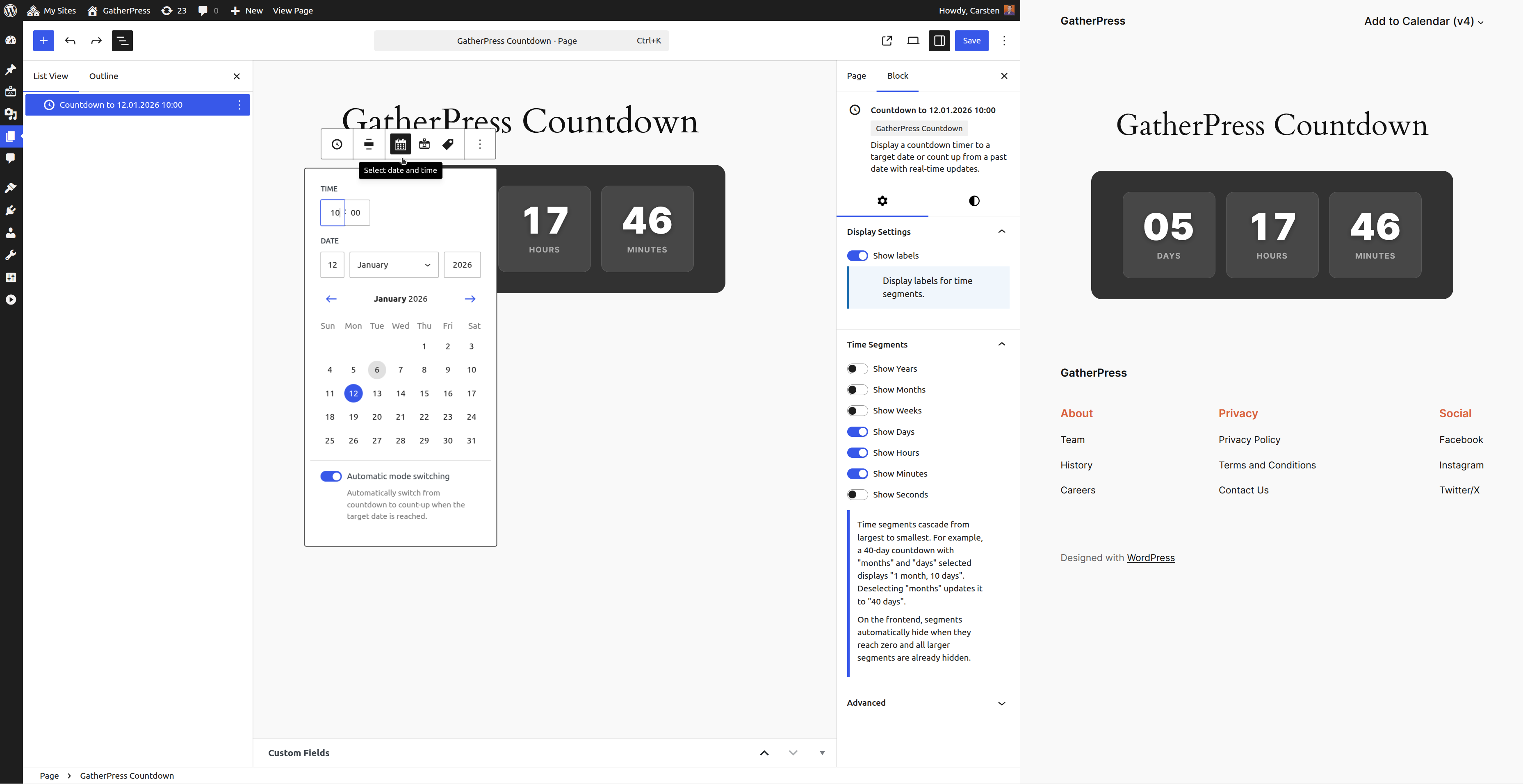
Example 1: Theater Opening NightScenario: Display countdown to your theater's opening night performance.
- Add the Countdown Timer block to your theater's homepage
- Click the calendar icon in the block toolbar
- Select opening night date and curtain time (e.g., December 15, 2025 at 19:30)
- Choose the Bold style for dramatic impact
- In Time Segments settings, enable: Days, Hours, Minutes
- Result:
05 Days 03 Hours 42 Minutesupdating in real time
The countdown automatically switches to count-up mode after the curtain rises, showing time elapsed since opening.
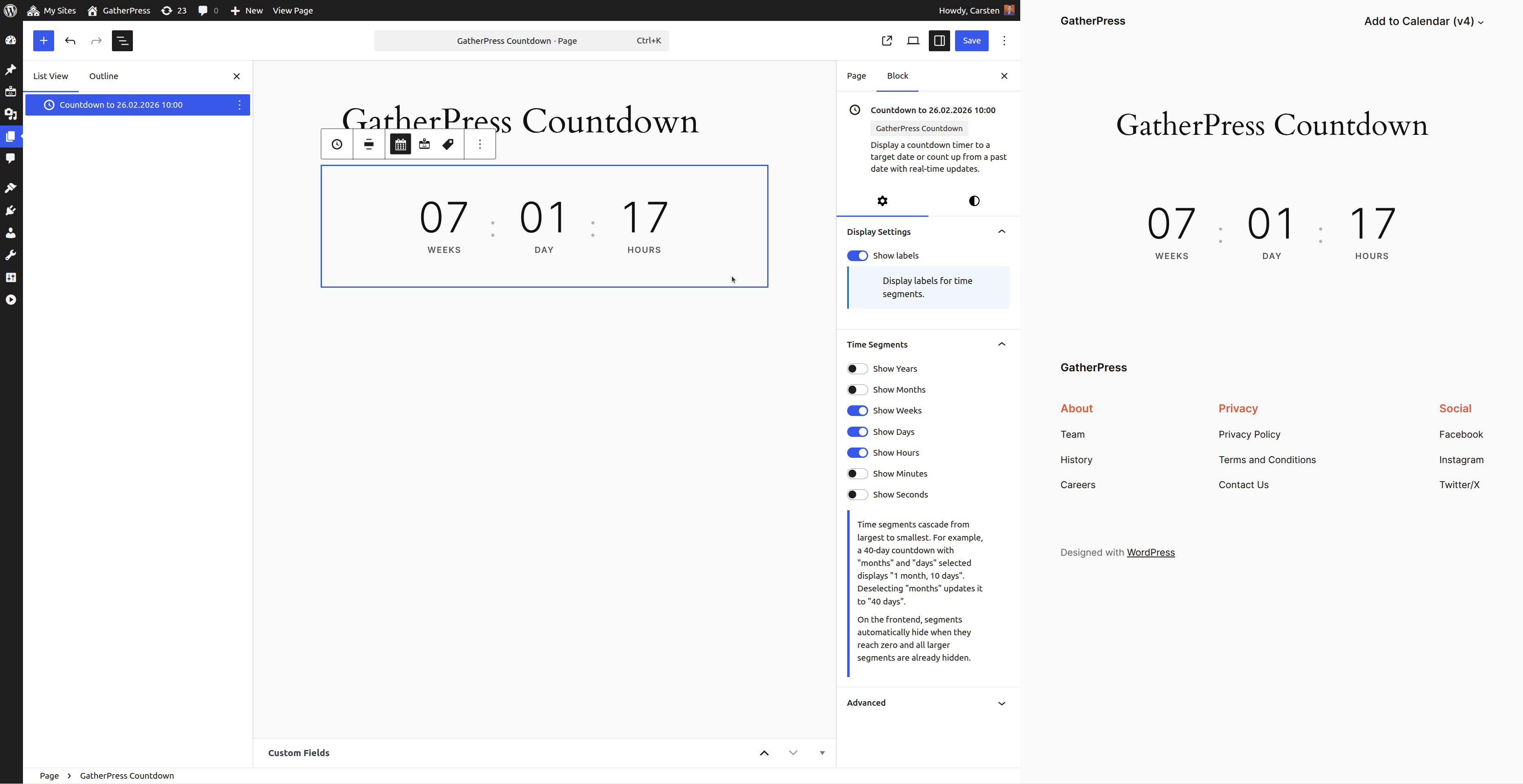
Scenario: Countdown to season ticket purchase deadline.
- Add block to your ticketing page
- Select deadline date (e.g., August 31, 2025 at 23:59)
- Choose Modern style for clean presentation
- Enable segments: Weeks, Days, Hours
- Cascading display shows
8 Weeksinitially - As deadline approaches, automatically displays
3 Days 14 Hours
Segments cascade intelligently—if weeks reach zero, days expand to show full count.
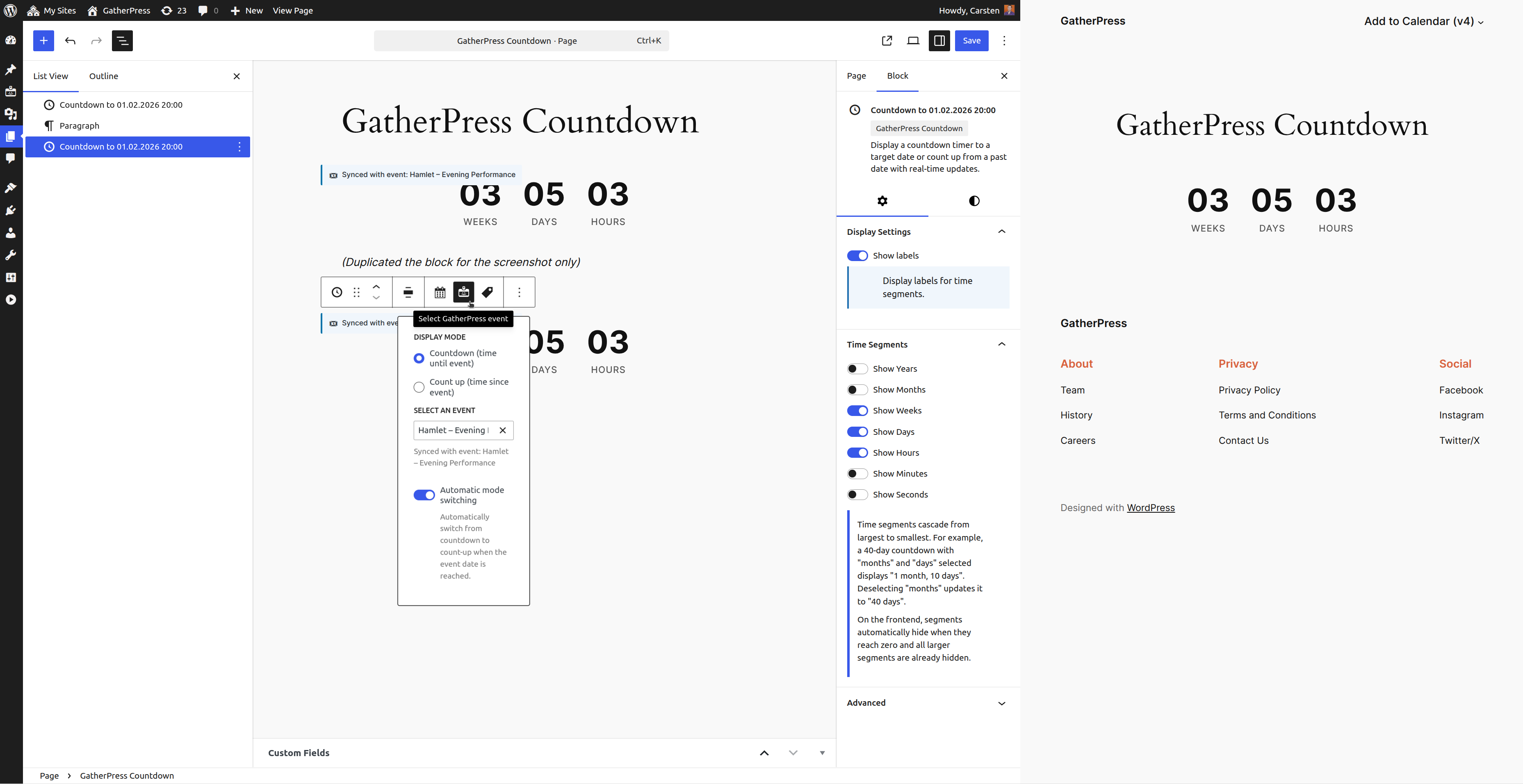
Scenario: Countdown to specific theater production in GatherPress.
- Create a GatherPress event for your production (“Hamlet – Evening Performance”)
- Add Countdown Timer block to the production landing page
- Click the event icon (🎟️) in the block toolbar
- Search and select “Hamlet – Evening Performance”
- Block automatically syncs with the event’s start datetime
- Update the event date in GatherPress — countdown updates automatically
This maintains a single source of truth for event dates.
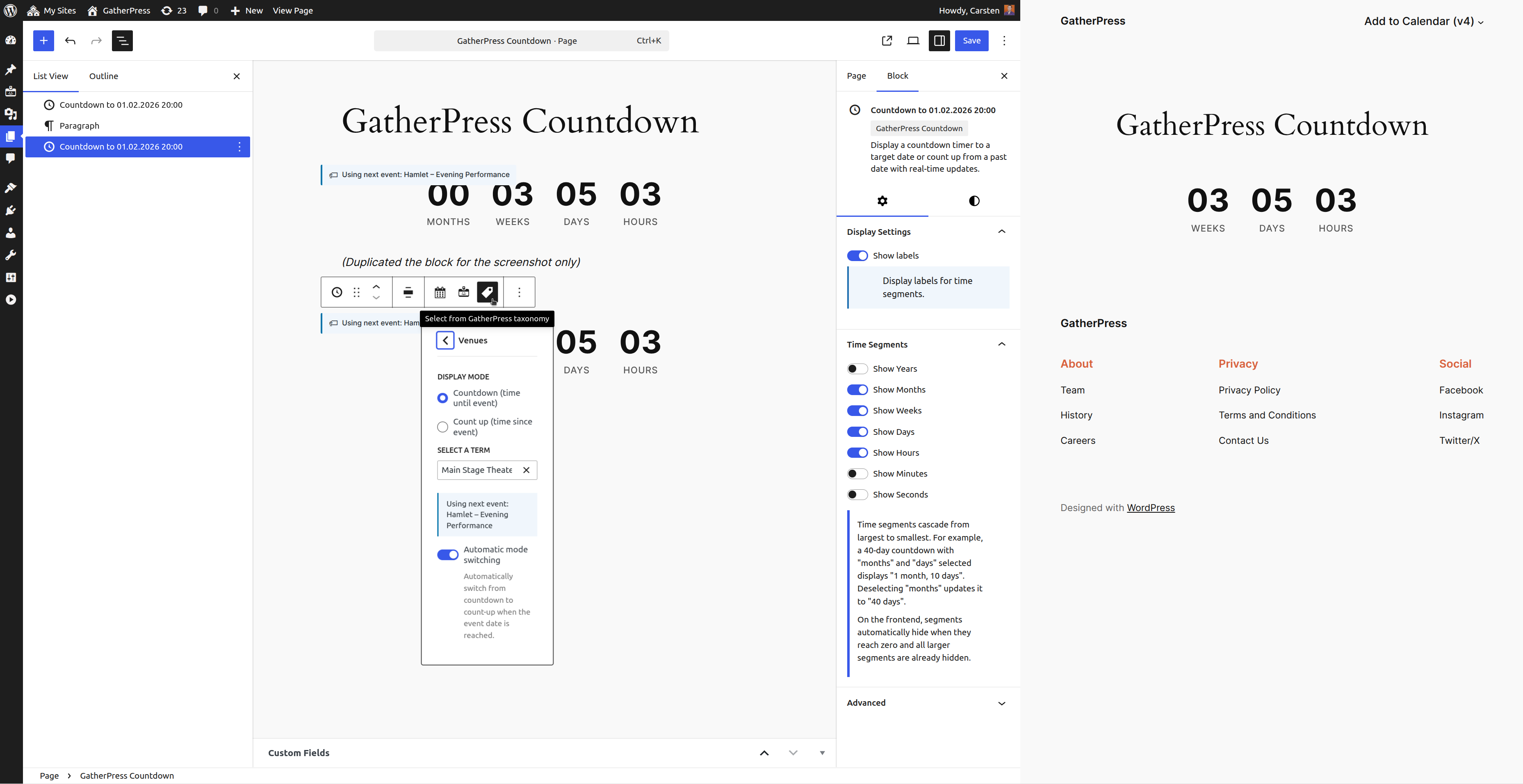
Scenario: Display countdown to the next performance at a specific venue.
- Add Countdown Timer block to a post or page
- Click the taxonomy icon (🏷️) in the toolbar
- Select Venues taxonomy
- Select Main Stage Theater term
- Block displays countdown to the next chronological event at that venue
The block updates automatically as performances conclude.
Scenario: Countdown to the next event in a themed series.
- Create GatherPress Topics taxonomy terms (e.g., “Shakespeare Festival”)
- Tag related events with the topic
- Add Countdown Timer block to the festival series page
- Select taxonomy source from toolbar
- Choose Topics → Shakespeare Festival
- Block shows countdown to the next festival event
- Automatically advances through the series chronologically
Ideal for multi-show festivals or themed seasons.
Example 6: Context-Aware Event TemplatesScenario: Add countdown to a GatherPress event post template.
- Edit the GatherPress event post type template
- Add Countdown Timer block anywhere in the template
- Do not configure any date source
- Block automatically inherits event datetime from post context
- Each event displays its own countdown
Provides consistent countdowns without manual configuration.
Example 7: Query Loop IntegrationScenario: Display countdowns for multiple upcoming productions.
- Create a Query Loop block filtered to GatherPress events
- Inside the loop template, add Countdown Timer block
- Block inherits datetime from each event
- Result: list or grid with individual countdowns
- Each countdown updates independently in real time
Perfect for “Upcoming Productions” sections.
Example 8: Historical Performance ArchiveScenario: Show time elapsed since a theater milestone.
- Add Countdown Timer to your theater history page
- Select historic date (e.g., January 15, 1998)
- Block switches to count-up mode automatically
- Enable segments: Years, Months, Days
- Display shows
27 Years 11 Months 09 Dayssince opening - Updates continuously
Count-up mode activates for any past date.
Example 9: Multiple Show Format VariationsScenario: Different countdown styles for different production types.
- Matinee performances: Minimal style, Days / Hours / Minutes
- Opening nights: Bold style, all segments enabled
- Workshop events: Classic style, Hours and Minutes only
- Season announcements: Modern style, Weeks and Days
Styles and segments allow clear visual differentiation.
Example 10: Intermission TimerScenario: Display countdown during theater intermission.
- Add block to the intermission display screen
- Set target time to intermission end (15 minutes from now)
- Enable only Minutes and Seconds
- Choose Bold style
- Display shows
14 Minutes 32 Seconds - Audience can easily track remaining time
Short-duration countdowns work well with focused segments.
Frequently Asked Questions
How do I set a countdown date?
Three methods:
- Calendar icon in toolbar for manual date/time
- Event icon to select a GatherPress event
- Taxonomy icon to use the next or last event from a term
Blocks in event context inherit dates automatically.
What happens when the countdown reaches zero?
The block switches automatically to count-up mode, displaying elapsed time since the target date. You can disable the Automatic Mode Switching within the block, if you like.
How does segment cascading work?
Time redistributes based on enabled segments.
- Target: 40 days away
- With months enabled:
1 Month 10 Days - Without months:
40 Days
When do segments hide on the frontend?
Segments hide when they reach zero and all larger segments are already hidden.
Example:
00 Days 05 Hours 30 Minutes → 05 Hours 30 Minutes
How does GatherPress event sync work?
The block reads event datetime from post meta. Any event date change updates all connected countdowns automatically.
Can I customize the appearance?
Yes:
- Four predefined styles
theme.jsoncolor and typography support- Block supports for spacing and alignment
- Custom CSS
Does it work in query loops?
Yes. Each event in the loop renders its own countdown from context, as long as it is a gatherpress_event.
What about page caching?
Initial HTML is server-rendered; JavaScript recalculates time on load and updates every second.
Can I use it without GatherPress?
Yes. Manual date selection works independently of GatherPress. (But I haven't tested it.)
How precise are the calculations?
Updates every second and accounts for:
- Variable month lengths (30.44-day average)
- Leap years (365.25-day average)
- Cascading based on visible segments
Screenshots
- Display countdown to a manual set date, with Days, Hours and Minutes enabled, using the Bold block style
- Display countdown to a manual set date, with Weeks, Days and Hours enabled, using the Modern block style
- Display countdown to an explicit GatherPress event, "Hamlet – Evening Performance" in this case, using the default block style.
- Display countdown to the next GatherPress event in a selected Venue, which is a GatherPress taxonomy.
Installation
- Upload plugin files to
/wp-content/plugins/gatherpress-countdown/ - Activate through the WordPress Plugins screen
- Add the Countdown Timer block to posts, pages, or templates
- Configure using the toolbar date selection options
- Customize appearance through block styles or
theme.json
Changelog
All notable changes to this project will be documented in the CHANGELOG.md.