Sink WP Registry grade B. Medium-severity findings · 1 findingWP RegistryMedium-severity findings · 1 findingOpen the reportB
Sync media with an AWS S3 bucket
Install
Upload it under Plugins → Add New Plugin → Upload Plugin, then activate.
Install straight from GitHub with WP-CLI:
wp plugin install https://github.com/caffeinalab/sink/releases/download/v1.0.5/sink.zip

Sink
Sync media with an AWS S3 bucket
Sink
Sync media with an AWS S3 bucket
Jump to the newest feature.
Table of Contents
About The Project
We built Sink because in our web development architecture, we containerized and split all the services. This also meant that we decoupled software from data. In the case of media files, we use usually AWS S3 and Imgix.
This plugin makes it seamless to use S3 as a storage service throught the S3's stream implementation.
How it works
The plugin uses the configuration to connect to the S3 Bucket and move media files there once uploaded. It listens to the media_upload hooks.
New feature
As of version 1.0.3. I've redesigned the settings page and added an option to manage existing media files.
This is useful in case you're adding the plugin to an existing website or project, or enable it later on when you've configured the AWS Bucket.
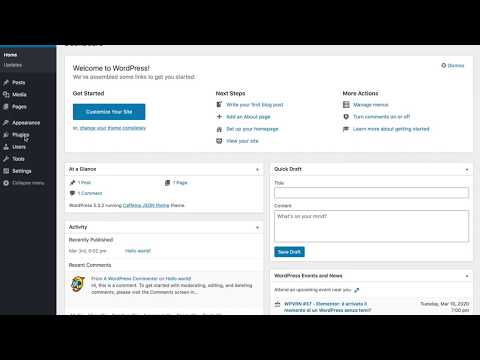
Here's a video demonstration of the feature.
What it does:
- If there are files in your local uploads directory. The plugin will not connect WordPress to AWS S3. You're given two choices.
- Ignore the existing files. They'll show up as missing on the media manager.
- Upload them to S3. From the settings menu, you can choose to transfer the files over to S3.
- If you move from the page, the transfer will stop, but it will begin again once you've reopened the page and transfer the remaining files.
- Once the transfer has finished and there aren't any more files, the plugin will connect to S3 automatically and start working seamlessly.
Dependencies
The project depends on the aws-sdk-php. It is imported in the project with composer, but to make it possible to install the plugin, it is pushed in the repository.
Getting Started
You can just clone this repository inside your wp-content/plugins folder, or download the installable zip and install it via the WordPress dashboard.
Updates
You can update Sink directly from the WordPress' dashboard, like any other plugin.
Usage
To use Sink, just install it and configure it in the settings page based on your needs.
You can also alternatively add these settings into wp-config.php
define('SINK_AWS_REGION', "eu-west-1");
define('SINK_AWS_BUCKET', "caffeina"); // bucket name
define('SINK_AWS_ACCESS_ID', "");
define('SINK_AWS_SECRET', "");
define('SINK_AWS_UPLOADS_PATH', "uploads");

define('SINK_KEEP_SITE_DOMAIN', false);
define('SINK_CDN_ENDPOINT', 'https://caffeina.imgix.net/uploads'); // mind that there's no slash

define('SINK_HTTP_PROXY_URL', "http://localhost"); // the protocol is included
define('SINK_HTTP_PROXY_PORT', "8080");- When
SINK_KEEP_SITE_DOMAINis set to true, the media address will keep the WordPress URL. That means that it won't work until you add some Nginx rules to proxy the requests to the CDN endpoint.
For example, if you configure S3 and you have a file that's in https://bucket.s3.eu-west-1.amazonaws.com/static/privacy_policy.html, when setting SINK_KEEP_SITE_DOMAIN to true, WordPress will return it as WP_HOME."static/privacy_policy.html"
SINK_CDN_ENDPOINThas priority overSINK_KEEP_SITE_DOMAINso if set, all images will have the CDN URL.
From the example above, WordPress would now return the static file with this URL SINK_CDN_ENDPOINT."static/privacy_policy.html"
Everything is now set up. You don't need to worry about anything else.
Resizing
Images need resized and media in general needs to be distributed. It's not reasonable to have WordPress distribute media, especially if it's a huge website and needs to be scaled.
On one side, we are already saving the files to a distributed storage like S3, so now we can decide how to deliver them. Well being in the AWS ecosystem we can choose AWS CloudFront. But on the other hand, we may be using another S3 compatible service such as Minio. Also CloudFront doesn't offer image resizing. That's why we chose to use Imgix for our projects.
There are two types of image resizing though, the one that WordPress does automatically, and the one that is dynamic for the frontend website.
The WordPress generated thumbnails (resized images) will be moved to S3 automatically.
This approach isn't recommended because it creates unnecessary copies of the same file and it adds load to the server. Use a service to resize photos on the fly instead and turn off image resizing on WordPress. And then simply proxy the images from Nginx like below.
If you use the configuration below. The web server will check for the files through the URL and in the end will forward to imgix.com automatically constructing the url of the imgix bucket as the following:
-> $domain.imgix.net
-> if your website domain is caffeina.com then your imgix bucket would be caffeina.com.imgix.net
Remember that the configuration accepts any domain name but the imgix bucket will only work with one so this is not ideal.
server {
  # ...
  server_name ~^(www\.)?(?<domain>.+)$;

    set $uploads_uri $uri;
    location ~ ^/.*/uploads/(.+)$ {
      rewrite ^/.*/uploads/(.+)$ /uploads/$1;
      set $uploads_uri $uri;
    }

    location ~ ^/uploads/(.+)\-([0-9]+)x([0-9]+)\.([^\.]+)$ {
      rewrite ^/uploads/(.+)\-([0-9]+)x([0-9]+)\.([^\.]+)$ /uploads/$1.$4?$args&w=$2&h=$3;
    }

    location ~ ^/uploads/(.+)\-([0-9]+)\.([^\.]+)$ {
      rewrite ^/uploads/(.+)\-([0-9]+)\.([^\.]+)$ /uploads/$1.$3?$args&w=$2;
    }

    location ~ ^/uploads/.*$ {
      try_files $uploads_uri $uri @imgix;
    }

    location @imgix {
      proxy_pass https://$domain.imgix.net;
    }

  # ...
  # WordPress configuration
}
S3 Bucket configuration
To be for this to work, you'd need two things on AWS.
- An IAM role with full access to the S3 bucket dedicated to the website
- Setting the Bucket to be publicly accessible (readable)
Here's an example on giving the bucket public access permissions. In the example below, caffeina is the bucket name.
{
    "Version": "2008-10-17",
    "Id": "http referer policy example",
    "Statement": [
        {
            "Sid": "readonly policy",
            "Effect": "Allow",
            "Principal": "*",
            "Action": "s3:GetObject",
            "Resource": "arn:aws:s3:::caffeina/*"
        }
    ]
}
Contributing
Contributions are what make the open source community such an amazing place to be learn, inspire, and create. Any contributions you make are greatly appreciated.
- Fork the Project
- Create your Feature Branch (
git checkout -b feature/AmazingFeature) - Commit your Changes (
git commit -m 'Add some AmazingFeature') - Push to the Branch (
git push origin feature/AmazingFeature) - Open a Pull Request
License
Copyright 2014-2019 Caffeina SpA under the MIT license.
Releases
6 releases. Each count is every asset in that release; expand a row for the breakdown.
Active-site estimate ≈10 comes from the median of recent superseded releases. Method.