Install
This is the repository archive. It installs, but the folder name will carry the branch suffix and updates will not flow.
Install straight from GitHub with WP-CLI:
wp plugin install https://github.com/artcomventure/wordpress-plugin-columns/archive/refs/heads/master.zipWordPress HTML Editor Columns
:warning: Columns are supported within the new block editor (aka Gutenberg since WordPress 5.0). This plugin will do its duty till WP 4.9 or with the Classic Editor enabled ... but will no longer be maintained.
Thanks for the great journey. RIP ;(
Extends the WordPress HTML editor with columns ... the WYSIWYG way.
Insert multiple column sets with up to 9 columns directly into the HTML editor.
- no shortcodes
- no extra templates
- customizable responsive
Installation
- Upload files to the
/wp-content/plugins/directory of your WordPress installation.
- Either download the latest files and extract zip (optionally rename folder)
- ... or clone repository:
$ cd /PATH/TO/WORDPRESS/wp-content/plugins/
$ git clone https://github.com/artcomventure/wordpress-plugin-columns.git
If you want a different folder name than
wordpress-plugin-columnsextend clone command by'FOLDERNAME'(replace the word'FOLDERNAME'by your chosen one):$ git clone https://github.com/artcomventure/wordpress-plugin-columns.git 'FOLDERNAME'
- Activate the plugin through the 'Plugins' screen in WordPress.
- Enjoy
Usage
Once activated you'll find the columns button at the very left position of the first editor buttons row.
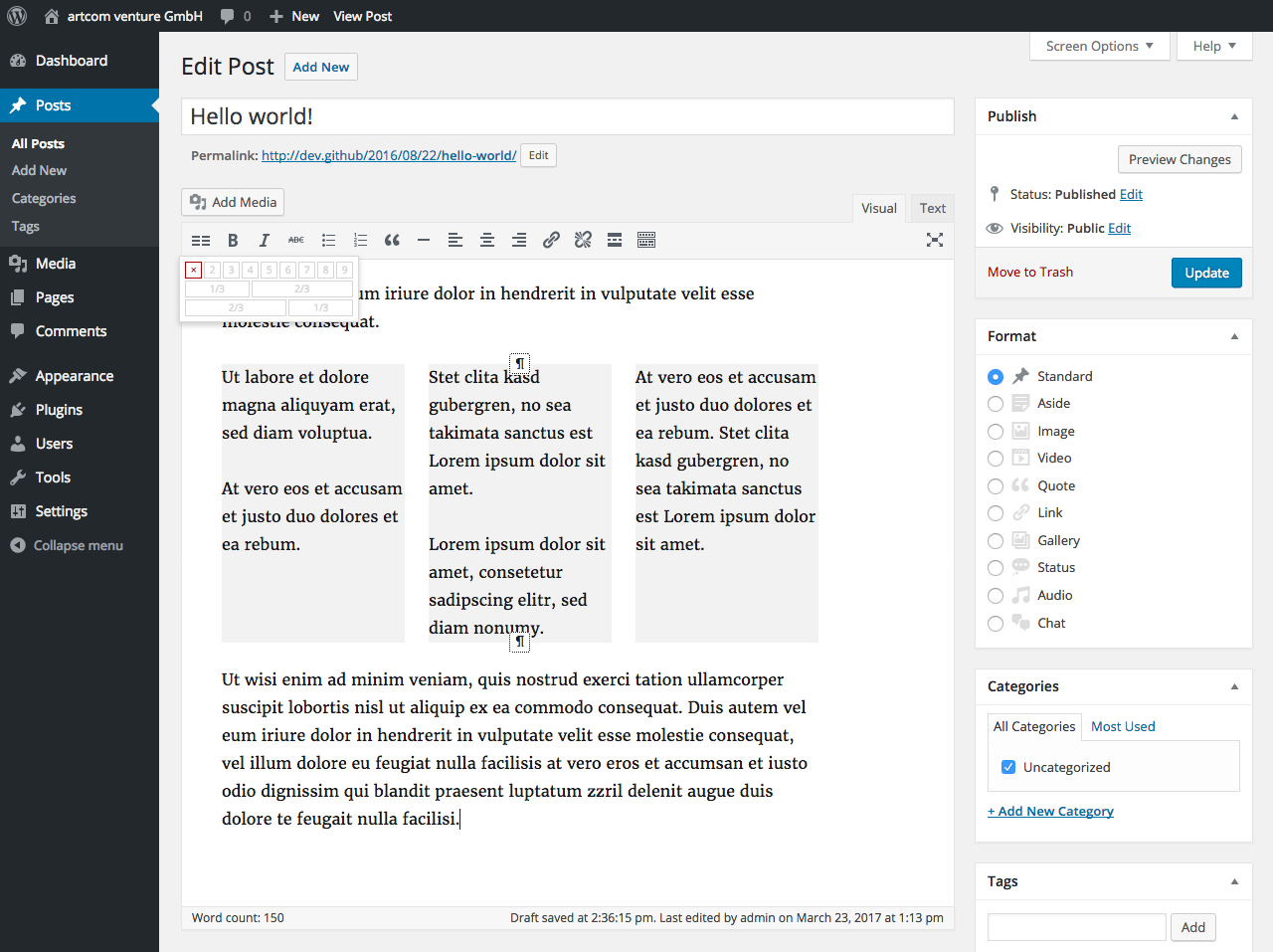
- Select the text or position the cursor at the point where the columns should be inserted.
- Click the columns button.
- Choose number of columns.
- Edit content.
To change the number columns of an existing set or to remove the columns set (only columns, not the content) just click somewhere in the columns and repeat from #2.
Settings
You can find the 'Editor columns' options page listed in the submenu of 'Settings'.
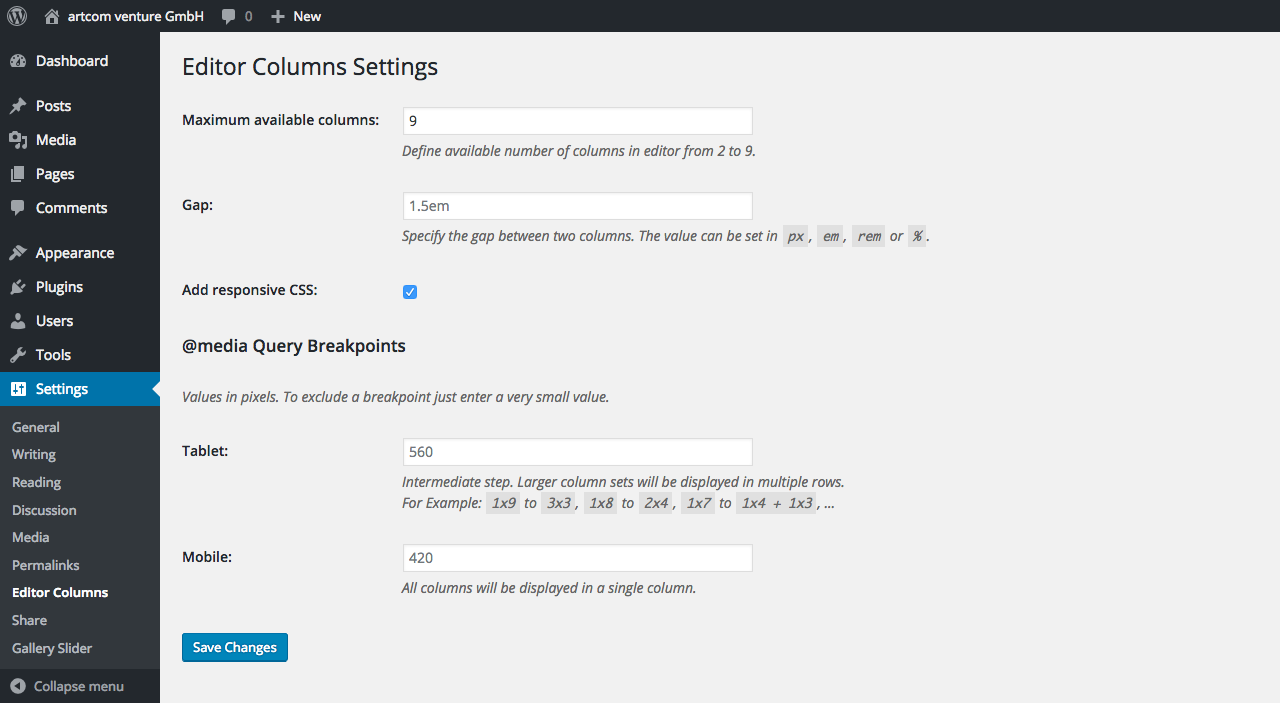
- Define the number of columns which are available in the editor. Default: 9
- Specify the gap between two columns. Default: 1.5em
- Include default responsive CSS. Default: false
- ... and define the @media breakpoints. _Default: calculated from
global $content_width;_
Plugin Updates
Although the plugin is not yet listed on https://wordpress.org/plugins/, you can use WordPress' update functionality to keep it in sync with the files from GitHub.
Since 1.4.0 please use for this our WordPress Repository Updater with the settings:
- Repository URL: https://github.com/artcomventure/wordpress-plugin-columns/
- Subfolder (optionally, if you don't want/need the development files in your environment): build
We test our plugin through its paces, but we advise you to take all safety precautions before the update. Just in case of the unexpected.
Questions, concerns, needs, suggestions?
Don't hesitate! Issues welcome.