aCuotaz Apurata
Finance your purchases with a quick aCuotaz Apurata loan.
by Apurata · github.com/apurata/prestashop-acuotaz-payment-gateway
Install
No release zip yet. The repository archive installs, but the folder name will carry the branch suffix and updates will not flow:
wp plugin install https://github.com/apurata/prestashop-acuotaz-payment-gateway/archive/refs/heads/master.zipaCuotaz module for Prestashop
Evaluate your customers and finance their purchase with fortnightly instalments, without a credit card.
Local development
PrestaShop 1.7 + this module (bind-mounted as ps_apurata).
docker compose up -d
# Wait until logs show: Installation successful! / Starting web server
docker compose logs -f prestashop| Shop | http://localhost:8080 |
| Admin | http://localhost:8080/admin-dev |
| Login | admin@apurata.local / apurata123 |
Install / reinstall the module (run as www-data, not root):
docker compose exec -u www-data prestashop \
  php /var/www/html/bin/console prestashop:module install ps_apurata
Configure in BO: Module Manager → aCuotaz → Client ID, Client Token, Allow HTTP = YES.
Baseline check (Classic theme):
- Product page → addon near the price (
displayProductPriceBlock) - Cart → addon in footer (
displayShoppingCartFooter) - Checkout → aCuotaz payment method (
paymentOptions)
If the shop shows Permission denied on var/cache:
docker compose exec -u root prestashop \
  chown -R www-data:www-data /var/www/html/var
Do not chown /var/www/html/modules/ps_apurata (host bind mount).
Stop / reset:
docker compose down          # keep DB + shop data
docker compose down -v       # wipe volumes (full reinstall next up)
Starting 🚀
These instructions will allow you to upload the aCuotaz module into your Prestashop store.
Requirements 📋
- Prestashop version: 1.7.1.0 - 1.7.6.7 (latest version)
- Minimum version of PHP: 7.2
Installation 🛠️
Request your aCuotaz credentials with us, if you already have them continue the steps.
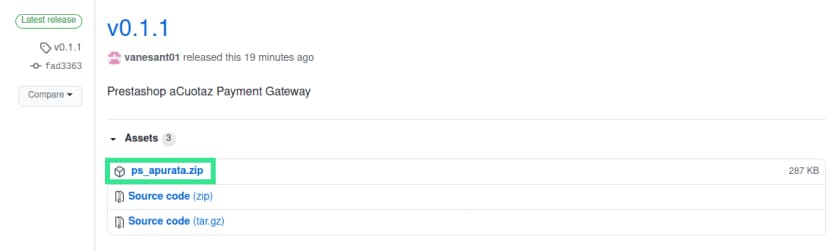
- Download the latest version of the file "ps_apurata.zip" from the following link: Releases
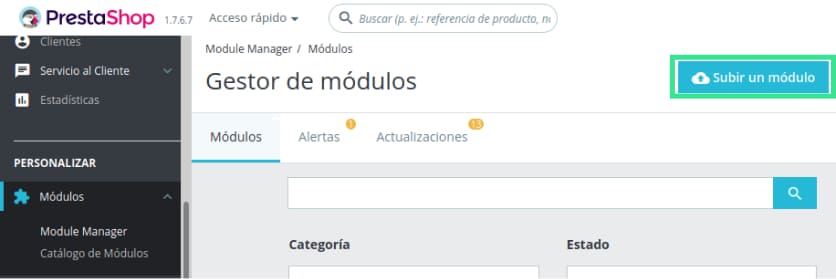
- Now go to your store's Module Manager and click on "Upload a Module".
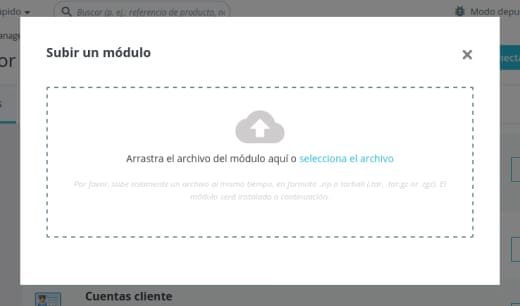
- Upload the file "ps_apurata.zip"
- Once uploaded, a confirmation message "Module installed" should appear. If an error occurs, please confirm the requirements for installing this module or contact us.
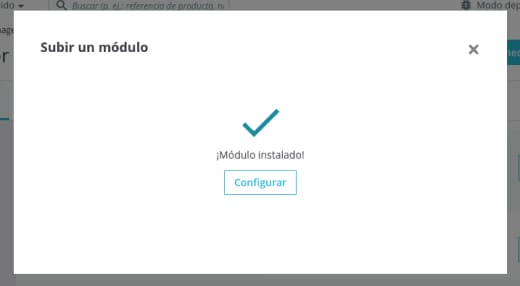
- That's it, now you just need to configure the module. You can click on "Configure" from the previous window or you can reload the page and you will see it together with your other modules.

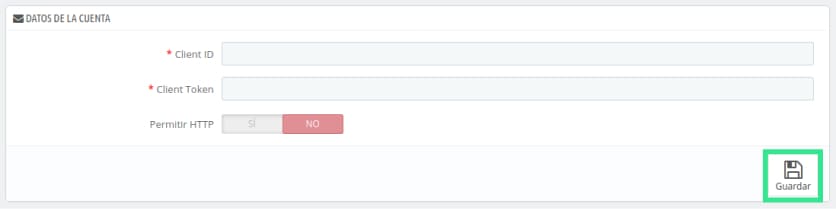
- In the configuration you must enter your Client ID and Client Token with the credentials generated by aCuotaz. If your page is not HTTPS you can allow HTTP by clicking "YES", otherwise you can leave it as "NO". Click on "Save" and you're done.
It is already working 📦
These are the changes you will see in your prestashop.
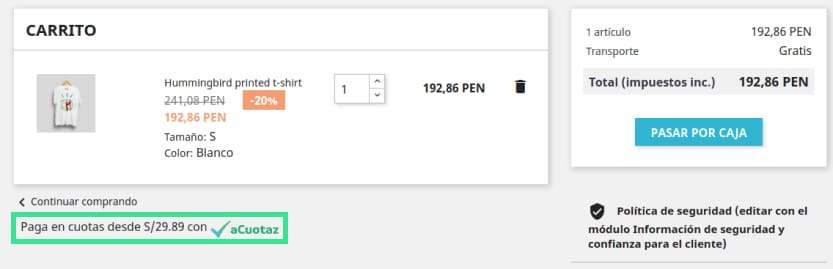
- Now in the shopping cart it shows you the option to pay with aCuotaz
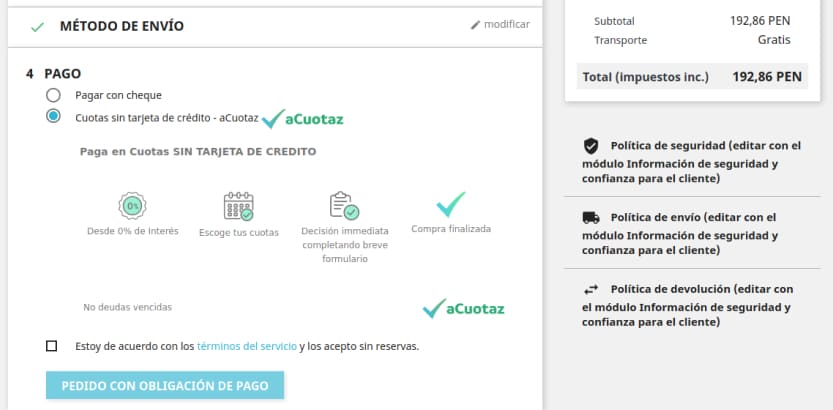
- Now you can see aCuotaz as a payment method
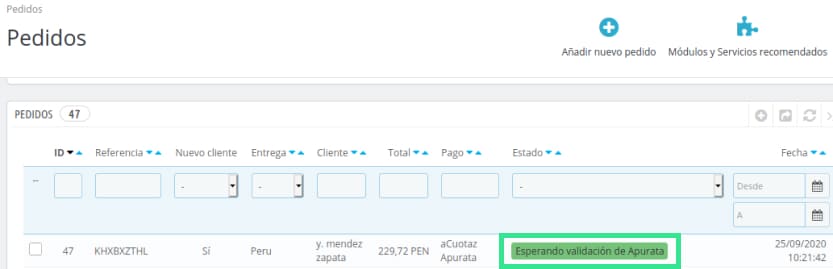
- When your customers agree to pay with aCuotaz and it is approved by us, the order will be created with the following status "Waiting for Apurata validation".
Update version 📌
To update the module with a new version.
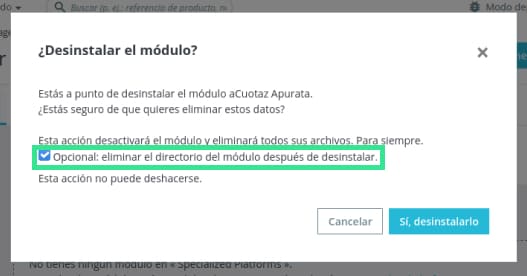
- First you must uninstall the current module and check "Optional: remove module directory after uninstallation" and upload the new version again.
More about aCuotaz
Thank you for reading, with ❤️ for aCuotaz 😊