Install
This is the repository archive. It installs, but the folder name will carry the branch suffix and updates will not flow.
Install straight from GitHub with WP-CLI:
wp plugin install https://github.com/ankushshingari/woocommerce-video-gallery-enhancer/archive/refs/heads/main.zipWooCommerce Video Gallery Enhancer allows you to seamlessly integrate video content into your WooCommerce product galleries. Replace or supplement static images with YouTube or self-hosted videos to increase conversion rates and customer engagement by giving users a dynamic view of your products.
🚀 Features
- Multi-Platform Support: Add videos from YouTube or upload your own (MP4) directly via the WordPress Media Library.
- Precise Position Control: Use the "Display Position" setting to decide exactly where the video appears in the thumbnail strip (e.g., first, middle, or last).
- Divi Compatible: Fully compatible with the Divi Product Image Module settings and layout.
- Seamless Integration: Hooks into the native WooCommerce gallery filters to ensure compatibility with most themes.
- Automatic Thumbnails: Automatically fetches YouTube cover images or uses the video's metadata for local files.
- Lightbox Playback: Includes built-in support for Magnific Popup, allowing videos to play in a beautiful, responsive overlay.
- Lightweight: Optimized to load assets only when necessary, keeping your site fast.
📸 Screenshots
Product Page View

The video icon appears over the gallery thumbnail to indicate playable content.
Backend Settings
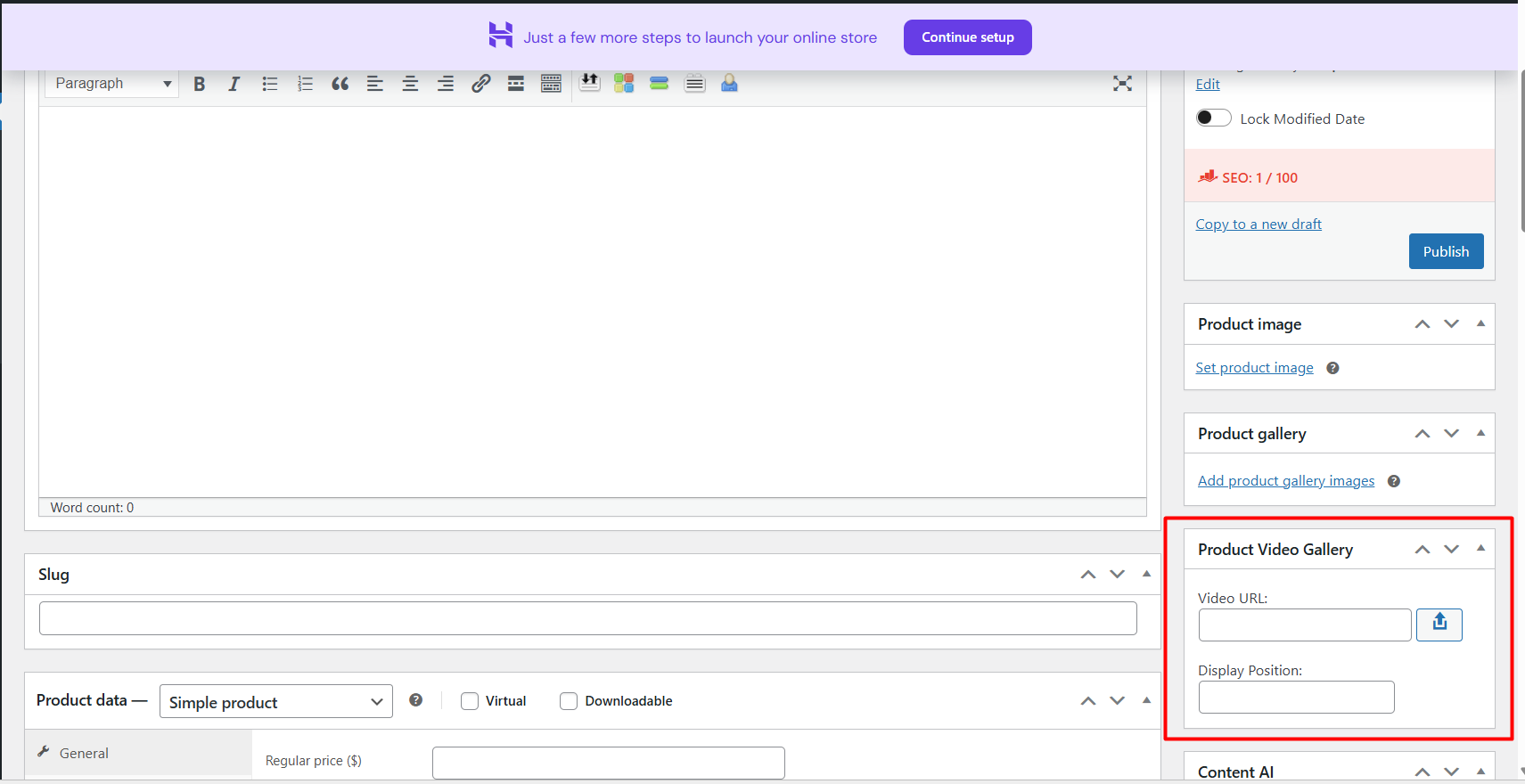
Initial setup tab in the product editor sidebar.

Example of a filled YouTube URL and position control.
Divi Compatibility

Seamlessly works with Divi's Product Image module settings.
🛠 Installation
Via WordPress Dashboard
- Download the plugin repository as a
.zipfile. - Go to your WordPress Dashboard -> Plugins -> Add New.
- Click Upload Plugin and select the downloaded
.zipfile. - Click Install Now and then Activate.
Via FTP/SFTP
- Extract the
woocommerce-video-gallery-enhancerfolder from the downloaded.zipfile. - Connect to your server using an FTP client (like FileZilla or WinSCP).
- Navigate to the
/wp-content/plugins/directory. - Upload the entire
woocommerce-video-gallery-enhancerfolder to that directory. - Go to WordPress Dashboard -> Plugins and click Activate next to the plugin name.
⚙️ Configuration
To add a video to a product:
- Edit a Product.
- Locate the Product Video Gallery meta box on the right-hand sidebar.
- Input URL: Paste a YouTube link or click the Upload icon (dashicon) to select a video from your Media Library.
- Set Position: Enter a number (e.g., "1" to make it the first thumbnail) to define where the video appears.
- Save/Update the product.
💻 Technical Details
The plugin utilizes the woocommerce_single_product_image_thumbnail_html filter to inject the video container and enqueues Magnific Popup for high-performance lightbox rendering.
Requirements:
- PHP: 7.4 or higher
- WordPress: 6.0+
- WooCommerce: 7.0+
🤝 Contributing
Contributions make the open-source community an amazing place to learn and create.
- Fork the Project.
- Create your Feature Branch (
git checkout -b feature/AmazingFeature). - Commit your Changes (
git commit -m 'Add some AmazingFeature'). - Push to the Branch (
git push origin feature/AmazingFeature). - Open a Pull Request.
👤 Author
AnkushShingari
- GitHub: @AnkushShingari
📄 License
This project is an open-source tool created and updated by the author. It is provided "as-is" for the community to use and improve.