Install
This is the repository archive. It installs, but the folder name will carry the branch suffix and updates will not flow.
Install straight from GitHub with WP-CLI:
wp plugin install https://github.com/alwaysrichard/media-image-list/archive/refs/heads/main.zipA lightweight WordPress plugin that lists all image attachments in a table—one image per row—with:
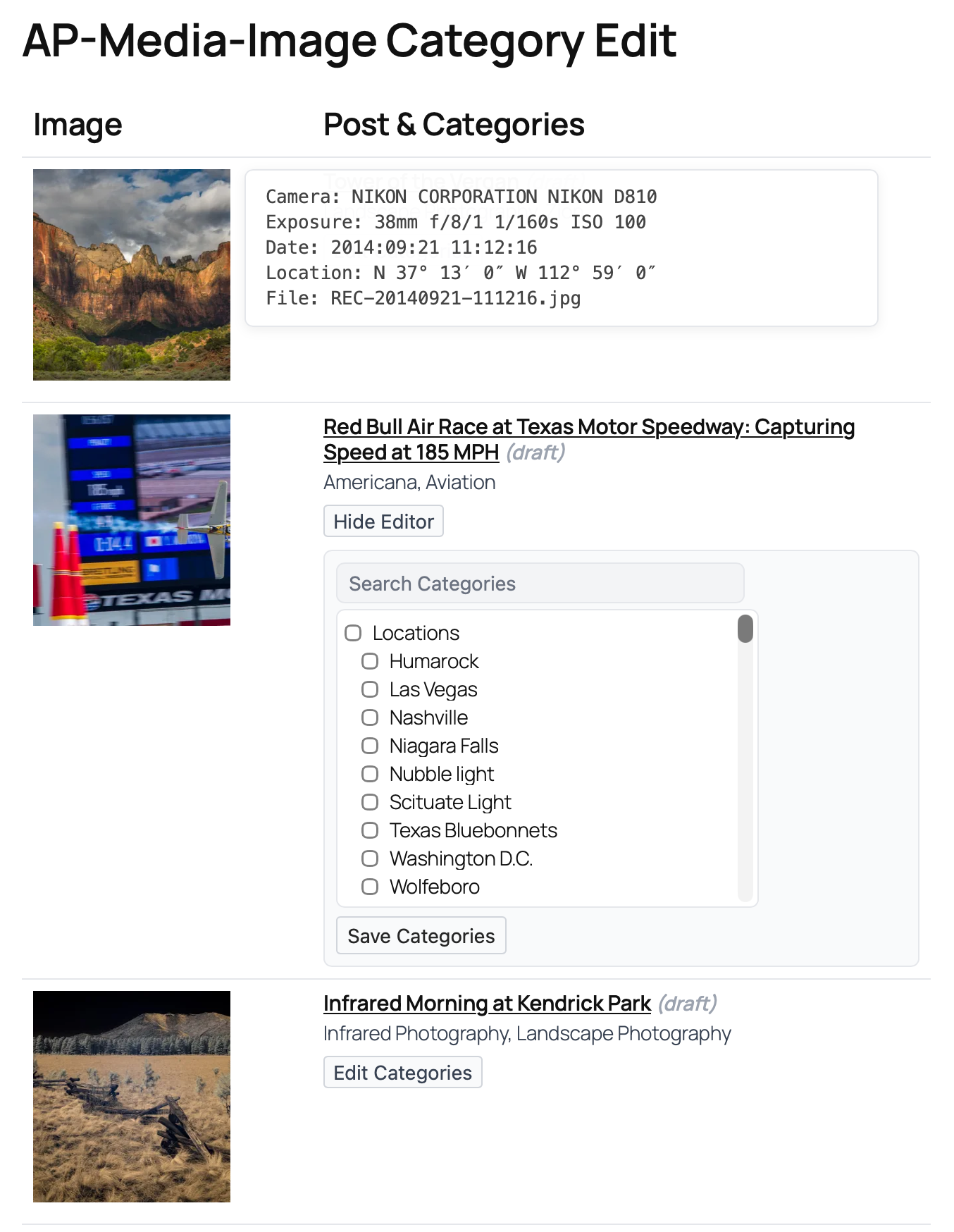
- Thumbnail with EXIF popup (camera, lens, exposure, GPS, date) extracted from original uploaded files - click to pin/unpin (column 1)
- Parent post title with preview + categories with inline category editor accessible via "Edit Categories" button (column 2)
It works with draft/private posts and includes capability checks so only authorized users can modify categories.
Shortcode:
[media_image_list]
Features
- Displays every image in the Media Library (paginated)
- EXIF metadata display:
- Extracted from original uploaded files (not resized thumbnails)
- Hover or click thumbnails to view camera info, lens, exposure settings, GPS location, and capture date
- Click-to-pin/unpin functionality with improved toggle behavior
- Toggle between human-readable format or raw JSON via shortcode attribute
- Inline post preview:
- Click post titles to open full content in a modal overlay
- Scrollable content area for long posts
- Respects WordPress permissions and post visibility
- Multiple ways to close (×, overlay click, Escape key)
- Shows draft/private parent posts too
- Inline AJAX-powered category editor with no page reload:
- Compact 2-column layout with expandable editor via "Edit Categories" button
- Categories display updates automatically after saving
- Save categories without losing your place in the list
- Real-time feedback ("Saving...", "Saved!")
- Search box + clear "×"
- Tri-state parents (indeterminate when some children selected)
- No auto-select of parent when selecting a child
- Native tooltips on hover for long names
- Non-wrapping labels with ellipsis
- Root categories have no left indent
- Stable width while filtering (
scrollbar-gutter: stable)
- Capability-aware (respects taxonomy
assign_termsandedit_post) - Minimal CSS, inherits WP font sizes (uses
--wp--preset--font-size--small) - No admin pages—just drop in the shortcode on any page
Requirements
- WordPress 5.9+ (tested up to latest)
- PHP 7.4+
- A theme that loads WP preset font variables (most do; graceful fallback is provided)
Installation
- Copy
ap-media-image-list.phpinto/wp-content/plugins/ap-media-image-list/ - Activate AP Media Image List from Plugins → Installed Plugins
- Create a draft page (recommended) and add the shortcode:
[media_image_list]Open the page (or preview) to use the tool.
Tip: Using a draft/private page keeps the tool hidden from visitors.
Shortcode Attributes
| Attribute | Type | Default | Notes |
|---|---|---|---|
per_page |
int | 50 |
Items per page (pagination enabled when needed). |
page_var |
string | mit_page |
URL query var for pagination. |
include_unattached |
bool | true |
Show images with no parent post. |
orderby |
string | date |
Any valid WP_Query orderby for attachments. |
order |
ASC / DESC |
DESC |
Sort direction. |
size |
string | thumbnail |
Image display size: thumbnail (140×140 cropped), small or medium (140×140 contained), large or full (300×300 contained). |
show_editor |
bool | true |
Display category edit tool. Set to false for read-only inventory/printing. |
metadata_display |
basic / json |
basic |
EXIF display format: basic (human-readable) or json (raw data dump). |
Examples
[media_image_list per_page="100" orderby="title" order="ASC" size="large"]
[media_image_list include_unattached="false"]
[media_image_list show_editor="false"]
[media_image_list metadata_display="json"]
Image Sizing
The plugin offers three distinct image display modes optimized for different use cases:
Thumbnail (size="thumbnail")
- Dimensions: 140×140px (cropped square)
- Behavior: Crops images to fill the entire square area
- Use case: Uniform grid appearance, consistent layout
- Best for: Quick browsing, catalog views
Small (size="small" or size="medium")
- Dimensions: 140×140px (contained)
- Behavior: Shows complete image within bounds, maintains aspect ratio
- Use case: Compact viewing while seeing the entire image
- Best for: Detail verification, composition review
Large (size="large" or size="full")
- Dimensions: 300×300px (contained)
- Behavior: Shows complete image within bounds, maintains aspect ratio
- Use case: Detailed examination, quality assessment
- Best for: Photo editing decisions, detailed inspection
All sizes maintain proper aspect ratios and prevent image distortion or elongation.
Post Preview
Click any post title to open an inline preview modal without leaving the media list:
🖼️ Modal Features
- Full post content - Complete formatted content with shortcodes processed
- Responsive design - Works on desktop, tablet, and mobile devices
- Scrollable content - Handle long posts with vertical scrolling
- Post metadata - Shows publish date, author, and draft status
- Secure access - Respects WordPress permissions and post visibility
🎮 Interaction
- Click post title → Opens preview modal
- "×" close button → Dismisses the preview
- Click overlay background → Closes modal
- Press Escape key → Keyboard shortcut to close
- No page navigation → Stay in your current position in the media list
📱 Responsive Behavior
- Desktop: 800px wide modal with comfortable reading width
- Mobile: Full-width modal with proper touch interactions
- Tablet: Optimized sizing for tablet viewing
EXIF Metadata
The plugin extracts EXIF data from the original uploaded image file (not WordPress-generated thumbnails, which strip metadata). The popup displays:
- Camera: Make and model
- Lens: Lens make and model (if available)
- Exposure: Focal length, aperture (f-stop), shutter speed, ISO
- Date: Original capture date/time
- Location: GPS coordinates in degrees/minutes/seconds format (if available)
- File: Original filename
Interaction
- Hover over any thumbnail to see the EXIF popup
- Click a thumbnail to pin/unpin the popup (toggles between locked and hover modes)
- Click elsewhere to close all pinned popups
- Click different image automatically switches the pin to that image
- Set
metadata_display="json"to see raw EXIF array for debugging
Permissions & Security
- The editor column appears only for logged-in users with:
edit_poston the parent post and- the taxonomy's
assign_termscapability (forcategorythis is usuallyedit_posts).
- All requests are validated with nonces and WordPress capabilities
- Category updates use
wp_set_post_terms()with proper sanitization
If you're logged in but still see a warning, ensure your account has the correct role/capabilities and that the post type actually supports the category taxonomy.
Category Editor UX
- AJAX save: No page reload—you stay exactly where you are in the list
- Real-time feedback: "Saving..." → "Saved!" appears next to the button
- Search filters the tree to show matching terms and their ancestors
- Clear "×" button resets the filter
- Tri-state parents: parents become indeterminate when some (not all) children are selected
- Child clicks don't check the parent automatically
- No-wrap labels with ellipsis keep rows compact
- Tooltips on hover show the full category name
- Root lists have no left padding; nested lists indent by 12px
- The panel keeps a stable width while filtering (no jumping)
Screenshots
The following screenshots show the plugin in action using this shortcode:
[media_image_table
    per_page="25"
    size="thumbnail"
    editor_ui="dropdown"
    metadata_display="basic"
]
Media list table with EXIF popups

Category editor with AJAX save
Customization
Small CSS hooks you might override in your theme or a Customizer snippet:
/* Customize the Edit Categories button */
.mit-edit-categories-btn {
  background: #0073aa;
  color: white;
  border-radius: 4px;
}

/* Tweak editor max-height */
.ap-cat-tree { max-height: 260px; }

/* Adjust nested indent */
.ap-cat-tree ul ul { padding-left: 16px; }

/* Customize EXIF popup */
.mit-exif-block {
  min-width: 500px;
  font-size: 14px;
}
The plugin intentionally uses light, scoped CSS and WP presets to minimize conflicts.
How it Works (Tech Notes)
- Lists image attachments via
WP_Query(post_type=attachment,post_mime_type=image) - For each image:
- Renders the thumbnail with clickable EXIF popup
- Extracts EXIF from original file using
wp_read_image_metadata()orexif_read_data() - Finds the parent post (if any), renders its title (linked). Drafts use a preview link
- Shows current
categoryterms - Outputs a compact form with hierarchical checkbox tree
- AJAX save: JavaScript intercepts form submission, sends data via
fetch()to WordPress AJAX endpoint - Server validates nonce and capabilities, updates categories with
wp_set_post_terms(), returns JSON response - No page reload—user stays at their current scroll position
Development
- Single-file plugin:
ap-media-image-list.php - Main class:
AP_Media_Image_List - Hooks used:
add_shortcode( 'media_image_list', ... )wp_enqueue_scriptsfor inline CSS/JSwp_ajax_ap_mit_save_categoriesandwp_ajax_nopriv_ap_mit_save_categoriesfor AJAX handling
- Text domain:
ap-media-image-list
Local Setup
- Drop the file into
wp-content/plugins/ap-media-image-list/ - Activate the plugin
- Create/preview a page with
[media_image_list]
Coding Style
- Follows WordPress PHP coding standards
- Escape everything (
esc_html,esc_attr,esc_url) and validate withwp_verify_nonce¤t_user_can - AJAX responses use
wp_send_json_success()andwp_send_json_error()
Known Limitations
- Only manages the default
categorytaxonomy. If your post type uses a custom taxonomy, this build won't edit it (roadmap item) - EXIF data only available if present in original upload—WordPress doesn't generate it
- Large taxonomies (thousands of terms) will render, but filtering may feel slower in very old browsers
- The editor UI is available per image's parent post, not for unattached media
Roadmap
- [ ] Support custom taxonomies via shortcode attribute (e.g.,
taxonomy="topic") - [ ] Bulk actions (apply selected categories to multiple images)
- [ ] Keyboard navigation (↑/↓ to focus, space to toggle)
- [ ] Optional "Select all children" affordance on parent hover
- [ ] Custom EXIF field selection
- [ ] Export to CSV with EXIF data
Changelog
1.6.2
- New post preview feature: Click post titles to view full content in modal overlay
- Modal includes scrollable content, post metadata, and multiple close options
- Respects WordPress permissions and handles draft/private posts
- Enhanced EXIF popup interaction: Improved click-to-pin/unpin toggle behavior
- Fixed EXIF popup locking mechanism - now properly toggles on/off
- Better event handling to prevent conflicts between features
- Added keyboard support (Escape key) and improved mobile interaction
1.6.1
- Enhanced image sizing system: Three distinct size modes with proper constraints
thumbnail(140×140 cropped) - uniform squares for consistent layoutsmall/medium(140×140 contained) - complete images in compact spacelarge/full(300×300 contained) - detailed viewing with larger display- Fixed image elongation issues - all images maintain proper aspect ratios
- Dynamic column width adjustment based on selected image size
- Improved CSS specificity to override WordPress inline styles
1.6.0
- Major UI improvement: Compact 2-column layout with inline category editor
- Removed third column - category editor now appears inline within the second column
- Added "Edit Categories" button that shows/hides the editor on demand
- Category display updates automatically after saving changes
- Only one editor can be open at a time for cleaner interface
- Improved mobile responsiveness with reduced table width
1.5.4
- AJAX category save (no page reload)
- EXIF metadata extraction from original files
- Clickable/pinnable EXIF popups
metadata_displayattribute for JSON view
1.5.3
- Added
show_editorattribute; whenfalseremoves the category edit column for inventory/printing
1.5.2
- No-wrap labels with ellipsis
- Hover tooltips
- Stable width while filtering
- Minor style polish
1.5.1
- Fixed filename rendering
- Widened editor column
1.5.0
- Renamed to AP Media Image List
- No root indent
- Child click no longer auto-checks parent
1.4.x
- Category editor with search + tri-state
- Login/permission warnings
- Support for drafts/private posts
- Compact styles
Contributing
PRs welcome! Please:
- Follow WP coding standards
- Keep CSS footprint minimal and scoped
- Test with drafts/private posts and on a non-admin account
- Test AJAX functionality and EXIF extraction with various image formats
- Update this
README.mdand bump the version header
License
MIT © AlwaysPhotographing
Support
Open an issue on GitHub with:
- WordPress & PHP versions
- Theme name
- Browser and version
- A screenshot of the problem
- Console errors (if any)
- Sample EXIF data (if metadata-related)
Show Your Support
If this plugin helps you manage your WordPress media library, please give it a star!
Releases
6 releases.
These releases are tags only. The author does not attach a packaged zip, so there are no download counts to report.