Install
This is the repository archive. It installs, but the folder name will carry the branch suffix and updates will not flow.
Install straight from GitHub with WP-CLI:
wp plugin install https://github.com/alexanderbulgakov/image-pins/archive/refs/heads/main.zipA small WordPress plugin (ACF Pro required) for placing interactive pins on an image and attaching arbitrary ACF field data to each one, output anywhere via a shortcode.
Each "Image" is one base image plus a repeater of pins. Pins always carry a position (top/left, set by clicking on the image), and can additionally carry any fields from a field group you pick per image — so a "map" image can have pins with a place name, while a "car" image can have pins with a part name and description, without touching any code.
This is a portfolio/demo project: the front-end template
(template/example.php) is a working example, not a finished widget —
it's meant to be copied into a theme and adapted, or fully replaced via a
filter.
Screenshots
Managing images and their shortcodes

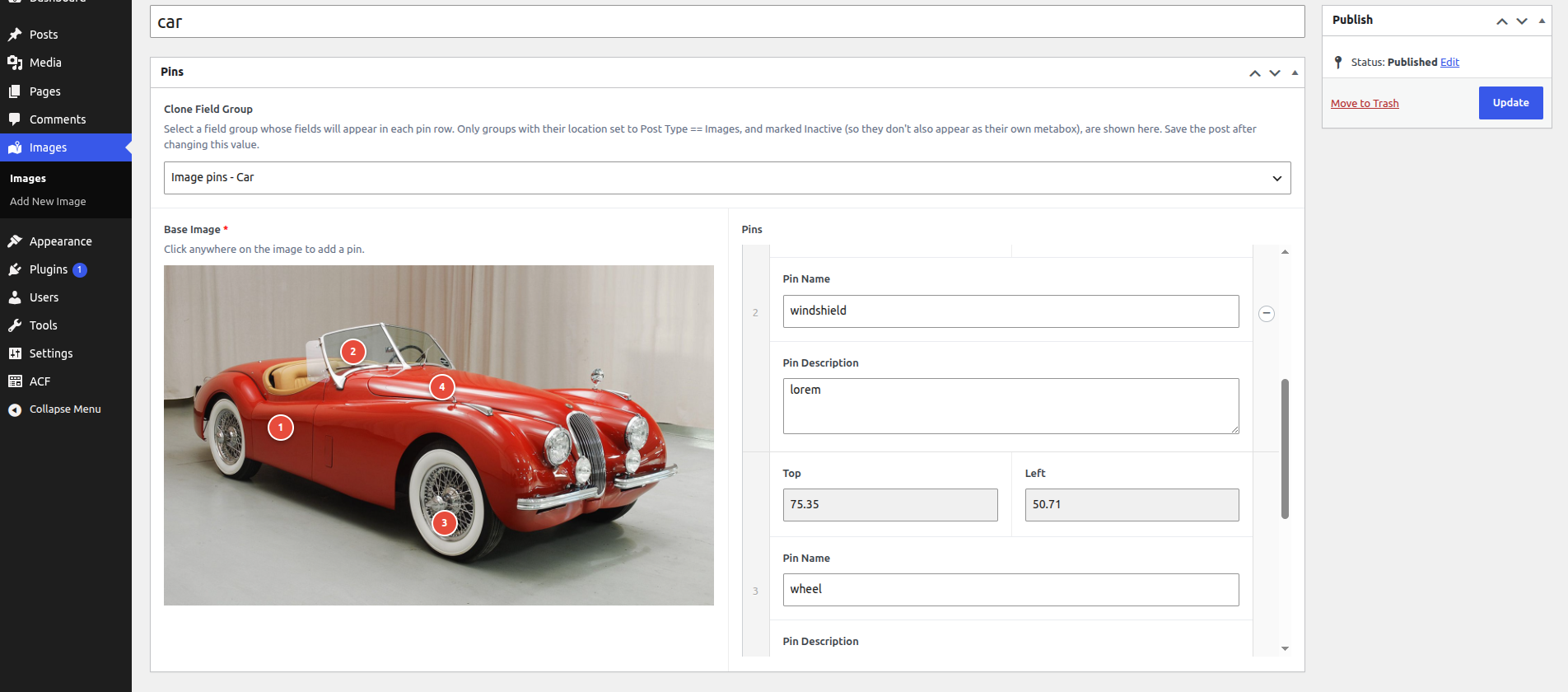
Placing pins with custom fields per image
Click anywhere on the image to add a pin; drag a pin to reposition it. Which extra fields show up per pin depends on the ACF field group picked in "Clone Field Group" — here a car with named/described parts:
...and a map with place names instead:
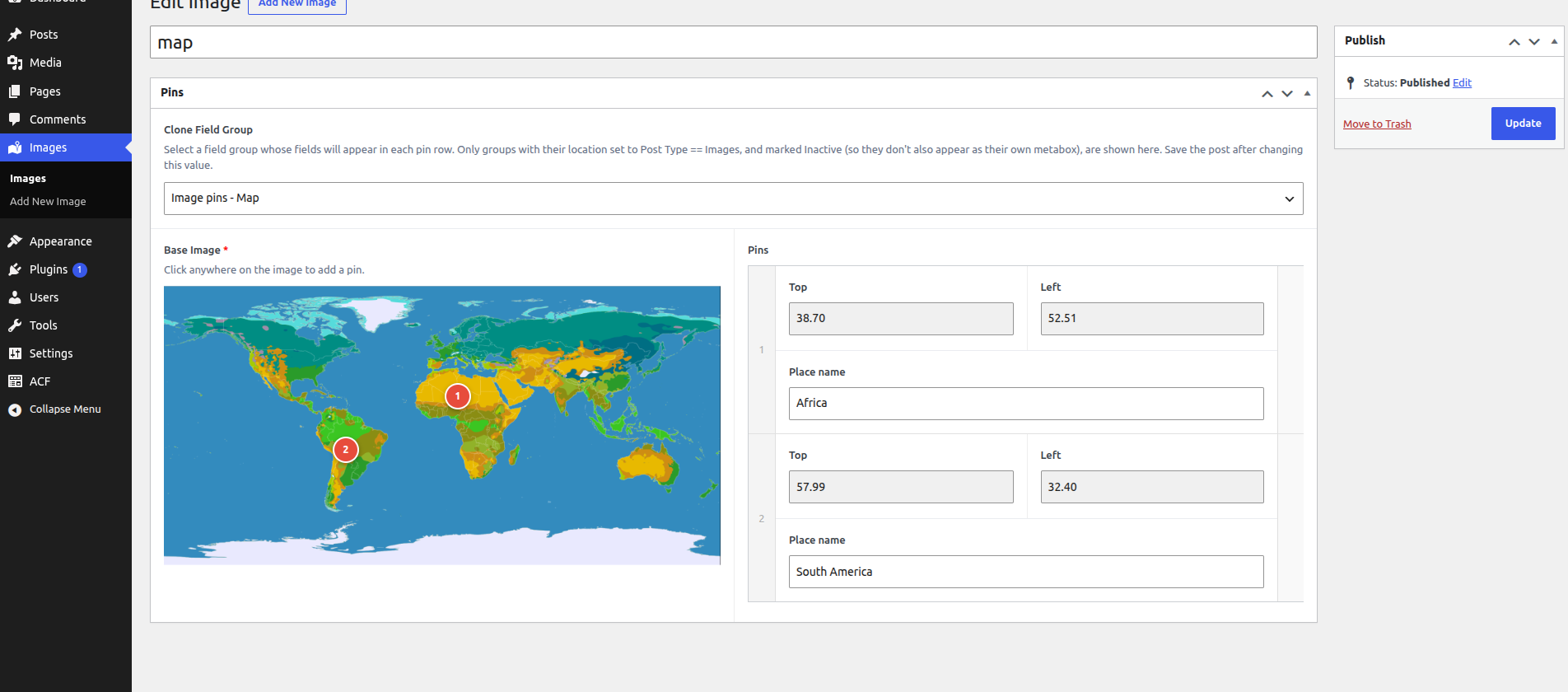
The two field groups being cloned from are regular ACF field groups, with their location set to Post Type == Images and marked Inactive so they don't show up as their own metabox — that combination is what makes them appear in the "Clone Field Group" dropdown, they exist only to be cloned into pin rows:

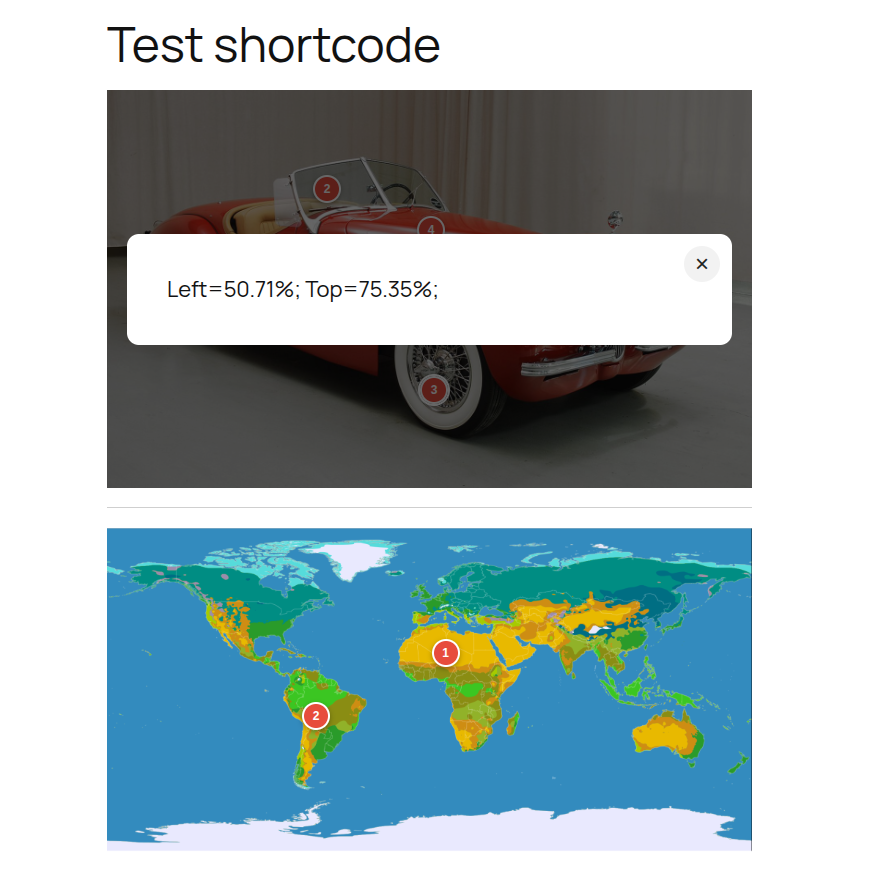
Using the shortcode
![A page with two [image_pins] shortcodes](https://raw.githubusercontent.com/alexanderbulgakov/image-pins/main/screenshots/admin-page-with-shortcodes.png)
Requirements
- WordPress 7.1+
- PHP 8.2+
- Advanced Custom Fields PRO — enforced via the
Requires Pluginsheader, WordPress won't let this plugin activate without it.
Installation
- Copy (or clone) this folder into
wp-content/plugins/image-pins. - Activate Image Pins in Plugins — WordPress will refuse to activate it if ACF Pro isn't active first.
Usage
- Go to Images → Add New.
- Upload a Base Image and save the post — the image can't be changed after that (the pins are positioned relative to it).
- Optionally pick a Clone Field Group to add its fields to every pin row on this image. Only field groups with their location set to Post Type == Images and marked Inactive show up as choices here — create one, configure it that way, then select it. Save again after changing this.
- Click anywhere on the image to add a pin, drag to reposition.
- Copy the shortcode shown in the Images list table (or build it yourself:
[image_pins id="123"], where123is the image's post ID) and paste it into any post, page, or widget.
Customizing the front end
The shipped template (template/example.php) renders the image, positions a
numbered marker per pin, and opens a popup showing each pin's top/left
on click — enough to see it work, not a finished design.
To point the shortcode at your own template instead, hook the
image_pins_template filter from your theme:
add_filter( 'image_pins_template', function ( $template, $post_id, $clone_group ) {
    return get_stylesheet_directory() . '/image-pins/template-' . $clone_group . '.php';
}, 10, 3 );
$clone_group is the ACF field group key selected for that image, so you
can key your template off the shape of the data rather than a specific
post ID or slug (which don't survive moving between environments).
Inside your template, two variables are available:
$image_id— the base image's attachment ID.$pins— an array of rows; each row always hasimage_pins_topandimage_pins_left(percentages), plus whatever fields the chosen clone group added.
License
GPL-2.0-or-later