Install
This is the repository archive. It installs, but the folder name will carry the branch suffix and updates will not flow.
Install straight from GitHub with WP-CLI:
wp plugin install https://github.com/ajaykumbham/wp-reading-time-word-count/archive/refs/heads/main.zipA professional, lightweight WordPress plugin designed to automatically calculate and display reading time and word count for posts. Built with modern aesthetics and comprehensive customization options.
Key Features
- Instant Calculation: Automatic word count and reading time estimation during content rendering.
- Modern Styles: Multiple display presets including Modern, Minimal, Badge, and Card styles.
- Full Customization: Control over icons, labels, and reading speed (WPM) to align with site branding.
- Responsive Design: Optimized for all screen sizes with support for dark mode environments.
- Flexible Placement: Options for automatic insertion before or after content, plus shortcode and widget support.
- Live Preview: Real-time visualization of changes within the administrative settings dashboard.
Screenshots
Frontend Display (Modern Style)
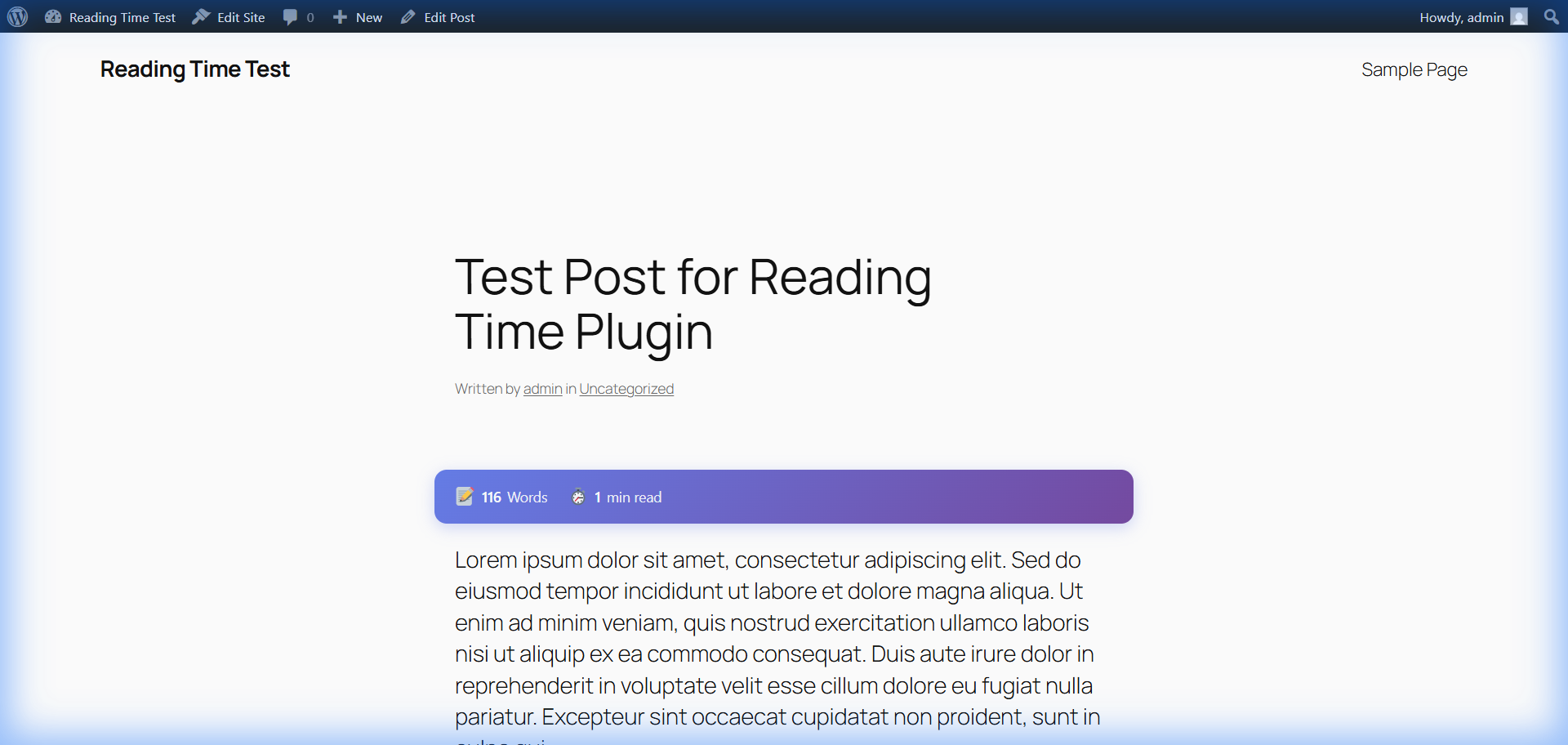 Modern gradient-styled reading time metrics displayed on the frontend.
Settings Dashboard
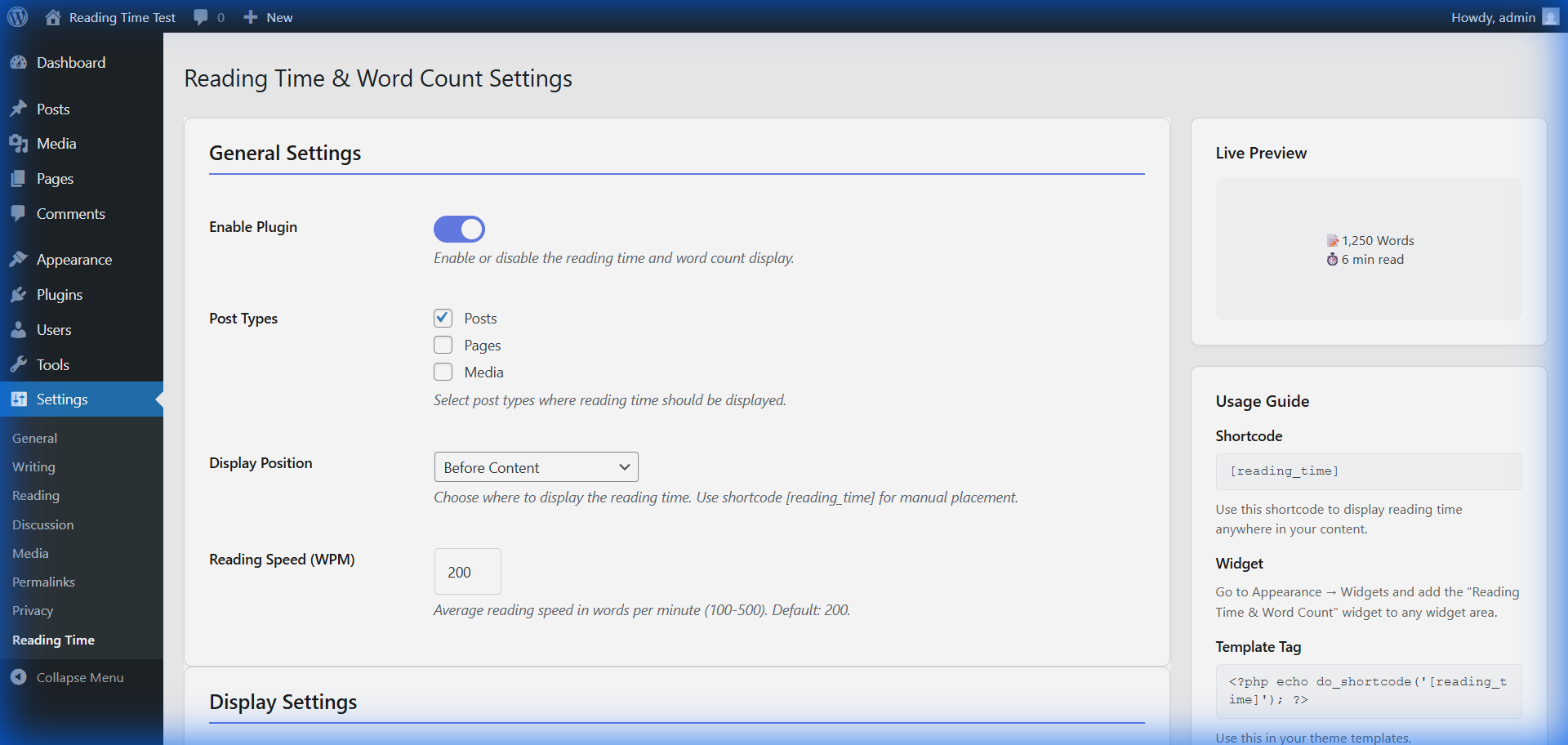 Plugin configuration panel featuring the integrated live preview system.
Display Customization
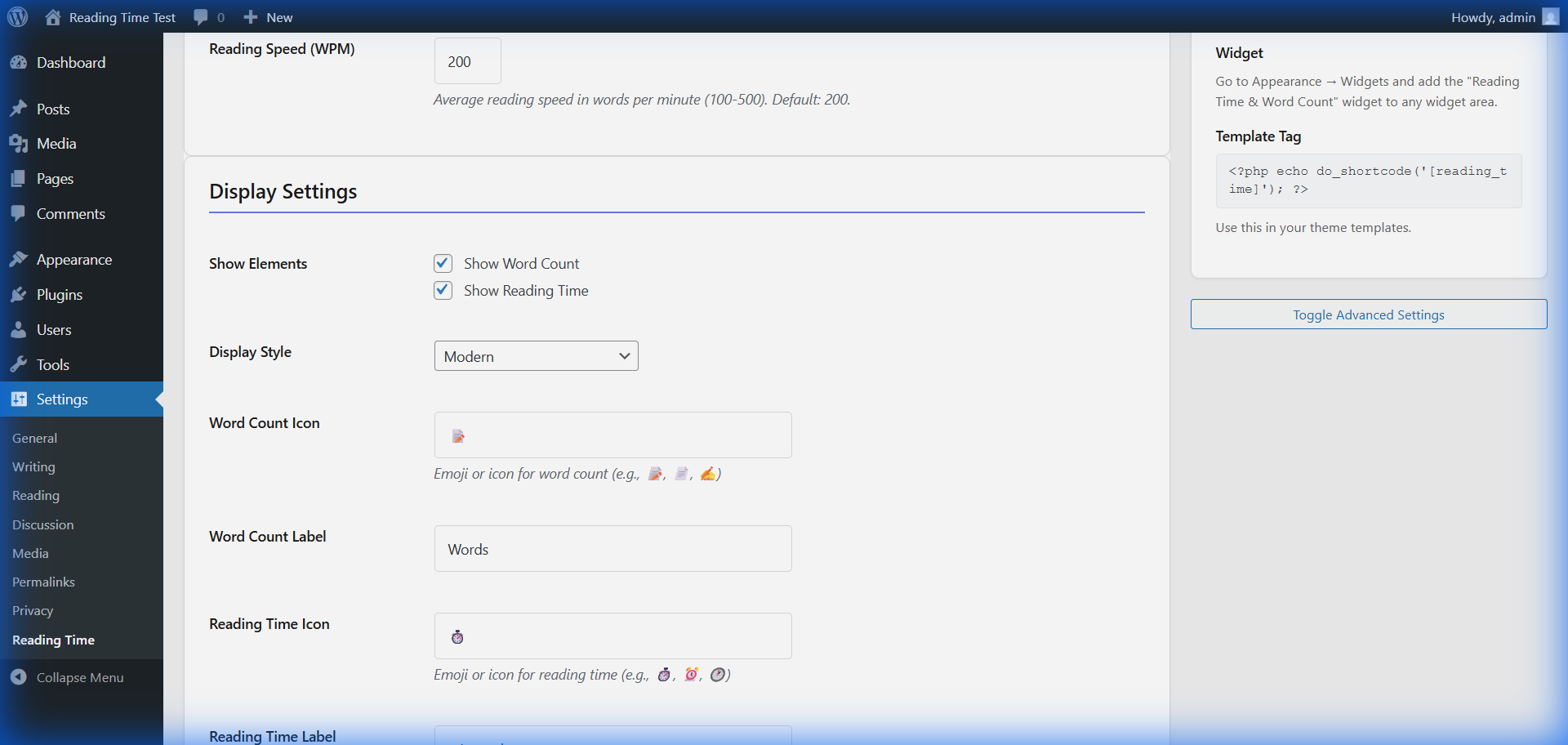 Interface for managing visual elements, icons, and custom styling.
Installation and Setup
Manual Installation
- Upload: Transfer the
wp-reading-time-word-countfolder to the/wp-content/plugins/directory. - Activate: Navigate to the 'Plugins' menu in the WordPress dashboard and click Activate.
- Configure: Access the settings at Settings → Reading Time to define preferred display options.
Usage Options
- Automatic Display: The plugin renders automatically on specified post types based on configuration.
- Shortcode: Implement
[reading_time]within post content for manual placement. - Widget: Utilize the "Reading Time & Word Count" widget via Appearance → Widgets.
- Template Tag:
<?php echo do_shortcode('[reading_time]'); ?>
Developer Documentation
The plugin provides filters for advanced customization:
// Custom word count calculation logic
add_filter('rtwc_word_count', function($word_count, $post_id) {
    return $word_count;
}, 10, 2);

// Modify the final HTML output
add_filter('rtwc_display_html', function($html, $post_id, $stats, $settings) {
    return $html;
}, 10, 4);
Development and Testing
This repository includes tools to quickly set up a local WordPress environment for testing and development.
Using Docker (Recommended)
The easiest way to test the plugin is using Docker Compose. This environment pre-installs WordPress and automatically mounts the plugin.
- Ensure Docker Desktop is running.
- Run the follow command in the root directory:
docker compose up -d - Access the site at http://localhost:8080 and complete the WordPress setup.
- Activate the plugin via the Plugins menu.
Using Local by Flywheel (Windows)
For developers using Local by Flywheel on Windows, helper scripts are provided in the tools/ directory.
- Create a site in Local named
reading-time-test. - Run the installation helper:
./tools/check-and-install.ps1
Security and Standards
- Comprehensive input sanitization and output escaping throughout the codebase.
- Nonce verification for all administrative AJAX requests and form submissions.
- PSR-4 compliant autoloading structure.
- Adherence to WordPress Coding Standards (WPCS).
Author
Ajay Kumbham
- Website: ajaykumbham.vercel.app
- GitHub: @ajaykumbham
License
This project is licensed under the terms of the GNU General Public License v2 or later.