Install
This is the repository archive. It installs, but the folder name will carry the branch suffix and updates will not flow.
Install straight from GitHub with WP-CLI:
wp plugin install https://github.com/acemedia/glosspress/archive/refs/heads/main.zip

GlossPress - WordPress Glossary Plugin
Release candidate 1.2.2. Requires WordPress 6.6 and PHP 7.4 or later. See release validation and developer contracts.
Part of my Ace Media suite, with hosting at Ace Media hosting. Public issues are welcome; please discuss contributions before opening a pull request. Official development remains maintained by Ace Media, without limiting GPL rights.
A comprehensive glossary system for WordPress with intelligent auto-highlighting, related posts, and a React-based admin interface.
Version: 1.2.2
Author: AceMedia
Table of Contents
- Overview
- Features
- Installation
- User Guide
- How Term Associations Work
- Shortcode & Block Usage
- Settings & Customization
- Developer Reference
Overview
GlossPress allows you to create and manage a glossary of terms that can be:
- Automatically highlighted in your post content with tooltips
- Associated with posts through categories and tags
- Displayed in customizable glossary pages using shortcodes or Gutenberg blocks
- Related to other terms for easy cross-referencing
Features
✨ Core Features
- Smart Auto-Highlighting - Automatically highlight glossary terms in post content with hover tooltips
- Related Posts - Show posts that use specific glossary terms
- Category & Tag Filtering - Control which posts see which terms
- React-Based Admin - Fast, modern interface for managing terms
- Gutenberg Block - Display glossary using the block editor
- Shortcode Support - Use
[glossary]shortcode anywhere - Related Terms - Link related glossary terms together
- Responsive Design - Works on all devices
- Crawlable - Every definition is rendered on the server, so crawlers see the full glossary with or without JavaScript
- SEO-Friendly - One Schema.org
DefinedTermSetper glossary page, listing your priority terms
🎨 Customization
- Custom colors for headings, backgrounds, and text
- Adjustable spacing and padding
- Multiple sort options (alphabetical, newest, oldest)
- Card grid with a sticky A to Z rail on wide screens and a pinned letter strip on phones
Installation
- Upload the
GlossPressfolder to/wp-content/plugins/ - Activate the plugin through the 'Plugins' menu in WordPress
- Navigate to Glossary in your WordPress admin menu
User Guide
Creating Glossary Terms
-
Go to Glossary in your WordPress admin menu
-
Click Add New Term
-
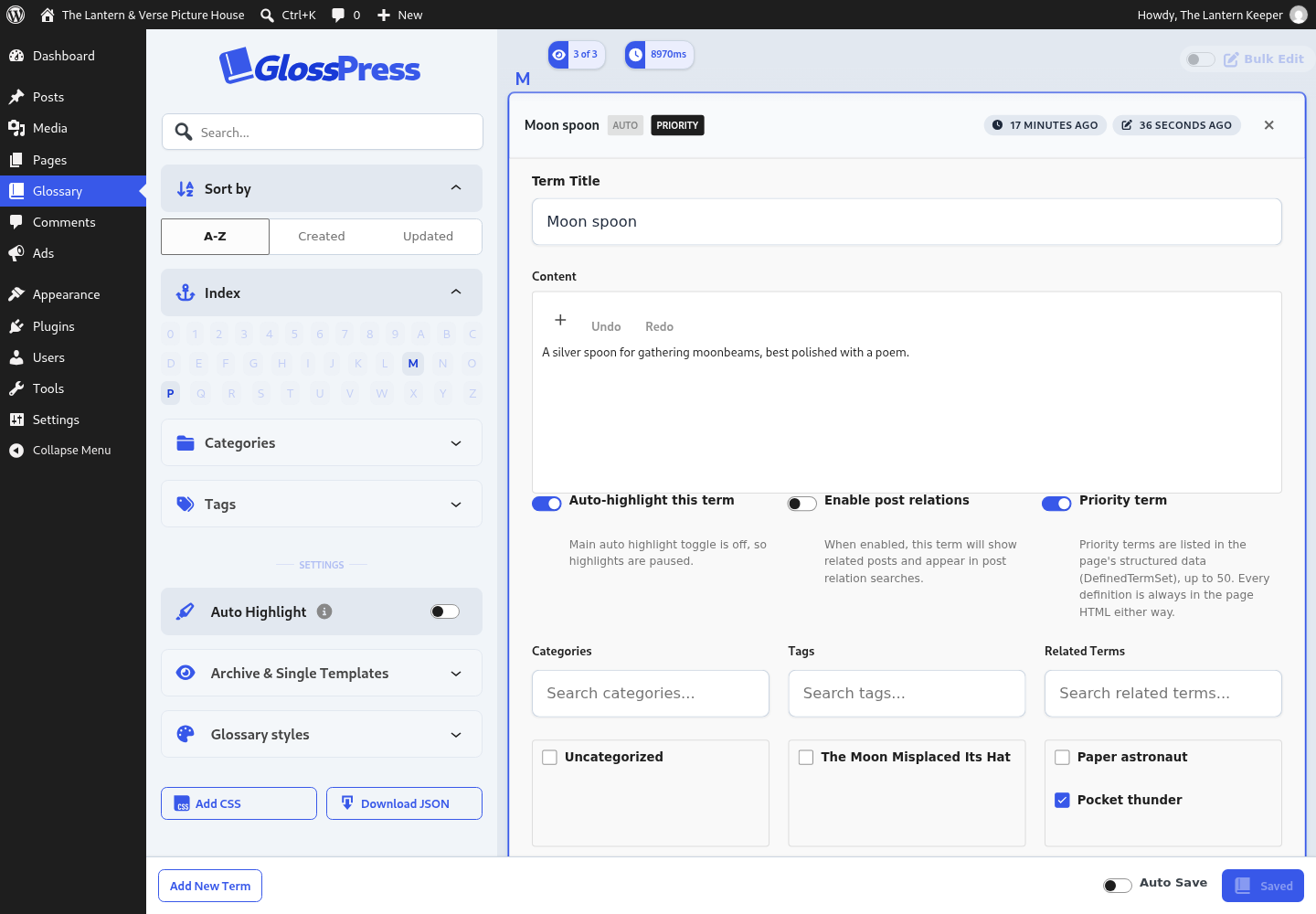
Fill in the term details:
- Title - The glossary term (e.g., "SEO", "WordPress", "API")
- Content - The definition or explanation of the term
- Related Terms - Link to other glossary terms
- Categories & Tags - Assign categories/tags to control where the term appears
-
Configure term settings:
- Auto-highlight this term - Enable to highlight this term in post content
- Enable Post Relations - Enable to show related posts for this term
-
Click Save or Save & Close
Managing Categories & Tags
Categories and tags determine which posts your glossary terms will appear on.
Assigning Categories/Tags to Terms
- Edit a glossary term
- Select categories/tags from the dropdown menus in the right sidebar
- Save the term
How It Works
- If a term has categories/tags: It only appears on posts that share at least one category OR tag
- If a term has NO categories/tags: It appears on all posts (universal term)
Example:
- A term tagged with "Sports" → Only appears on posts tagged "Sports"
- A term with no tags/categories → Appears on all posts
Auto-Highlighting
Auto-highlighting automatically wraps glossary terms in post content with styled <span> elements that show tooltips on hover.
Enabling Auto-Highlighting
Global Toggle:
- Go to Glossary admin page
- Toggle Auto Highlight in the top-right corner
- This master switch controls all auto-highlighting
Per-Term Toggle:
- Edit a glossary term
- Enable Auto-highlight this term
- Save the term
Requirements:
- ✅ Global "Auto Highlight" must be ON
- ✅ Per-term "Auto-highlight this term" must be ON
- ✅ Term must share a category/tag with the post (or have none)
How It Works
- Only the first occurrence of each term is highlighted per post
- Longest terms prioritized - If you have "SEO" and "SEO Optimization" as separate terms, the longer one takes precedence
- Word boundaries respected - "ace" won't match "place" or "aced", and accented letters count as letters, so "Café" matches but "Cafés" does not
- Case-insensitive matching, and a straight or curly apostrophe in a term matches either
- Nested terms - a shorter term never lands inside a longer one, even after the longer one has been used, and is highlighted where it stands alone instead
- Skipped text - headings, links, buttons, labels,
<summary>, form fields, code, quotes (<blockquote>), captions (<figcaption>) and SVG are left alone. Add the classno-glossaryto any element to keep terms out of it, or change the list with theacemedia_glossary_skip_elementsfilter - A term is not highlighted on its own glossary page
Related Posts
The Related Posts feature shows posts that contain specific glossary terms.
Enabling Related Posts
- Edit a glossary term
- Enable Enable Post Relations
- Save the term
How It Works
- When viewing a glossary term (on the glossary page), related posts are displayed below
- Posts are matched by:
- Exact term match in title or content (highest priority)
- Shared categories/tags (fallback)
- Same category/tag filtering rules apply
- Related posts load when a reader presses Show related articles on the term
Priority Terms
Tick Priority term on a term to include it in the glossary page's structured data
(DefinedTermSet / DefinedTerm JSON-LD). Keep it to the terms that matter most: the
list is capped at 50 (filter acemedia_glossary_schema_term_limit to change it).
Priority only affects the structured data; every definition is always in the page HTML.
The flag is stored in the priority post meta and exposed over REST.
Displaying Your Glossary
You can display your glossary in three ways:
1. Shortcode (Classic Editor or anywhere)
[glossary]Optional attributes:
[glossary sort="alphabetical"]
[glossary sort="newest"]
[glossary sort="oldest"]
2. Gutenberg Block
- Add a block
- Search for "Glossary"
- Insert the Glossary block
- Customize settings in the block sidebar
3. Custom Template
The plugin includes archive and single templates that can be overridden by your theme.
How Term Associations Work
Understanding how glossary terms associate with posts is key to using GlossPress effectively.
Association Logic
A glossary term will appear on a post if ANY of these conditions are true:
- Shared Category - The term and post share at least one category
- Shared Tag - The term and post share at least one tag
- No Assignment - The term has NO categories AND NO tags (universal term)
Examples
Example 1: Targeted Term
- Glossary Term: "Penalty Kick"
- Categories: Football
- Result: Only appears on posts in the "Football" category
Example 2: Multi-Category Term
- Glossary Term: "Champion"
- Categories: Football, Rugby, Boxing
- Result: Appears on posts in Football, Rugby, OR Boxing categories
Example 3: Universal Term
- Glossary Term: "Sports Betting"
- Categories: None
- Tags: None
- Result: Appears on all posts
Best Practices
- Specific terms → Assign relevant categories/tags
- General terms → Leave categories/tags empty
- Cross-category terms → Assign multiple categories
- Seasonal terms → Use tags for temporary associations
Shortcode & Block Usage
Shortcode Attributes
[glossary
  sort="alphabetical"
  textColor="#333333"
  headingBackgroundColor="#f5f5f5"
  headingTextColor="#000000"
  cardBackgroundColor="#ffffff"
  contentGap="1.5rem"
  headingPadding="1.25rem"
]
Attributes:
sort- "alphabetical", "newest", or "oldest"textColor- Hex color for body textheadingBackgroundColor- Hex color for card headersheadingTextColor- Hex color for header textcardBackgroundColor- Hex color for card backgroundscontentGap- CSS unit for spacing between cardsheadingPadding- CSS unit for header padding
Gutenberg Block
The Glossary block supports all the same customization options through the block sidebar panel.
Settings & Customization
Global Settings
Access global settings from the Glossary admin page (top-right toggles):
- Auto Highlight - Master toggle for all auto-highlighting
- Enable Templates - Allow custom single/archive templates
- Template Settings - Toggle template functionality on/off
Style Settings
Customize the appearance using:
- WordPress Customizer integration (coming soon)
- Block editor sidebar (when using Gutenberg block)
- Shortcode attributes (for manual control)
Performance Settings
The plugin includes automatic optimizations:
- Lazy Loading - Term details load on-demand
- Caching - Transient caching for glossary terms (1 hour)
- Single Active Term - Only one term expanded at a time in admin
Developer Reference
File Structure
GlossPress/
├── acemedia-glossary.php          # Main plugin file
├── admin/
│   ├── class-admin.php            # Admin interface
│   └── class-api.php              # REST API endpoints
├── includes/
│   ├── class-post-type.php        # Custom post type registration
│   ├── class-shortcode.php        # Shortcode & auto-highlighting
│   ├── class-related-posts.php    # Related posts logic
│   ├── class-template-loader.php  # Template handling
│   └── migration-auto-highlight.php # Migration script
├── src/                           # React source files
├── build/                         # Compiled assets
└── templates/                     # PHP templates
REST API Endpoints
GET /wp-json/wp/v2/glossary
- Returns summary data for all terms
GET /wp-json/wp/v2/glossary/{id}
- Returns full data for a specific term
POST /wp-json/wp/v2/glossary
- Creates or updates a glossary term
POST /wp-json/wp/v2/glossary/{id}/related
- Updates related terms (bidirectional)
POST /wp-json/wp/v2/glossary/{id}/categories
- Updates term categories
POST /wp-json/wp/v2/glossary/{id}/tags
- Updates term tags
Hooks & Filters
Filters:
// Modify related post types
add_filter('acemedia_glossary_related_post_types', function($post_types) {
    return array('post', 'custom_type');
});

// Modify content before auto-highlighting
add_filter('the_content', 'your_function', 9); // Run before highlight_glossary_terms (priority 10)

// Limit auto-highlighting to certain post types (option or filter; empty = all singular views)
update_option('acemedia_glossary_highlight_post_types', array('post'));
add_filter('acemedia_glossary_highlight_post_types', function($post_types) {
    return array('post', 'article');
});

// Veto highlighting for a specific post
add_filter('acemedia_glossary_should_highlight', function($should, $post) {
    return $should && !has_term('no-glossary', 'post_tag', $post);
}, 10, 2);

// Serve the lightweight tooltip instead of React + wp-components
update_option('acemedia_glossary_tooltip_mode', 'light');

// Highlight inside quotes again (element names, lower case)
add_filter('acemedia_glossary_skip_elements', function($elements) {
    return array_diff($elements, array('blockquote'));
});
The highlighter is skipped automatically for REST API responses, /wp-json/ requests, feeds, embeds, AJAX, cron and excerpt generation.
Custom Post Meta
Each glossary term has the following meta fields:
auto_highlight(bool) - Enable auto-highlightingenable_post_relations(bool) - Enable related postsrelated_terms(array) - IDs of related glossary termssynonyms(array) - Alternative spellings that also trigger the highlight (e.g.["Hendo's"])
Code Locations
Auto-Highlighting Logic:
- File:
/includes/class-shortcode.php - Function:
highlight_glossary_terms() - Lines: 285-472
Related Posts Logic:
- File:
/includes/class-related-posts.php - Function:
AceMediaGlossary_Related_Posts::fetch() - Lines: 7-411
Category/Tag Filtering:
- Auto-highlight: Lines 312-330 in
class-shortcode.php - Related posts: Lines 343-376 in
class-related-posts.php
Development Setup
-
Install dependencies:
npm install -
Build assets:
npm run build -
Development mode (watch):
npm run dev
Performance Notes
- Glossary terms are cached using WordPress transients (1 hour TTL)
- Cache keys include category/tag hashes for accurate filtering
- Lazy loading in admin reduces initial payload
- Only one term can be active/editing at a time to reduce memory usage
Database Schema
Glossary terms use the standard WordPress post structure:
- Post Type:
acemedia_glossary - Taxonomies: WordPress built-in categories and tags (control where terms highlight) plus the private
glossary_grouptaxonomy (organisation only) - Meta: Stored in
wp_postmetatable
Support
For issues, feature requests, or questions:
- Contact: Shane Rounce (https://github.com/AceMedia)
- Repository: https://github.com/AceMedia/GlossPress
License
GPL-2.0-or-later. See LICENSE.
Changelog
Version 1.2.1
- The tooltip stylesheet is printed inline instead of as a render-blocking
<link>, and the tooltip script loads withdefer, so highlights cost nothing on first paint. Theacemedia-glossary-tooltipshandle keeps its name. The glossary page's stylesheet can now be inlined by WordPress too. - Tooltip assets now load on classic themes as well (they were added to
wp_enqueue_scriptsafter it had already run). - Light tooltips open on the first tap on touch screens (the emulated hover and the tap's click used to cancel each other out), a click on a hovered term pins it open instead of closing it, they follow the term on resize, and once hidden they leave the accessibility tree. Clicking a term no longer cancels a surrounding
<summary>or<label>. - Light tooltips can be hovered: the mouse can move from the term onto the tooltip without it closing (WCAG 1.4.13), and moving the mouse off one term no longer closes a tooltip that another term opened by keyboard focus. A second tap closes a tooltip in browsers without Pointer Events too.
- Glossary titles, synonyms and definitions with stray non-UTF-8 bytes are scrubbed instead of dropping the term with a PHP deprecation notice.
- Matching finds every occurrence in a text node, so a term that first appears inside a longer one is still highlighted where it stands alone. Accented words, curly apostrophes and entity-encoded titles match properly.
- New skipped elements (
label,summary, form fields,blockquote,figcaption,svgand more), theno-glossaryclass and theacemedia_glossary_skip_elementsfilter. - Removed the REST nonce meta tag and inline script printed into every page head for logged-in users. Nothing read it, and WordPress already sets up its own nonce for
wp.apiFetch.
Version 1.2.0
- Auto-highlighting can be scoped to specific post types with the
acemedia_glossary_highlight_post_typesoption (array of post type names; empty keeps the old "every singular view" behaviour) and the filter of the same name. A second filter,acemedia_glossary_should_highlight, gives the final say per post. - The highlighter never runs for REST API responses,
/wp-json/requests, feeds, embeds, AJAX, cron or excerpt generation, so structured data and API clients always receive untouched content. - Terms accept alternative spellings through a
synonymspost meta array (exposed in the REST API and in export/import). Matching any synonym highlights the term with the same tooltip. - New private
glossary_grouptaxonomy for organising terms inside the glossary. Unlike categories and tags it does not restrict which posts a term appears on. - Settings export/import carries
highlightPostTypes. - New
acemedia_glossary_tooltip_modeoption (and filter):componentskeeps the React and wp-components tooltip;lightserves a 2 KB vanilla CSS/JS tooltip instead, saving roughly 1 MB of scripts and styles on every highlighted page. Style it with the--glossary-tooltip-bg,--glossary-tooltip-color,--glossary-tooltip-term-colorand--glossary-highlight-underlinecustom properties. - Highlight spans carry a
data-termattribute with the canonical term title (useful when a synonym matched), and text inside links, buttons, code and pre blocks is left alone. - Tooltip definitions are no longer double-encoded (apostrophes and ampersands showed as entities).
Version 1.1.0
- Consolidated feature set across forks
- Every distinct term in a paragraph is highlighted; themes with no colour presets are handled
- Built assets are versioned by modification time so rebuilds bust CDN caches
Version 1.0.0
- Initial release
- React-based admin interface
- Auto-highlighting with tooltips
- Related posts functionality
- Category/tag filtering
- Gutenberg block support
- Performance optimizations
Fictional demonstration
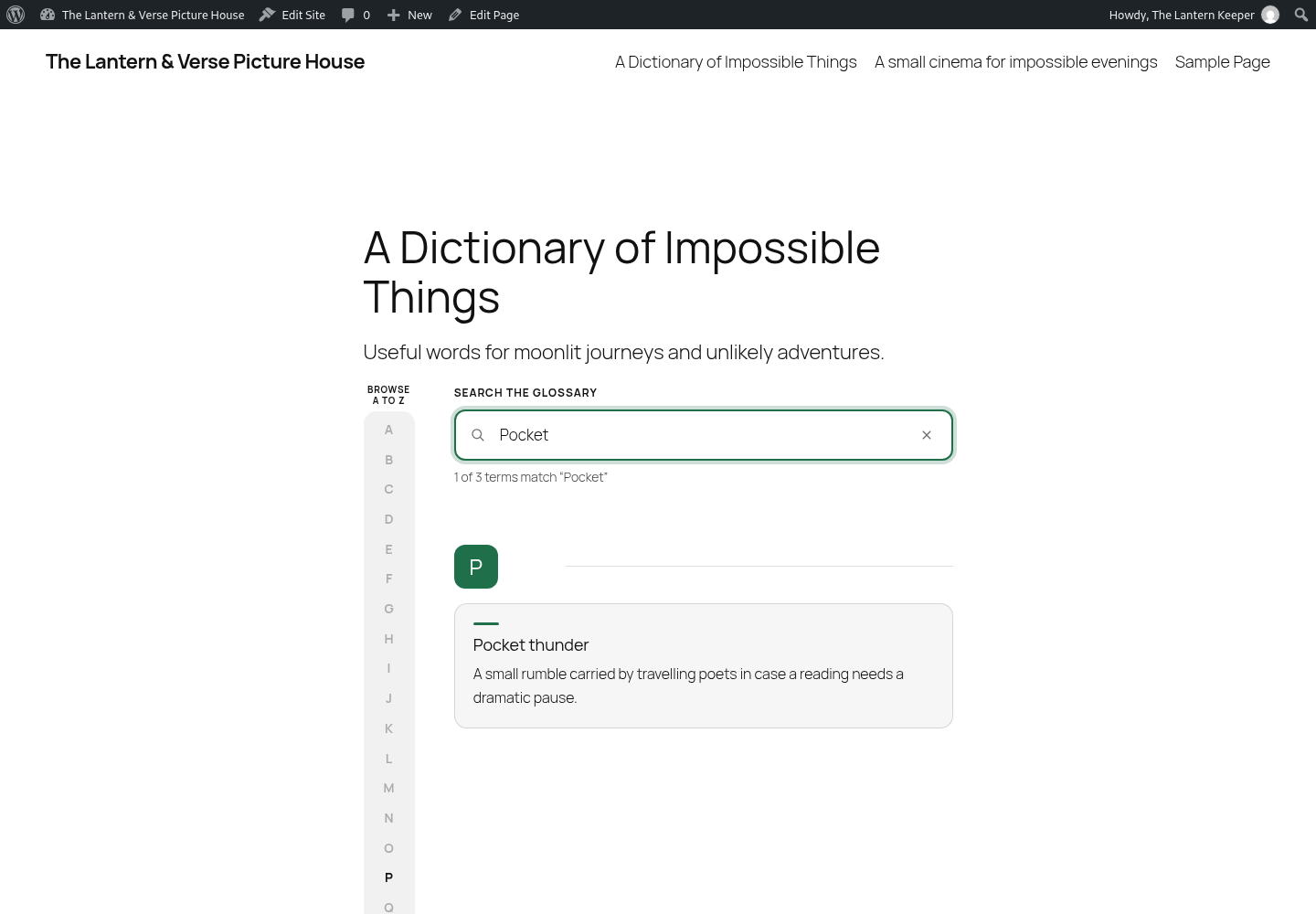
The Lantern & Verse Picture House uses a dictionary of impossible things to show the glossary in use. All example content is fictional.
Developer contracts are in the wiki source. Public issues are welcome; please discuss a contribution before opening a pull request. Ace Media maintains official releases, with the GPL licence unchanged.