Connector for OpenRouter
This plugin provides OpenRouter integration for the WordPress AI Client.
by rtCamp · github.com/rtcamp/ai-provider-for-openrouter-by-rtcamp · website
Install
The author publishes release zips, so WP-CLI can install straight from GitHub:
wp plugin install https://github.com/rtcamp/ai-provider-for-openrouter-by-rtcamp/releases/download/1.1.0/connector-for-openrouter.zipReadme
Connector for OpenRouter - Access Hundreds of AI Models in WordPress
Contributors: rtCamp, milindmore22, vishal4669, aviralmittal89
Tags: WordPress, AI, OpenRouter, Text Generation, Image Generation, AI Models, ChatGPT, Claude, Gemini
This plugin is licensed under the GPL v2 or later.
Overview
Connector for OpenRouter is a WordPress plugin that registers OpenRouter as an AI provider for the WordPress AI Client. It gives you access to hundreds of AI models for text and image generation through a single, unified API — configurable directly from your WordPress admin.
Description
Connector for OpenRouter bridges the WordPress AI Client with OpenRouter's model marketplace, allowing you to:
- Access hundreds of AI models including GPT-4, Claude, Gemini, and more through a single API key
- Generate text using any OpenRouter-supported language model
- Generate images using OpenRouter-supported image models
- Configure default models for text and image generation from WordPress admin settings
- Switch models without changing any code — just update your admin settings
This makes it easy to experiment with and deploy different AI models on your WordPress site without being locked into a single provider.
Why Connector for OpenRouter?
Managing multiple AI providers in WordPress typically requires separate plugins, multiple API keys, and custom integrations for each model. This leads to:
- Vendor lock-in with individual AI providers
- Integration overhead when switching or adding new models
- Duplicate configuration scattered across multiple plugins
- Maintenance burden as each provider's API evolves independently
Connector for OpenRouter solves this by:
- Unified Access: One API key, hundreds of models from leading AI providers
- Standardized Interface: All models exposed through the WordPress AI Client's consistent API
- Flexible Configuration: Switch models from admin settings — no code changes required
- Separation of Concerns: Provider logic isolated from your application code
Key Benefits
- Model freedom: Not locked into a single AI vendor — swap models anytime
- Cost efficiency: Route requests to the most cost-effective model for each task
- Future-proof: New models added to OpenRouter become immediately available
- Simple setup: One API key and two settings fields to get started
Features
Core Functionality
- Text Generation: Text generation support via OpenRouter's chat completions endpoint
- Image Generation: Image generation via OpenRouter's chat completions image modality
- Model Discovery: Settings autocomplete backed by live model discovery.
- Dual Model Config: Separate default model settings for text and image generation
- Smart Exposure: If both settings point to the same model, it is exposed once with combined capabilities
- Environment Overrides:
OPENROUTER_BASE_URLandOPENROUTER_API_KEYconstants for advanced deployments
API Integration
The plugin communicates with OpenRouter's OpenAI-compatible API at https://openrouter.ai/api/v1:
| Endpoint | Purpose |
|---|---|
GET /models |
Populate text model autocomplete in settings |
GET /models?output_modality=image |
Populate image model autocomplete in settings |
POST /chat/completions |
Text generation requests |
POST /chat/completions + modalities: ["image"] |
Image generation requests |
Limitations
- Only models available through OpenRouter are supported; models exclusive to other providers require separate plugins.
- Image generation depends on OpenRouter's supported image models — availability may vary.
- The plugin exposes only the two models configured in settings (text and image); dynamic per-request model selection is not supported at this time.
System Requirements
- WordPress: 7.0 or higher
- Requires at least: 7.0
- Tested up to: 7.0
- Stable tag: 1.1.0
- PHP: 7.4 or higher
- Requires PHP: 7.4
- Required Plugin: WordPress AI Client (
ai) must be active
Installation & Setup
As a WordPress Plugin
- Ensure the WordPress AI plugin (
ai) is installed and activated. - Download or clone this plugin into
wp-content/plugins/connector-for-openrouter. - Activate Connector for OpenRouter from the Plugins screen.
- Add your OpenRouter API key in Settings > Connectors.
- Configure your default models in Settings > OpenRouter Settings.
As a Composer Package
composer require rtcamp/connector-for-openrouterUsage Guide
Accessing the Settings
Navigate to Settings > OpenRouter Settings in your WordPress admin to configure Connector for OpenRouter.
Configuring Connector for OpenRouter
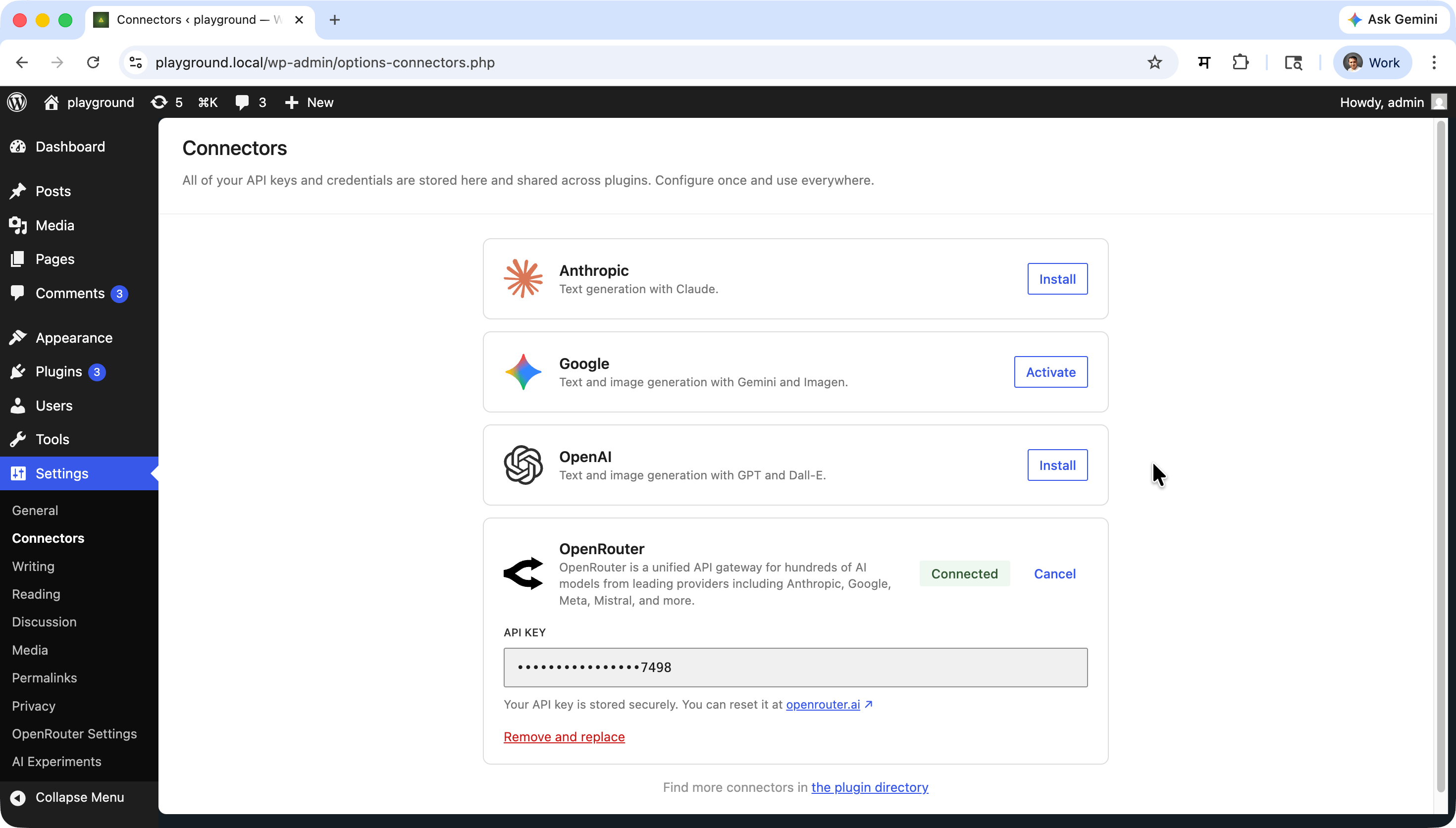
Setting Up Your API Key
- Obtain an API key from OpenRouter.
- In WordPress admin, go to Settings > Connectors.
- Enter your OpenRouter API key and save.
Selecting Default Models
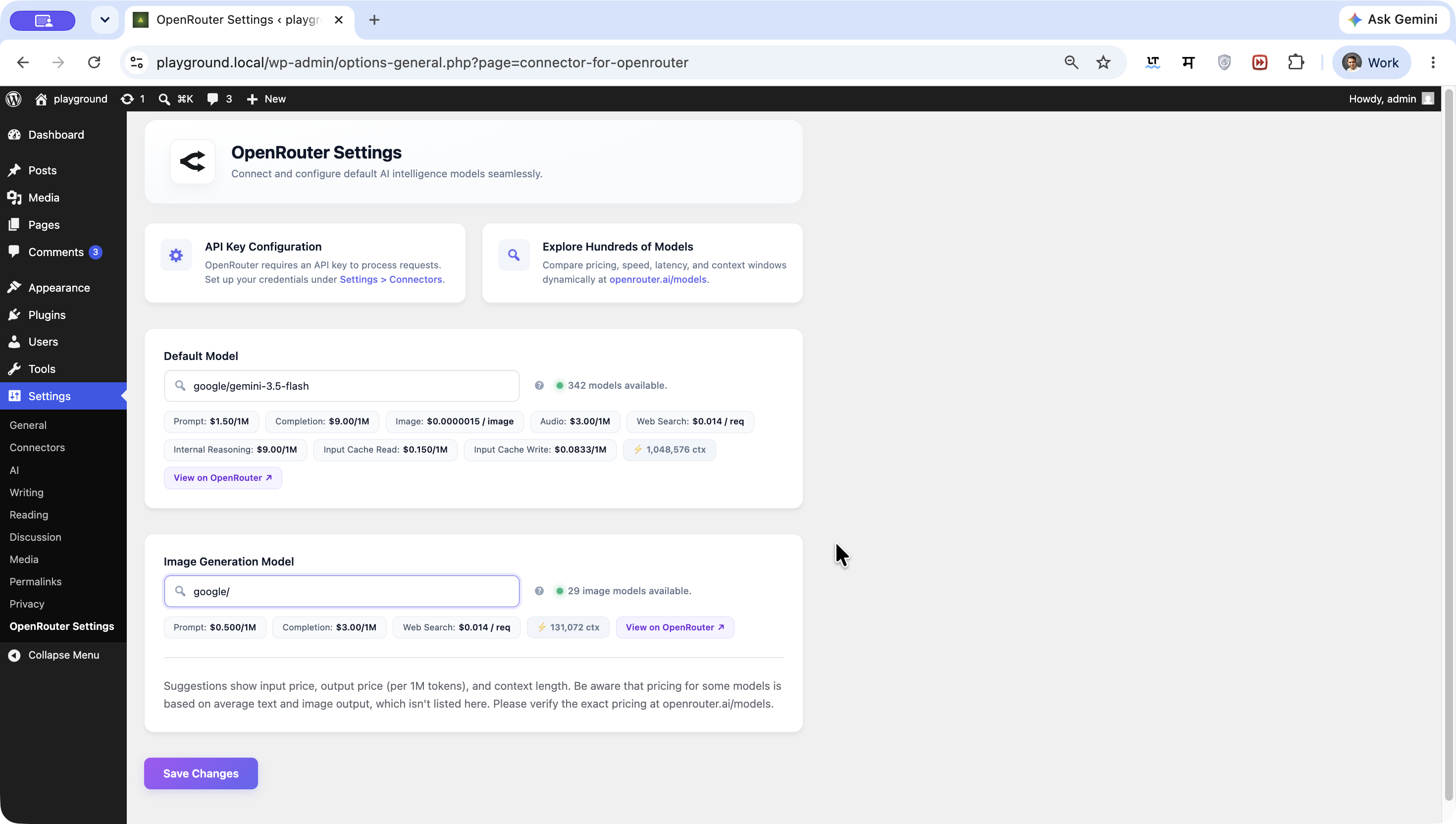
- Navigate to Settings > OpenRouter Settings.
- Select your Default Model for text generation (autocompleted from live OpenRouter model list).
- Select your Image Generation Model for image generation tasks.
- Save your settings.
Text Generation
Text generation requests are routed through OpenRouter's chat completions endpoint:
{
    "model": "your-text-model",
    "messages": [
        {
            "role": "user",
            "content": "Write a short poem about WordPress plugins."
        }
    ]
}
WordPress Ability
You can use OpenRouter for any WordPress AI Client feature that supports text generation, such as:
- Title generation
- Excerpt generation
- Content Summarization
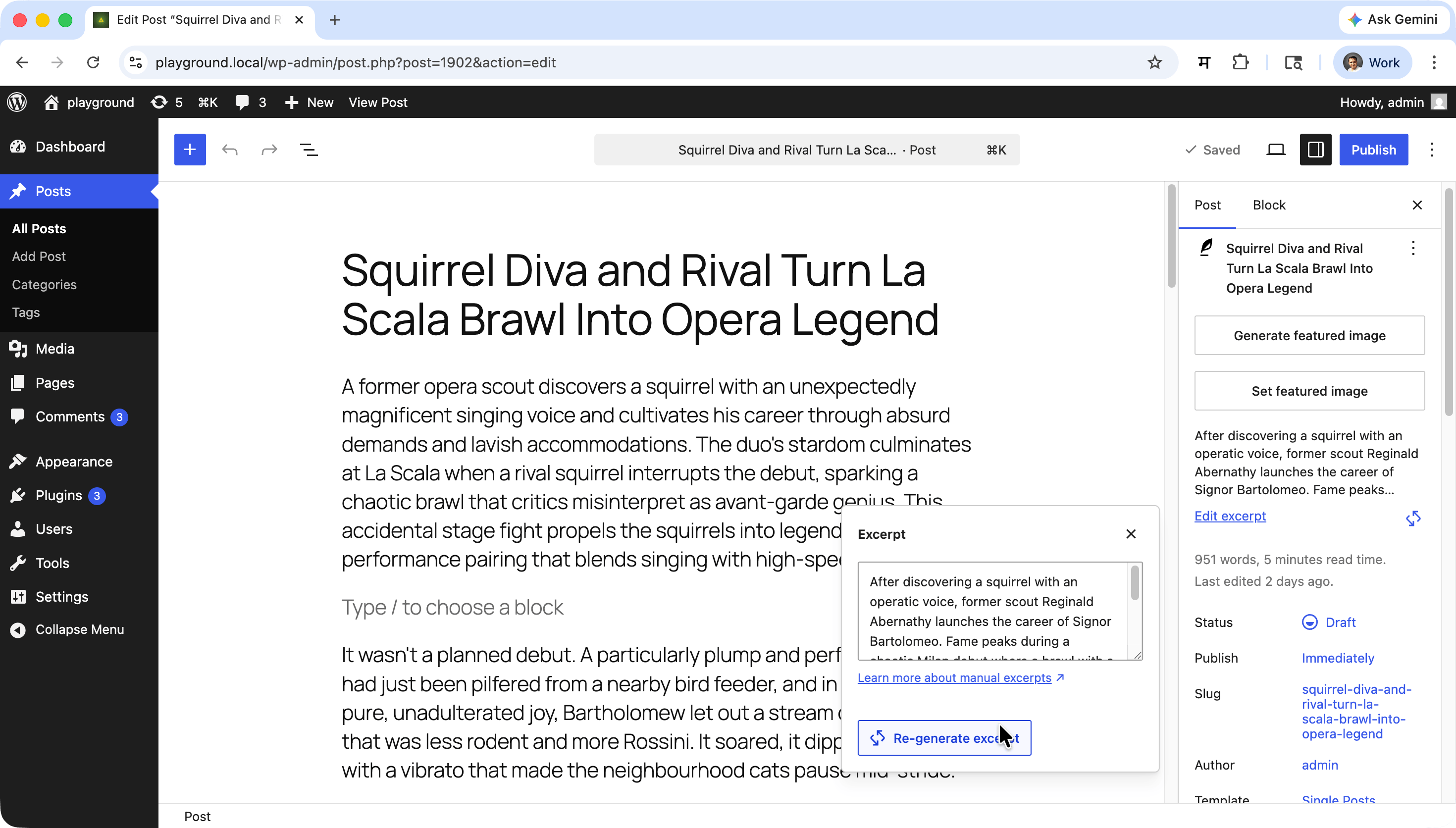
Image Generation
Image generation is routed through OpenRouter chat completions with the image modality:
{
    "model": "your-image-model",
    "messages": [
        {
            "role": "user",
            "content": "A serene mountain landscape at sunrise"
        }
    ],
    "modalities": ["image"]
}
WordPress Ability
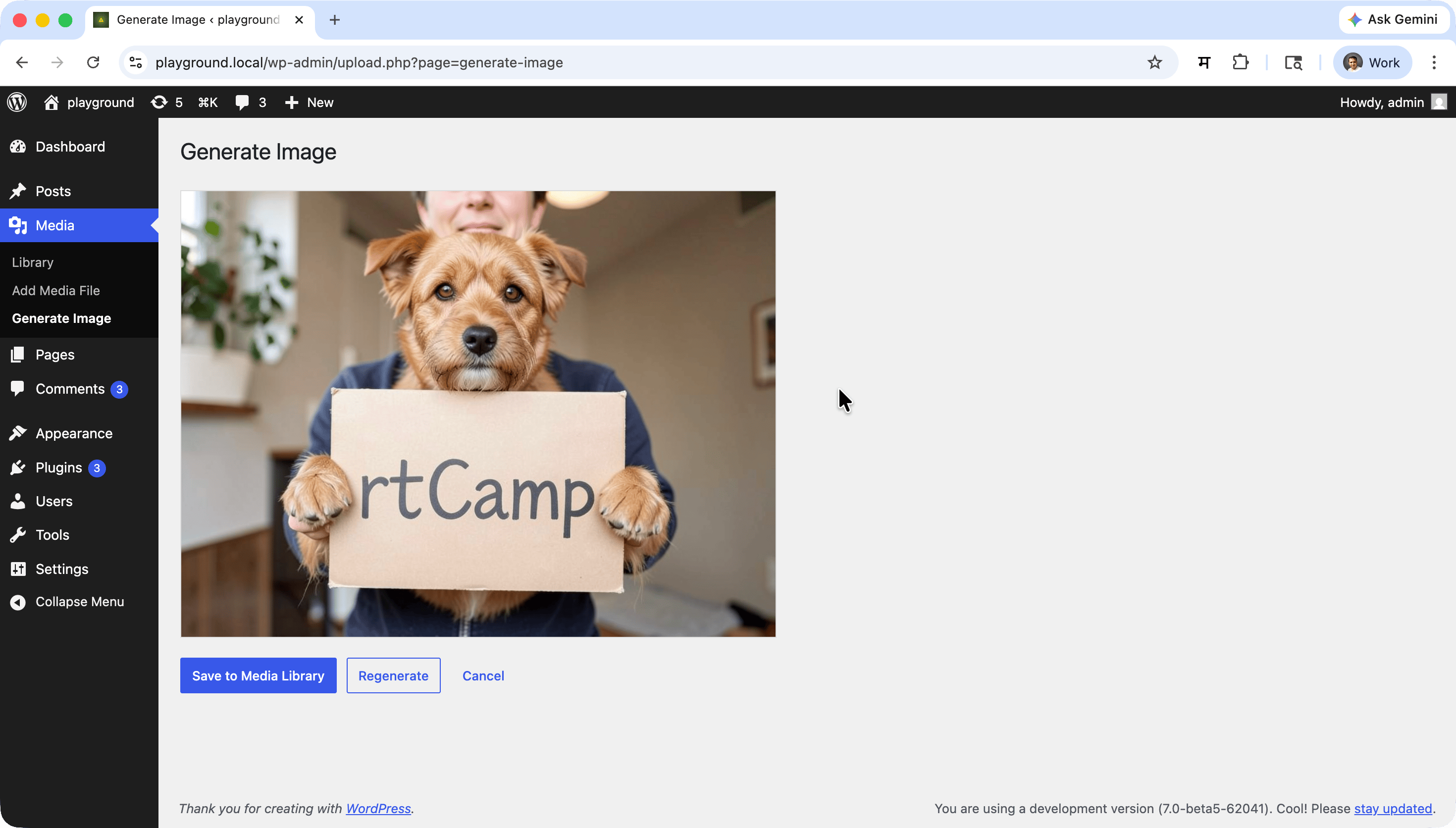
Use OpenRouter for any AI Client feature that supports image generation, such as:
- Featured image generation
- Media library image generation
Environment Overrides
For advanced deployments, you can override defaults using PHP constants or environment variables:
OPENROUTER_BASE_URL— Override the API base URL (default:https://openrouter.ai/api/v1)OPENROUTER_API_KEY— Inject an API key directly when the Connectors registry is not yet initialised
Development & Contributing
Connector for OpenRouter is actively developed and maintained by rtCamp.
We welcome contributions! Please open an issue or pull request on GitHub.
PHP
composer run-script lint
composer run-script format
composer run-script phpstan
JavaScript
npm run lint:js
npm run lint:js:fix
Combined Lint
npm run lintBuild Release Zip
npm run plugin-zipThis creates connector-for-openrouter.zip in the plugin root, excluding all development-only files.
Frequently Asked Questions
What is OpenRouter?
OpenRouter is a unified API gateway that provides access to hundreds of AI models from providers like OpenAI, Anthropic, Google, Meta, and many others through a single, OpenAI-compatible API.
Do I need separate API keys for each AI model?
No. You only need a single OpenRouter API key. OpenRouter handles routing your requests to the appropriate underlying model provider.
Does this plugin require the WordPress AI Client plugin?
Yes. The WordPress AI plugin (ai) must be installed and activated. This plugin registers OpenRouter as a provider within that framework.
Can I use both text and image generation?
Yes. Configure a text model in the Default Model field and an image model in the Image Generation Model field in Settings > OpenRouter Settings.
Can I use the same model for both text and image generation?
Yes. If you set both fields to the same model ID, the plugin registers that model once with combined text and image capabilities.
What happens if I don't configure an API key?
The connector will be registered but inactive. AI Client requests routed to OpenRouter will fail until valid credentials are set in Settings > Connectors.
How do I switch to a different AI model?
Update the Default Model or Image Generation Model fields in Settings > OpenRouter Settings. No code changes are required.
Does this affect front-end performance?
No. All AI provider logic runs server-side and only when AI Client requests are made. There is no front-end JavaScript impact from this plugin.
Is multisite supported?
The plugin can be network-activated on multisite. Each site's settings are managed independently via their own Settings > OpenRouter Settings page.
Troubleshooting
No models appearing in the settings dropdowns
- Verify your OpenRouter API key is saved in Settings > Connectors.
- Check that the WordPress AI plugin is active.
- Confirm your API key has the necessary permissions on openrouter.ai.
Text or image generation failing
- Ensure the selected model exists and is available in your OpenRouter account tier.
- Check the browser console and PHP error log for detailed error messages.
- Verify the
OPENROUTER_BASE_URLconstant (if set) points to the correct endpoint.
Settings not saving
- Check file permissions and database write access.
- Look for conflicting plugins that may be overriding the settings page.
Common Issues
- Model not found errors: The selected model may have been deprecated or renamed by OpenRouter — re-select a model from the settings dropdown.
- Authentication errors: Double-check the API key in Settings > Connectors and ensure it is not expired.
- Image generation returning no output: Confirm the selected image model supports image generation via
modalities: ["image"].
Support & Community
- Issues & Bug Reports: GitHub Issues
- Source Code: GitHub Repository
License
This project is licensed under the GPL v2 or later — see the LICENSE file for details.
Made with ❤️ by rtCamp
Read the full README on GitHub →